 Tools
ToolsAnimate Photo
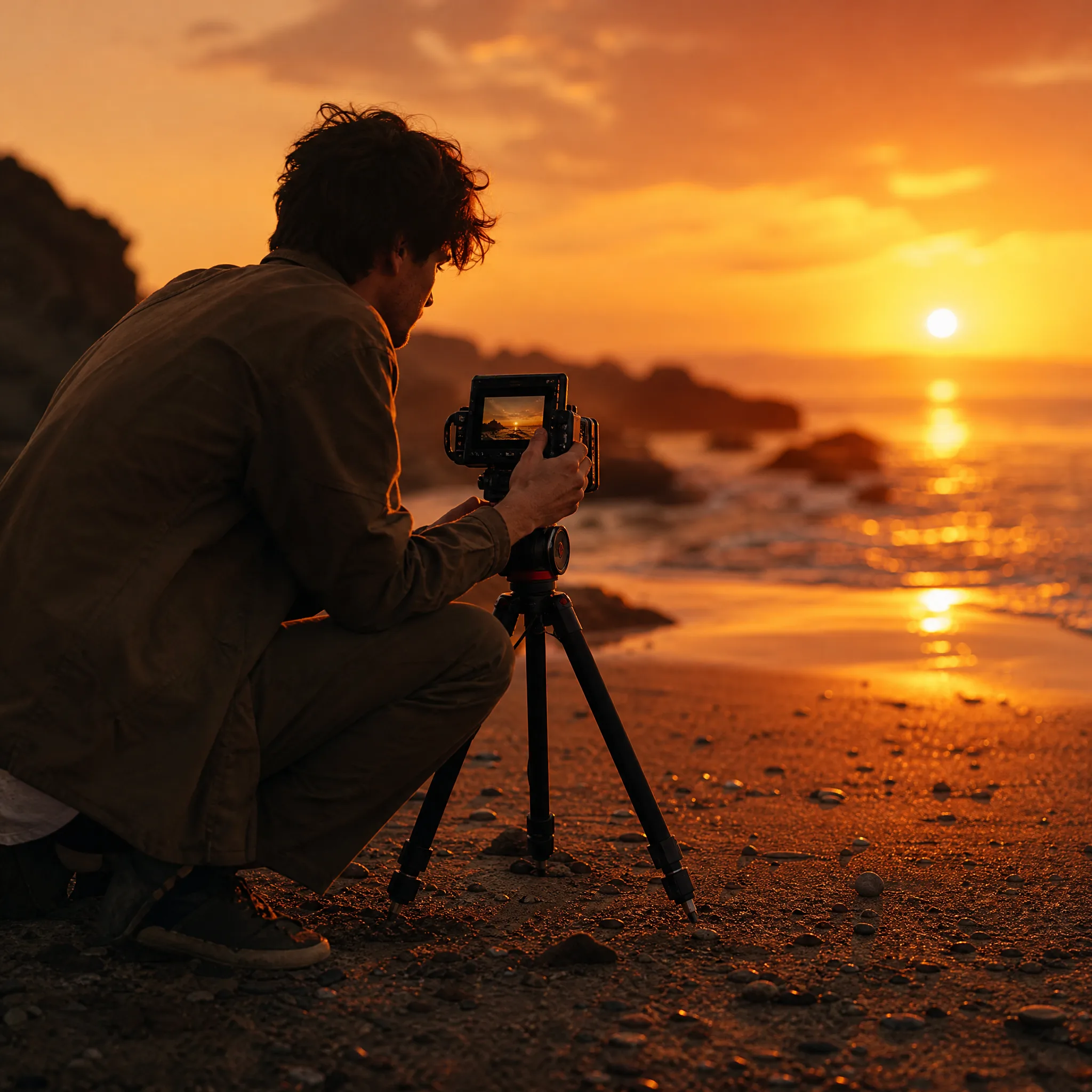
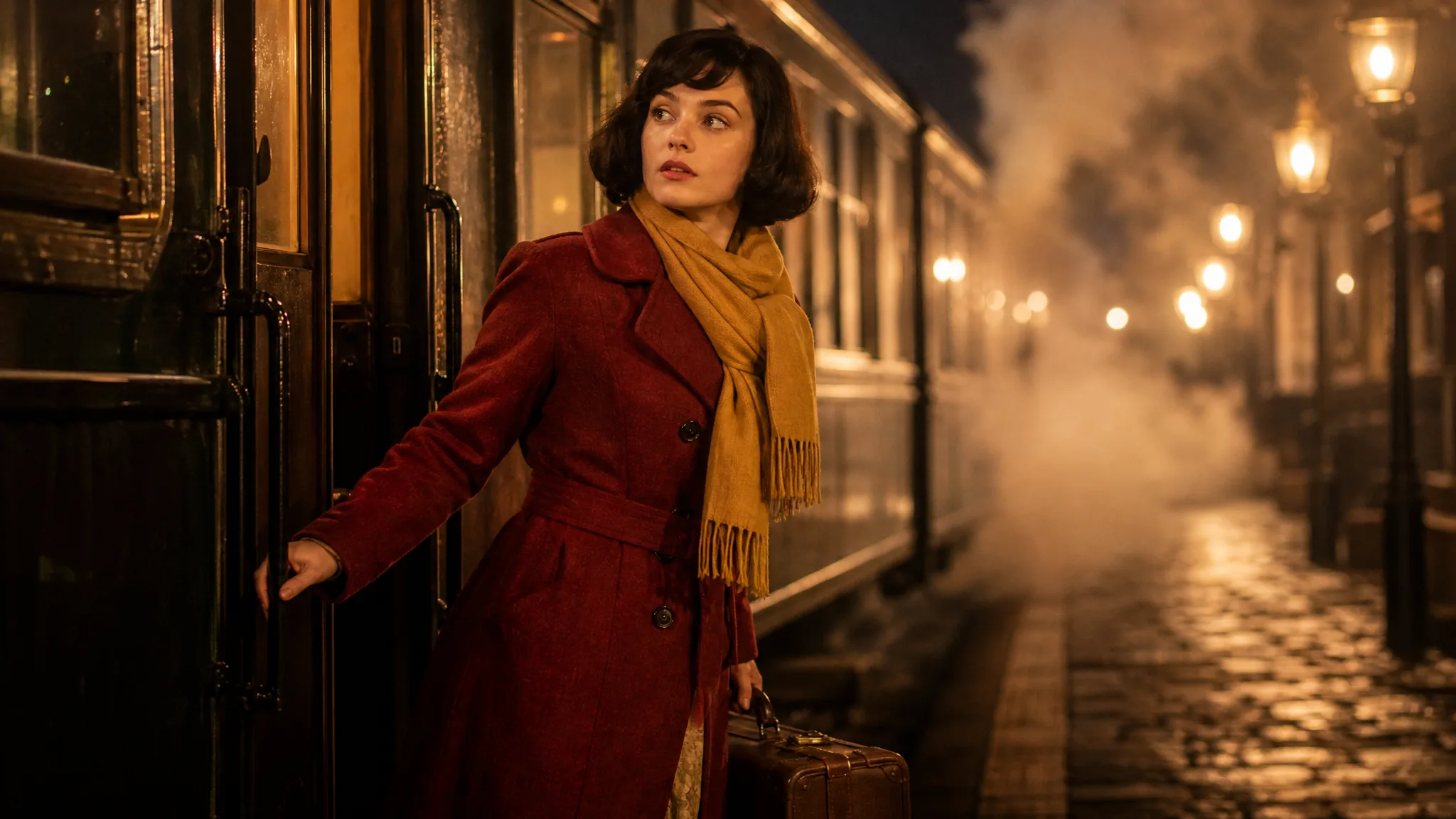
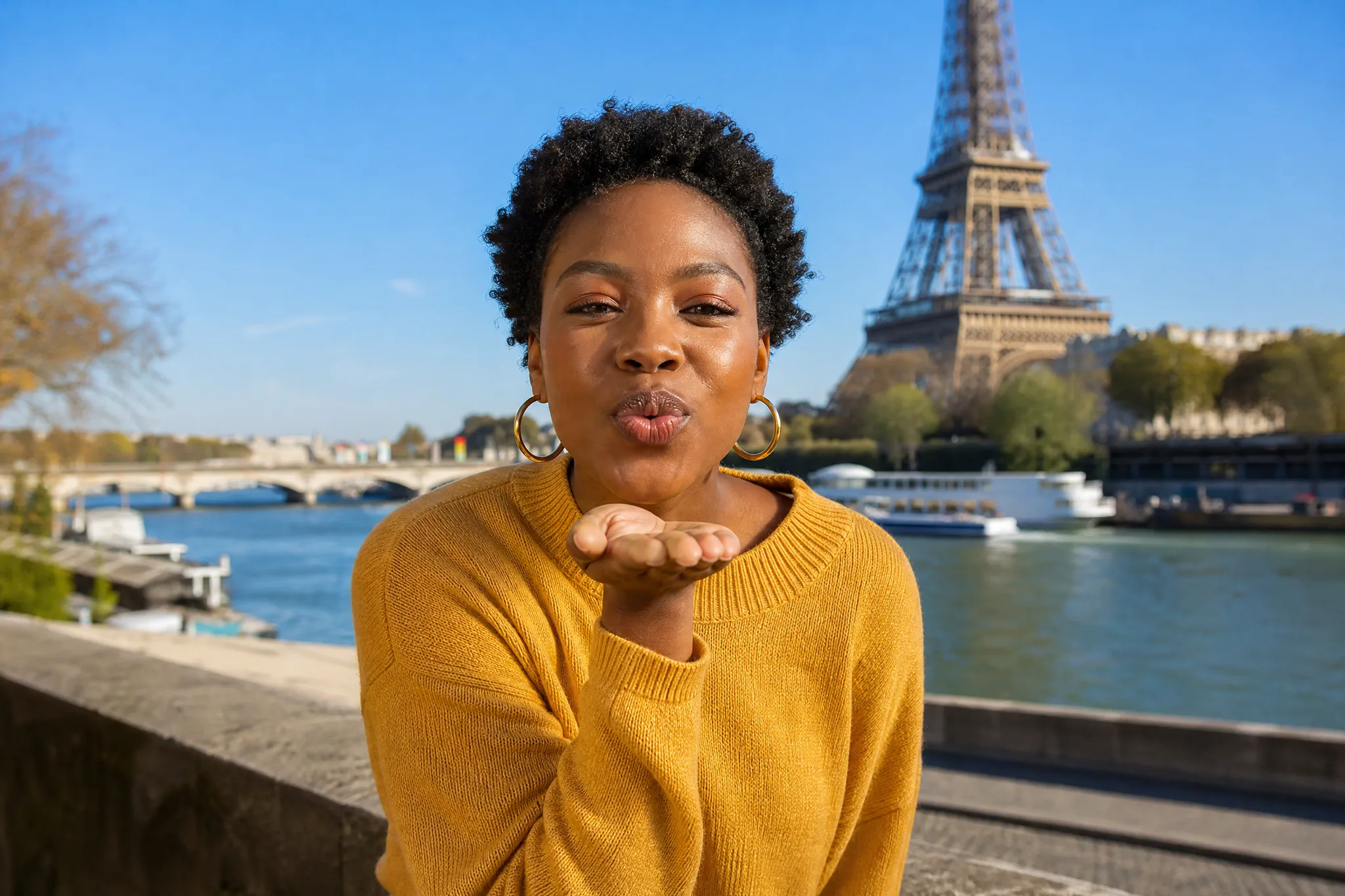
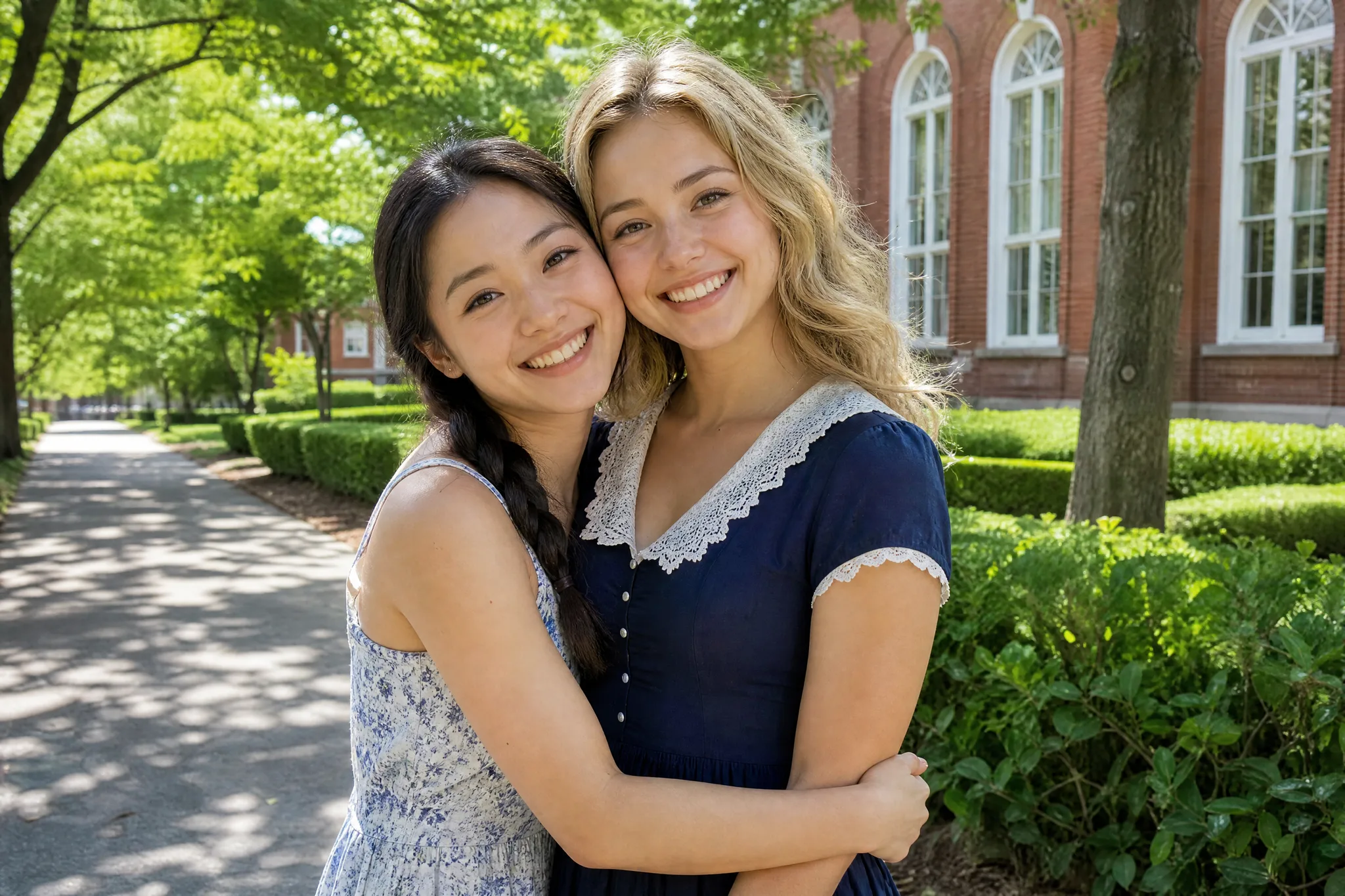
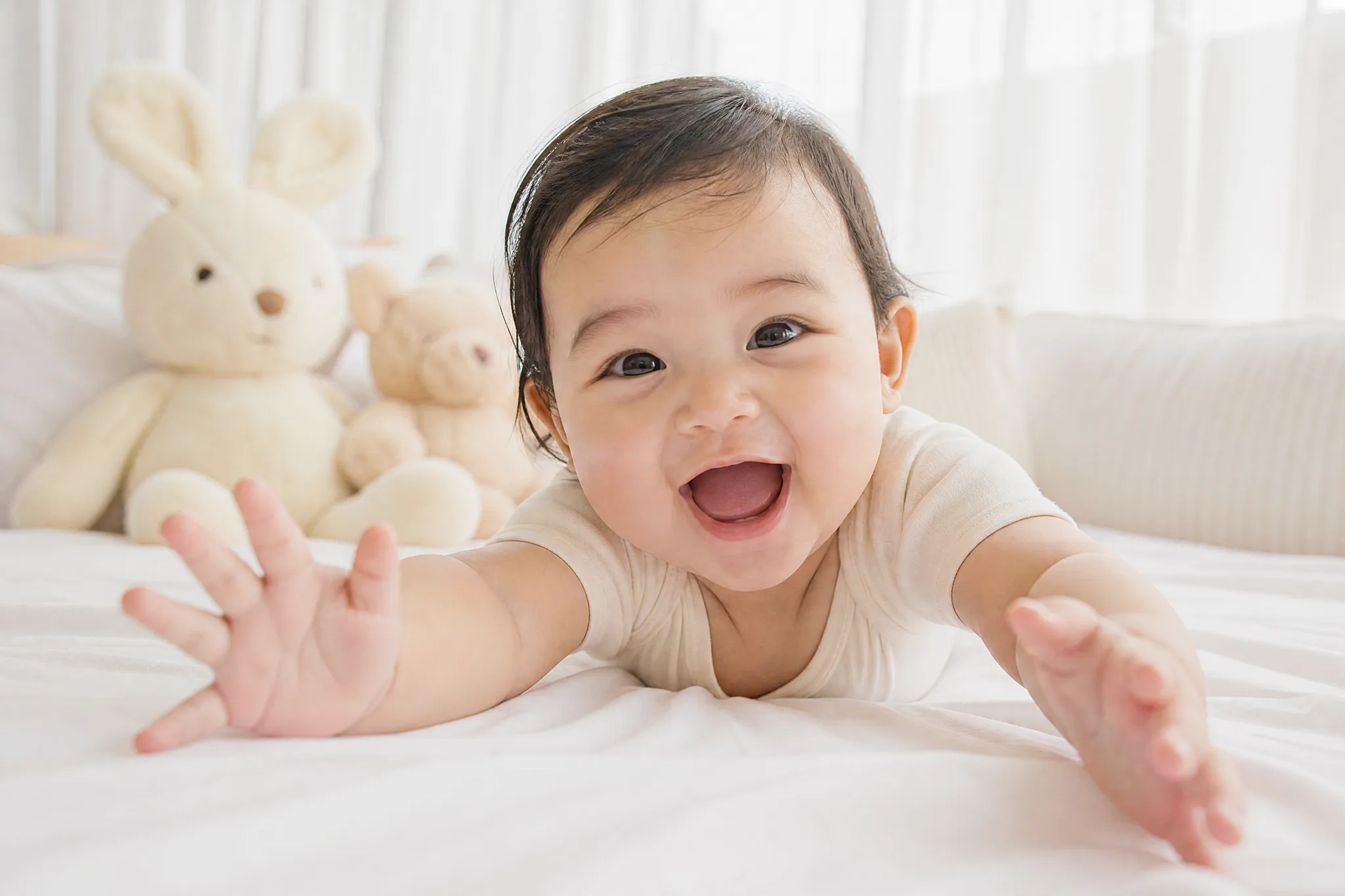
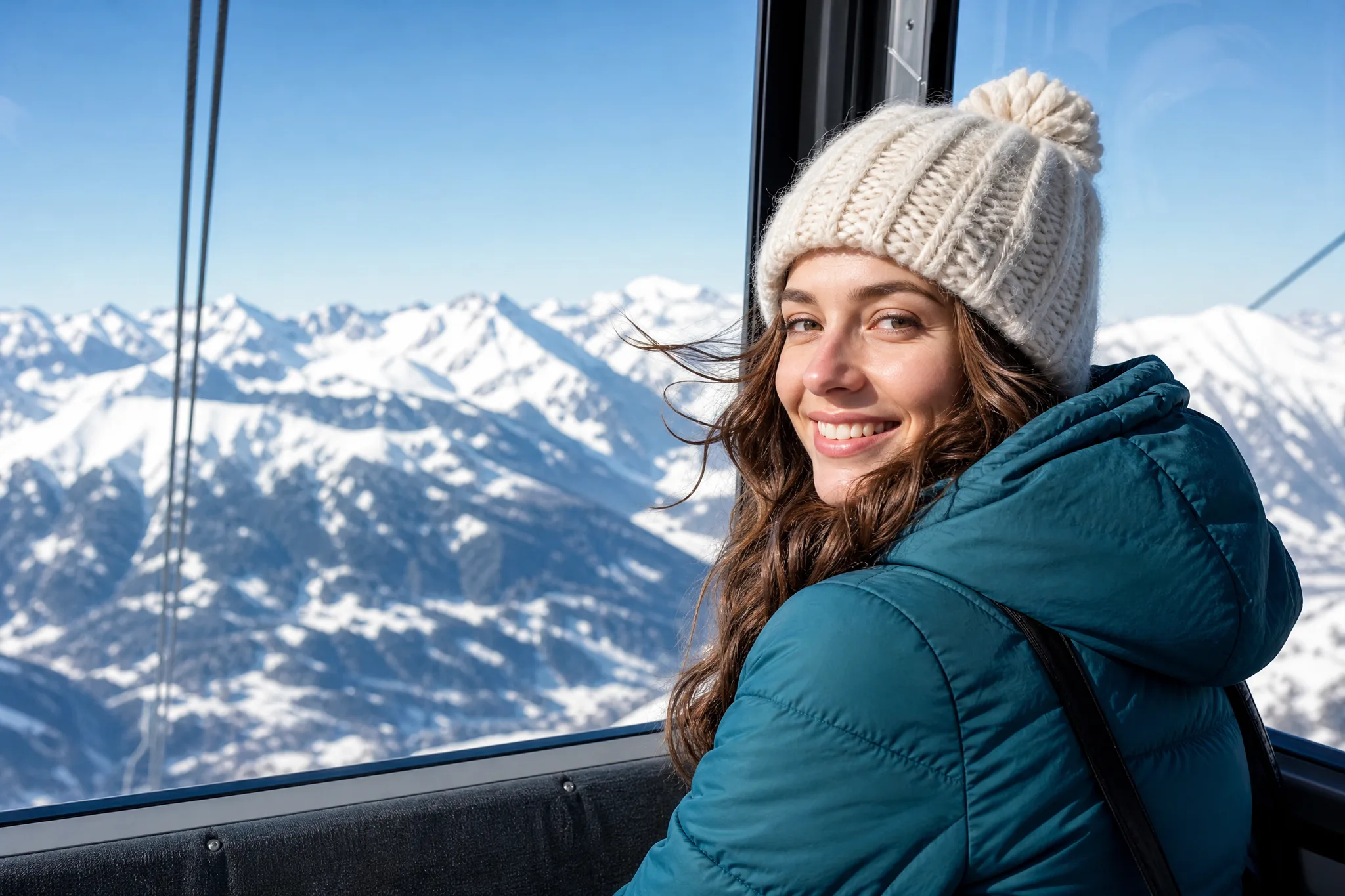
Choose a picture that already makes you smile and make the photo move with one detail: a puppy’s ear twitch, a scarf in the breeze or mist rolling over a lake. Keep the clip for a story, a card or a slide.
ExplorePopular Video Models
Pick a video tool, effect or model
Each card shows what it makes from your photo or prompt.
ToolsAnimate Photo
Choose a picture that already makes you smile and make the photo move with one detail: a puppy’s ear twitch, a scarf in the breeze or mist rolling over a lake. Keep the clip for a story, a card or a slide.
Explore Tools
ToolsImage to Video
Start from a photo you already trust: a portrait, a pet, a wedding detail or a product on a table. Write the movement you picture, and image to video renders a short clip from it.
Explore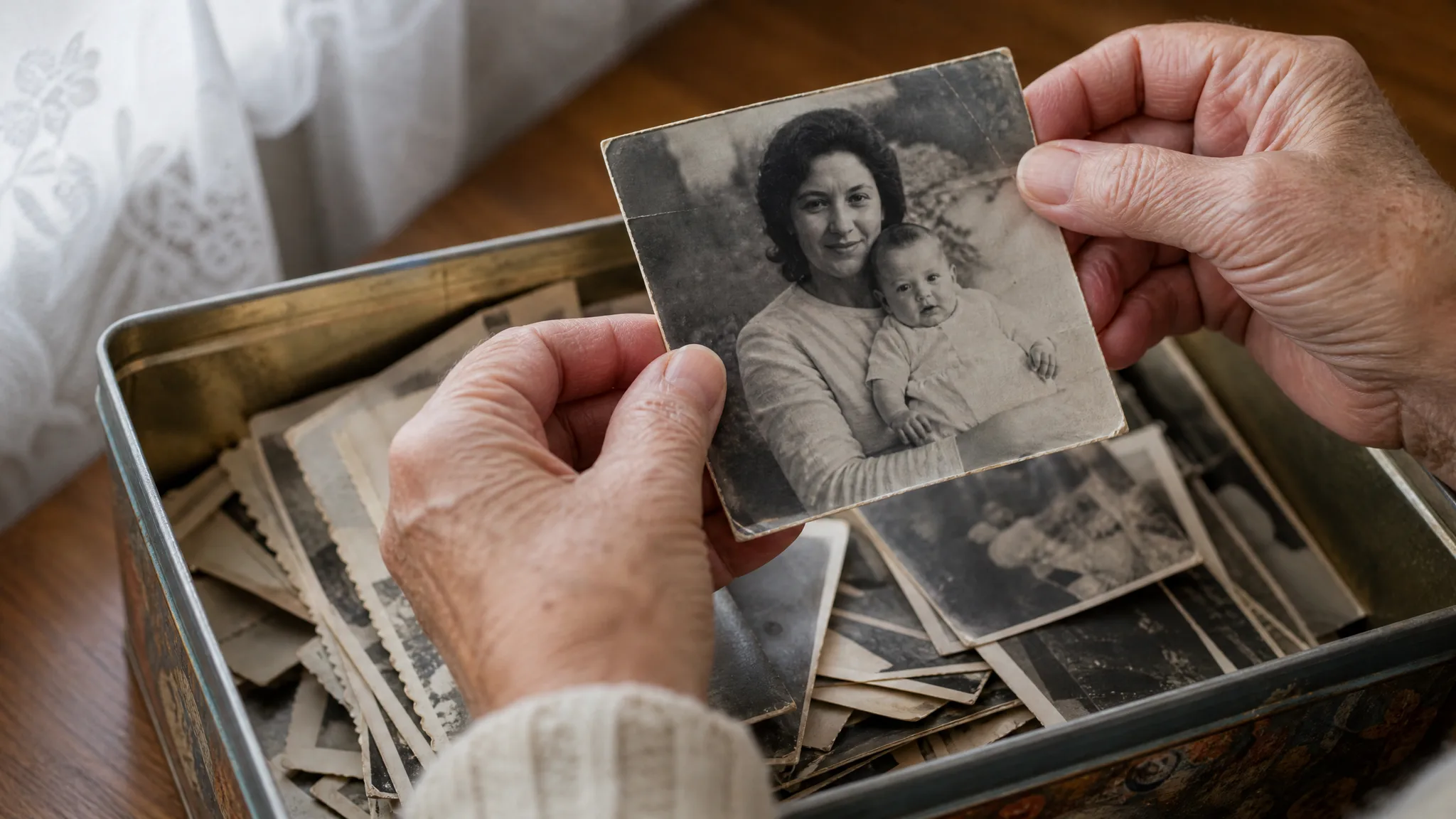 Tools
ToolsOld Photo Animation
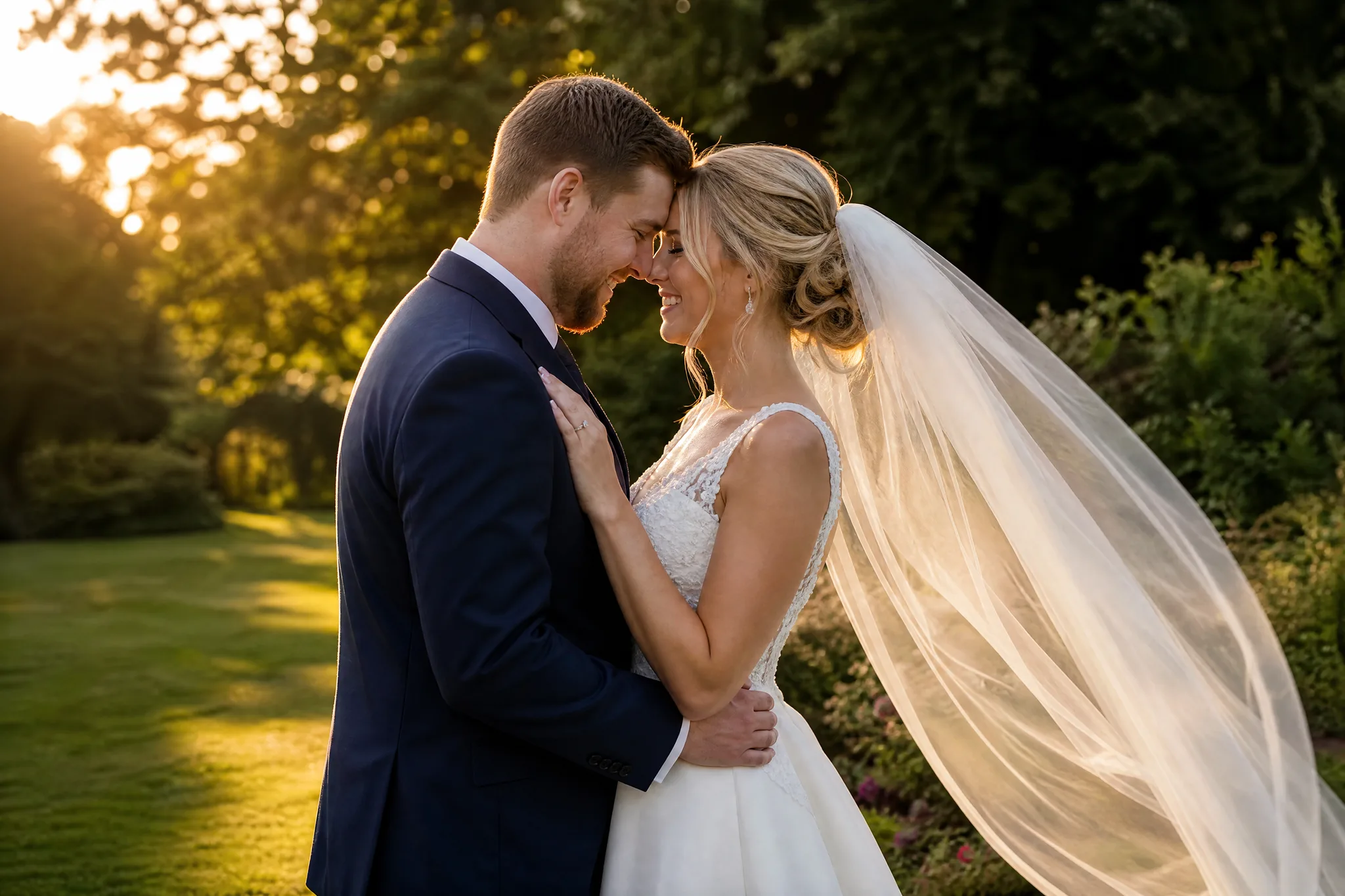
Upload a scan of a wedding portrait, a school photo or a grandparent in uniform. Ask for a blink or a slow camera approach, and animate old photos into a short clip to play beside the album.
Explore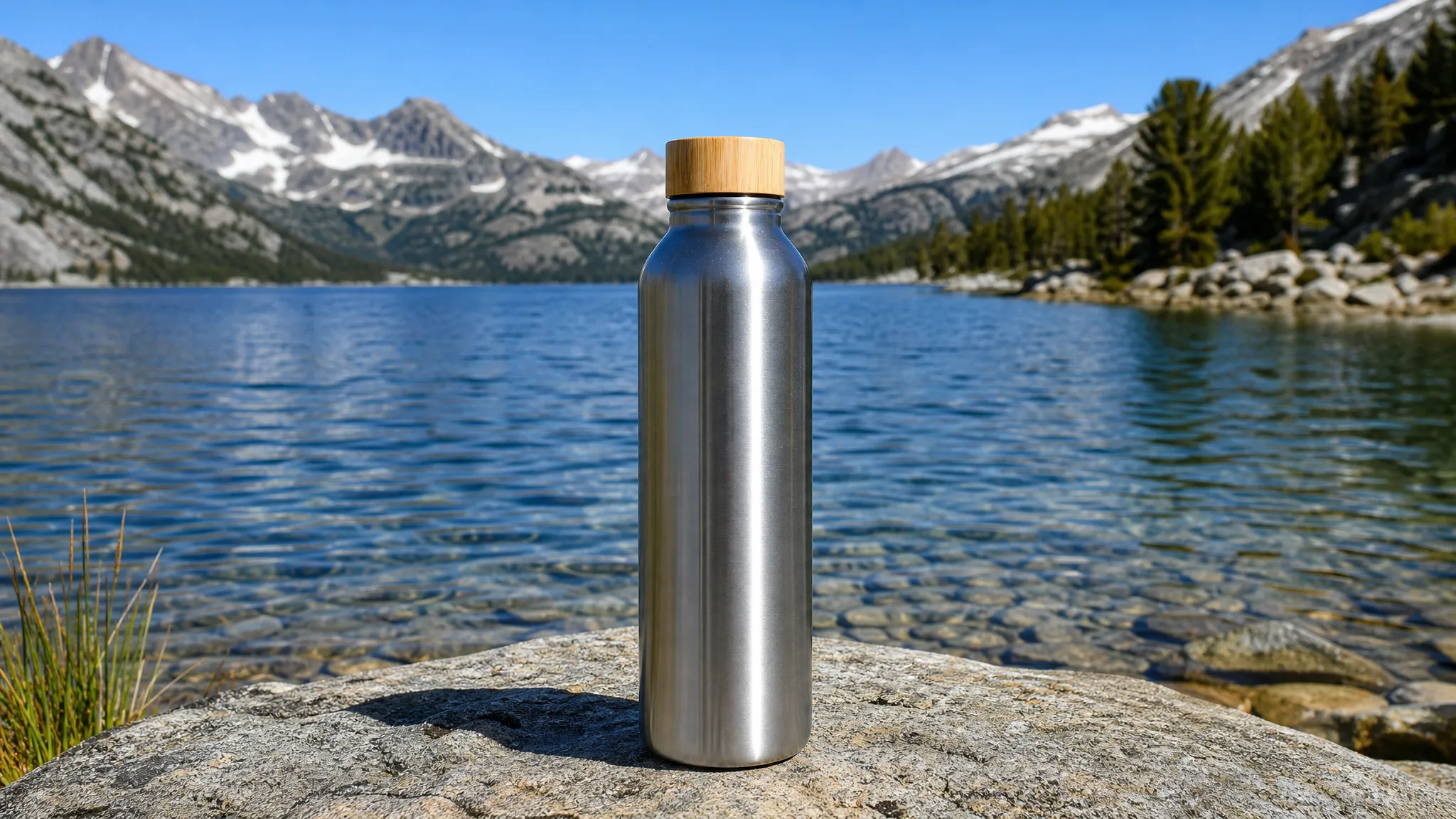 Tools
ToolsImage to Video Ad
Upload a product photo you already have, from a serum bottle to a pair of boots. The image to video UGC ad generator adds a product reveal and returns a creator-style clip for your ad edit.
Explore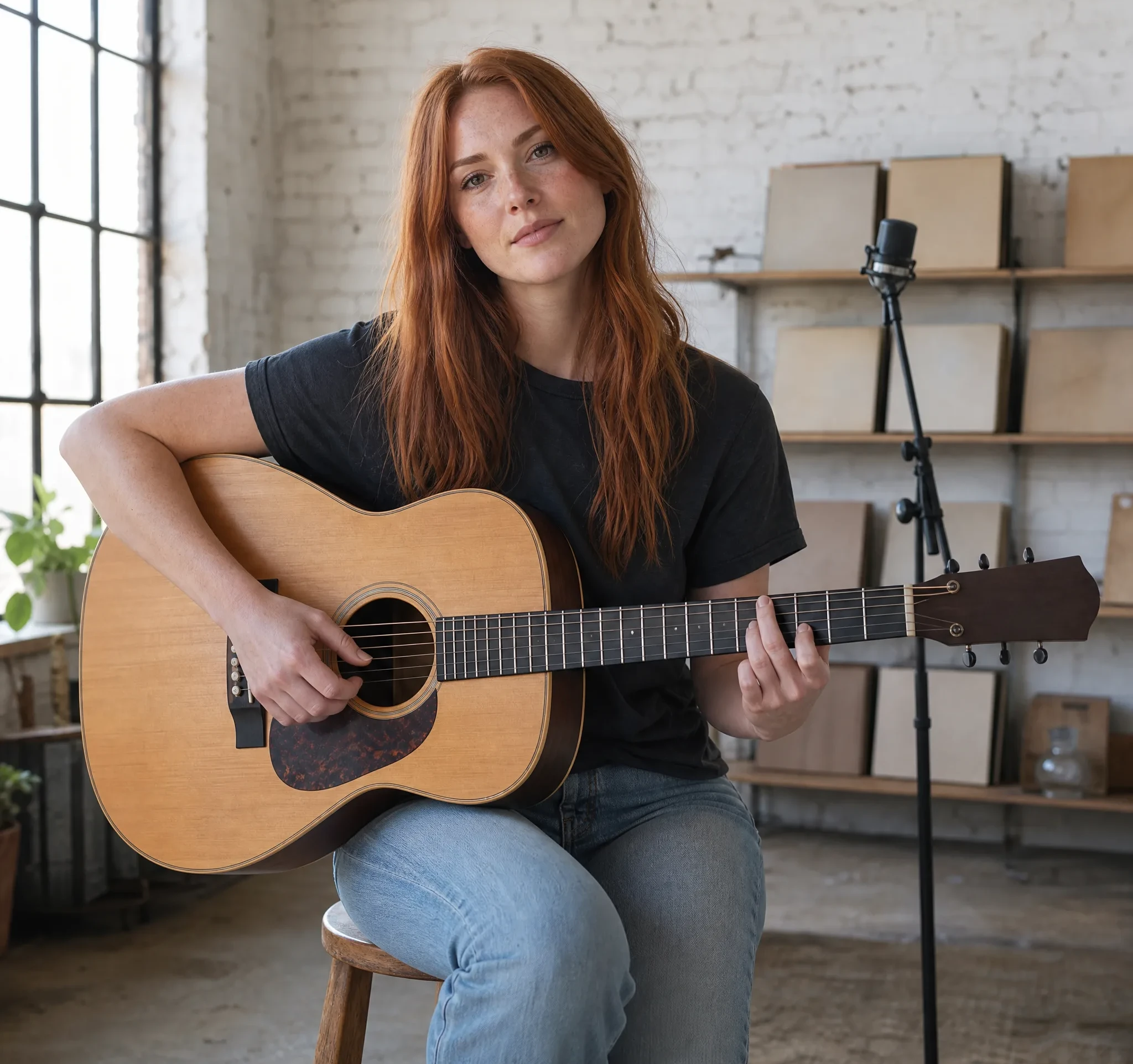 Tools
ToolsPhoto to Music Video
Pick a portrait, a pet photo, cover art or a travel shot. Describe how it should move and what the music should feel like, and photo to music video creates a short clip with generated sound on models such as Veo 3.1 Lite.
Explore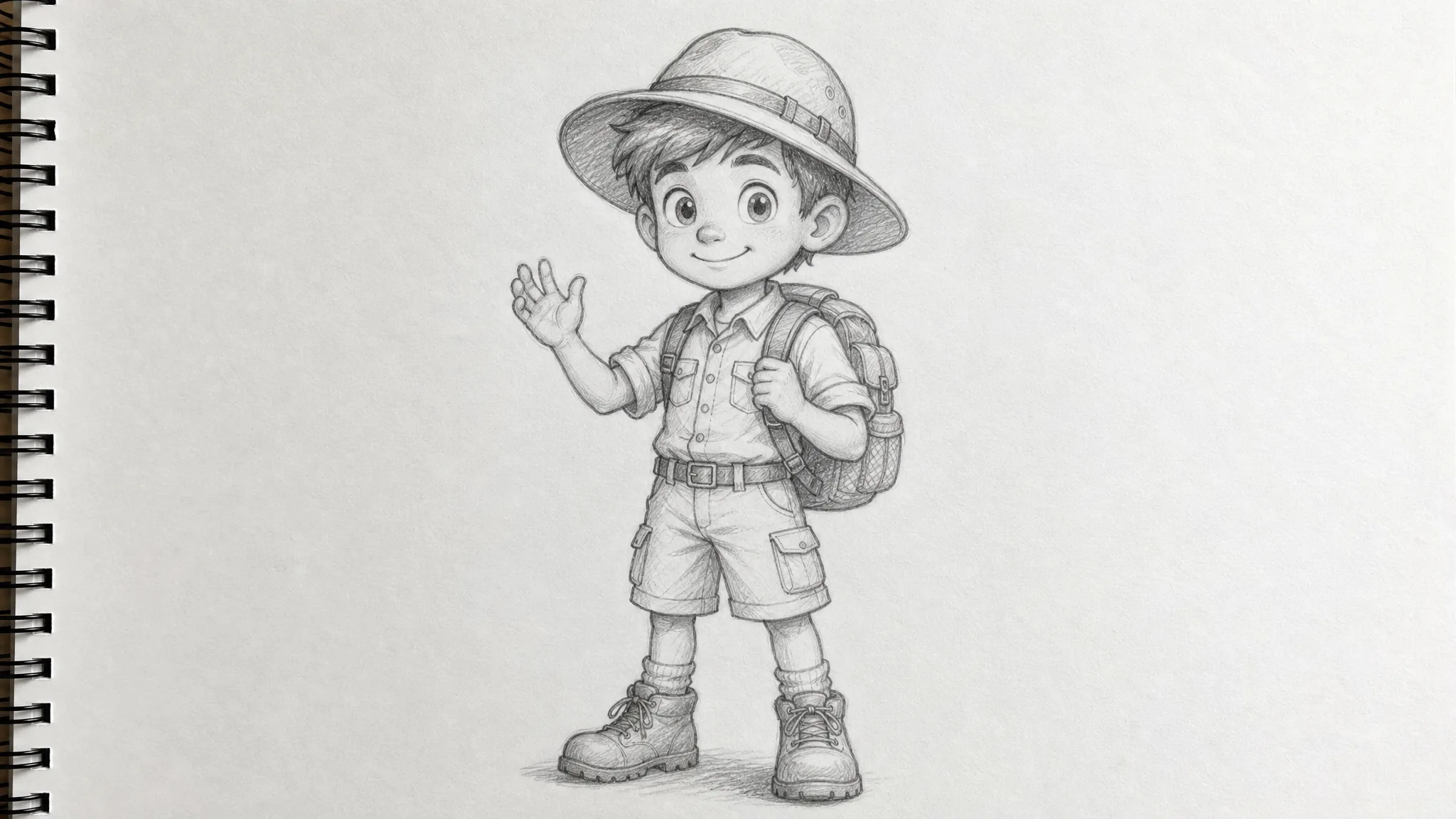 Tools
ToolsSketch to Video
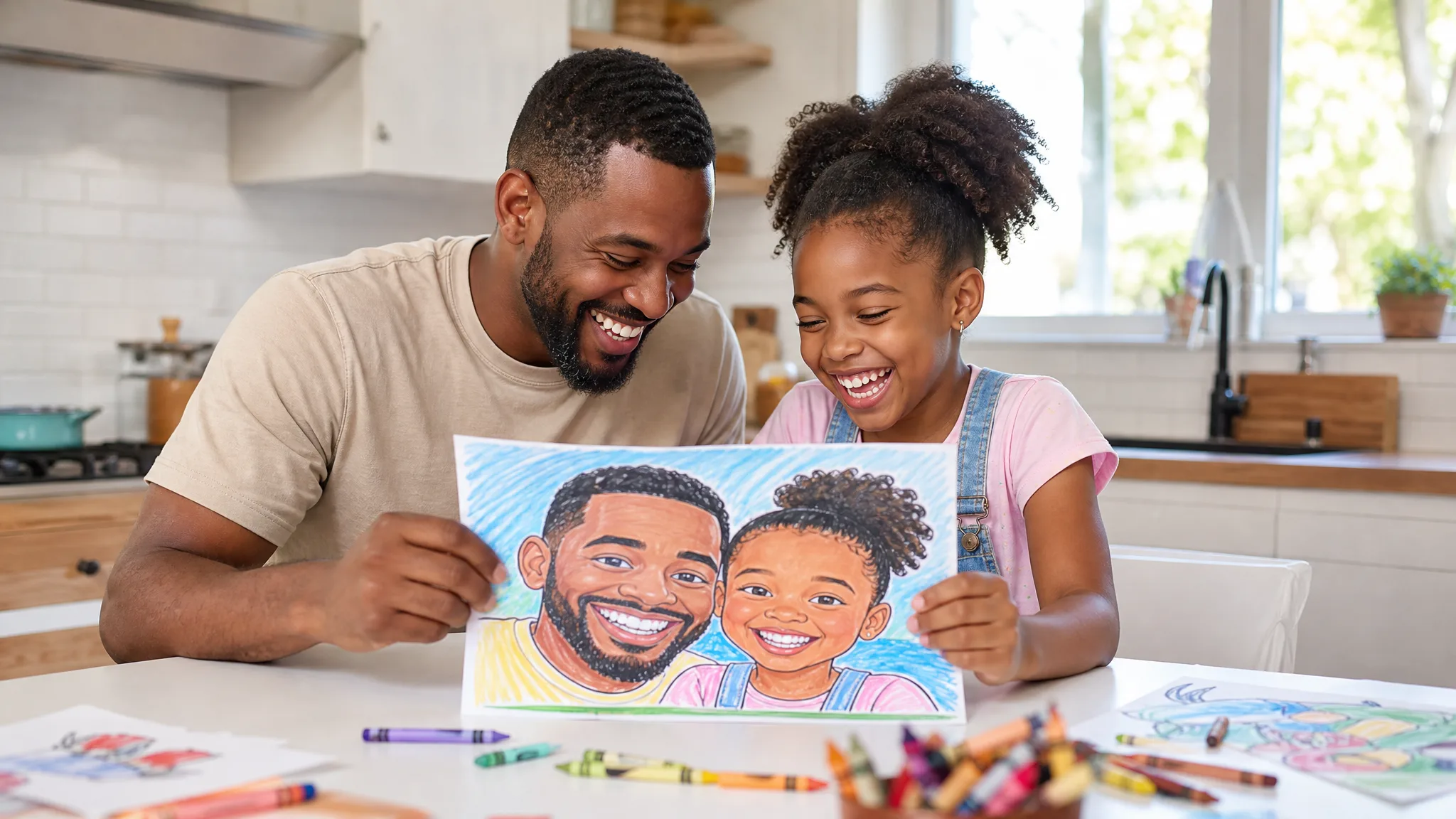
Photograph a sketchbook page, a classroom diagram or your child’s crayon drawing, then write what should happen next. Sketch to video with AI keeps the drawing as the opening frame and adds a wave, a breeze or a camera move.
Explore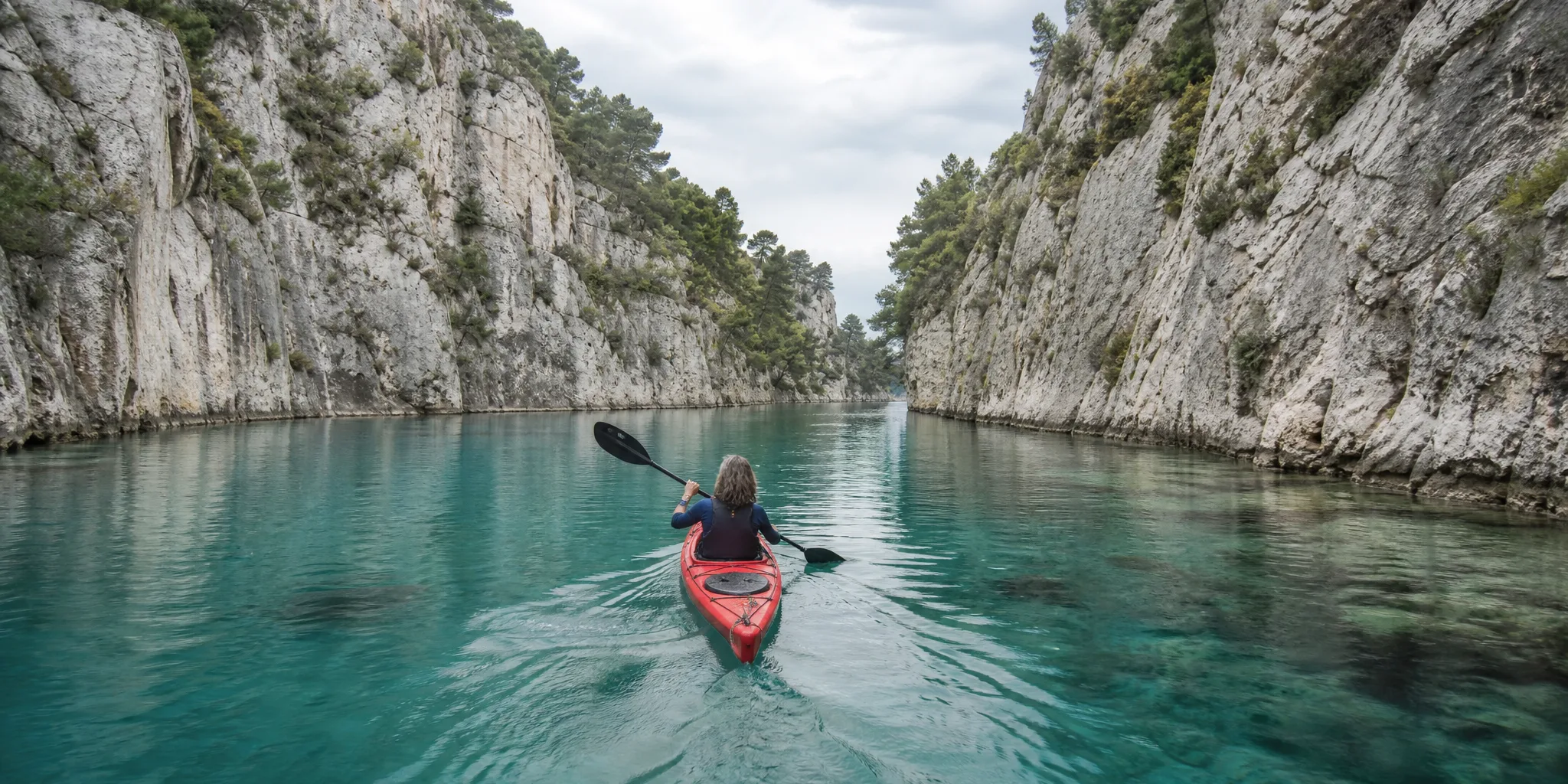 Tools
ToolsText to Video
Some moments never reached a camera roll. Text to video turns a written description of the subject, the action and the camera move into a short new clip for a story, a product idea or a post.
Explore Tools
ToolsBirthday Video Maker
Pick the shot everyone loves: the candles at their brightest, the first-birthday cake smash or the dog in a party hat. This birthday video maker adds a flicker, a confetti burst or a slow camera push, and you send the clip as a greeting or a birthday AI reel.
ExploreEvery clip here starts from something you already have: a portrait from last weekend, the dog mid-zoomie, a scanned wedding print or one sentence about a scene. Decide whether to begin with a photo, a prompt or two frames, pick a model that suits the shot, and shape the motion with these AI video tools.
Try it now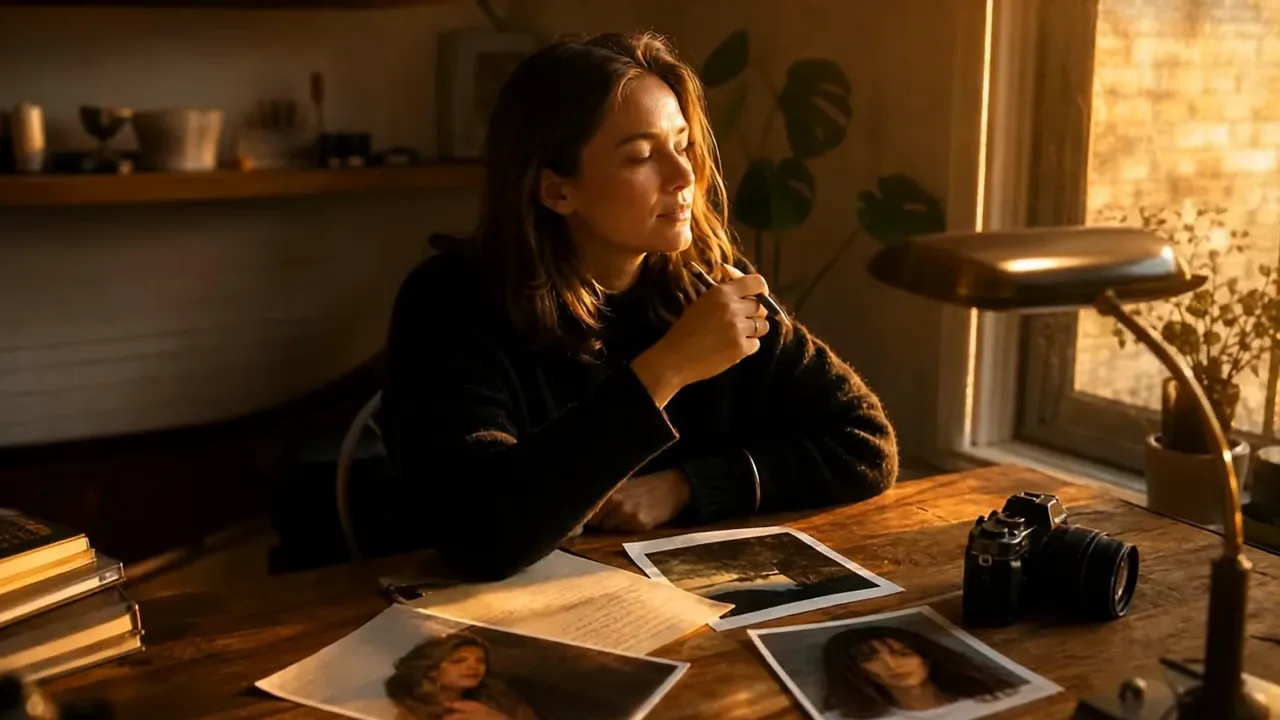
Pick the starting point that matches what is on your phone, a written idea, a single photo, two frames or a ready-made effect, and open the matching one of these AI video tools.
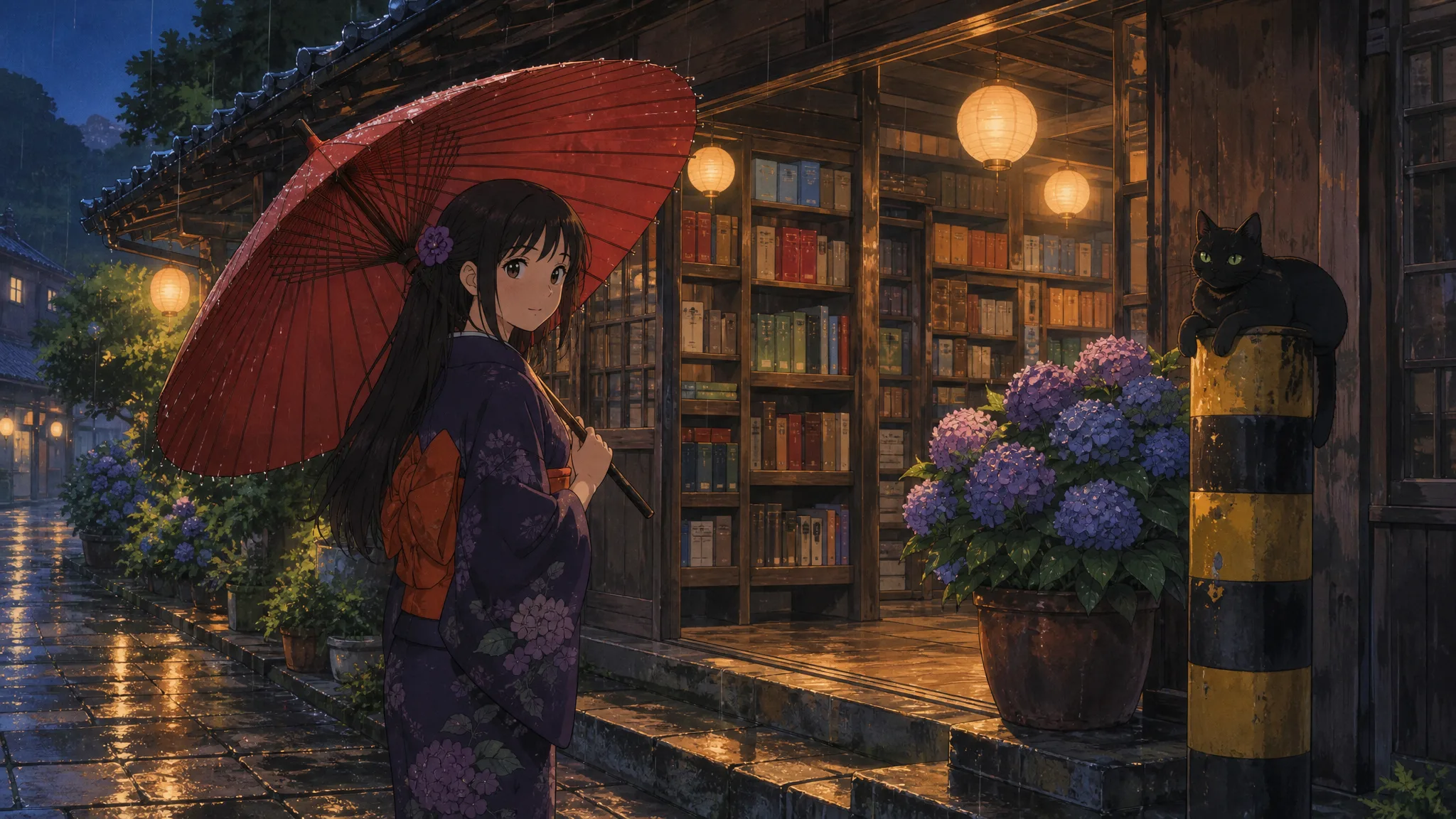
No picture of the moment you want? Write it instead: a paper boat drifting down a rainy gutter, a lantern-lit street after dinner, a slow look across a lake. Text to video is one of the AI video tools that builds a scene from words alone, so it suits openers, mood shots and ideas you want to test before a shoot.
Pick one clear shot, such as a toddler blowing out candles or a cat on a windowsill, and say what happens next. Image to video keeps your photo as the first frame and adds the movement you describe, whether that is a turn of the head, wind in a dress or the camera easing closer.
Upload where the moment begins and where it ends: an empty nursery and the finished room, a bare tree and the same tree in blossom. The start and end frame option in the AI video tools fills in the motion between the two pictures, which works well for reveals and small transformations.
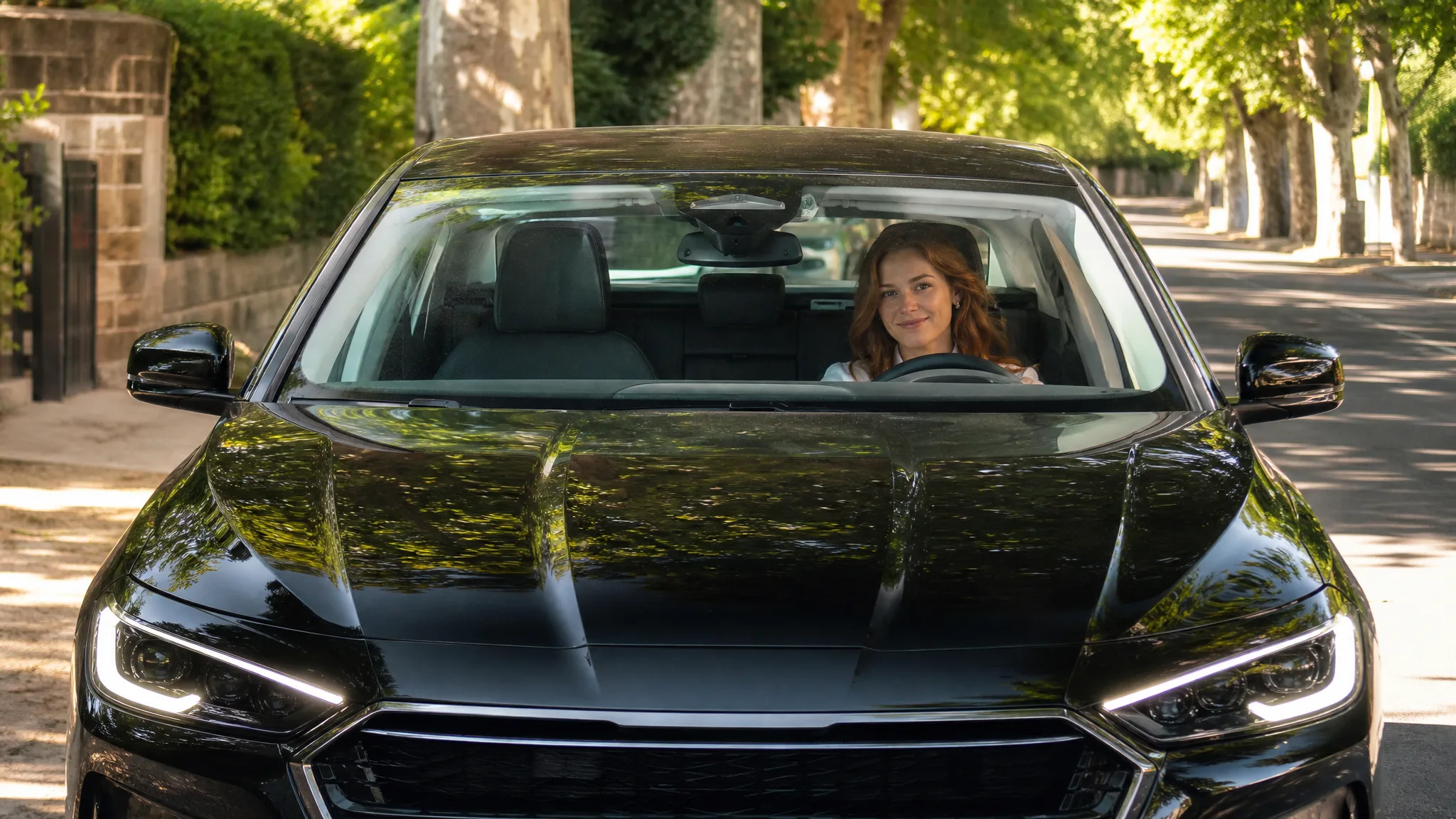
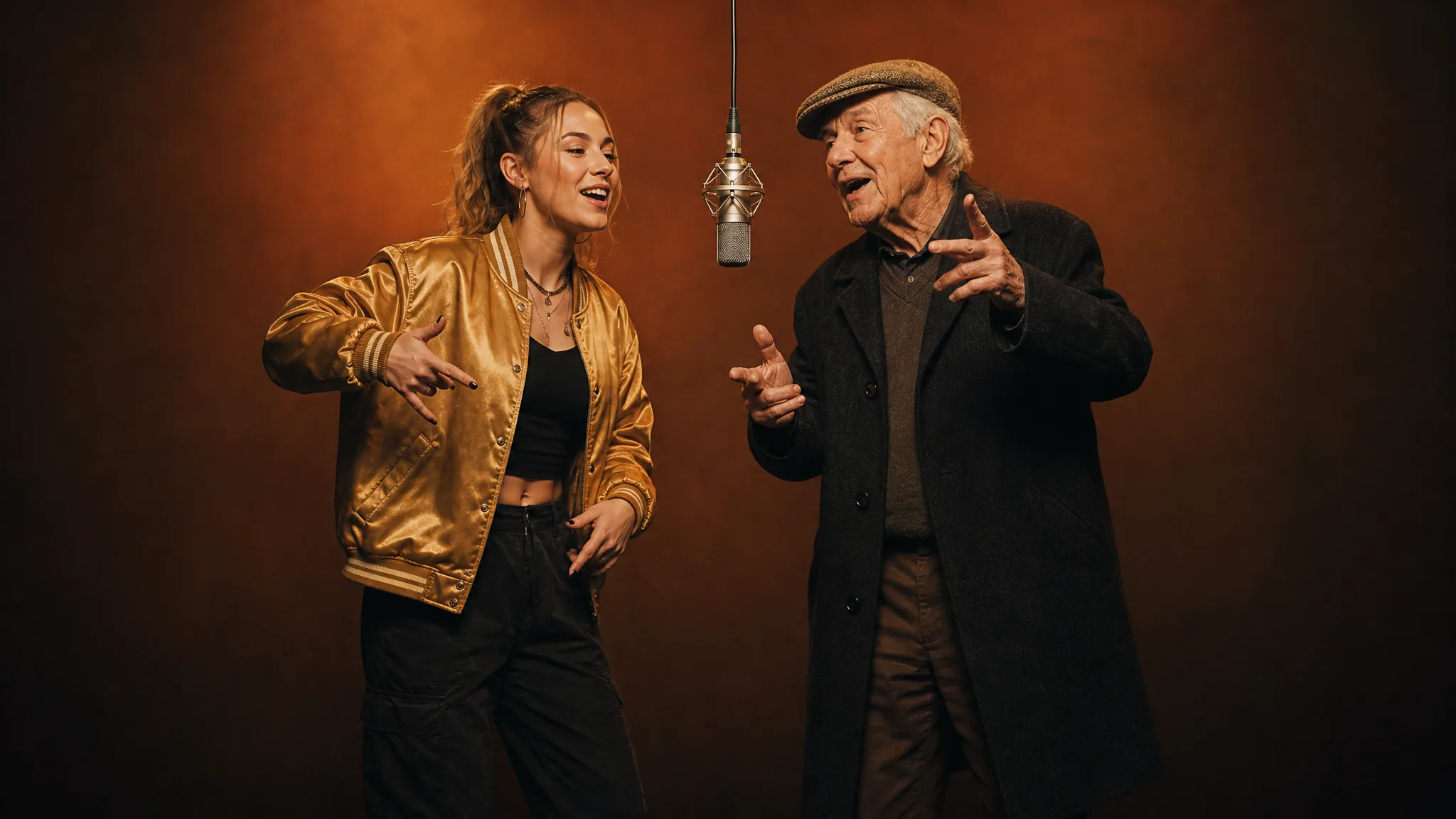
Some ideas come pre-built. Add two friends’ portraits for a stage duet, a pet photo for a Halloween pumpkin hood or a selfie for a drive in a black sedan, and the effect supplies the setting, motion and sound. Effects are the simplest of the AI video tools to try when you want a themed clip for a post or a greeting.
Browse Every Image and Video Tool
Jump from a still picture to a moving clip, or from a written idea to a restyled photo.
A good clip from the AI video tools usually comes down to four choices: what moves, where the camera goes, how the light feels and which take you keep.
Ask for a single action that belongs in the photo: a grandmother looking up from her knitting, a puppy tilting its head, steam lifting from a cup in a product shot. In the AI video tools, one focused motion reads more naturally than a list of unrelated changes, and the clip stays close to the moment you remember.
A slow push toward a bride’s bouquet draws the eye to detail; a wide pull-back from a beach photo shows where the trip happened. Tell the AI video tools what the viewer should notice first, then compare the generated framing with the photo you started from.
For an old family print or a quiet travel picture, small touches do more than big ones: curtains stirring, clouds crossing a hillside, evening light warming a face. Ask the AI video tools for gentle atmosphere when the people in the photo matter more than any effect.
Play each finished clip through before deciding. Keep the take where faces and hands look right, then add captions, music and the rest of the sequence in your usual editor, using the clip as an opening shot or a transition.
You can make a clip with these AI video tools in four steps: pick a starting point, add your photo or prompt, set the model and length, then generate and save the take you like.
Decide what you already have. A single portrait or pet photo goes to image to video, a written idea to text to video, two pictures to start and end frames, and a themed idea to the effects inside the AI video tools.
Upload JPG, PNG or WebP files straight from your camera roll, or write a sentence or two about the action. Clear faces and good light help, so a bright family snapshot or product photo animates more naturally in the AI video tools than a dark or blurry one.
Select a model, then set the aspect ratio, resolution and duration it offers: vertical for Stories and Reels, wide for a slideshow or a TV screen. The picker in the AI video tools lists just the options that model supports.
Press Generate and watch the status until the clip is ready. Play it on the page, download the take you want to keep, and find every finished video again later in your Assets.
Most clips start with a photo that already matters to someone. Here are six common projects people build with the AI video tools, each linked to the tool that fits.
Turn a travel snapshot or an outfit photo into a vertical opener for Reels, TikTok or Shorts. Pick a tall frame where the model offers it, ask the AI video tools for one clear move, and add text and a track in your editing app.
Give a handmade candle, a pair of sneakers or a ceramic mug a slow turn or a soft sweep of light. Reference to Video in the AI video tools takes the product photo as guidance, and you check the shape, colour and label in the take you publish.
A scanned print of grandparents on their wedding day or a toddler’s first steps can get a small, gentle motion: a smile, a blink, a breeze. Image to Video starts from the scan itself, so the clip in the AI video tools still feels like the original picture.
Set a first and last frame to show a garden through the seasons, a room before and after a makeover or a sketch turning into the finished drawing. The transition gives a pitch, a portfolio or a renovation post a short visual story.
Start from a party photo and describe candlelight, falling confetti or a slow push toward the birthday child. Send the clip with your own message, or open the birthday maker among the AI video tools for a workflow built around the occasion.
Put two friends on one stage, give the family dog a Halloween hood or drop a selfie into a car scene. These effects arrive with their scene and sound prepared, so you only add the photos and choose the take to share.
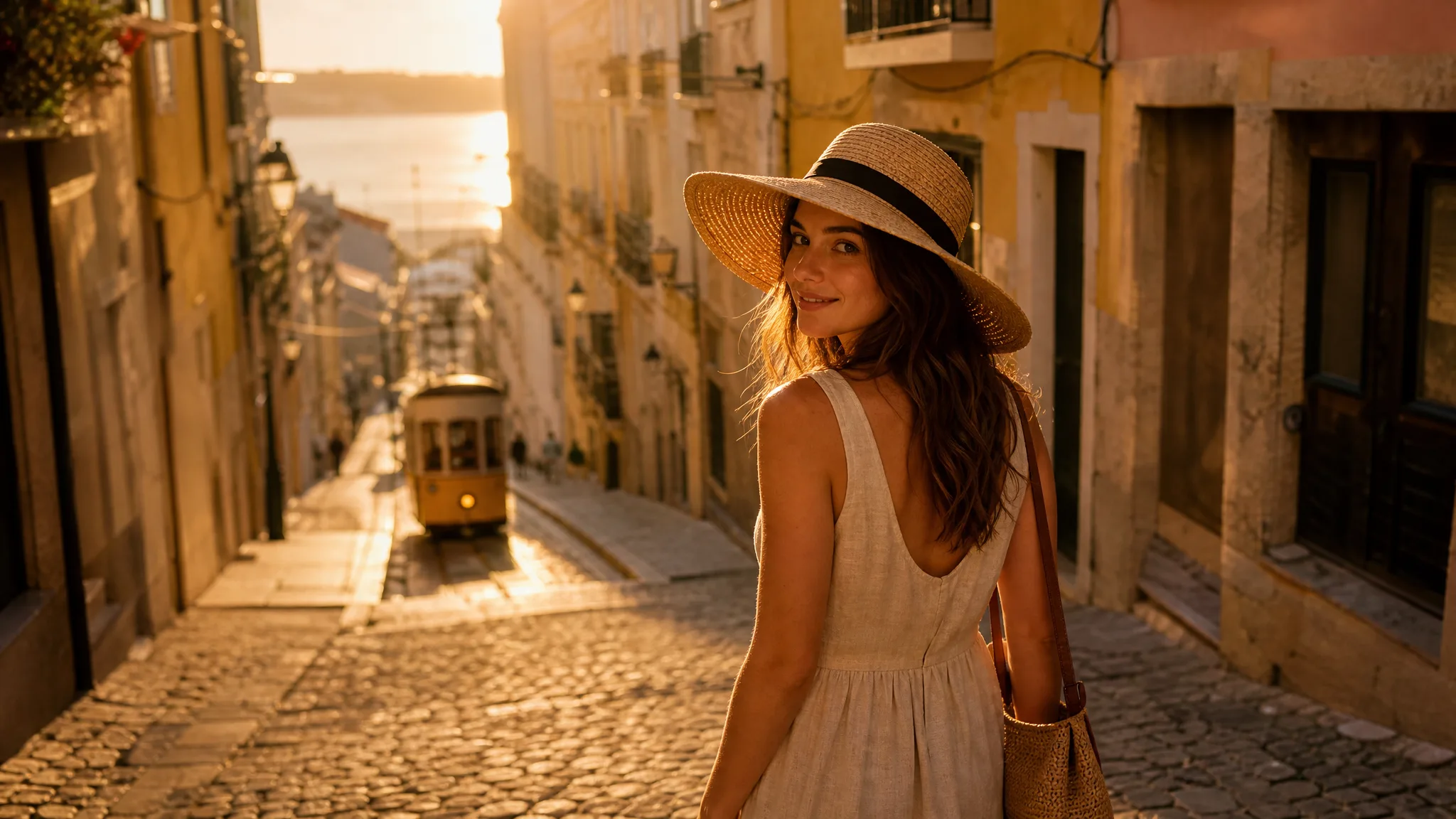
Our Lisbon trip came back as 300 photos and almost no video. I picked four favourites, a tram on a hill, my sister laughing at a café and the sunset over the river, then ran them through the AI video tools with one slow move each. Stitched together, they became a 20-second recap my followers watched to the end.
Answers on free use, models, costs and clip length for the AI video tools, plus what kind of photo or prompt gives you the best start.
AI video tools are online workflows that turn a photo, a written prompt or two frames into a short generated clip. Here you choose the input, pick a model such as Kling, Veo or Seedance, and follow the job in your browser until the video is ready to watch and download.
These free AI video tools start with credits you claim when you create your account. Check in each day for more, and keep the streak going for a reward that reaches 4x on day 7. Then spend them on your first clip, for example a Runway Gen-4 Turbo take at 720p from a favourite photo.
You can choose from 23 models in these AI video tools: Runway Gen-4 Turbo, Gemini Omni Flash 1.1, Gemini Omni, Veo 3.1 Premium, Veo 3.1 Basic, Veo 3.1 Lite, Seedance 2.5, Seedance 2.0, Seedance 2.0 Fast, Seedance 2.0 Mini, HappyHorse 1.0, HappyHorse 1.1, Wan 3.0 Prime, Wan 3.0, Kling 3.0, Kling 3.0 Turbo, Kling 2.6, Grok Imagine, Grok Imagine Video 1.5, MiniMax H3, PixVerse V6, Wan 2.7 and Kling 3.0 Omni. Each one lists its own inputs, lengths, resolutions and sound options in the picker, and the model pages show sample clips if you want to compare them first.
The cost depends on the model, resolution, length and whether sound is switched on, and the Generate button shows the total before you start. As a reference point in the AI video tools, Veo 3.1 Lite at 720p for 4 seconds costs 30 credits.
Clips from the AI video tools run up to 30 seconds, and each model sets its own range: Veo 3.1 Lite: 4, 6 or 8 seconds; Kling 3.0: 3, 4, 5, 6, 7, 8, 9, 10, 11, 12, 13, 14 or 15 seconds; Seedance 2.0: 4 to 15 seconds; Wan 2.7: 2 to 15 seconds; MiniMax H3: 4, 5, 6, 7, 8, 9, 10, 11, 12, 13, 14 or 15 seconds; Runway Gen-4 Turbo: 5 or 10 seconds. Short lengths suit a quick Story, while longer ones leave room for a slower reveal.
Text to video needs no photo at all: describe the subject, place and action, and Text to Video builds the scene from your words alone. Image-only models such as Grok Imagine Video 1.5 sit in the photo workflow instead, so the text picker shows only models that accept a prompt on its own.
The AI video maker runs in your browser, so you can use it on a laptop, tablet or phone with no app to download. Upload from your camera roll on mobile or drag files in on a desktop.
Reference images can guide a clip when you choose a model with Reference to Video and add the images it accepts, for example a product from two angles or the same person in two outfits. Describe how they should appear in the scene, and Reference to Video in the AI video tools treats them as guidance for look and styling.
Open Start and End Frames, upload the opening and closing pictures and describe the change between them, such as a room filling with furniture or day turning to dusk. Models that accept both frames appear in the picker, and each one lists the lengths it offers.
Watch the full take once for faces, hands and product details, and listen through if the model added sound. Pick the version that tells the story best, then add titles, music and branding in your editor, with the clip from these AI video tools as the moving footage underneath.
2026/07/18
How to Make a Video Out of Photos (Free AI Guide)
How to make a video out of photos: upload one clear picture, describe a single motion, pick an AI model and download an MP4 for Reels, family or shop pages.
2026/07/18
What Is Image to Video? How AI Animates a Photo (2026)
What is image to video? An AI model reads one still photo plus a motion prompt and generates a short clip. See which photos move best and how to start free.
Grab a portrait, a pet picture or a line about the scene you imagine, choose how to start, and make a short clip with the AI video tools that you can download and share.