

Kling AI Image to Video: Direct a Scene from Your Photo

Cast your photo as the opening frame of a performance

Kling AI image to video turns a portrait, product or travel photo into a directed scene. Kling 3.0 from Kling AI renders 3 to 15 seconds up to 4K, with an optional sound setting.

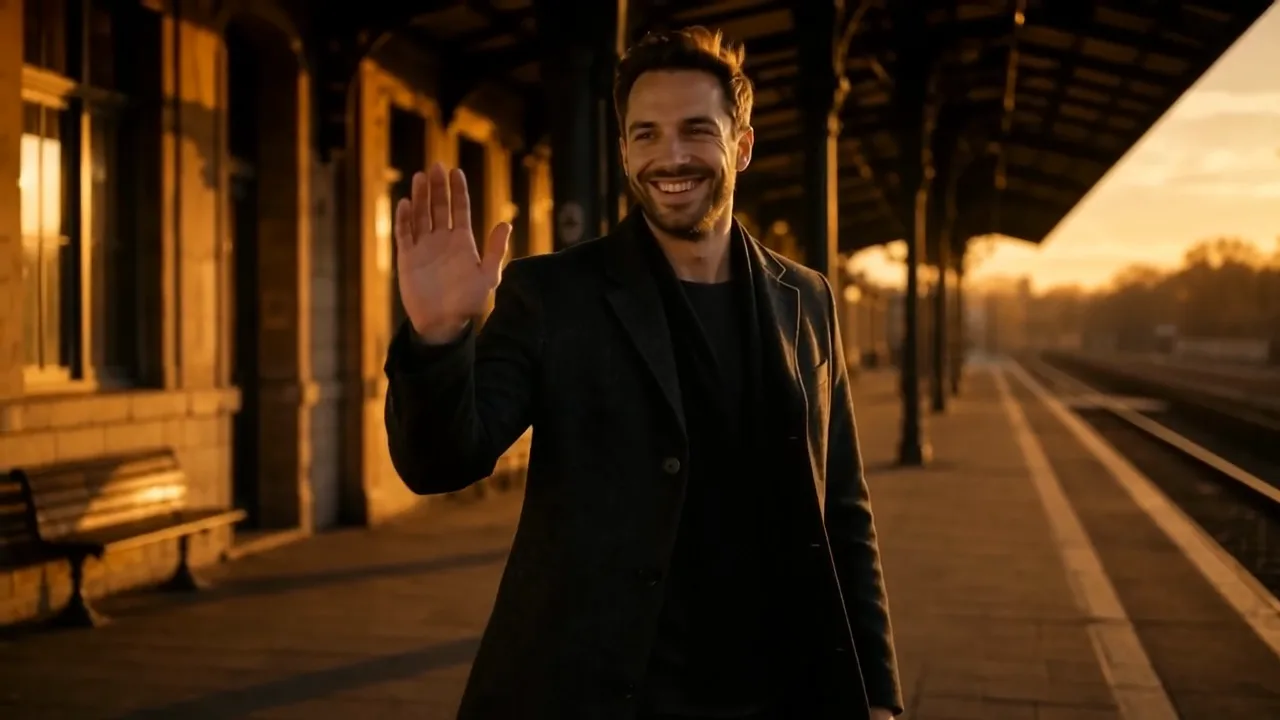
On a golden-hour railway platform, a bearded man in a charcoal wool coat turns, smiles and lifts one hand to wave
Character performances from portraits
3- to 15-second scenes in 16:9, 9:16 or 1:1
Kling 3.0 clips up to 4K
Optional sound with Kling 3.0
Kling 3.0 Turbo takes at 720p or 1080p
Kling
Reference images
Prompt
0/2500
Duration
Resolution
Number of outputs
Public Visibility
Required credits
180
Sample videos

Treat Your Photo as the First Frame of a Scene

Kling AI image to video works like directing an actor who is already in costume. Your photo fixes the face, the outfit and the light; your prompt tells Kling 3.0 what happens next, whether a turn in a rainy alley, a wave on a station platform or a handbag catching a band of light. Choose the length, the resolution and whether the clip carries sound, then judge the performance.

Try Kling Image to Video
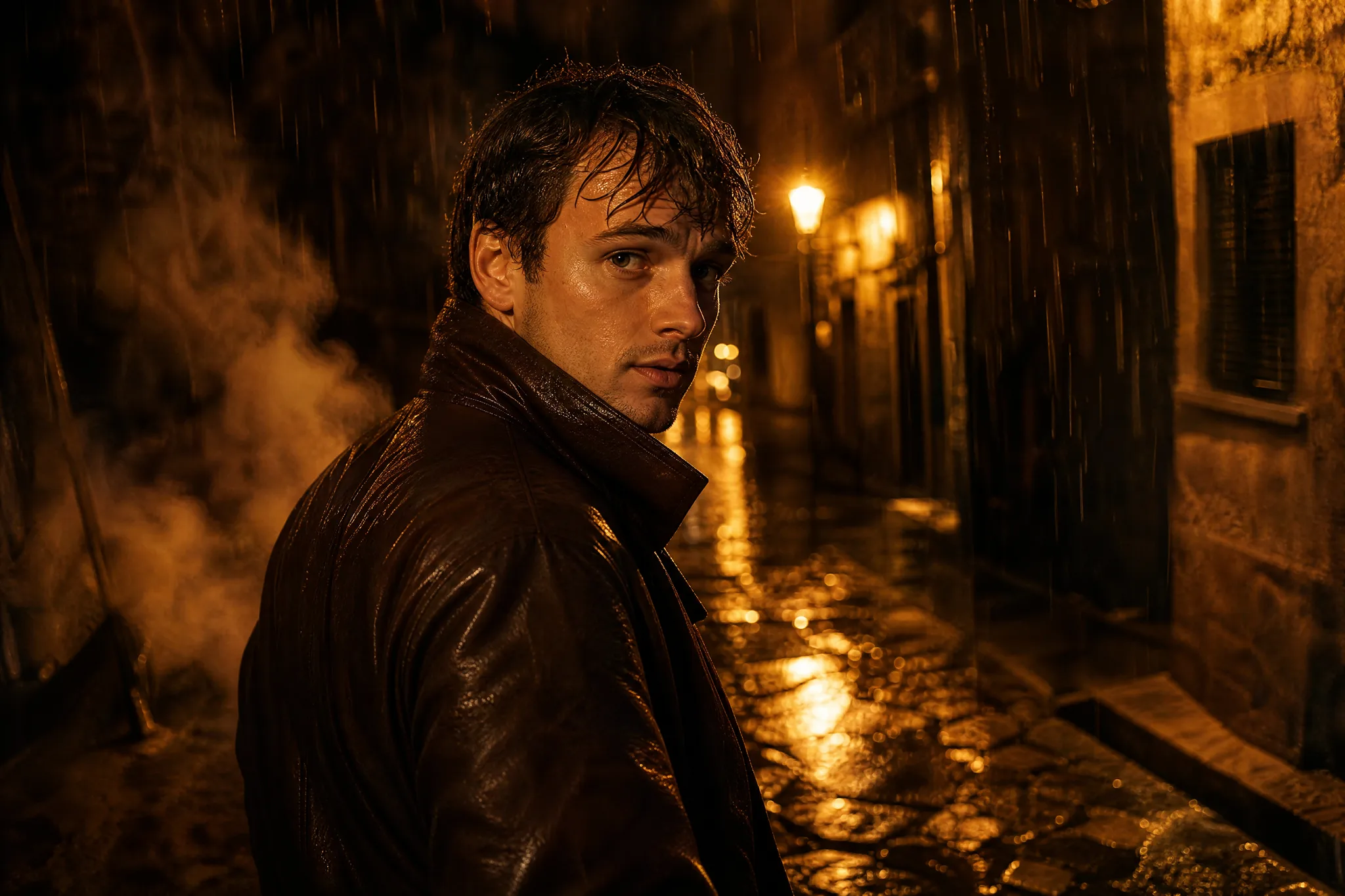
Man in a dark brown leather jacket caught mid-turn in a wet night alley, amber wall lamps glinting on stones and raindrops

How to Use Kling AI Image to Video Step by Step

Kling AI image to video takes four steps: cast the photo, direct the action, choose the finish, then review the performance before you download.

1

Cast a photo with a clear subject

Upload a portrait, a product shot or a travel scene where the main subject is sharp and the background stays simple. Kling AI image to video uses that picture as the opening frame, so the expression, outfit and lighting you see are the ones the scene begins with.

2

Direct the action and the camera

Describe one action and one camera idea in plain language, such as he turns toward the lens as the camera eases closer, or light sweeps across the leather. Kling AI image to video follows the order of your words, so put the main action first and keep secondary details short.

3

Choose length, resolution and sound

Pick Kling 3.0 for a 3- to 15-second clip at 720p, 1080p or 4K in 16:9, 9:16 or 1:1, with sound on or off. Kling 3.0 Turbo offers the same length range at 720p or 1080p, keeps the framing of your photo and comes without a sound setting.

4

Review the performance and download

Play the Kling AI image to video take from start to finish, watching eyes, hands, product edges and where the camera ends. If sound is on, listen for how it fits the scene as well. Download the strongest take, or change one instruction and run another to compare.

Performances Kling Can Build Around Your Photo

Kling AI image to video shines when the photo supplies a performer, a place or a product and the prompt gives it one clear thing to do.

A greeting that feels natural

Portraits with a relaxed pose are ready for a small performance. The man on the sunlit station platform turns, smiles and lifts a hand to wave, the kind of moment that opens a family video or a reunion slideshow. Kling AI image to video keeps one gesture per take readable, so check that his face and hands match the photo through the last frame.
An establishing shot from a travel photo

Wide travel photos make strong opening shots. Here the camera moves through terraced vines toward a stone farmhouse and its cypress trees at sunset. Tell Kling AI image to video which part of the view should arrive first, pick 16:9 for a landscape edit, and the still becomes the first shot of a trip video or a venue tour.

A product reveal with studio light

A band of warm light sliding across matte headphones turns a catalogue photo into a premium product moment. With Kling 3.0 you can render the reveal in 4K for a crisp hero video, then check edges, seams and any lettering in the preview before it goes on a store page or into an ad edit.

Two performances from the same photo

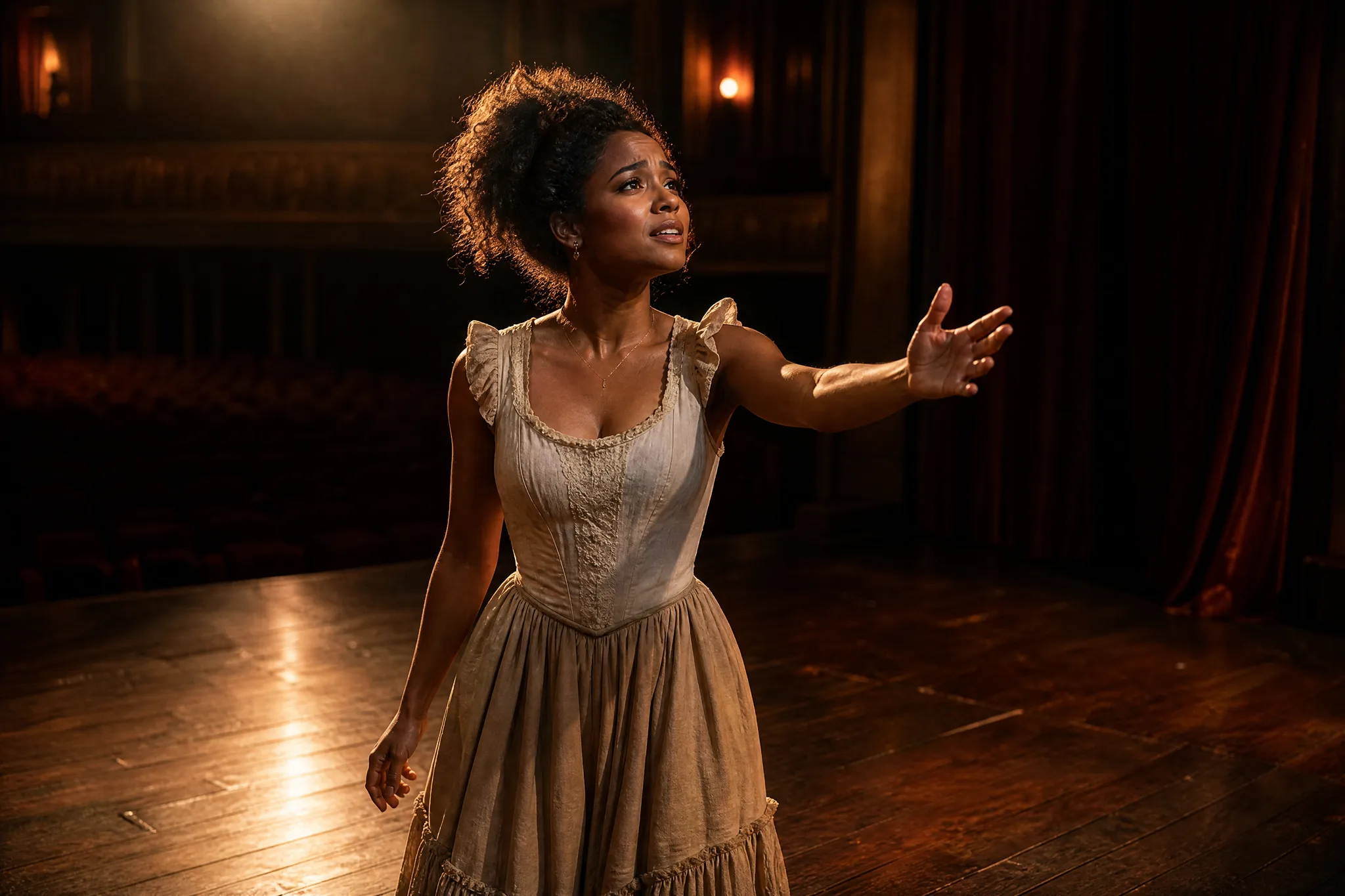
An expressive photo, like an actress reaching toward an empty theatre under a spotlight, can be played quietly or with full emotion. Run Kling AI image to video twice with one changed word, gentle or dramatic, and compare the takes. Keeping everything else the same shows exactly what shaped each performance.

Actress under a single warm spotlight on a dim wooden stage, one arm open toward empty seats, red curtains behind

Who Uses Kling AI Image to Video

Kling AI image to video fits projects where a photo needs to perform: family memories, venue tours, product launches, casting reels and short social stories.

Family video makers

Someone editing a family anniversary video can upload a favourite portrait and ask Kling AI image to video for a smile and a wave toward the camera. The few seconds of motion bring the person back into the story and sit naturally between home videos in the final edit.

Wedding and venue planners

A venue coordinator can turn a hillside or garden photo into a slow camera approach for a booking page. Kling AI image to video gives couples a sense of arriving at the place, and the 16:9 and 9:16 frames suit both the website and social posts.

Product brands

A small leather-goods brand can give a packshot a sweep of light across the grain and clasp. Rendered in 4K with Kling 3.0, the clip becomes a sharp hero shot for a product page, and the original photo shoot is the only shoot they needed.

Actors and performers

An actor can animate a headshot or stage photo into a few seconds of expression for a casting reel or an agency profile. Kling AI image to video follows a direction like looks up, then smiles slowly, giving the still a performance that people can see.

Travel and surf creators

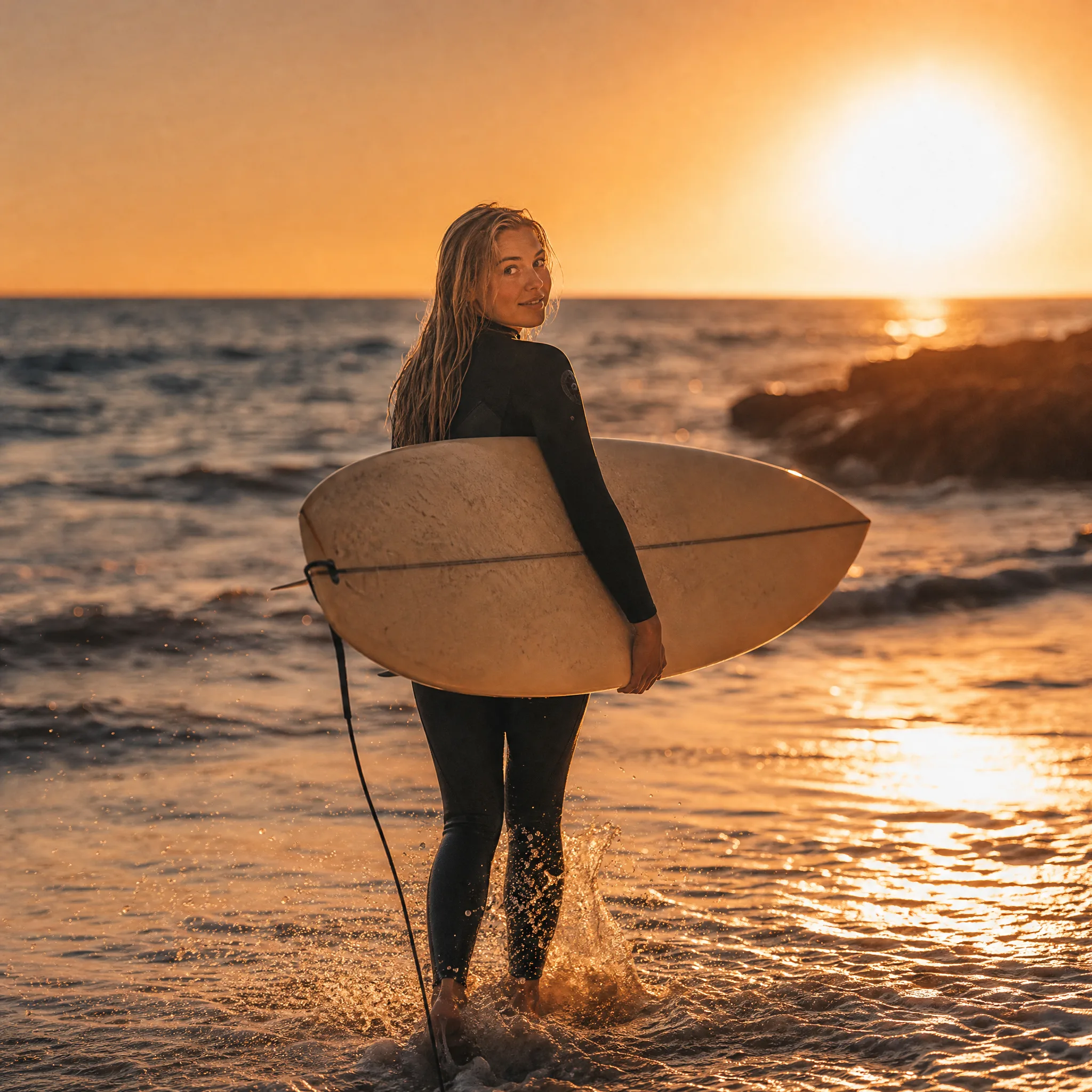
A creator with a sunset photo of a surfer walking into the waves can ask Kling AI image to video for spray, rolling water and a glance back at the beach. A 9:16 take opens a Reel or Short, with captions and other footage added in a phone editor.

Illustrators

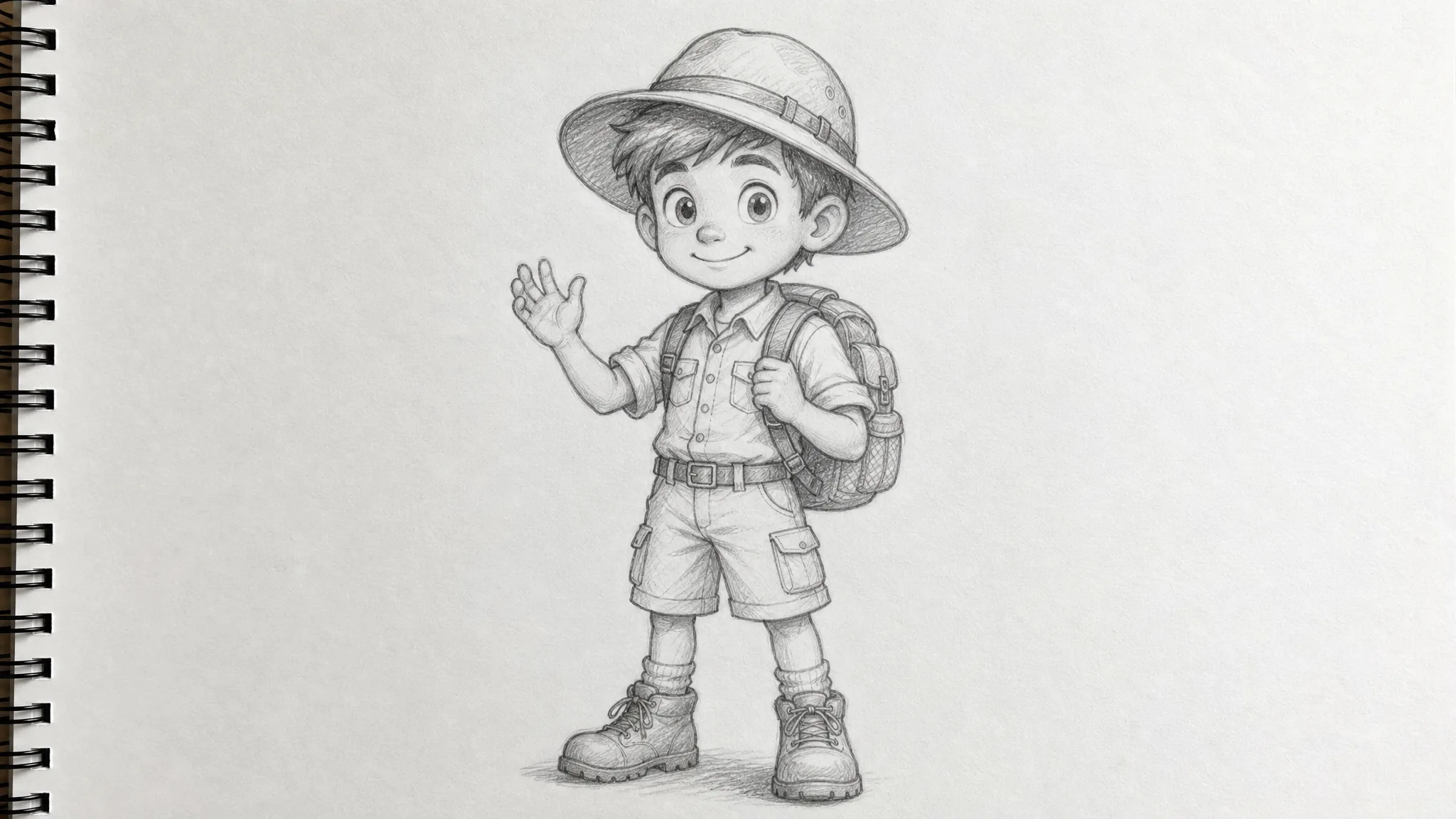
An illustrator can bring a finished character drawing into a short Kling 3.0 Turbo study at 1080p, keeping the framing of the artwork. A blink, a cloak lifting or drifting snow is enough to show the mood of the scene on a portfolio page.

Stories from People Who Tried It on Their Photos

Casting directors skim headshots quickly, so I wanted mine to move. I gave Kling AI image to video a stage still of me reaching toward the seats and asked for a slow look up and a half smile. I chose 1080p and eight seconds. That clip now opens my casting profile, and an agent mentioned it on our first call.

Jonas W.
Stage Actor

Kling AI Image to Video Questions

Answers about Kling AI image to video on PicVideo: the Kling 3.0 models, clip settings, sound, getting started and how to direct a photo-led scene.

Kling AI image to video turns one photo and a short direction into a moving scene with Kling 3.0 from Kling AI. On PicVideo you upload the picture, describe the action and camera, and download a clip of 3 to 15 seconds.

This page opens Kling 3.0 and also offers Kling 3.0 Turbo. Kling 3.0 renders at 720p, 1080p or 4K in 16:9, 9:16 or 1:1 with an optional sound setting, while Kling 3.0 Turbo renders at 720p or 1080p and keeps the framing of your photo.

Kling 3.0 has a sound setting you can switch on before generating, and the clip then comes back with generated sound. Play the Kling AI image to video take with the volume up to check that it suits the scene; Kling 3.0 Turbo has no sound setting.

Kling AI image to video clips on PicVideo run from 3 to 15 seconds on both Kling 3.0 and Kling 3.0 Turbo. Short takes of 3 to 5 seconds suit a single gesture, while 10 to 15 seconds leave room for a camera move and a reaction.

PicVideo is free to start: sign up for free credits, check in daily for more with a streak bonus up to 4x on day 7, and begin creating on free-tier models such as Runway Gen-4 Turbo or Veo 3.1 Lite. These are PicVideo's own credits, separate from any Kling free credits or Kling 3.0 free offer in the Kling app. Kling AI image to video runs on a plan or credit pack.

Name the subject, one action and one camera move, in the order they should happen: she glances back, then the camera pushes in as spray catches the light. Kling AI image to video follows clear, specific direction best, and a sharp photo with even light keeps the face consistent.

The PicVideo Terms give you ownership of the Kling AI image to video clips you generate, to the extent the law allows. For a surf school promo or a wedding teaser, start from photos you shot or were licensed, ask the people in frame before their faces sell something, and listen to the generated sound as closely as you watch the picture.

Kling clips start private, and the photos you upload for Kling AI image to video are never published. When a scene turns out well, you can switch that clip to public so it may be considered for the Explore gallery.

Direct Your First Kling Scene from a Photo

Pick a portrait, a product shot or a travel photo, write one action and one camera move, and choose length, resolution and sound. Kling AI image to video renders the scene with Kling 3.0, ready to review and download for your next edit.

Create My Kling Scene
Surfer in a black wetsuit with a cream longboard under her arm wading into golden sunset waves, looking back