








Text to Video
Prompt
0/4000
Duration
Resolution
Aspect ratio
Translate prompt
Number of outputs
Public Visibility
Required credits
30
Sample videos

Text to Video for Scenes You Never Photographed

Write the moment you wish you had on camera and watch it play

Some moments never reached a camera roll. Text to video turns a written description of the subject, the action and the camera move into a short new clip for a story, a product idea or a post.

Turn My Words into Video
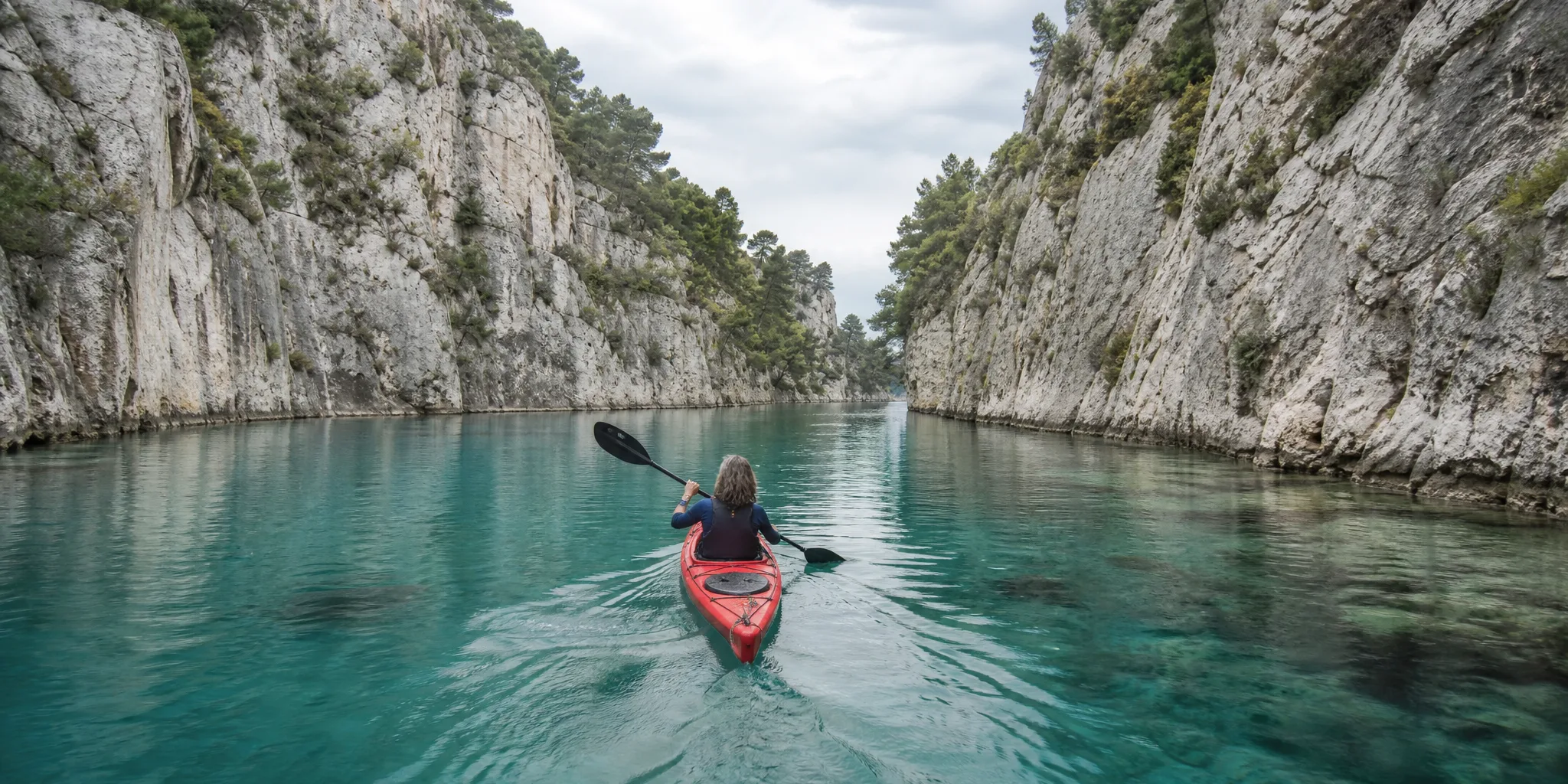
Red kayak gliding through a narrow turquoise canyon under pale limestone walls and pine trees, viewed from behind
Prompt-only scenes|People, pets and places|Camera direction in words|Downloadable takes

Compare Text to Video Models by the Shot You Need

Six model families can run text to video here, and each tab pairs one with a scene worth trying first: a walk in the rain, a face in lantern light, a sunrise over a valley.

Walking shots with a story behind them

Try Seedance text to video for a single figure moving through weather, such as a woman in a yellow raincoat heading down a pier while the camera follows. Write where she is going and what the sky is doing, then check whether her pace stays steady and the horizon stays level.

How to Make a Clip with Text to Video

Text to video needs only a written scene: write it, pick a model and a frame shape, generate, then keep the take that matches what you imagined.

1

Write who, where and what happens

Open your text to video prompt with the subject, the place and one action you could point at, for example a grandmother lighting candles on a birthday cake in a dim kitchen. Add the camera position and the light only when they change how the moment reads.

2

Pick a model and a frame shape

Choose a model from the picker, then set the aspect ratio, length and resolution it offers. A 9:16 frame suits a phone story, 16:9 fits a slide or a channel intro, and square works in a feed; the options differ between models, so check them before you generate.

3

Generate and follow the status

Start the text to video job once the prompt reads clearly, and watch its status in the workspace until the preview appears. If the action happens too early or the camera drifts, change a single phrase in the prompt and run a second take to compare.

4

Check the take and download it

Play the finished text to video preview from the first frame to the last and look closely at faces, hands and the final second. With Veo 3.1 Lite, listen to the generated sound as well. Download the take you like, then add titles, captions or narration in your editor.

Describe Moments Your Camera Roll Is Missing

Text to video fills the gaps in a photo library: the scene you imagined, the product that is still a sketch, the trip you are only planning.

Picture a place before anyone shoots it

There is no photo yet of the winter greenhouse for your holiday card, the cabin you are saving for or the venue still under construction. Write it instead: the glass, the snow, the warm light inside. The text to video generator renders new frames from those words, so mention everything a photograph would show, from colors to the time of day.

One clear action carries the clip

A man stepping into a candlelit library and looking up at the shelves is easy to follow; five effects fighting for attention are not. Give each text to video prompt one main action and let the camera support it. You will judge the take faster, and the next prompt can introduce a second action once the first one works.

Set the mood with light and weather

The same farmhouse feels peaceful at noon and tense under a gathering storm. Choose the weather, the time of day and the color of the light, and the scene changes character while the subject stays put. When the selected model lists sound support (Veo 3.1 Lite does by default), you can also describe the wind or rain you want to hear.

Why Start a Video from Words Instead of Footage

Text to video helps when there is no picture to begin with, or when you want to test an idea before anyone books a shoot.

No photo needed to begin

A family memory with no surviving picture, a garden you plan to plant, a product still on the drawing board: text to video starts from your description alone. That makes it the quickest way to see a scene when the camera roll has nothing to offer.

Text to Video Ideas for Families, Shops and Classrooms

These are the moments people reach for text to video: a photograph is missing, or the thing they want to show does not exist yet.

Memories without a photo

Describe the backyard where you grew up, the dog you had as a child or the café where your parents met, and text to video gives that story a short moving scene. Play it at a reunion beside an old letter or voice note, introduced as an imagined moment.

Products before samples arrive

Small shop owners can describe a candle, a mug or a tote bag that is still in production and generate a text to video clip to test packaging colors or a launch post. Look closely at shapes and any lettering, because the object is drawn from your words.

Trip plans and wish lists

Planning a honeymoon or a family holiday? Describe the coastline, the cabin or the balloon ride you have booked and turn it into a text to video preview for the group chat, so everyone can picture the itinerary before the first real photo is taken.

Classroom openers

Teachers can write one visible event, a leaf falling, a volcano steaming, a river bending through a valley, and play the clip before the lesson starts. Add your own labels and narration around it so students link the moving scene with the facts that follow.

Pitches and storyboards

Freelancers and filmmakers can turn each line of a shot list into a text to video draft and show the sequence in a pitch meeting. Present the clips as concept frames, so the client reacts to framing and pace and the conversation stays on the idea.

Posts with no footage yet

Creators with an idea and an empty camera roll can describe a scene for a Reel or Short and choose a model that offers 9:16. Use the text to video take as the hook, then add captions and the rest of the edit in a phone app.

Stories from People Who Tried It on Their Photos

We have no photos of my grandmother's village in Kerala, only her stories. I wrote one of them out, a girl carrying a brass pot along a flooded lane at dawn in the monsoon, and used text to video to see it. My aunt cried when it played at our reunion beside Grandma's handwritten letter, introduced as an imagined scene.

Lakshmi Pillai
Family Historian

Common Text to Video Questions

Short answers about text to video: what it makes, how to prompt it, starting free, models, sound, framing and who sees your clips.

Text to video is an AI workflow that generates a brand-new clip from a written description, with no image upload. It invents the people, places and motion you describe rather than stitching together stock footage, which is why people also call it an AI video generator from text.

A good text to video prompt gives one short phrase each to the subject, the setting, the action and the camera. For example: a golden retriever runs along a beach at sunset, low camera tracking beside him. Keep the first attempt to one scene and adjust one detail per retry.

Free text to video AI starts with sign-up: free credits are added to your account straight away. Check in each day for more, and a streak multiplies the daily reward up to 4x on day 7. Spend the credits on text to video clips, photo animations or new images.

Begin with Veo 3.1 Lite, the default here, which makes 4, 6 or 8-second clips and always adds generated sound. For other looks, compare Seedance, Kling, Wan, MiniMax and Grok in the picker by length, resolution and frame shape, and run the same text to video prompt on two of them.

Sound in text to video depends on the model you choose. Veo 3.1 Lite, the default on this page, adds generated sound to every clip, while other models show an on/off switch or produce silent video. The model picker shows your options, and you can describe the ambience you want, such as waves or city traffic.

Vertical text to video clips are available whenever the selected model offers a 9:16 aspect ratio. Choose that ratio before you generate for Reels, Shorts or Stories; square and widescreen frames are there too on the models that list them.

The workspace shows the credit total for your chosen model, length, resolution and sound setting before you start. Change any of those and the quote updates, so you can compare options before you generate a text to video clip.

Generation time varies with the model, the clip length, the resolution and how busy the queue is. The workspace shows the job status while it runs, and the preview appears as soon as the text to video clip is ready.

Text to video clips can go into ads, client pitches and product pages once you have reviewed each take for recognizable faces, logos, readable text and factual details. Show real people or brands only when you have permission, and set exact brand names and titles in your editor.

Text to video clips are never posted anywhere automatically. On free accounts Public Visibility stays on, so a successful clip may be picked for the Explore gallery after review; subscriptions and one-time packs start with generations private. Prompts go to the selected model provider, so leave out personal details you would not share.

Write Your First Text to Video Scene

Think of a moment you never got on camera: a pet on a beach, a product on a shelf, a trip you are still planning. Describe the subject, the action and the camera, and text to video turns it into a short clip you can preview and download.

Write My Scene
Small white paper boat drifts across a rain puddle on a cobbled street at night, streetlights glowing in the ripples