
Grok Image to Video for Portraits, Travel Shots and AI Art

Keep your photo’s shape and let the moment run longer

Grok image to video lets a 2:3 portrait, a 3:2 landscape or a square AI artwork move in its own shape. xAI’s Grok Imagine follows your note for 6 to 30 seconds.

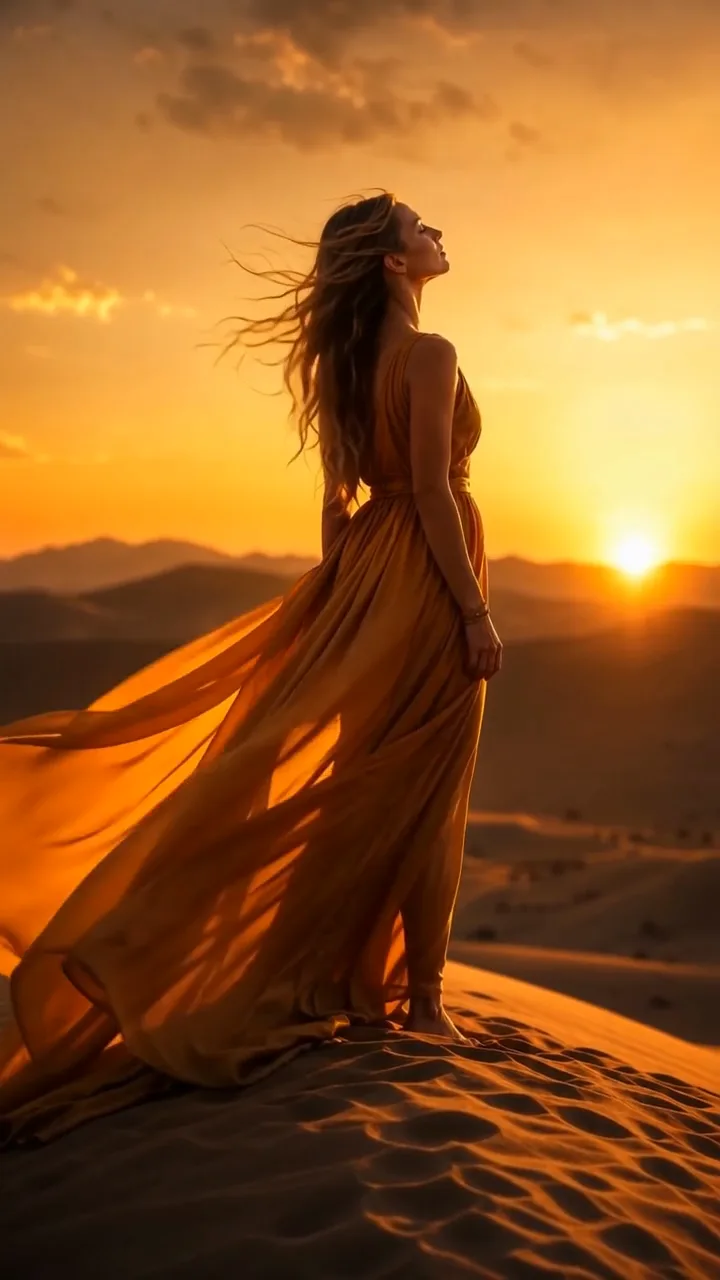
On a sunset dune crest, a woman raises her face to the sun as wind sweeps her amber silk gown and hair sideways
Frames that match your photo: 2:3, 3:2, 1:1, 16:9, 9:16
Clips from 6 to 30 seconds
Portraits, landscapes and AI artwork
Up to 1080p with xAI Grok Imagine
Your written note sets the next moment
Grok
Reference images
Prompt
0/4000
Index
Generation mode
Duration
Resolution
Aspect ratio

With one reference image, the video keeps that image’s shape. The aspect ratio setting applies only to multiple reference images.

Number of outputs
Public Visibility
Required credits
29
Sample videos

Let Grok Imagine Continue the Scene in Your Picture

Grok image to video is for photos that feel like the start of something. A rooftop portrait at dusk, an afternoon with a friend at a café or a fantasy scene from an image generator each hold a next moment. Upload the picture, describe that moment, and xAI’s Grok Imagine plays it out at the length and shape you choose, from a six-second glance to a thirty-second slow scene.

Try Grok Image to Video
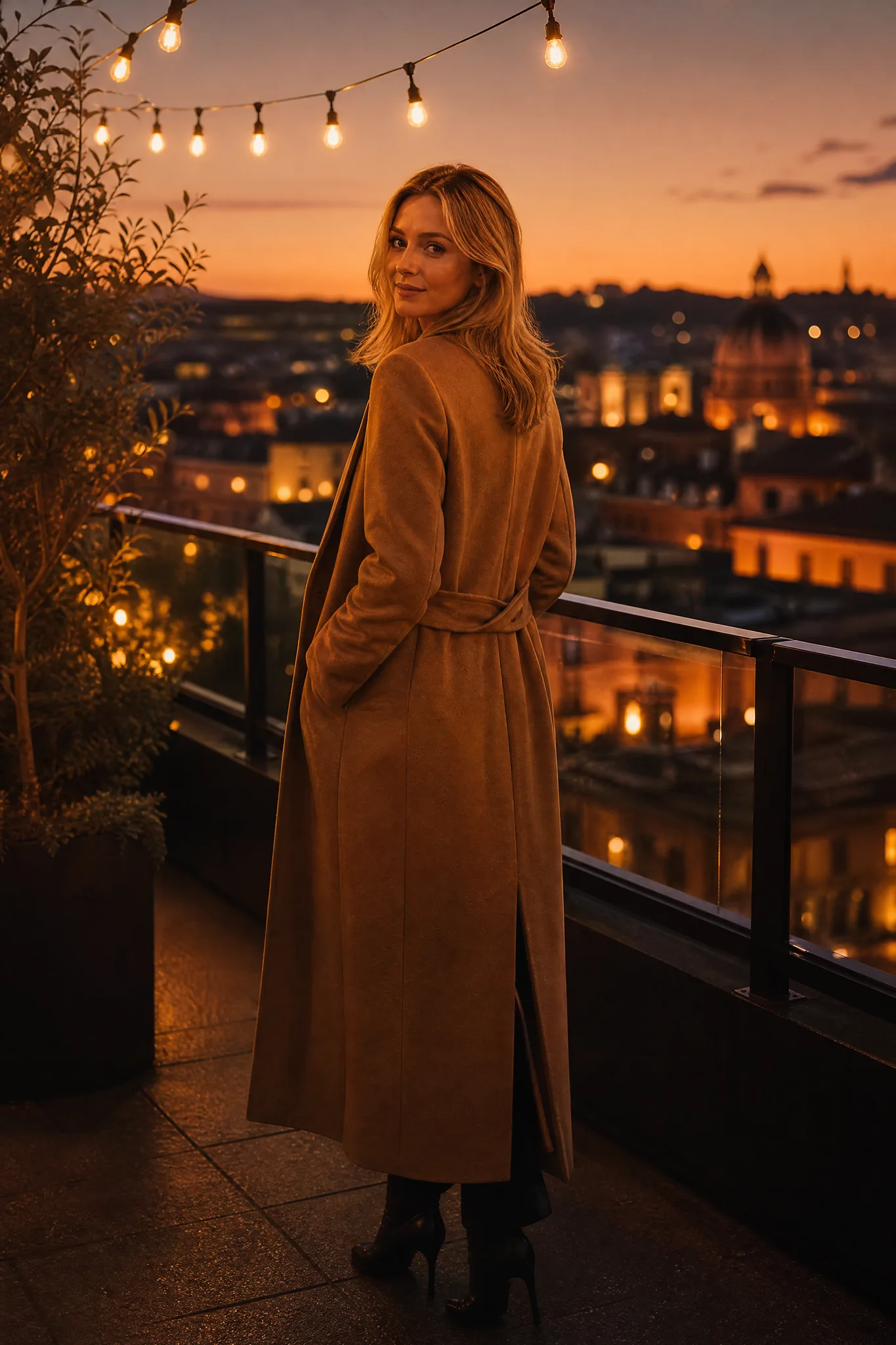
Vertical dusk portrait of a woman in a camel coat glancing back on a rooftop, string lights above an amber skyline

How to Make a Grok Image to Video Clip

Grok image to video follows three steps: bring the picture, describe what happens next with its length and frame, then keep the take that suits your post.

1

Upload the picture you want to continue

Choose a camera photo, a phone snapshot or artwork from Grok Imagine or another image tool. Grok image to video starts from that exact picture, so pick one where the subject is easy to see and the setting has room for movement, like open sky, fabric or hair.

2

Describe the next moment and set the frame

Write what happens after the shutter clicked: a laugh, a turn of the head, clouds opening over a peak. Set the Grok image to video clip between 6 and 30 seconds, choose 480p, 720p or 1080p, and match the frame to your photo with 2:3, 3:2, 1:1, 16:9 or 9:16.

3

Watch the whole clip and save the best take

Start the job, then play the finished clip through to the last second, since longer clips have more time to wander. Keep the Grok image to video take where faces and details stay true to your photo, download it, and finish captions and sound in your editor.

Grok Clip Ideas That Respect Your Original Frame

Grok image to video keeps the look of your picture while one element moves: fabric in the wind, weather over a landscape, a friend’s laugh or a quiet face.

Let fabric and hair carry the motion

Flowing material is one of the easiest ways to bring a portrait to life. Here an amber gown and long hair ripple across a dune as the woman lifts her face to the low sun. Upload a full-length portrait in 2:3 or 9:16, ask Grok image to video for wind from one direction, and the person can stay composed while the scene moves around her.
Give a landscape its weather

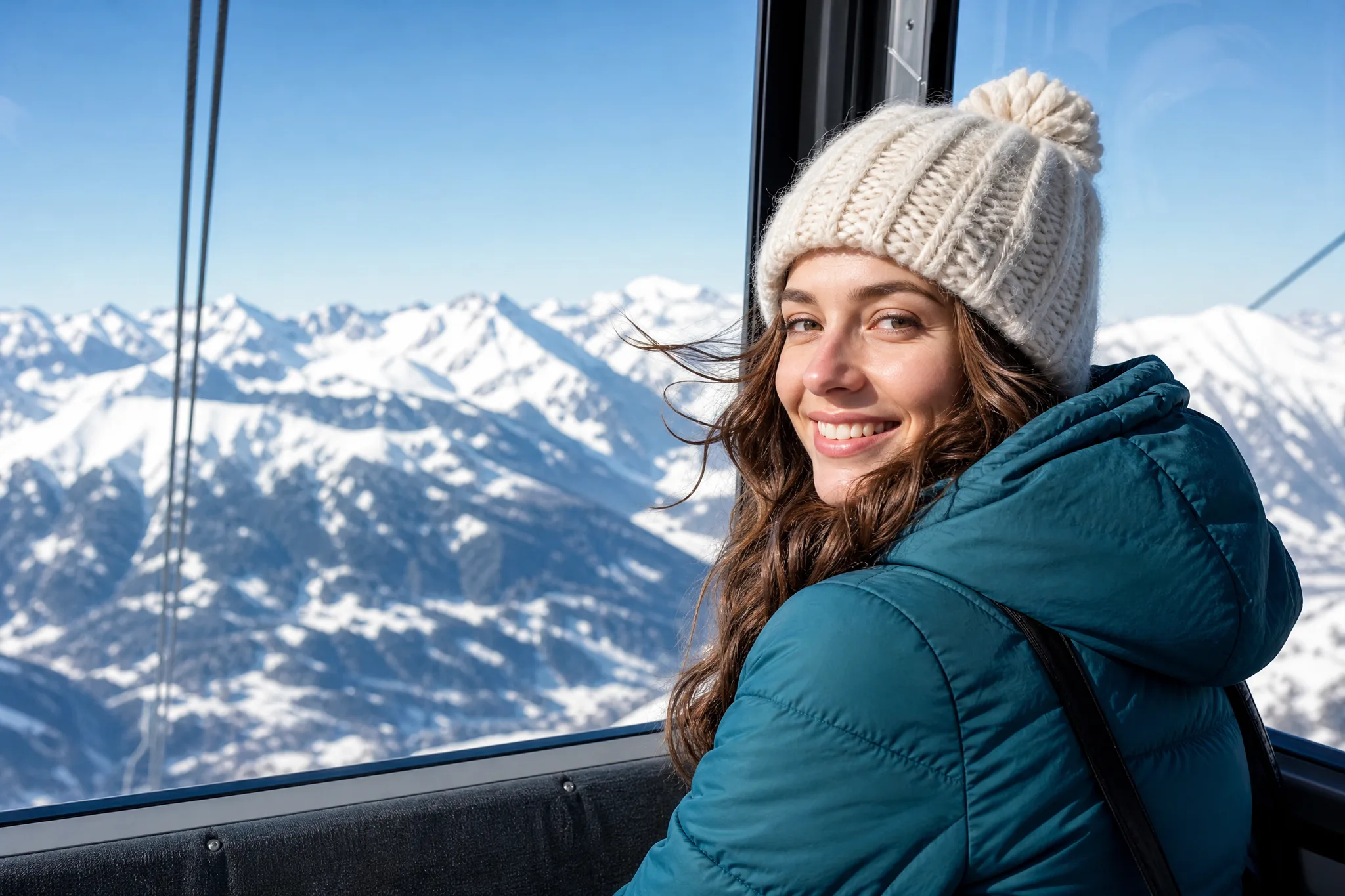
Travel photos often freeze a moment of weather. Grok image to video can let low clouds part around a jagged summit while sunrise warms the rock, turning one vertical shot into a slow reveal for a story or travel reel. Longer settings suit this kind of scene, so try 10 to 20 seconds and let the light change gradually.

Turn a candid photo into a shared moment

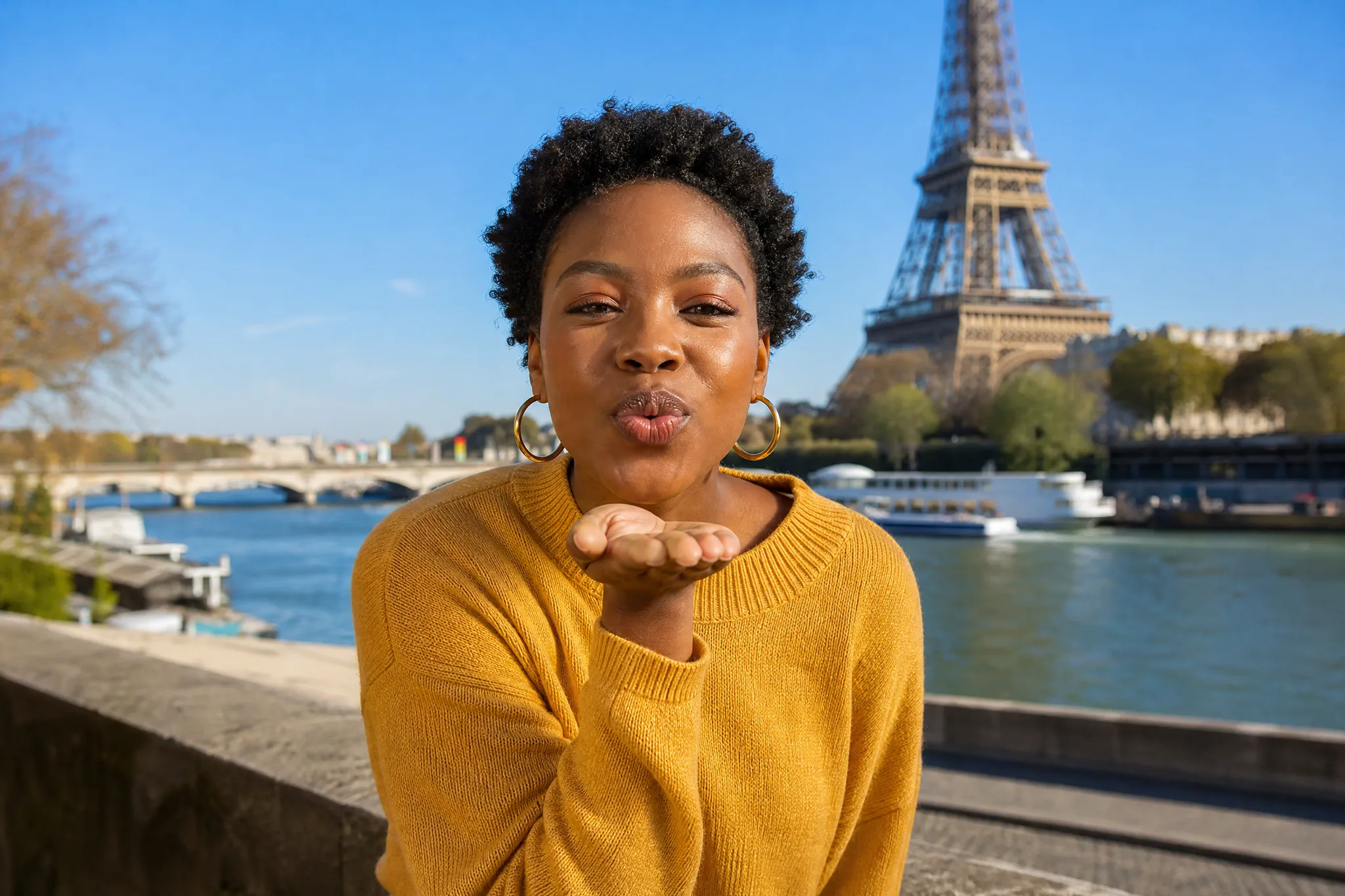
Candid pictures of friends hold the start of a laugh. In this café terrace example, the woman sips from her cup and then laughs toward someone just out of frame. Describe the reaction you remember and keep the motion small, and the Grok image to video clip becomes a warm moment to send to the friend who was there.

Compare a quiet take with a livelier one

Close portraits can go two ways: a calm blink and a soft breath, or a fuller smile. Run the same photo twice with a single change in your note, then compare both takes side by side. Because only one instruction moved, it is easy to see which version feels truest to the person in the picture.

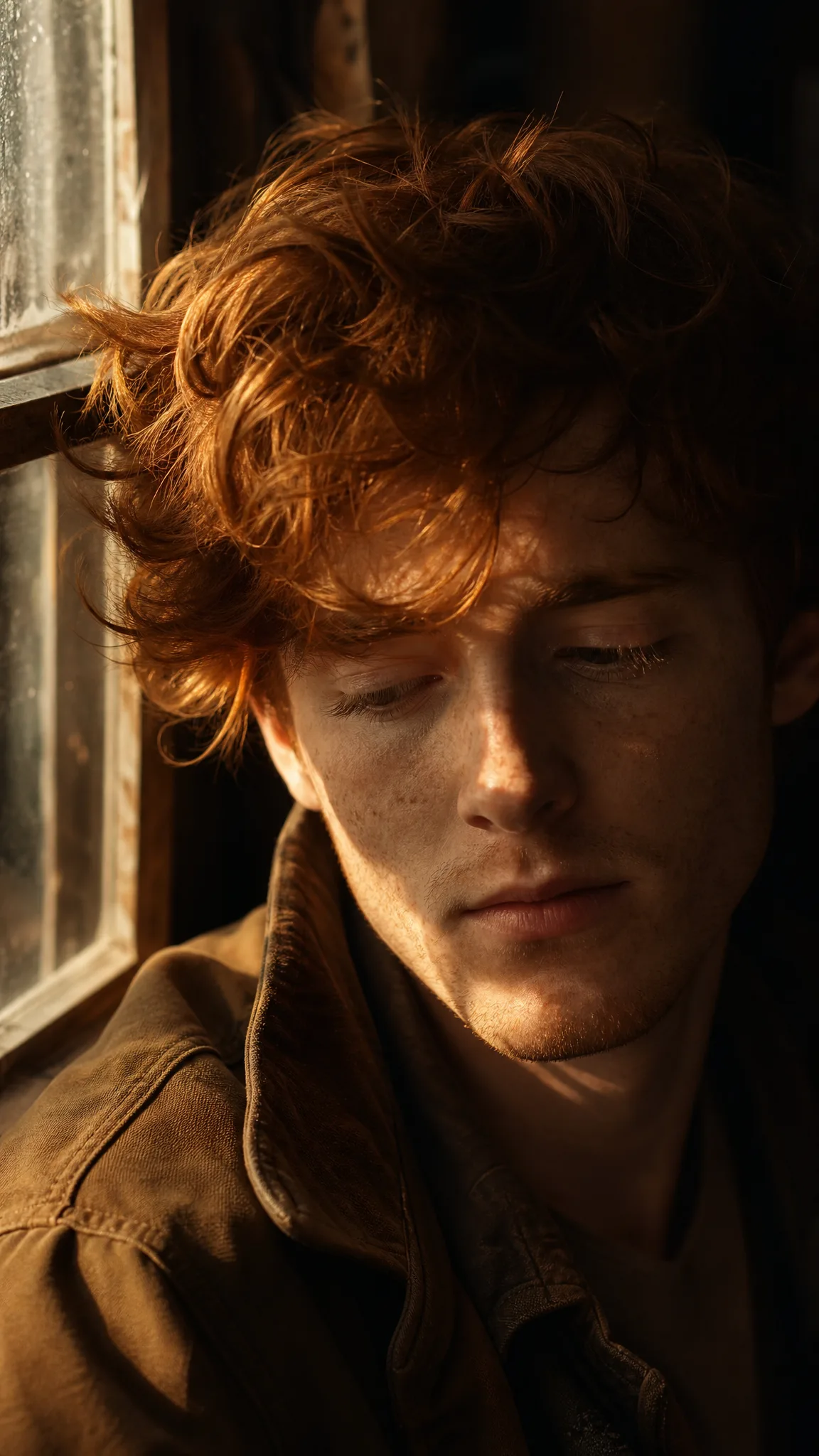
Tight vertical portrait of a freckled young man with tousled red hair, eyes lowered in warm window light

Grok Image to Video Ideas for Everyday Photos

Grok image to video suits anyone with a favourite picture and a reason to share it moving: a trip, a friendship, a piece of AI art or a product launch.

Travel storytellers

A travel blogger can upload the best landscape of a trip in 3:2 and ask Grok image to video for drifting mist or moving water. A twenty-second clip makes a calm header for a destination guide or the opening of a travel story.

AI artists

An AI artist can take a finished piece from Grok Imagine or another image generator and describe what happens next in that world. The Grok image to video clip turns a single render into a short scene for an art account or a story thread.

Friends and family

Someone preparing a birthday or farewell message can pick a photo of a friend raising a glass or a pet turning its head. One small action brings the memory back, and the downloaded clip slots straight into a group chat or a slideshow.

Portrait photographers

A portrait photographer can deliver a moving version of a favourite frame in its original 2:3 shape. Grok image to video adds a breath, a glance or hair lifting in the wind, giving clients a living portrait for their social profiles.

Small product brands

A small brand can give a catalogue photo a slow camera approach or a sweep of light. The Grok image to video take becomes a launch teaser or a story clip, with labels and logos checked in the preview before posting.

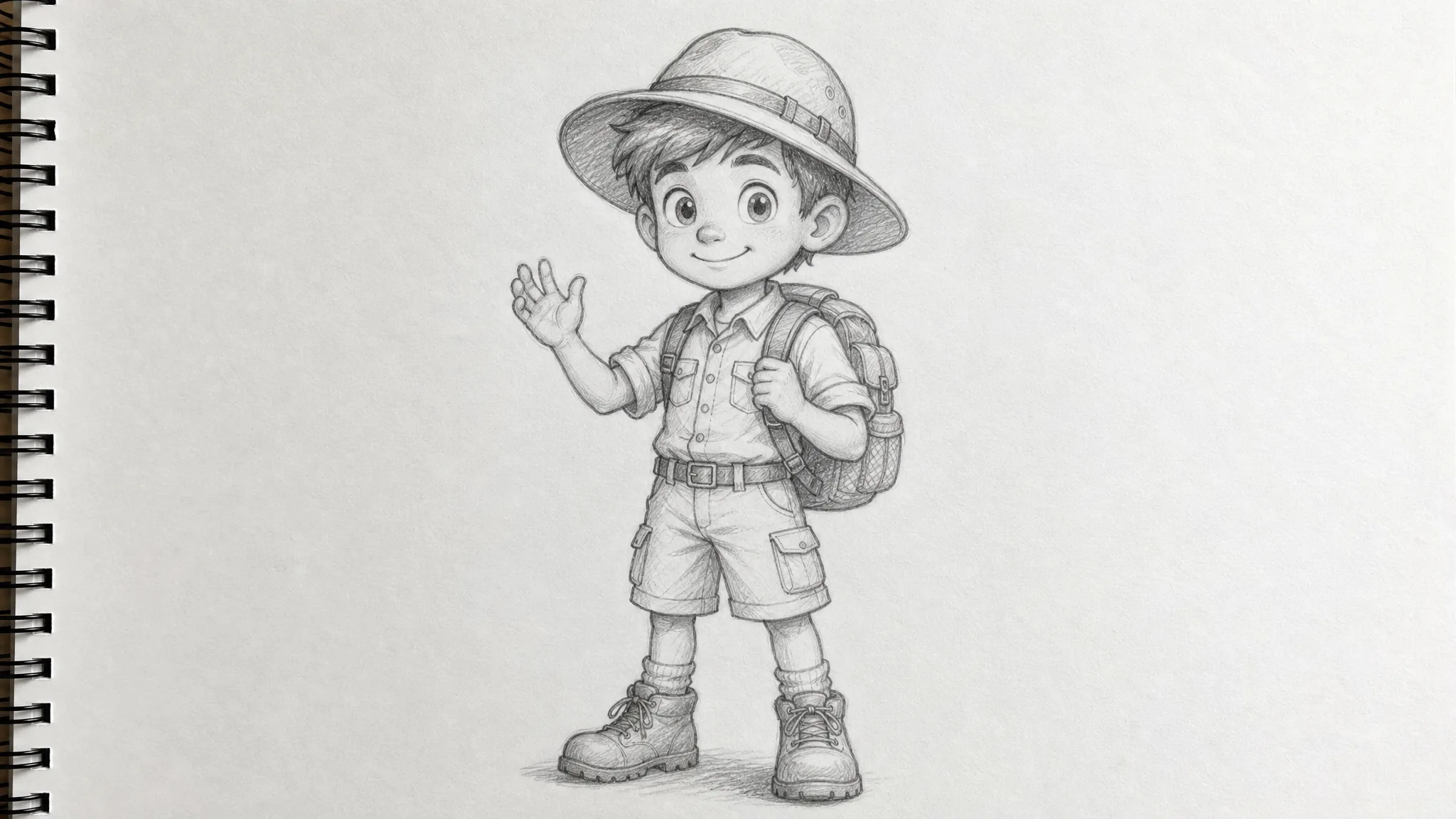
Illustrators

An illustrator can ask for restrained motion around a character design, like a cape lifting or eyes slowly opening. Shown next to the still on a portfolio page, the moving study hints at the personality behind the drawing.

Stories from People Who Tried It on Their Photos

Most of my clients order prints in 2:3, so a moving version always meant an awkward crop. Grok image to video let me keep the original portrait shape and ask for a slow turn toward the rooftop lights. I now deliver a twelve-second clip with each session, and two clients already use theirs as profile videos.

Lena V.
Portrait Photographer

Grok Image to Video FAQ

Answers on Grok image to video at PicVideo: what it does, how to get started, clip lengths and frames, sound, photo choice and how to compare takes.

Grok image to video turns an existing photo or artwork into a moving clip with xAI’s Grok Imagine video model. On PicVideo you upload the picture, describe the next moment and choose a length from 6 to 30 seconds.

Free credits arrive when you sign up, and daily check-ins add more with a streak bonus up to 4x on day 7, so you can make your first clips today on free-tier models such as Veo 3.1 Lite or MiniMax H3. Grok image to video itself uses credits from a subscription or credit pack, because Grok Imagine is a premium model.

Grok image to video works with artwork from an image generator as well as camera photos, such as a fantasy landscape, a painted portrait or a character design. Describe restrained motion that respects the composition, like mist drifting or a cloak lifting, and pick the frame that matches the artwork so nothing is cropped.

Grok image to video on PicVideo creates Grok Imagine clips from 6 to 30 seconds at 480p, 720p or 1080p. You can frame them as 2:3, 3:2, 1:1, 16:9 or 9:16, which makes it easy to keep the shape of a camera photo or a phone picture.

Grok image to video on PicVideo makes the picture, and narration, music and sound effects come from your video editor. Lay them in after you choose the take, so the voice and effects land on the movement you liked.

Look at how faithfully the clip keeps your photo, how natural the main action feels and how the camera behaves through the final second. Grok image to video on PicVideo lets you set length, resolution and frame before each run, so you can compare takes on equal terms.

Pictures with a clear subject and something that can move, such as hair, fabric, water, clouds or a face mid-expression, give Grok image to video the strongest material. Sharp focus and even light help, and picking the frame that matches your photo avoids awkward crops.

You own the Grok image to video clips you generate, to the extent the law allows, as described in the PicVideo Terms. Grok clips often start from AI artwork or a character design, so check that the picture does not borrow a known character or logo, and that anyone in a camera photo is happy to appear in your promotion.

Your Grok clips sit in your own library, visible to you alone, and the photos you upload for Grok image to video are not published. If a long take turns out well, switch it to public and the Explore gallery may feature it.

Give Your Favourite Photo a Grok Moment

Upload a portrait, a travel view or a piece of AI art, describe the moment that comes next and pick a frame that fits it. Grok image to video creates a Grok Imagine clip of 6 to 30 seconds that you can watch, download and share with the people in the picture.

Create My Grok Clip
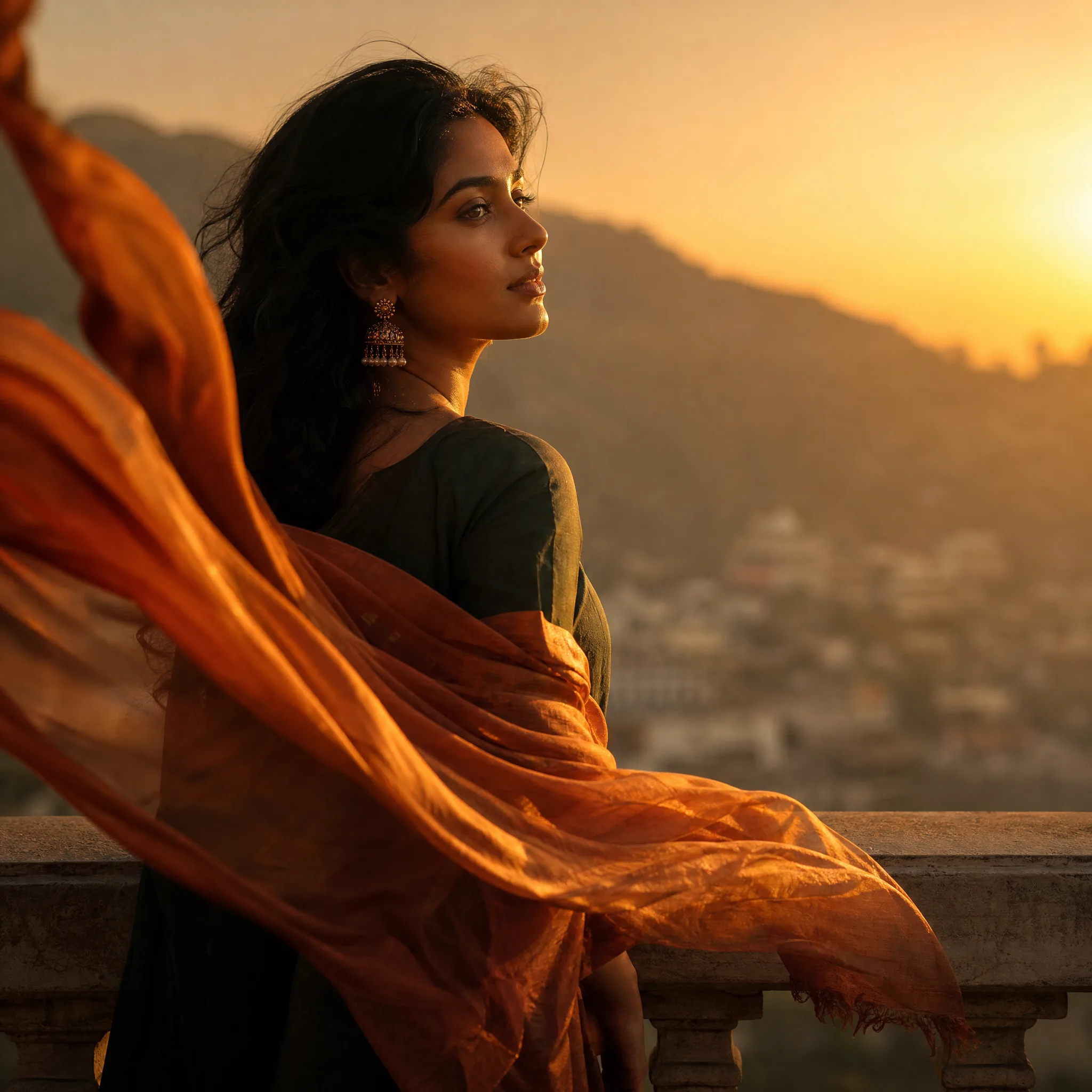
Woman by a stone balustrade facing the sunset as a long burnt-orange silk scarf lifts on the wind beside her