GPT Image 2.5
Prompt
0/20000
Aspect ratio
Resolution
Background
Number of generations
Public Visibility
Required credits
6
Examples
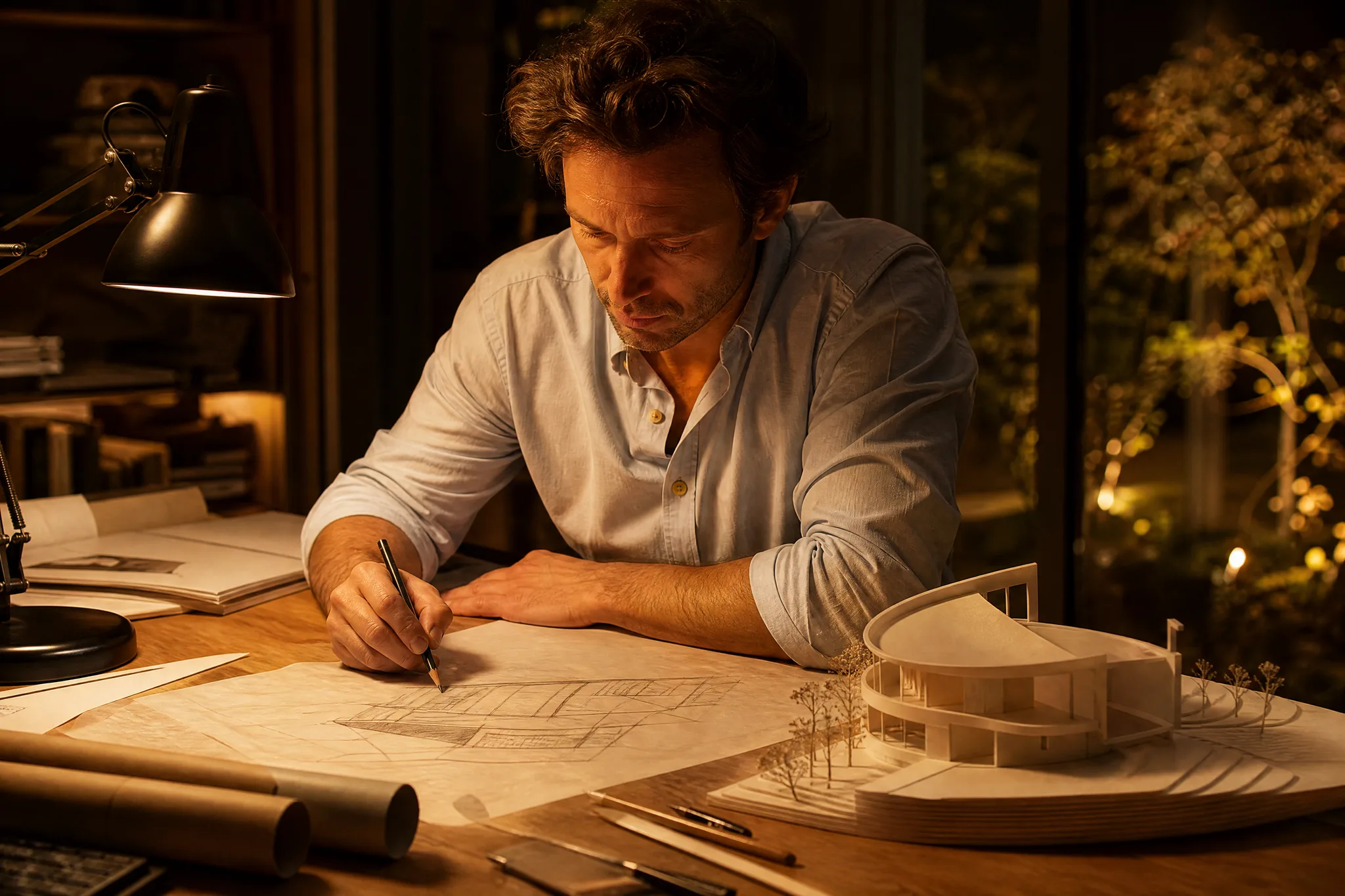
Architect drawing a building on tracing paper next to a white scale model under a desk lamp

GPT Image 2.5 Image Generator

Book covers, slides and mockups from a written concept

OpenAI's GPT Image 2.5 turns a written concept, or a photo you want to build on, into a finished-looking still. Pick a frame such as 27:16 or 8:9 next to the usual square and 16:9, choose the Sunburst or Flare variant, and use the GPT Image 2.5 result for a book cover, a slide or a product mockup.

Generate with GPT Image 2.5
Architect drawing a building on tracing paper next to a white scale model under a desk lamp
Concepts drafted from a paragraph|Photo or painted treatments|27:16 and 8:9 frames|Up to 16 reference photos

How to Use GPT Image 2.5 for a Cover or Mockup

GPT Image 2.5 takes a concept in words, optionally backed by reference photos. These four steps go from that concept to a still you have checked for the job.

1

Write the Concept in a Paragraph

Start with what the picture is for and what it must show, for example a cookbook cover with a beekeeper holding honeycomb. GPT Image 2.5 works from full sentences, so describe subject, setting and mood in order. Add up to 16 reference photos in image-to-image mode if you have them.

2

Pick a Frame and Variant

Choose the frame for the final placement. GPT Image 2.5 adds 27:16 and 16:27 for wide slides and tall covers, plus 9:8 or 8:9 for near-square posts, next to 1:1, 16:9 and 21:9. Then select Sunburst or Flare and a 1K, 2K or 4K output.

3

Compare the Take with the Brief

Read the first GPT Image 2.5 still against your paragraph sentence by sentence. Is the subject placed where the title will not cover it, are the colours right for the brand, did the reference photo's details carry over? Revise the one sentence that missed and run again.

4

Check at Final Size and Download

Preview the GPT Image 2.5 image at the size it will be seen, on a phone screen or a printed cover, and inspect faces, hands and fine edges. Download the take that passes, then add the title, author name or slide text in your design tool.

Image Tools for Prompts and Photo Edits

Start a picture from words, or change the style or setting of one you already have.

Ways to Shape a GPT Image 2.5 Concept

GPT Image 2.5 text to image work usually turns on four choices: the core idea, the visual style, the space for text and the reference you start from. Each row explains one choice with a sample.

Start from the Story, Not the Style

A beekeeper lifting a golden honeycomb frame in a wildflower meadow starts as a sentence about a person and a moment. Give GPT Image 2.5 that sentence first, then the time of day and the camera distance. Style words come last, so they colour the scene instead of replacing it, which keeps a cover or mockup on message.
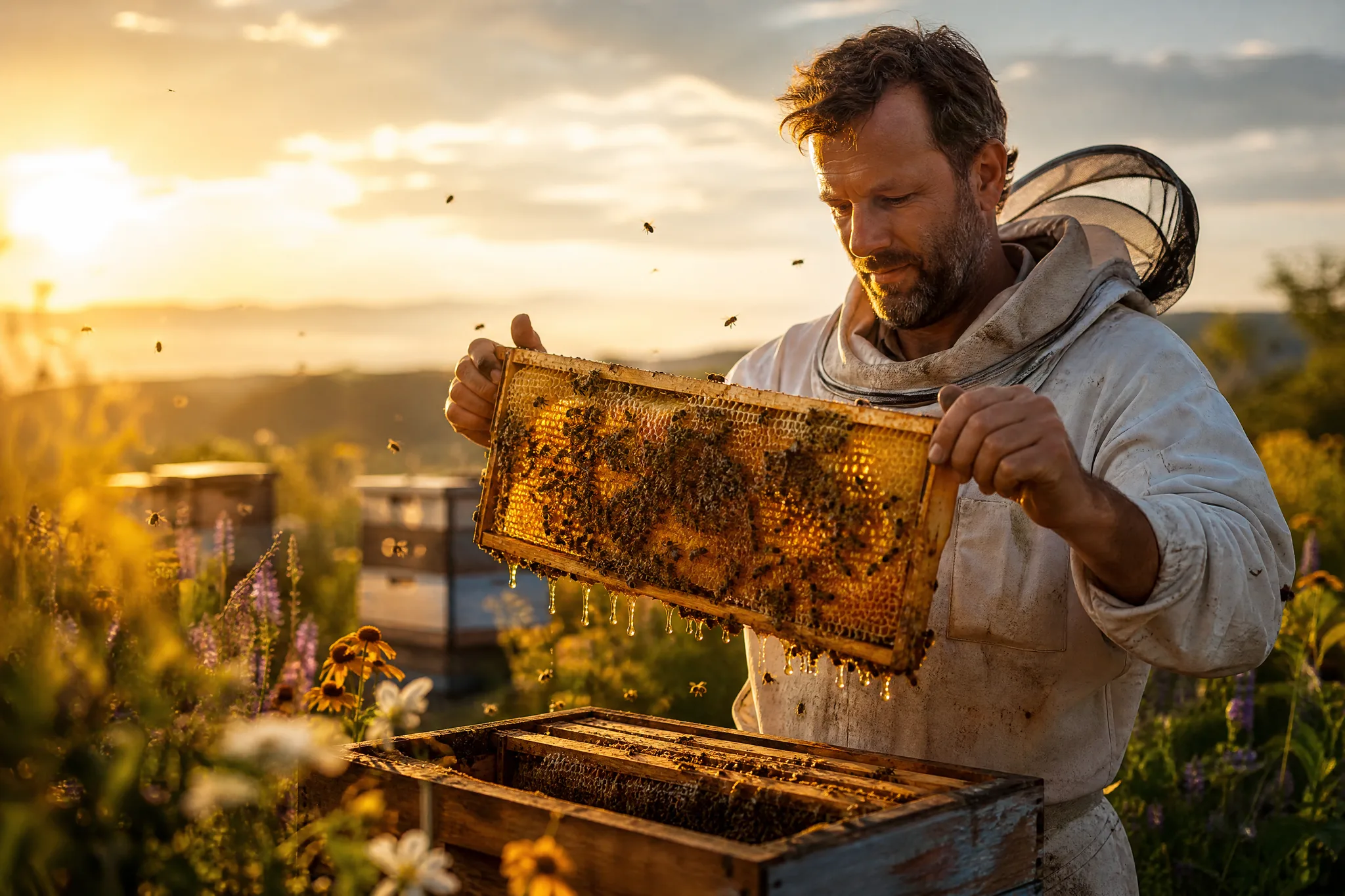
Beekeeper raising a golden frame of honeycomb from a hive in a sunny meadow of wildflowers

Photograph or Painting, Same Idea

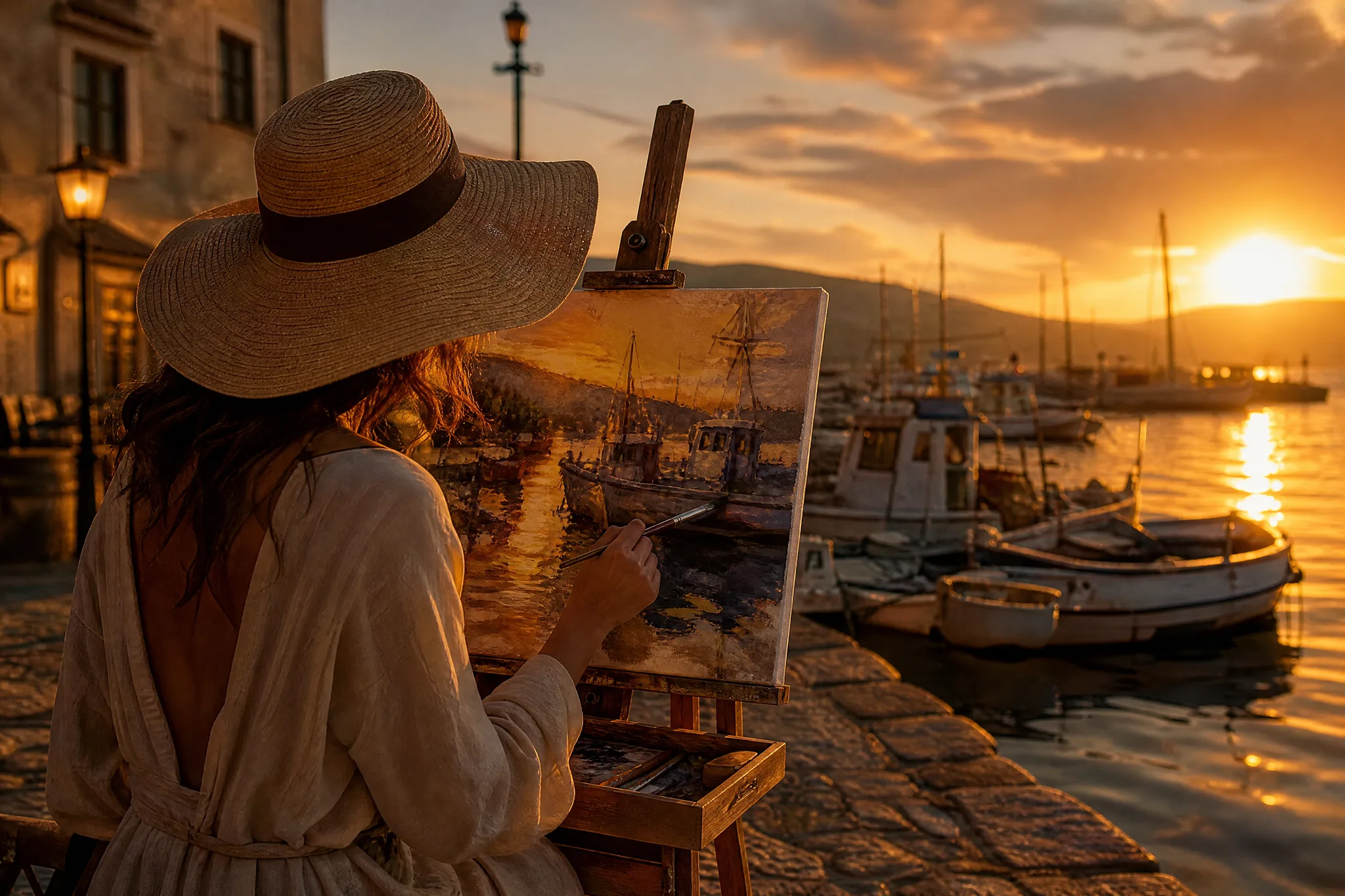
The same harbour at sunrise can be a crisp photograph or a plein-air oil sketch on an easel. Name the medium plainly in your GPT Image 2.5 prompt, run both versions, and compare which suits the audience: photography for a travel brochure, brushwork for a café's wall print or a children's book.

Painter at an outdoor easel capturing the fishing harbour in front of her at sunrise

Built-In Room for Titles

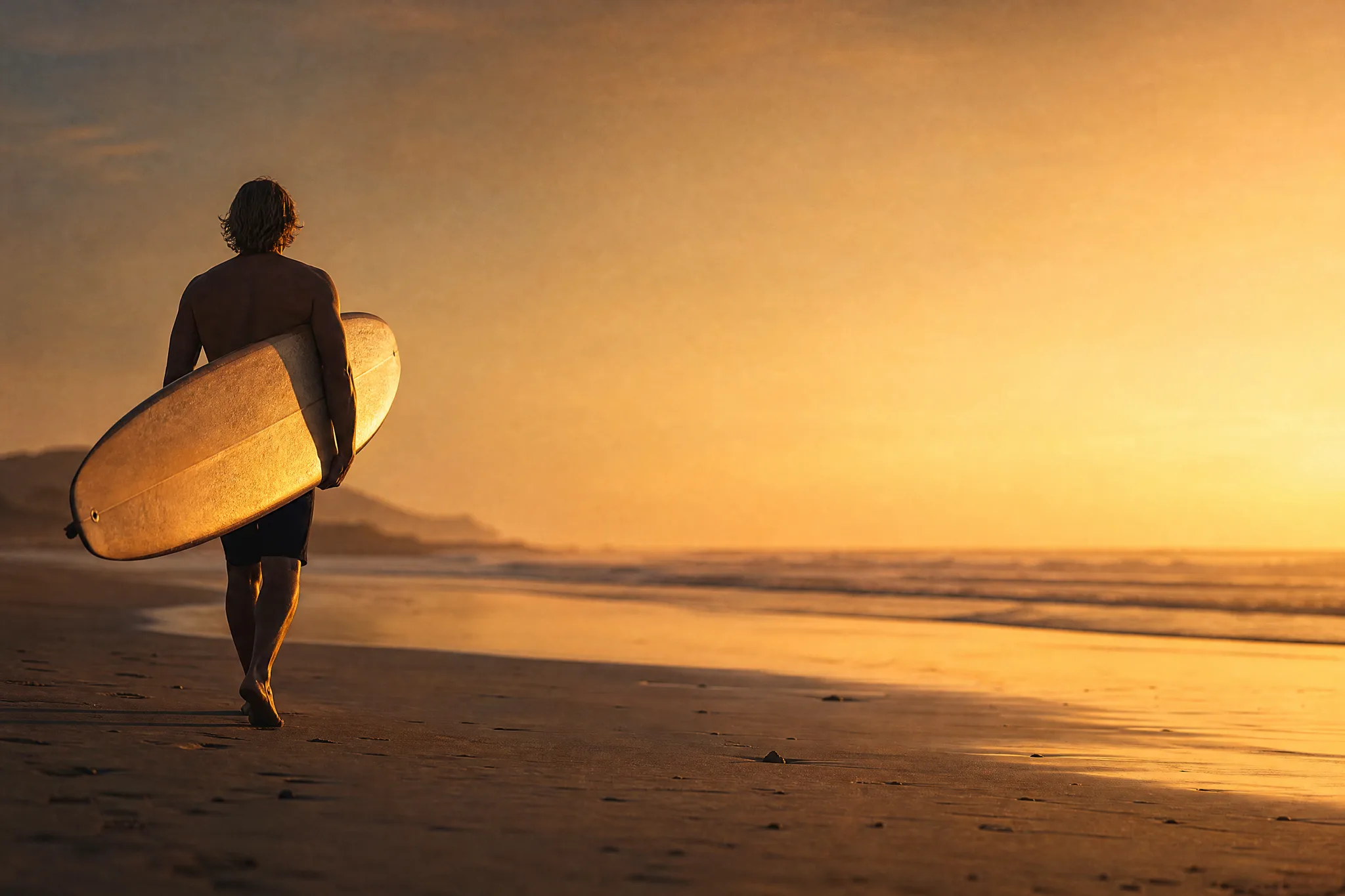
A surfer with a longboard on the left of an empty beach leaves the right half calm for type. Ask GPT Image 2.5 for that split explicitly and pick a 27:16 or 16:9 frame for a slide or banner. Set the actual headline in your layout software, where you control the font, size and spelling.

Surfer holding a longboard on the left of a deserted beach at dusk, the right side left clear

Refine from a Photo You Took

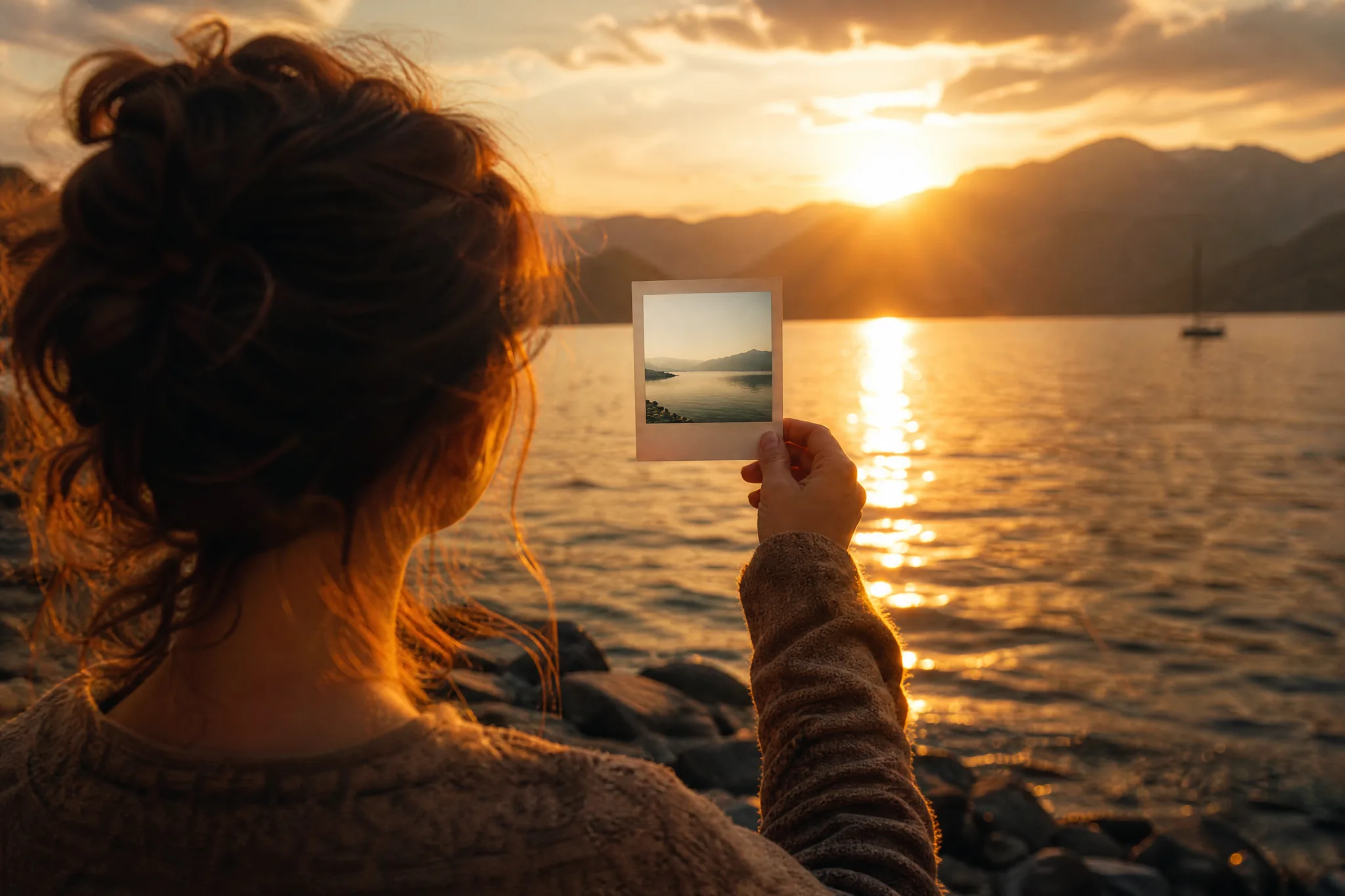
Hold an instant print of a lake up against the real lake at sunset and you see what a reference does: it anchors the place while the light changes. Upload your own photo to GPT Image 2.5 image to image, describe the new hour or season, and compare the result with the original shot.

Woman holding up a daytime instant photo of a lake in front of the same lake at sunset

GPT Image 2.5 Use Cases for Covers, Slides and Shops

GPT Image 2.5 suits people who start with a concept and need a picture shaped for one exact slot. Five examples follow.

Self-Published Authors

An author can describe the novel's opening scene and ask GPT Image 2.5 for a 16:27 cover image with the top third kept quiet for the title. The draft cover helps compare directions with a designer before the final artwork is commissioned.

Presenters and Teachers

A speaker can turn each section of a talk into a GPT Image 2.5 picture in 27:16 or 16:9, such as a harbour at dawn for a chapter on local history. The images give the slides one consistent look without hunting through stock libraries.

Shop Product Mockups

A soap maker can upload a photo of a new bar and ask GPT Image 2.5 for it on a bathroom shelf with morning light and eucalyptus. The mockup tests packaging colours before a print run and doubles as a pre-order image.

Farm Shops and Bakeries

A honey farm or a bakery can brief GPT Image 2.5 with a real product photo and the season, then use the 8:9 result as a near-square post and a 21:9 version as the website header. Prices and opening hours go on top in an editor.

Holiday and Travel Keepsakes

Travellers can upload a favourite lake photo and ask GPT Image 2.5 for the same view as a painted print at golden hour. Framed next to the original snapshot, it makes a personal gift for whoever shared the trip.

Stories from People Who Tried It on Their Photos

My mystery novel opens at a fishing harbour at sunrise, and I needed a cover direction before hiring a designer. I described that harbour to GPT Image 2.5 in a 16:27 frame with the top third kept quiet for the title. The designer worked from the draft, and the final cover kept its composition.

Elise M.
Self-Published Novelist

GPT Image 2.5 FAQ

What people ask about GPT Image 2.5 before writing a concept: the model itself, photo input, prompt length, access, frames and commercial use.

GPT Image 2.5 is an OpenAI image model that renders a still from a written concept or from reference photos. PicVideo runs it in the image workspace with two variants, Sunburst and Flare, and frames that include 27:16, 16:27, 9:8 and 8:9 next to the usual ratios.

A GPT Image 2.5 prompt of three to six sentences usually covers purpose, subject, setting, light, style and where empty space belongs. Longer prompts are fine when every sentence describes the same picture; move instructions for a different image into a separate run.

The free credits you collect at sign-up and from daily check-ins, growing to 4x on day 7, let you sketch a cover or slide idea on free models such as Z-Image Turbo straight away. GPT Image 2.5 runs on a PicVideo plan or credit pack; Sunburst and Flare share one credit table, and larger resolutions cost more.

GPT Image 2.5 image to image can carry up to 16 reference images into one concept. Upload the product, person or place you want to keep, then describe the new setting, light or style. Text alone works too when you have no photos to hand.

GPT Image 2.5 frames a cover or slide as 1:1, 3:2, 2:3, 4:3, 3:4, 16:9, 9:16, 21:9, 27:16, 16:27, 9:8 or 8:9, rendered at 1K, 2K or 4K, though not every ratio is offered at every size. A 2:3 frame fits a paperback cover and 16:9 a slide, while the less common 27:16 and 8:9 frames match wide hero mockups and near-square product cards.

GPT Image 2.5 keeps drafts to yourself by default. An unannounced book cover or client slide sits in your own library, and the references you upload are not displayed. Publish a finished image only when you want the Explore gallery to be able to feature it.

A cover, pitch slide or mockup made with GPT Image 2.5 is owned by you, so far as the law allows, according to the PicVideo Terms. Use reference photos you are cleared for, check any names, figures or facts that appear in the image, and set the final title text in your design tool.

Shape Your Concept with GPT Image 2.5

Write the concept in a short paragraph or upload the photo you want to build on, choose a frame such as 27:16 or 8:9, and let GPT Image 2.5 render the still. Check it at its final size and finish the cover, slide or mockup in your editor.

Make an image with GPT Image 2.5
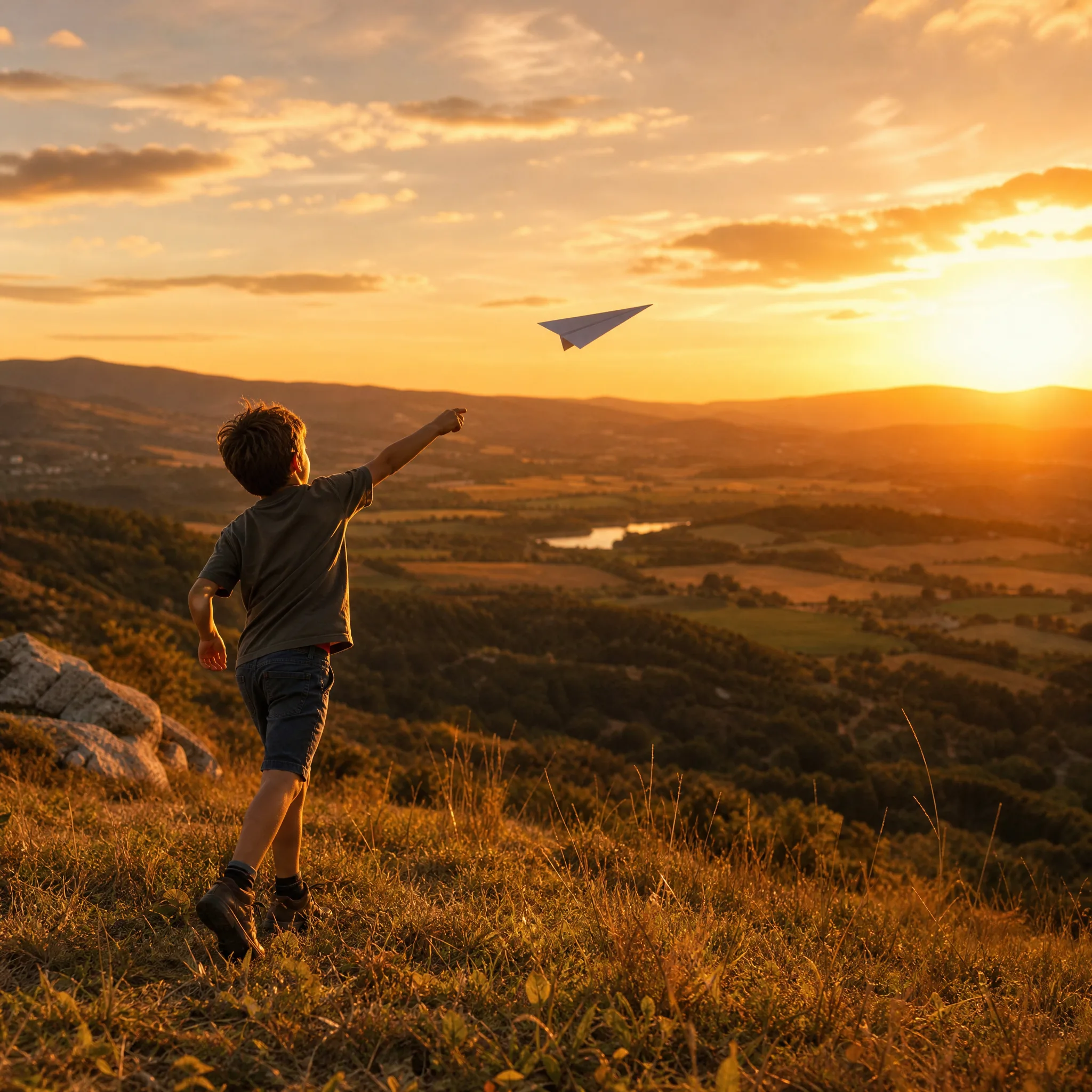
Boy throwing a paper plane off a grassy hill toward the setting sun