Other AI Video Effects for Your Photos
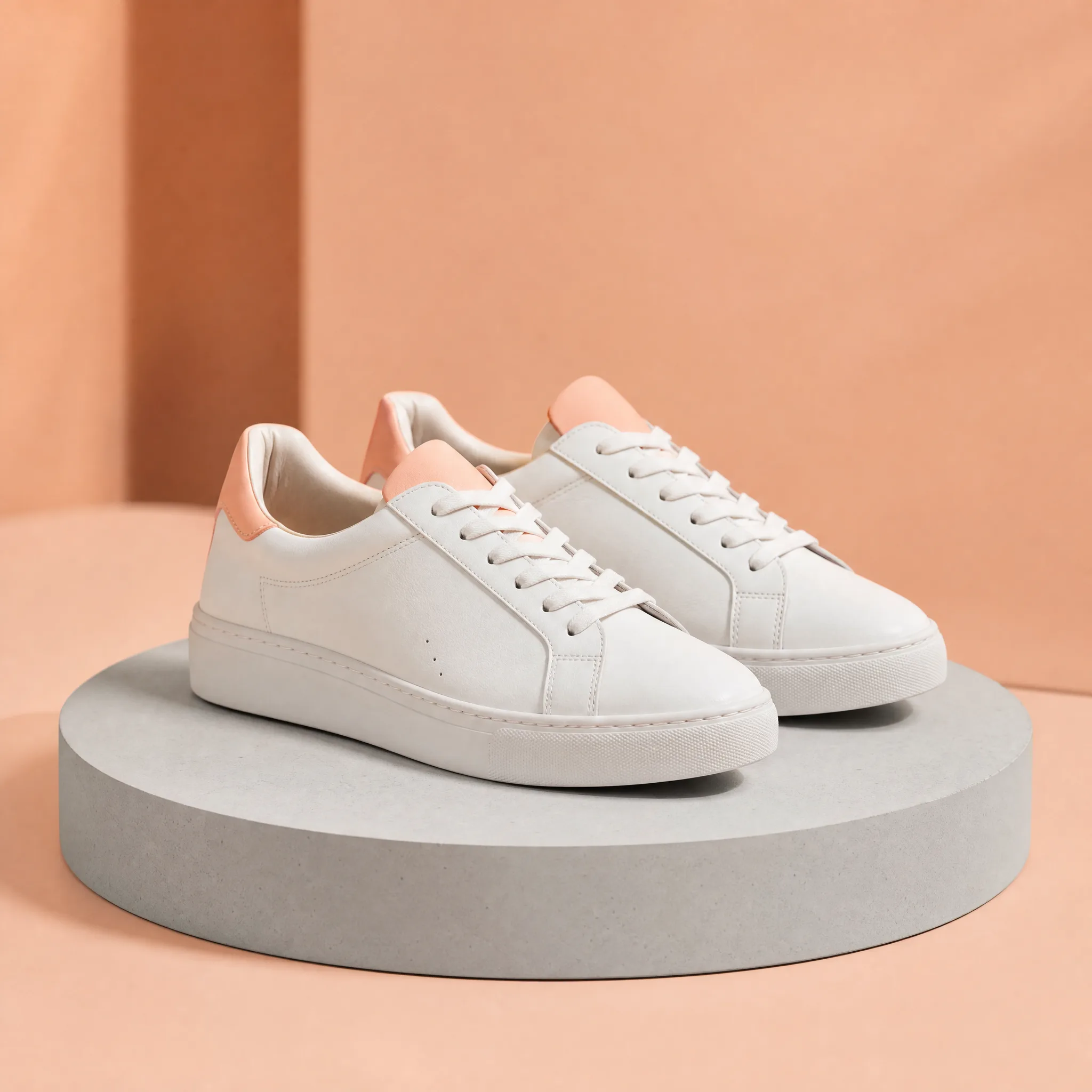
Pick another themed scene and run it with a portrait, a pet or a group photo.
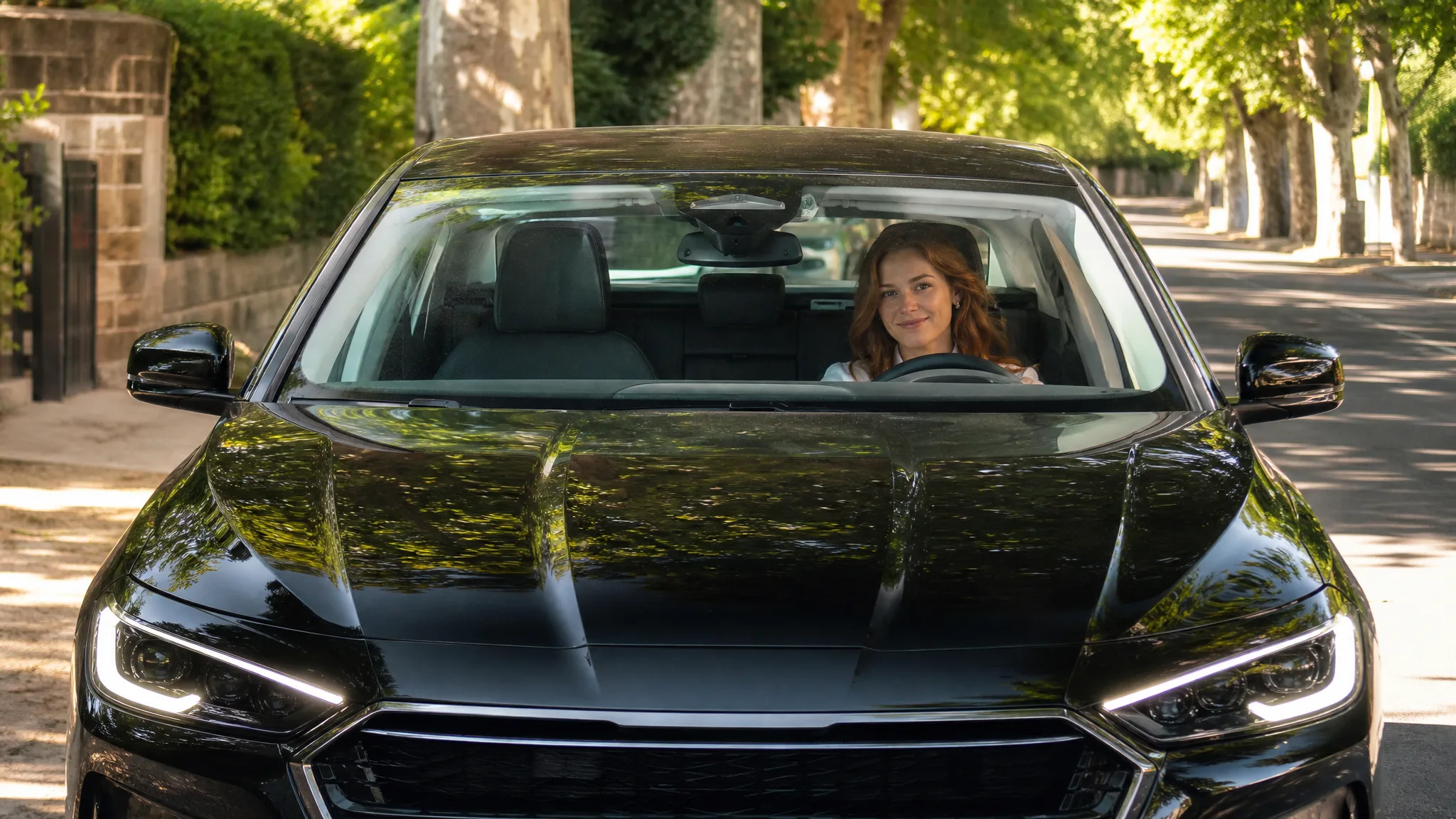
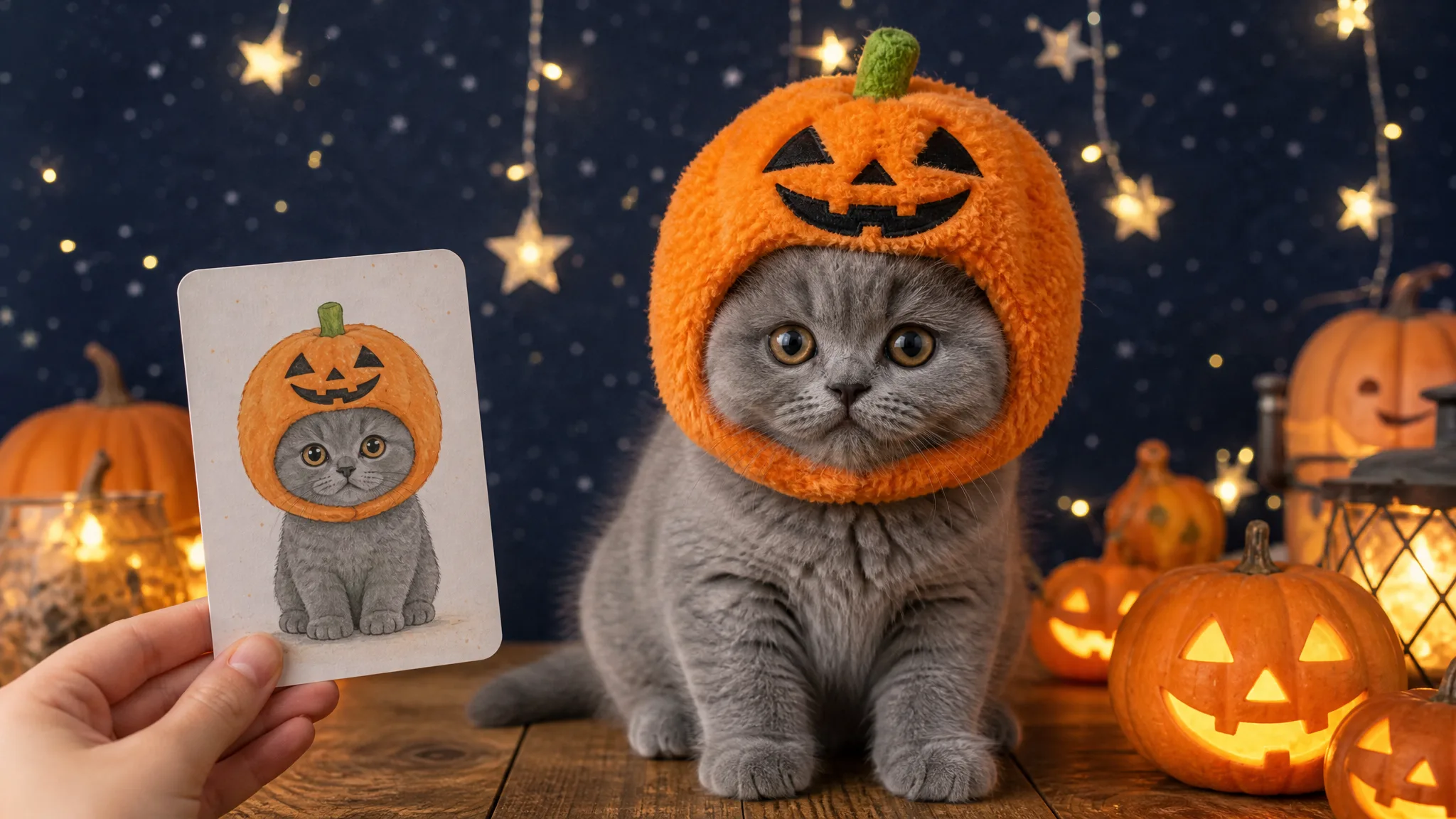
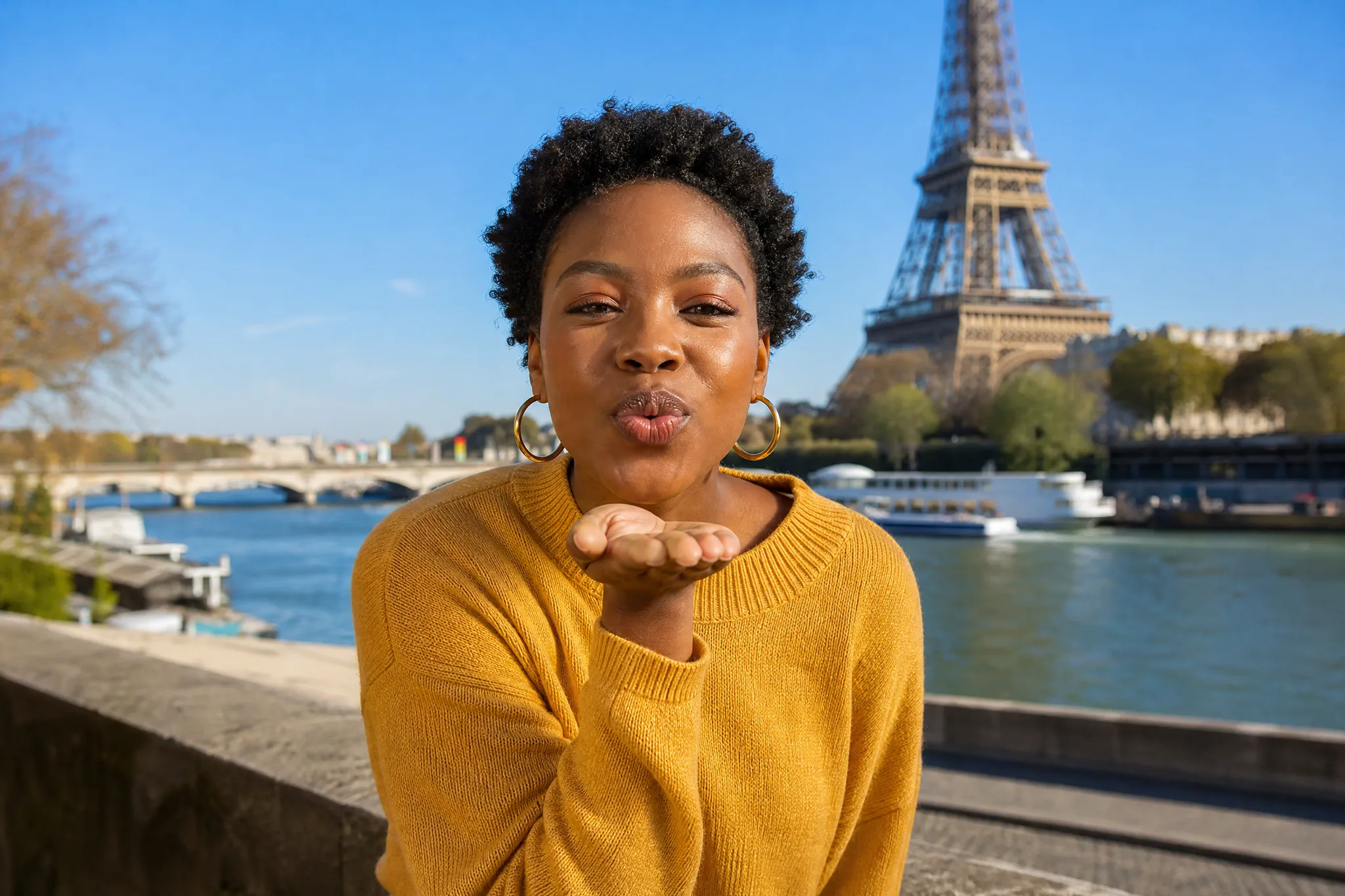
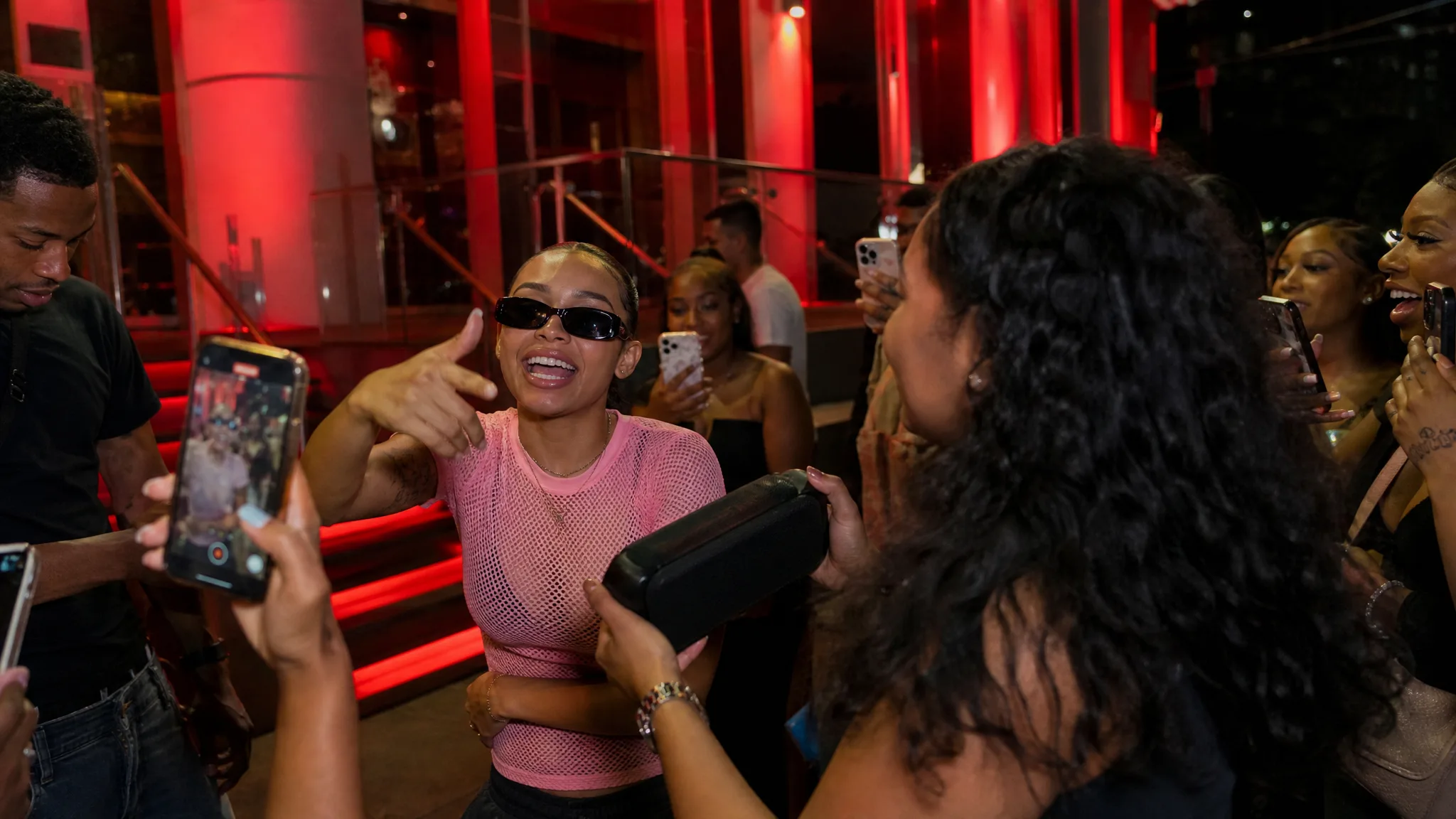
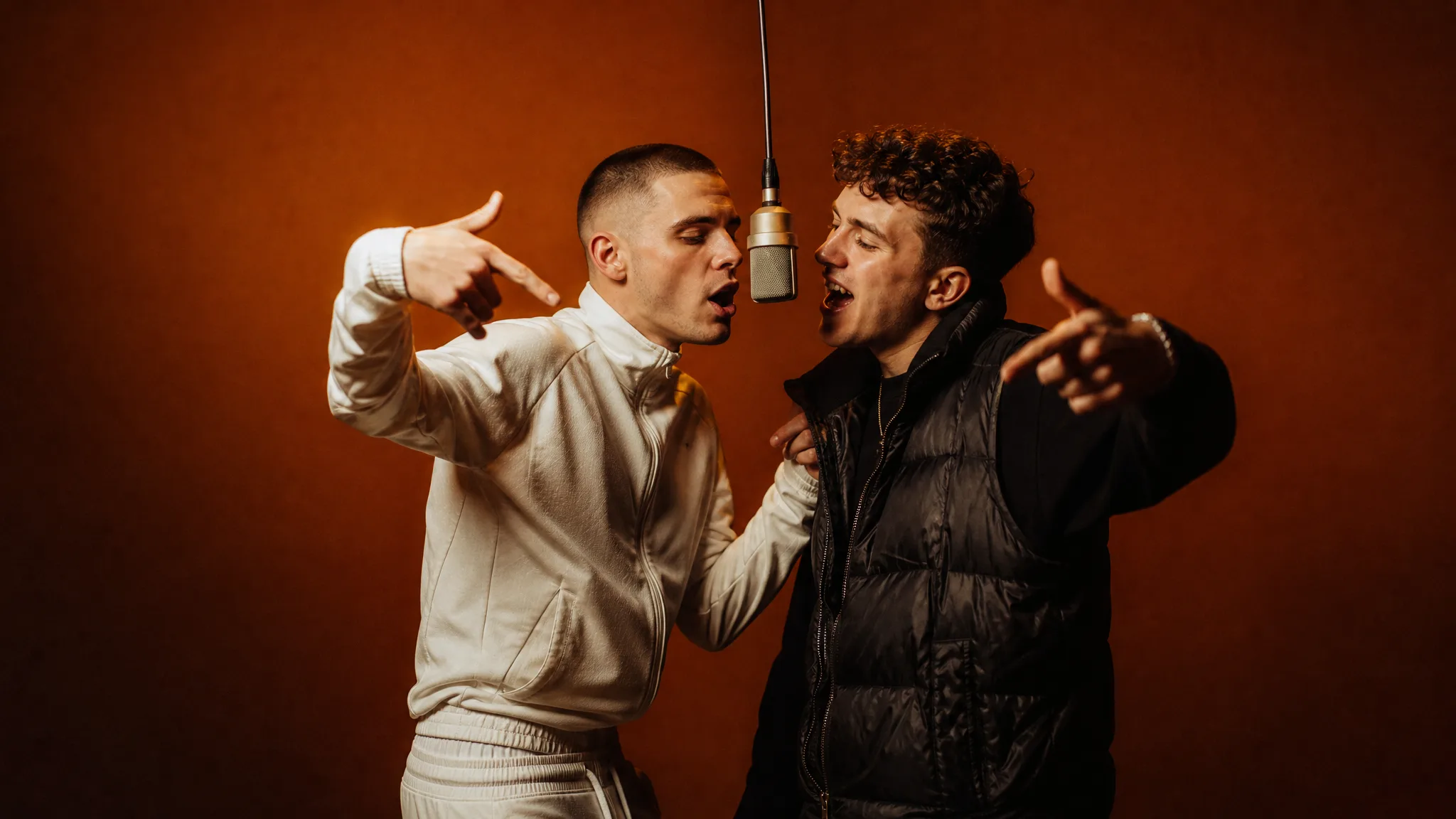
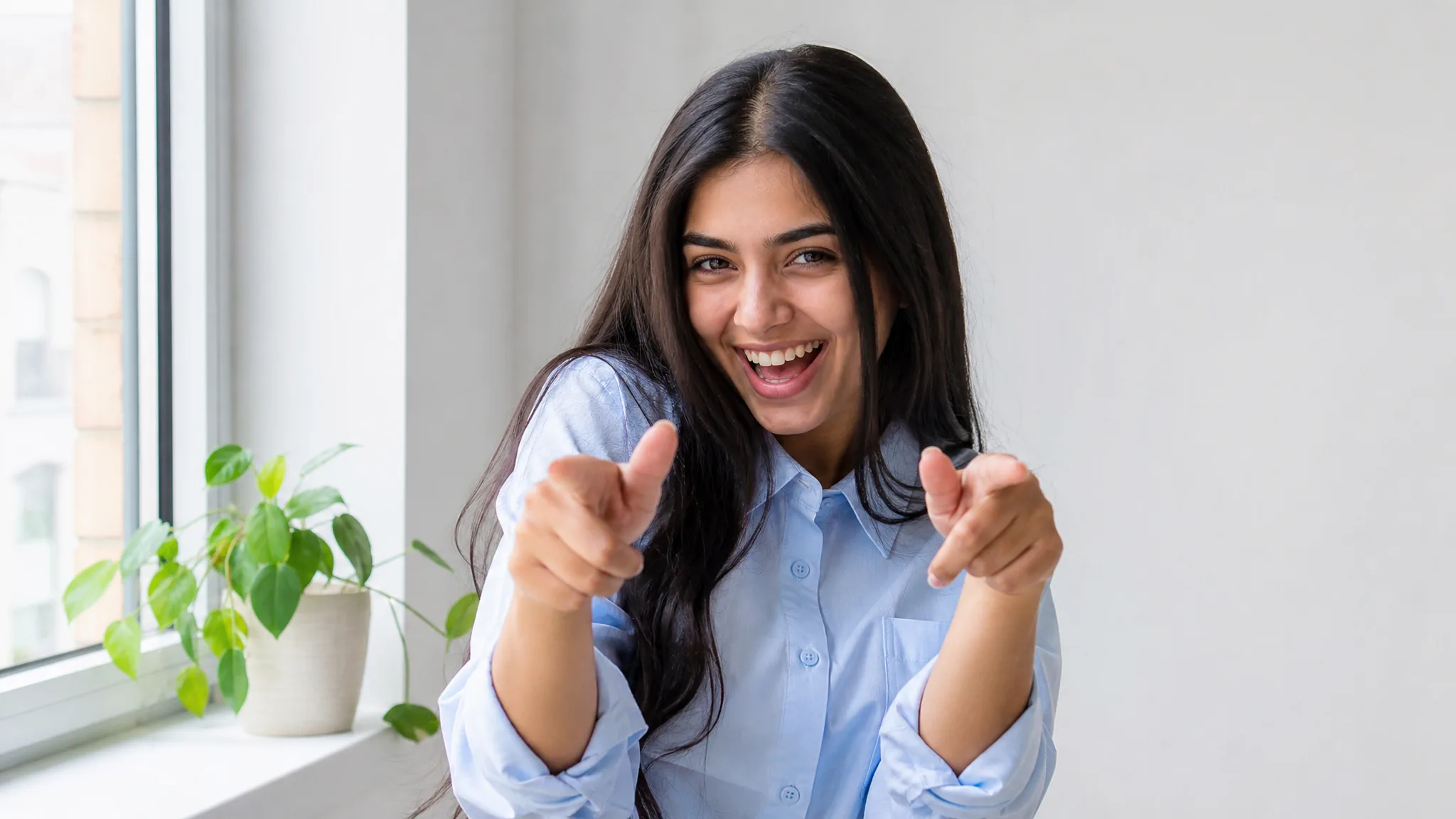
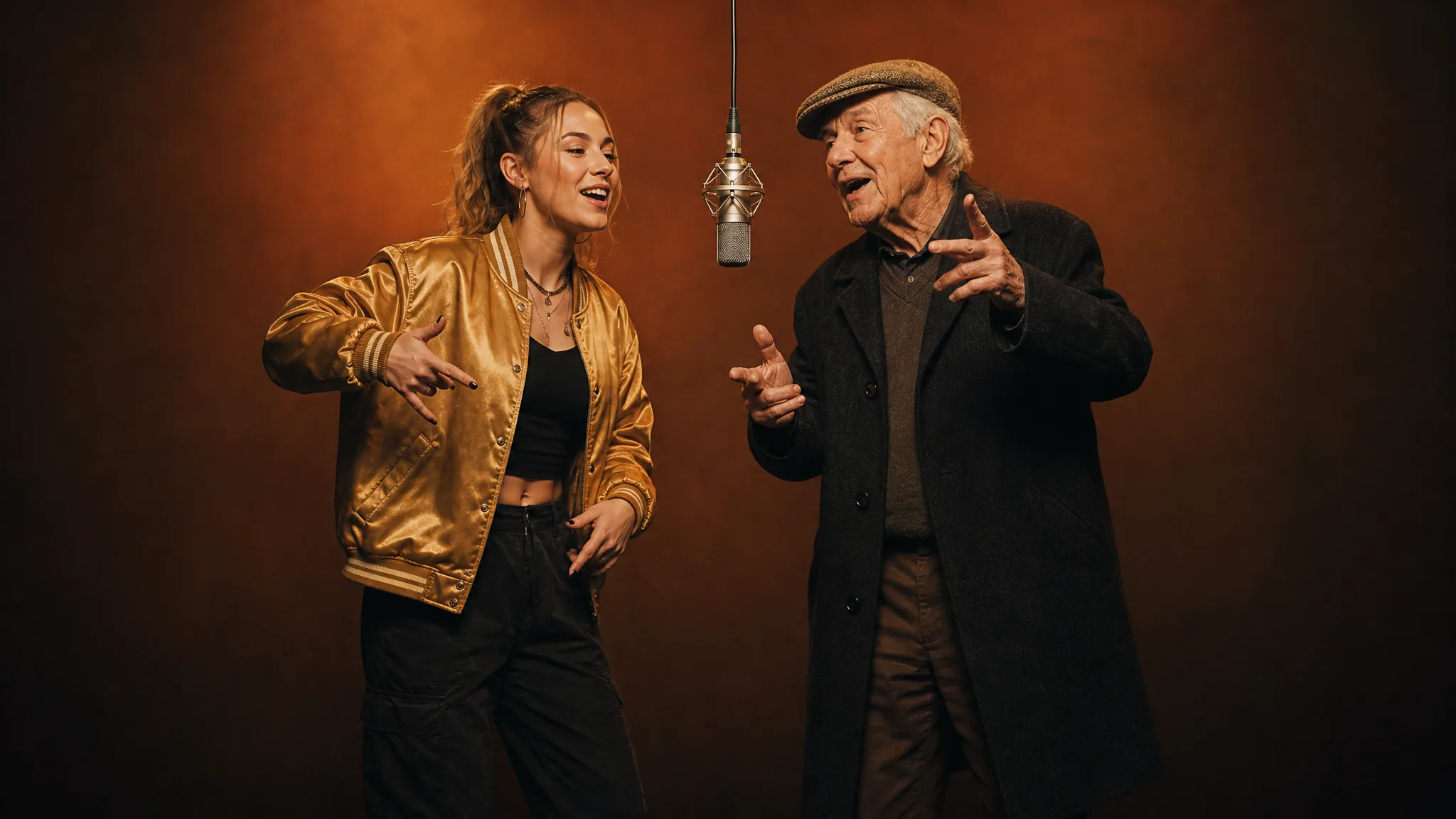
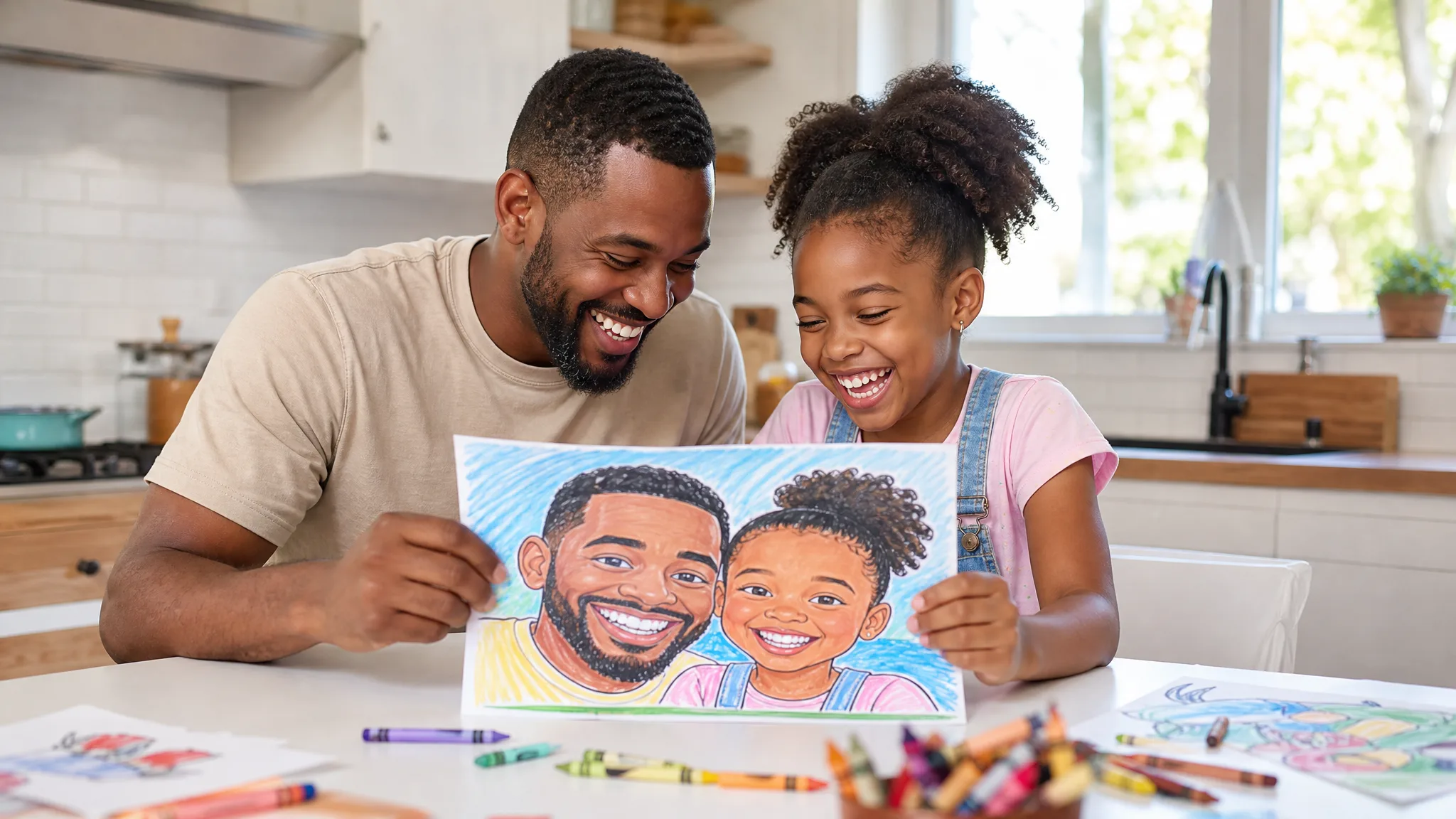
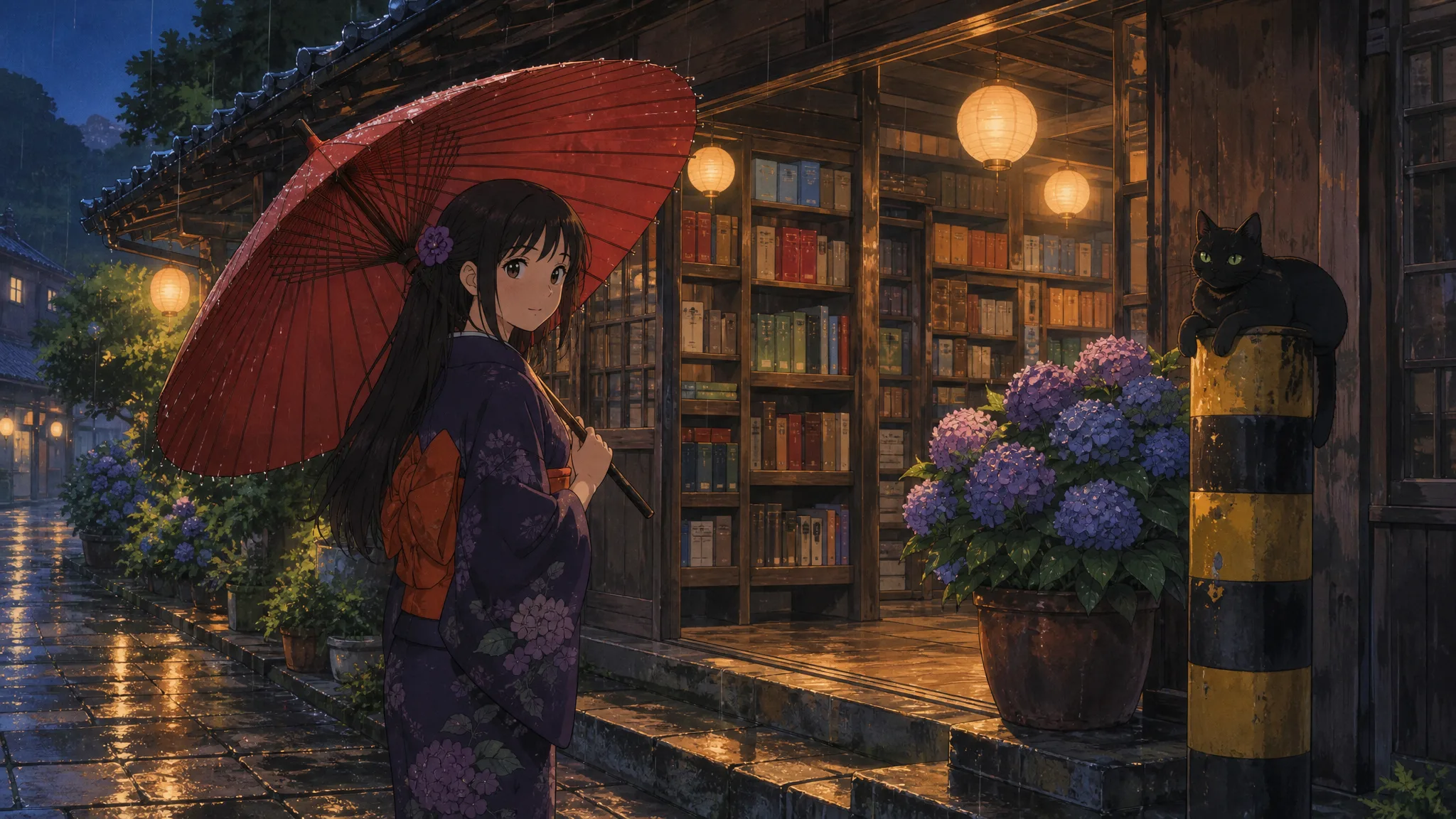
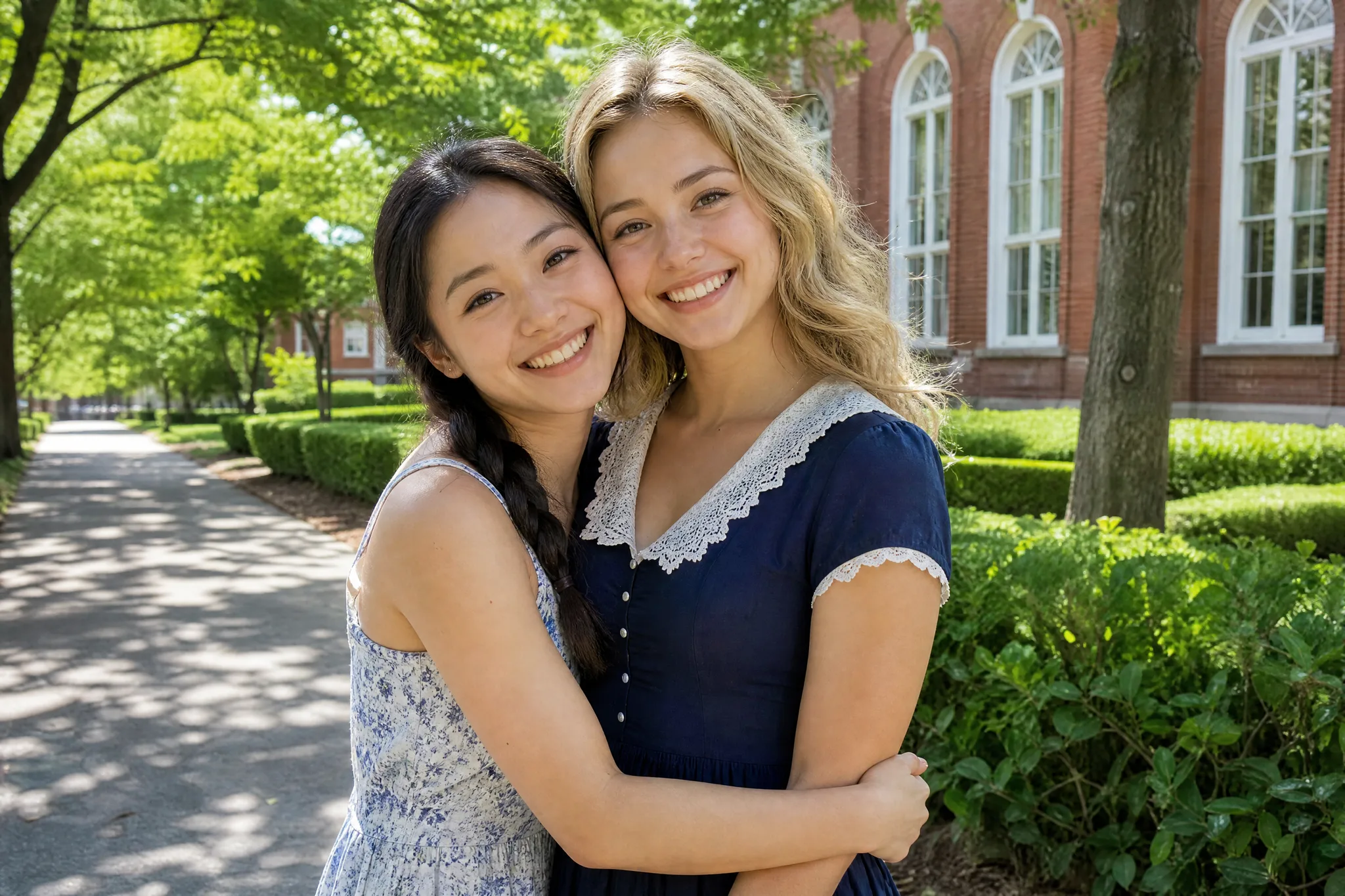
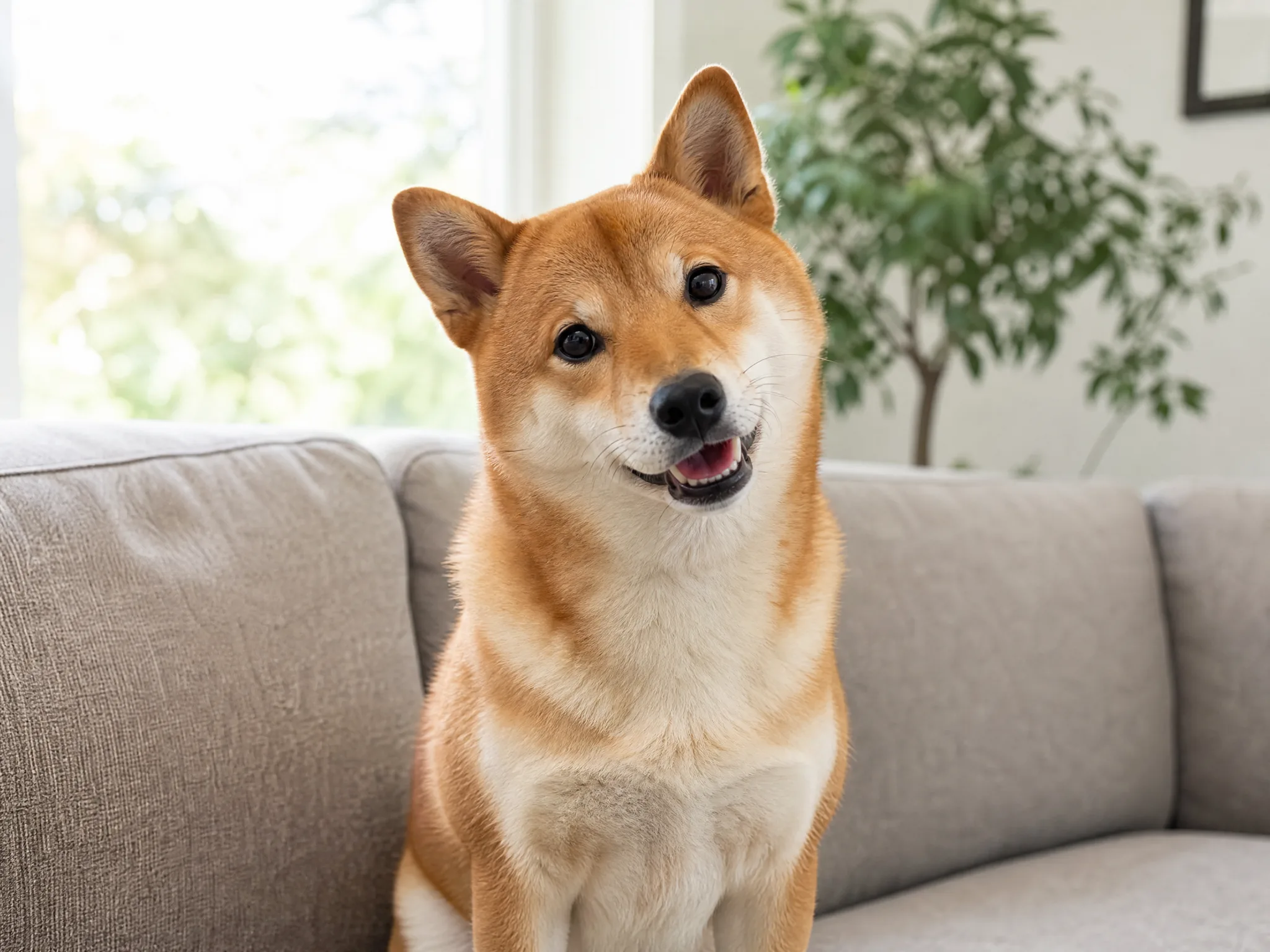
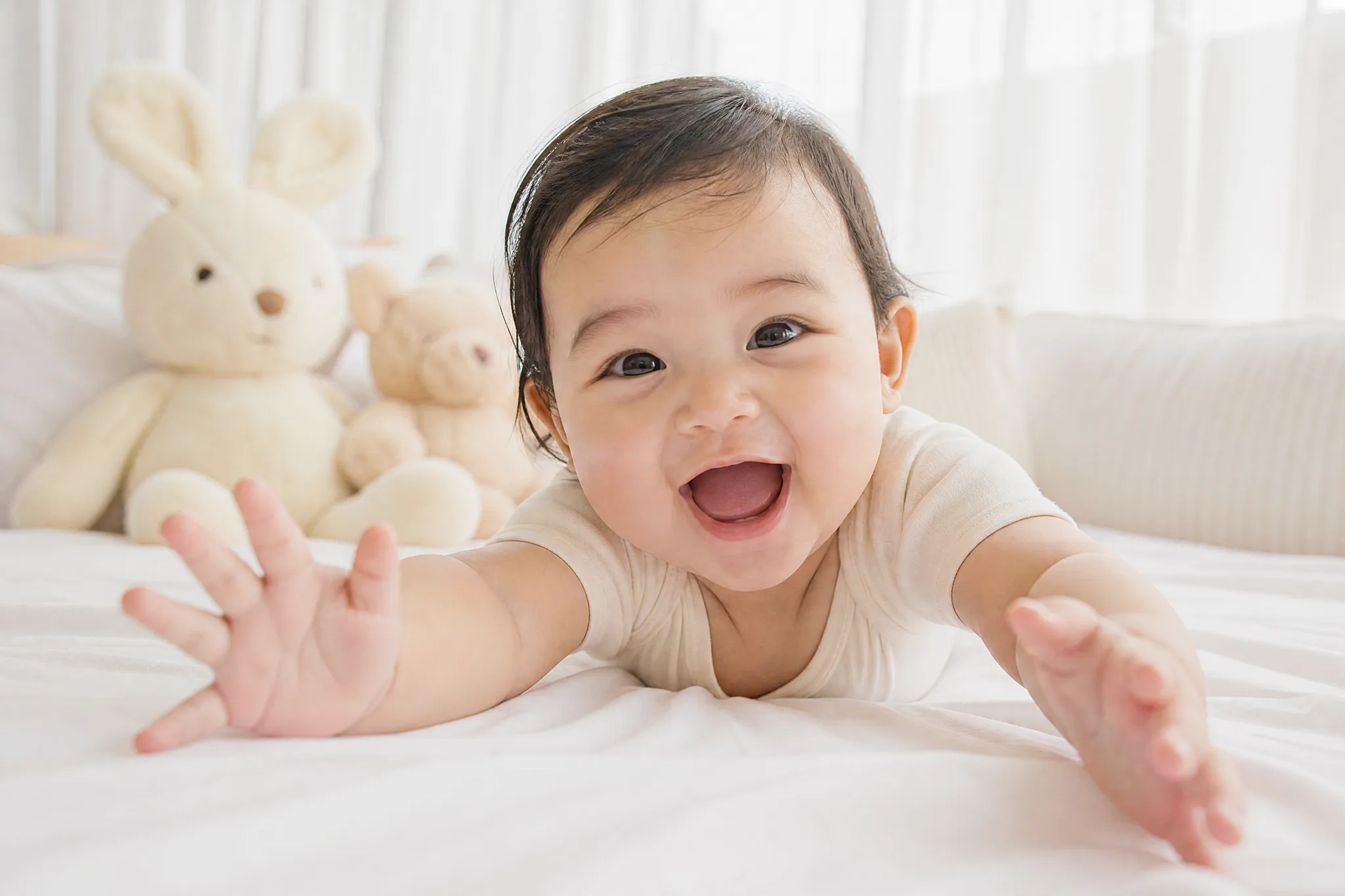
Image to Video AI for Portraits, Pets and Products
Your still frame sets the look, your words set the motion
Start from a photo you already trust: a portrait, a pet, a wedding detail or a product on a table. Write the movement you picture, and image to video renders a short clip from it.
Try Image to Video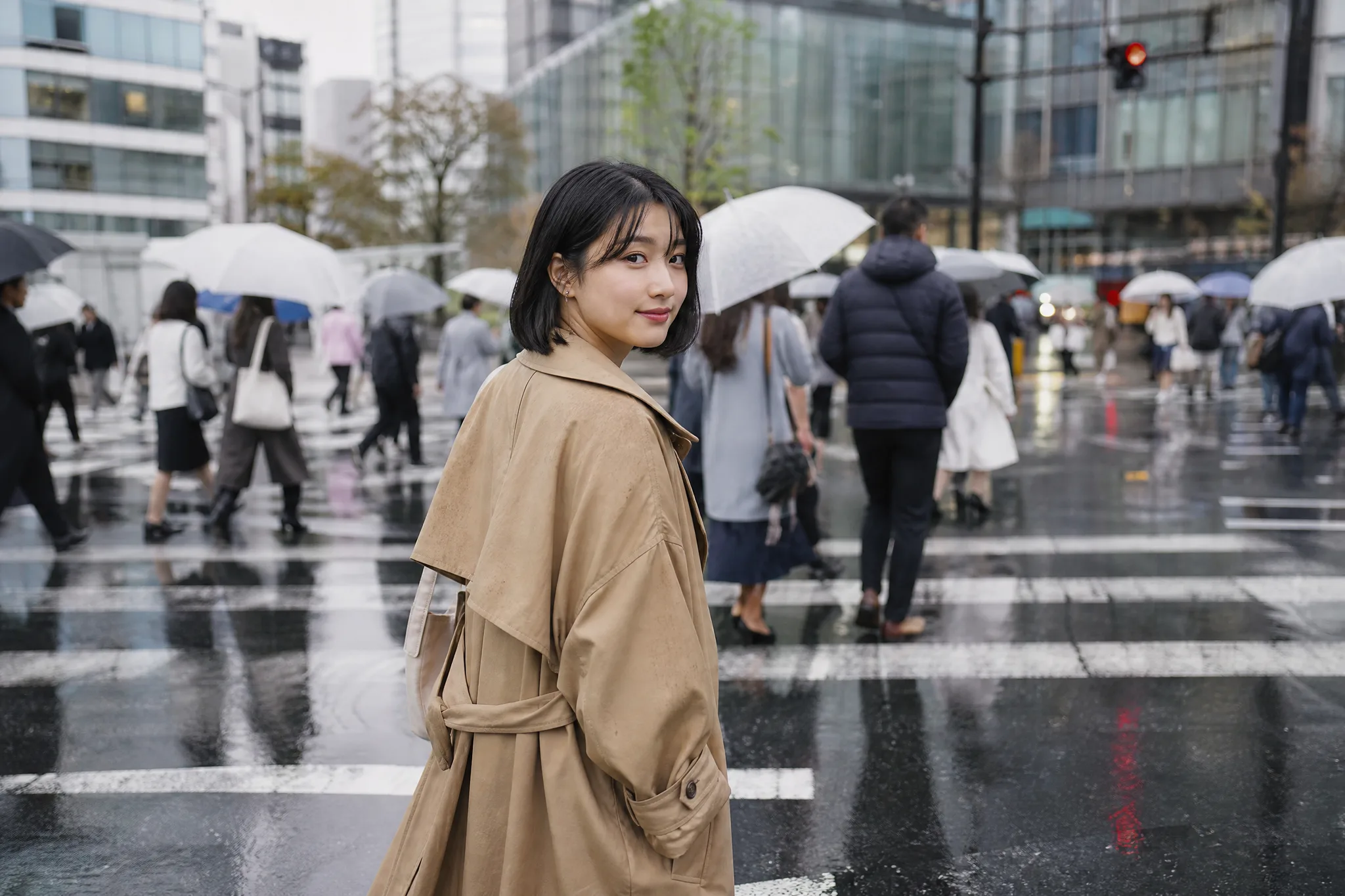
How to Use Image to Video on a Single Photo
Image to video follows four steps on this page: choose a photo, describe the movement, generate a take, then review it before you download.
Choose a photo with a clear subject
Upload a sharp portrait, a pet mid-pose, a wedding detail or a product on a clean surface. Keep the main subject whole inside the frame, since image to video draws every later frame from this one. The upload panel shows the file types and size limits that the selected model accepts.
Write the movement and the camera path
In the prompt, name what the subject does and how the camera travels, for example "the dog tilts its head, camera eases closer". A single action reads more clearly than a sequence of events. Aspect ratio choices come from the model and mode you pick, and Auto keeps the proportions of your photo.
Generate the clip with the image to video maker
Select Generate and watch the job status in the workspace until the preview appears. The image to video maker works from one focused instruction. That keeps each take easy to compare with the moment you had in mind. If it misses, adjust a word and run another version.
Review the take, then download it
Play the image to video result from start to finish and compare faces, hands, edges and any printed text with your photo. Keep the version that matches, download it, and add captions, music or extra shots in your own editor when the project calls for a longer cut.
Video Tools for Prompts, Photos and Frames
Switch to text, a single photo, reference images or two frames when the next clip needs a different start.
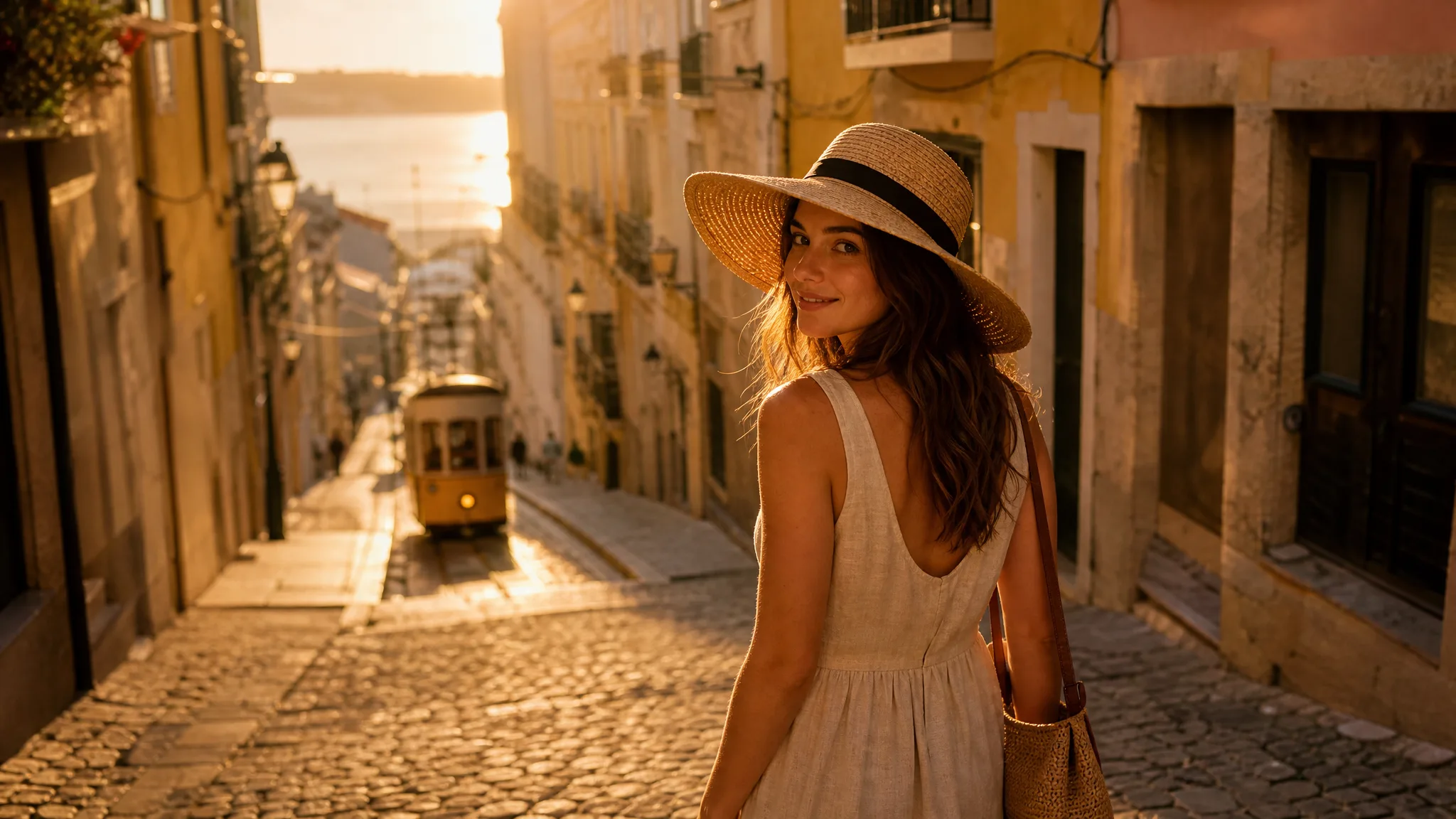
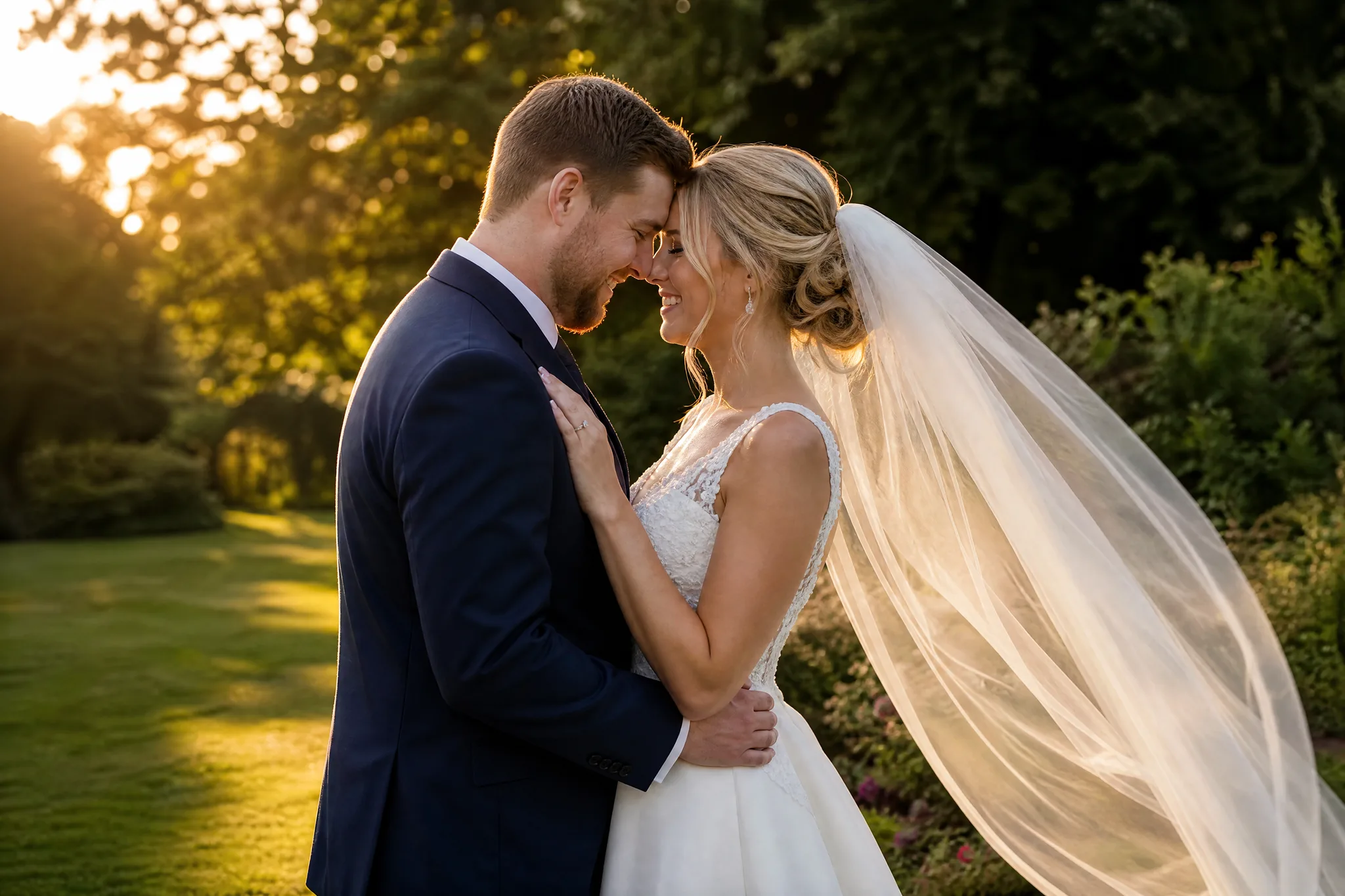
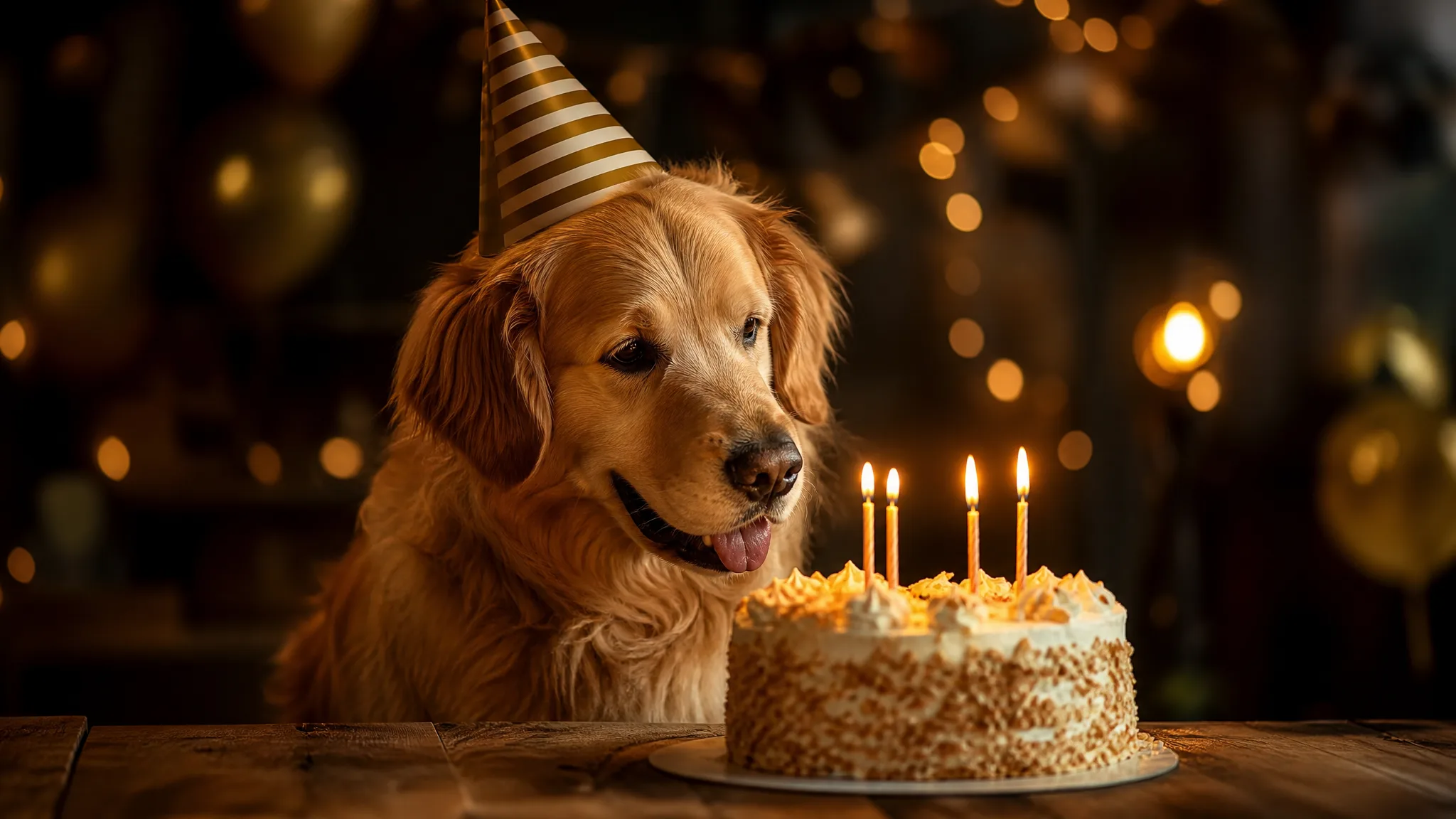
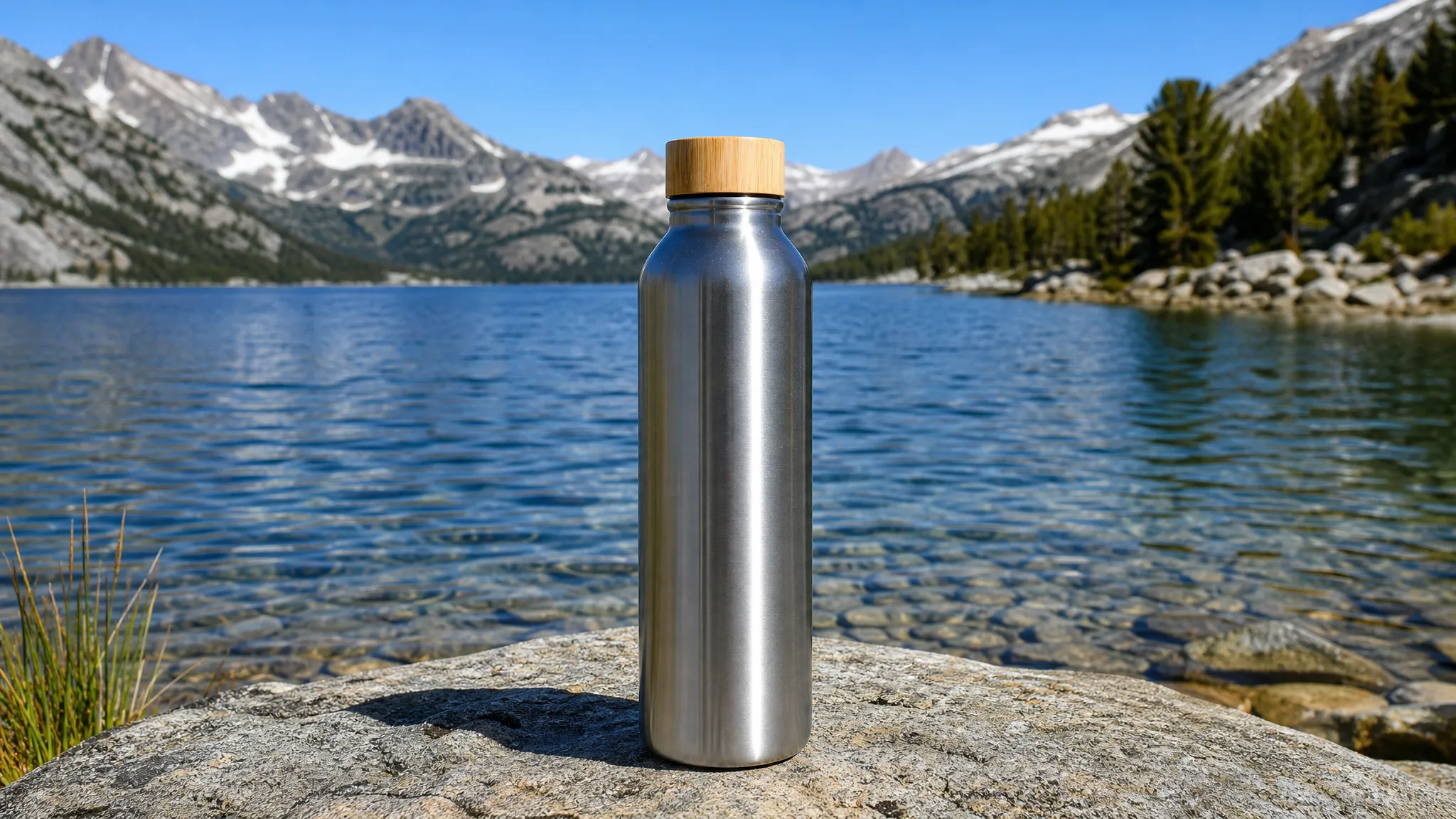
Make Video from Image with One Clear Direction
Image to video keeps your uploaded picture as the reference for faces, colors and setting, so the prompt only needs to cover action, camera and mood.
One readable action for the subject
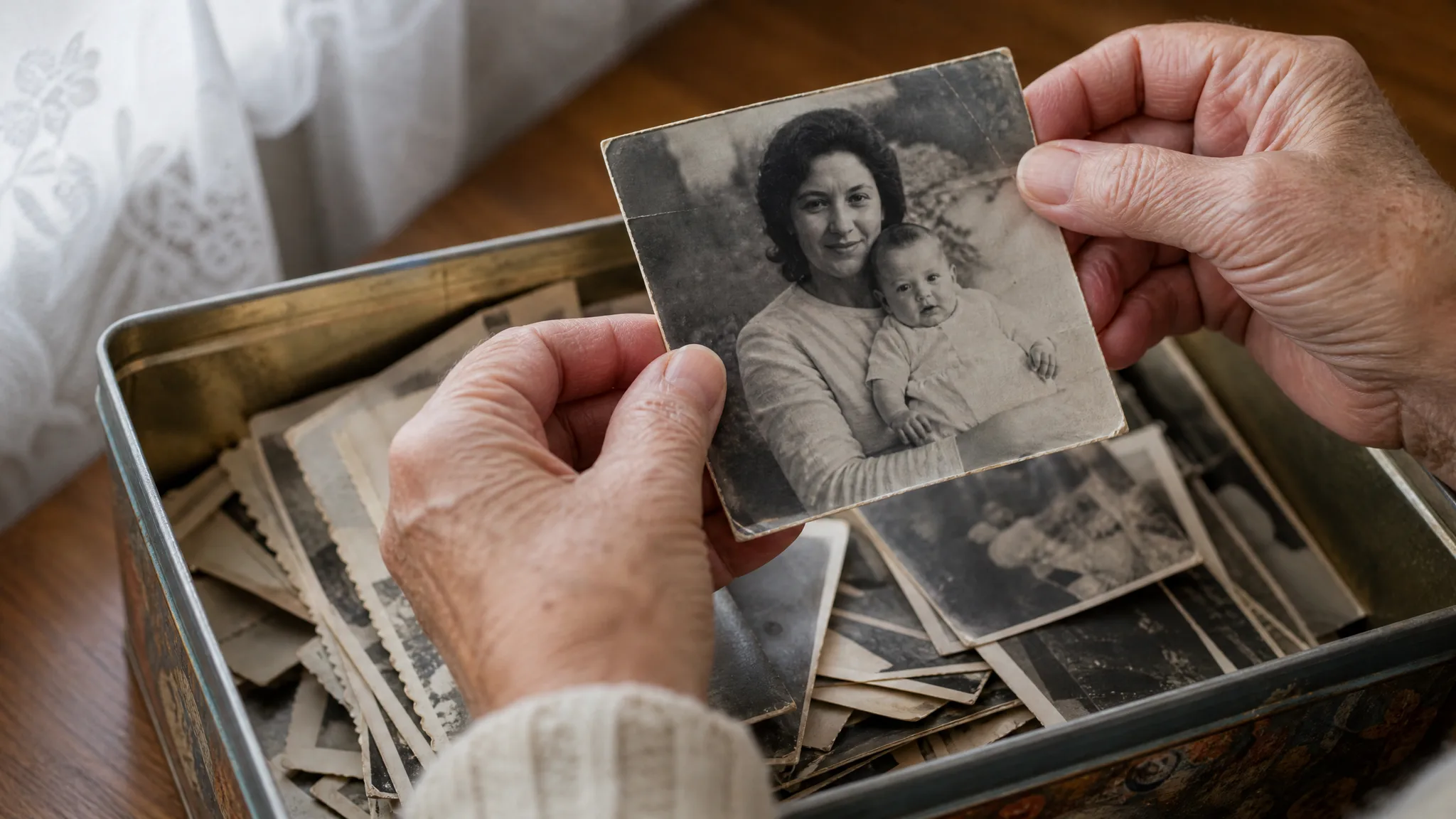
Pick the gesture viewers should notice first: a reader raising his eyes, a toddler reaching for a balloon, a cat flicking its tail. Image to video begins at your photo and builds the in-between frames that lead into that gesture, which is why one strong verb in the prompt usually beats a paragraph of description.
Your photo already holds the look
The colors, faces, outfits and scenery are fixed the moment you upload, so there is no need to describe them again. When you make video from image like this, the prompt can spend its words on motion, camera and atmosphere, and the image to video result stays close to the photo you picked.
A camera move that serves the story
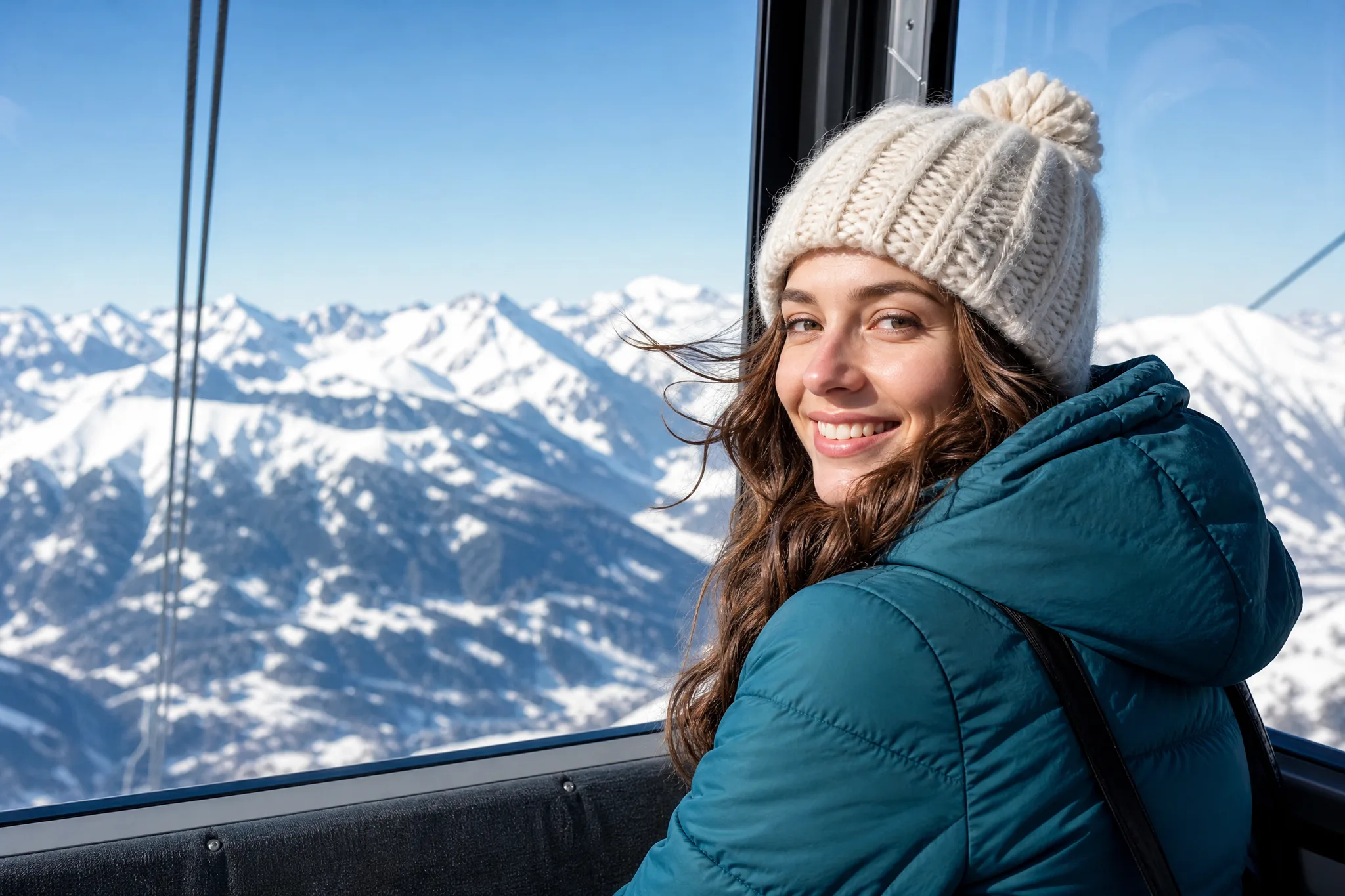
A gentle push-in brings viewers closer to a face, while a wide reveal shows the room or landscape around it. Ask for one camera move per clip and choose the one that fits what you want people to feel. That keeps the subject recognizable from the opening frame to the last and gives the AI video generator from image a single clear path.
Why Image to Video Suits Everyday Photos
Image to video adds motion that a single frame cannot show, while your photo keeps deciding who is in the scene and where it happens.
Generated motion instead of a slideshow
Image to video creates new frames, so a scarf can lift in the wind or birthday candles can flicker. That differs from sliding across a still or fading between several pictures, and it lets one photo hold a small moment on its own for a post or a message.
Camera direction you can name
Request a close-up to show a smile or a reveal to show the venue. Image to video handles one camera move per clip most cleanly; packing a zoom, a pan and a subject action into a few seconds tends to muddy the idea you wanted to show.
A choice of models for the same photo
Only models that support this task appear here, and they differ in inputs, duration, framing and sound. Veo 3.1 Lite is the default and makes 4, 6 or 8-second clips with sound; run the same photo through another image to video model when the first take misses the mood.
Two versions, one clear choice
Try a glance toward the lens and a glance away on the same portrait, then watch both takes side by side. Comparing two short versions is often the easiest way to learn what the scene needs before you settle on the clip for your project.
Stories from People Who Tried It on Their Photos
Newborns rarely hold still, yet my best frame from last week caught a baby girl mid-yawn in a knitted wrap. I ran it through image to video and asked for a slow stretch and a tiny blink. The parents put the clip in their birth announcement, and two cousins booked sessions after seeing it.
Image to Video AI Questions
Answers on what image to video does, how to word a motion prompt, which photos work well and how your uploads are handled.
Image to video AI generates a short moving clip from one uploaded photo and a written direction. Your photo fixes how people, pets and places look, and the prompt decides what moves and how the camera behaves.
To make video from image, upload the photo, write one action plus one camera move, pick a model and select Generate. Once the preview is ready, check faces and edges, then download the take you like.
This free AI video generator from image starts you off with free credits the moment you sign up. A daily check-in adds more, and a seven-day streak raises that reward up to 4x. Choose the portrait, pet or product photo you most want to see move and spend the credits on image to video clips or AI images.
Name one action, one camera direction and a mood. For example: "he looks up from the book and smiles, slow push-in, soft afternoon light". A single clear idea gives the image to video model an easier target and gives you a take that is easier to judge.
Veo 3.1 Lite is the default image to video model here; it renders 4, 6 or 8-second clips and always adds sound. You can switch to another listed model and compare input options, duration, framing and audio. Auto framing follows the proportions of your photo.
A generated clip shows motion the camera never captured. Image to video creates the in-between frames, so a curtain sways or a head turns inside one shot. A slideshow, even with a slow pan, only travels across finished pictures. For a longer story, place several generated clips in your editor.
Each image to video run produces one short video clip from one photo. For a longer piece, generate several clips, join them in an editor and export whichever format the project needs, including GIF when your editor offers it.
Photos with one clear subject and some room around it for movement give image to video the most to work with. The upload panel lists the formats and limits for the selected model. Tiny faces, fine lettering and crowded scenes deserve a careful look when you review the clip.
You own the image to video clips you generate, as set out in the Terms, to the extent the law allows. For client or brand work, start from a photo you have the rights to, with permission from anyone recognizable in it, and check logos and product details in each take before publishing.
The photos you upload are never published. Each image to video clip follows the Public Visibility switch: it stays on for free accounts, so a successful clip may be selected for Explore after a team review, and it starts off for accounts with a subscription or one-time pack. The Privacy Policy explains how the selected model provider processes your photo.
Put Your Photo in Motion with Image to Video
Pick the photo that already tells your story, whether it is a birthday portrait, a new product or a travel view. Describe the movement you picture, and image to video renders a short clip you can preview, download and drop into a post, a message or a longer edit.