







Photo to Music Video
Reference images
Prompt
0/4000
Duration
Resolution
Aspect ratio
Translate prompt
Number of outputs
Public Visibility
Required credits
30
Sample videos

Photo to Music Video: Give Your Picture Motion and Sound

One photo, a mood you can hear and a clip ready to share

Pick a portrait, a pet photo, cover art or a travel shot. Describe how it should move and what the music should feel like, and photo to music video creates a short clip with generated sound on models such as Veo 3.1 Lite.

Animate My Photo with Sound
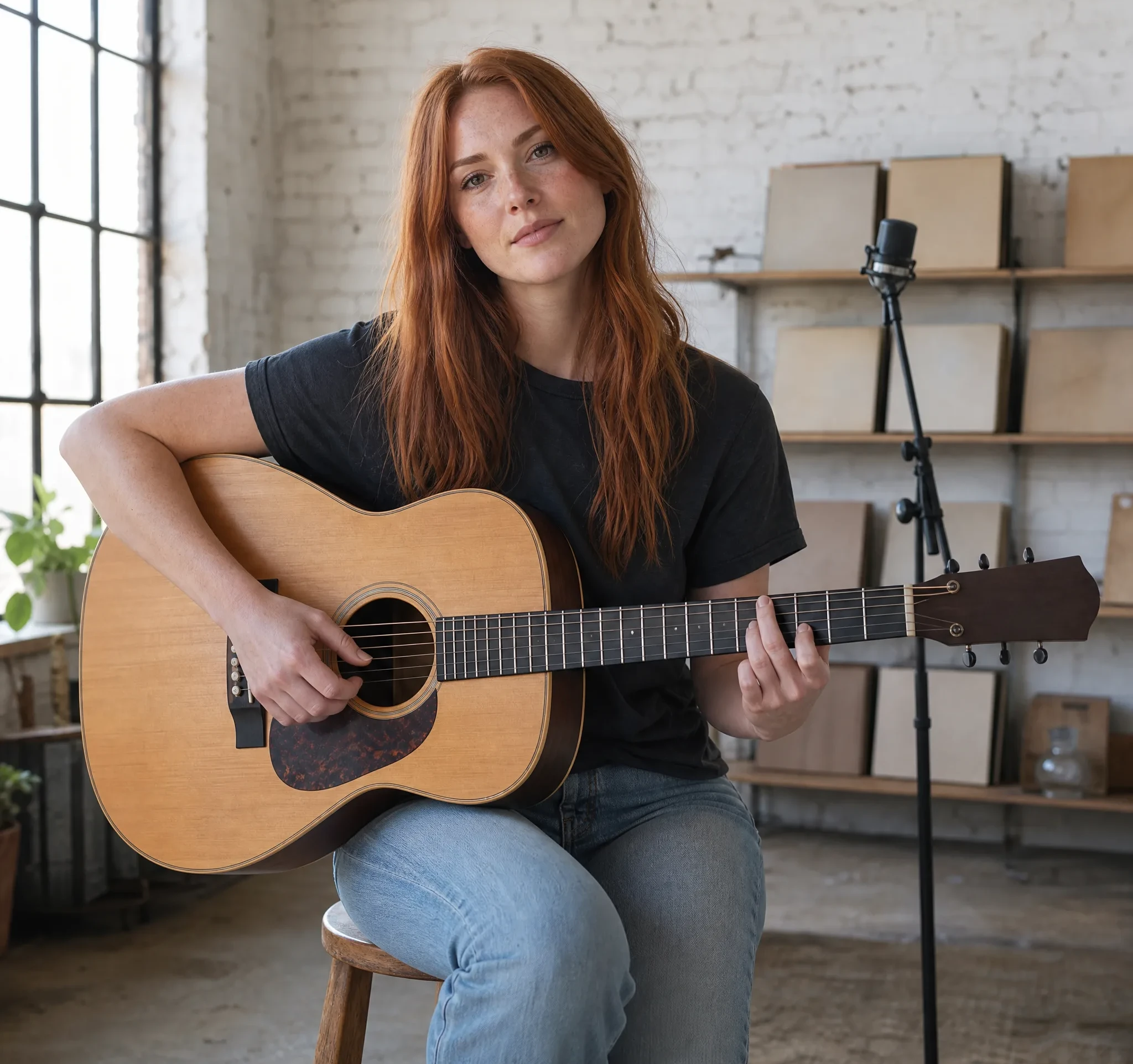
Auburn-haired singer-songwriter strums an acoustic guitar on a wooden stool beside a mic in a white-brick loft
Portraits, pets and cover art|Music mood in the prompt|Sound on supported models|Watch, listen, download

How to Turn a Photo into a Music Video

Photo to music video takes four steps: choose a photo and a sound-capable model, describe motion and mood, review picture and sound, then download.

1

Choose a photo and a sound-capable model

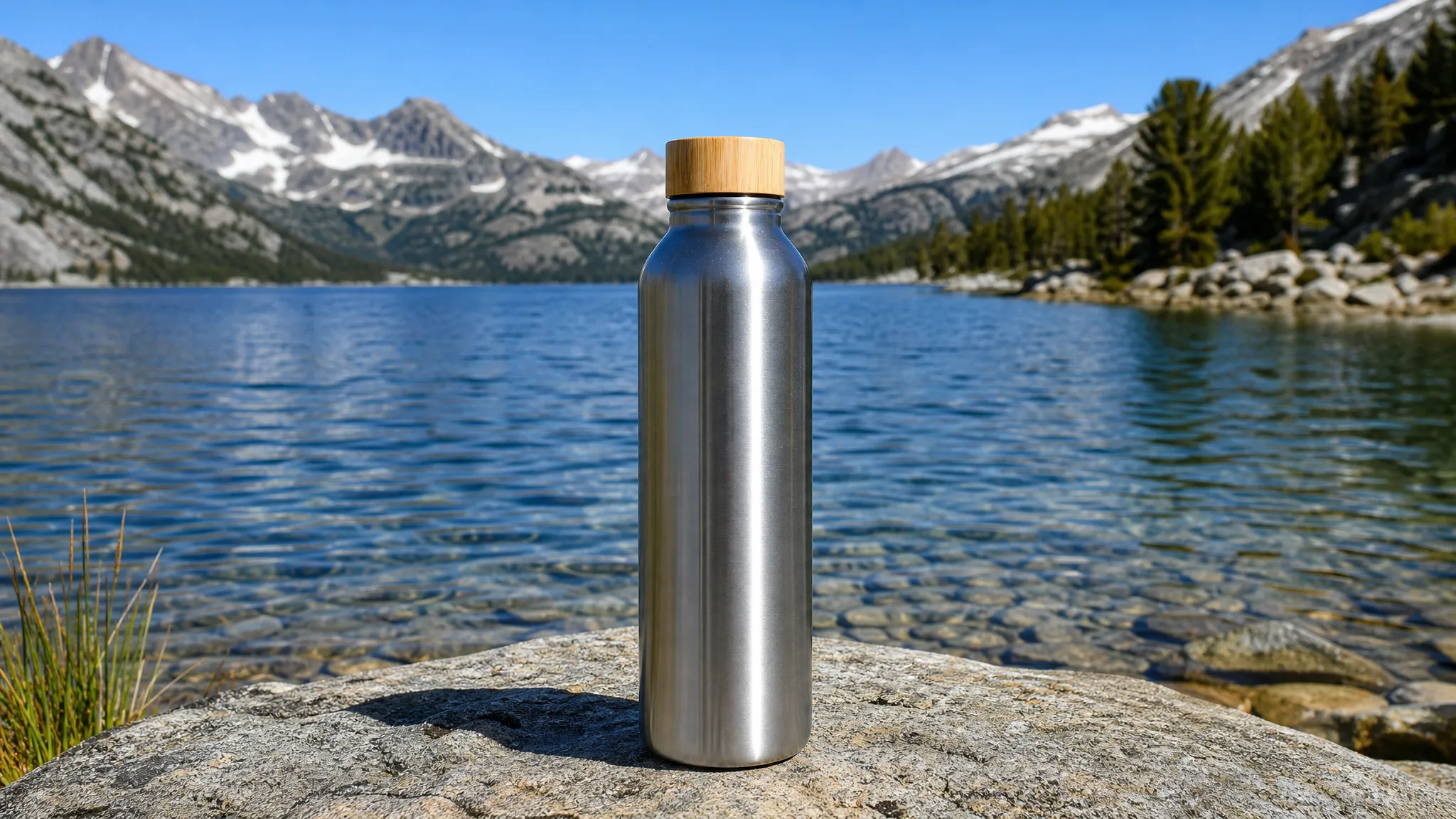
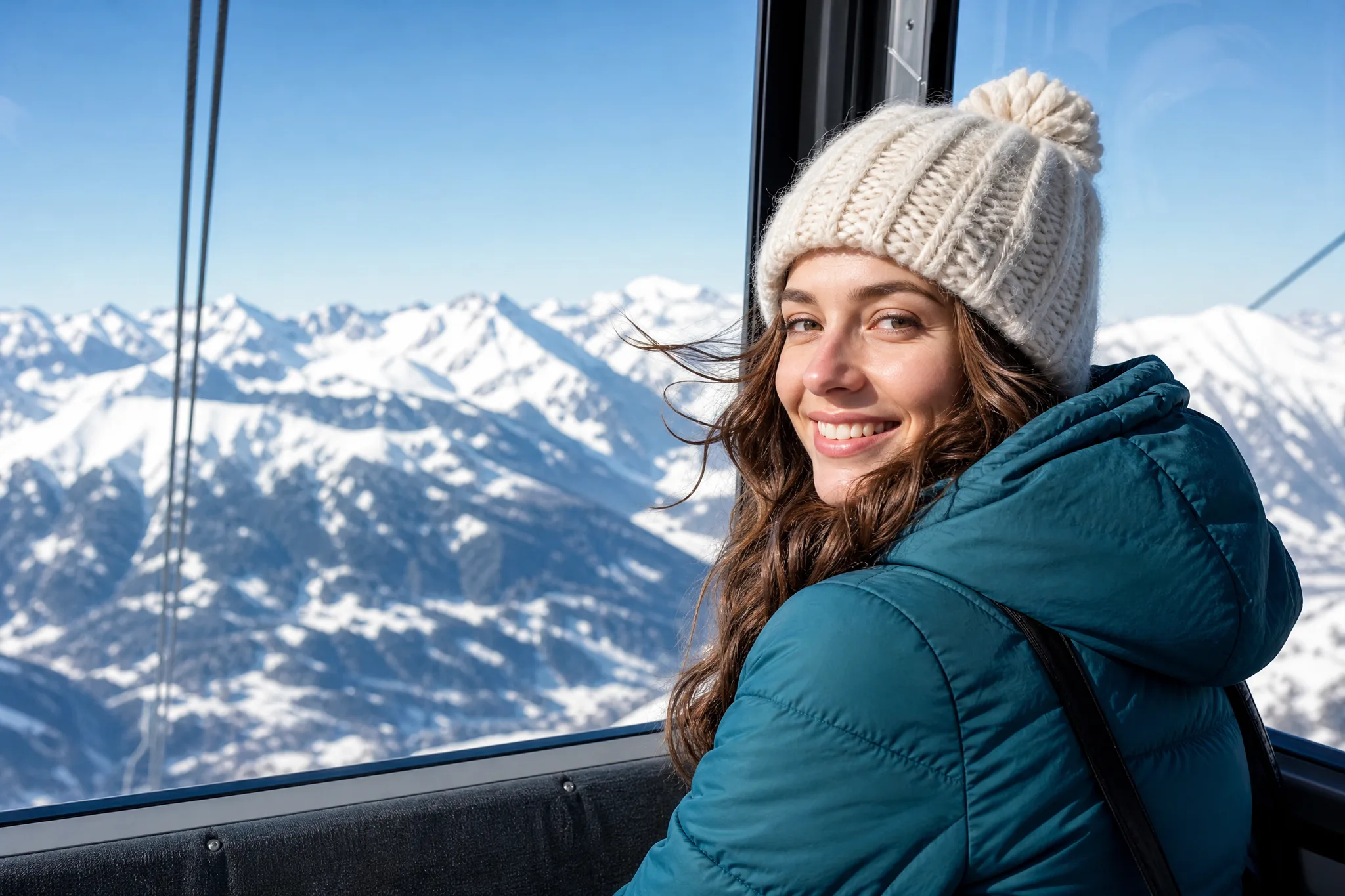
Start your photo to music video with one picture whose mood you can already hear: a beach portrait, a dog mid-jump, an album cover. Then pick a model that generates sound; Veo 3.1 Lite, the default, does so on every clip, and reference-audio inputs appear only on models that offer them.

2

Describe the motion and the musical mood

Write what moves and how it should sound: hair lifting in the breeze, a slow piano, a relaxed tempo. A photo to music video prompt that names an instrument, a pace and a mood gives the model a clear direction, while the exact notes and lyrics are left to the model.

3

Generate, then listen as you watch

Start the job, follow its status and play the finished preview with the sound on. Check that the movement and the musical mood share the same pace and that the subject still looks like your photo. If the mood is off, change the instrument or tempo words and run another photo to music video take.

4

Download and finish your edit

Download the strongest photo to music video take and play it on the phone or screen where people will see it. For a specific licensed recording, precise cuts or on-screen lyrics, finish the project in a video editor, where you control the final timeline.

Why One Photo Is Enough to Start a Music Video

A photo to music video begins with an image people already recognize, so the clip feels personal from the very first second.

Plan picture and sound together

A quiet portrait calls for soft strings, while a festival photo wants something brighter and faster. Describe both in one prompt, and the photo to music video take follows a single mood, so what people see and what they hear feel like they belong together.

Give Each Photo Its Own Motion and Mood

Photo to music video works with the pictures you already love, turning a still into a short scene with movement and sound that an edit can grow from.

Generate video with music from photos in one take

Choose a photo, describe the scene and a musical mood in the same prompt, and an audio-capable model returns picture and sound in one take. Your photo to music video arrives ready to watch and hear, whether it shows a street musician at dusk or a friend dancing at a wedding.
Pick the movement that fits the tempo

A breeze through hair, ripples on water or a slow camera approach each set a different pace. Match the motion to the mood you imagine: a gentle drift for a ballad-style travel memory, a quicker reveal for a birthday or launch photo to music video that needs more energy from the first second.

Build a longer edit around the clip

One generated moment can open a release teaser, sit behind a caption or close an anniversary slideshow. Assemble the full sequence in your editor, where titles, lyric text, cuts and any exact recording you hold the rights to come together, then export the finished piece for each platform.

Photo to Music Video Ideas for Families, Artists and Brands

Each photo to music video idea below starts from one image you already have and ends as a clip for a family moment, a release or a launch.

Wedding and anniversary keepsakes

Couples and families can take a first-dance or anniversary photo and turn it into a gentle photo to music video for the people who were there. Place the clip next to the original picture in a slideshow or message, and listen to the sound before you share it.

Release teasers for musicians

Independent artists can give cover art or a press photo a slow camera reveal and a matching mood, then post the photo to music video clip as a teaser. When the post needs the actual single, place the official release recording over it in an editor.

Product launch moods

Small brands can test an upbeat and a calm photo to music video from the same product shot, then show both to the team before choosing the launch direction. Start from a clean, well-lit photo so labels and logos stay sharp in the moving version.

Pet stars

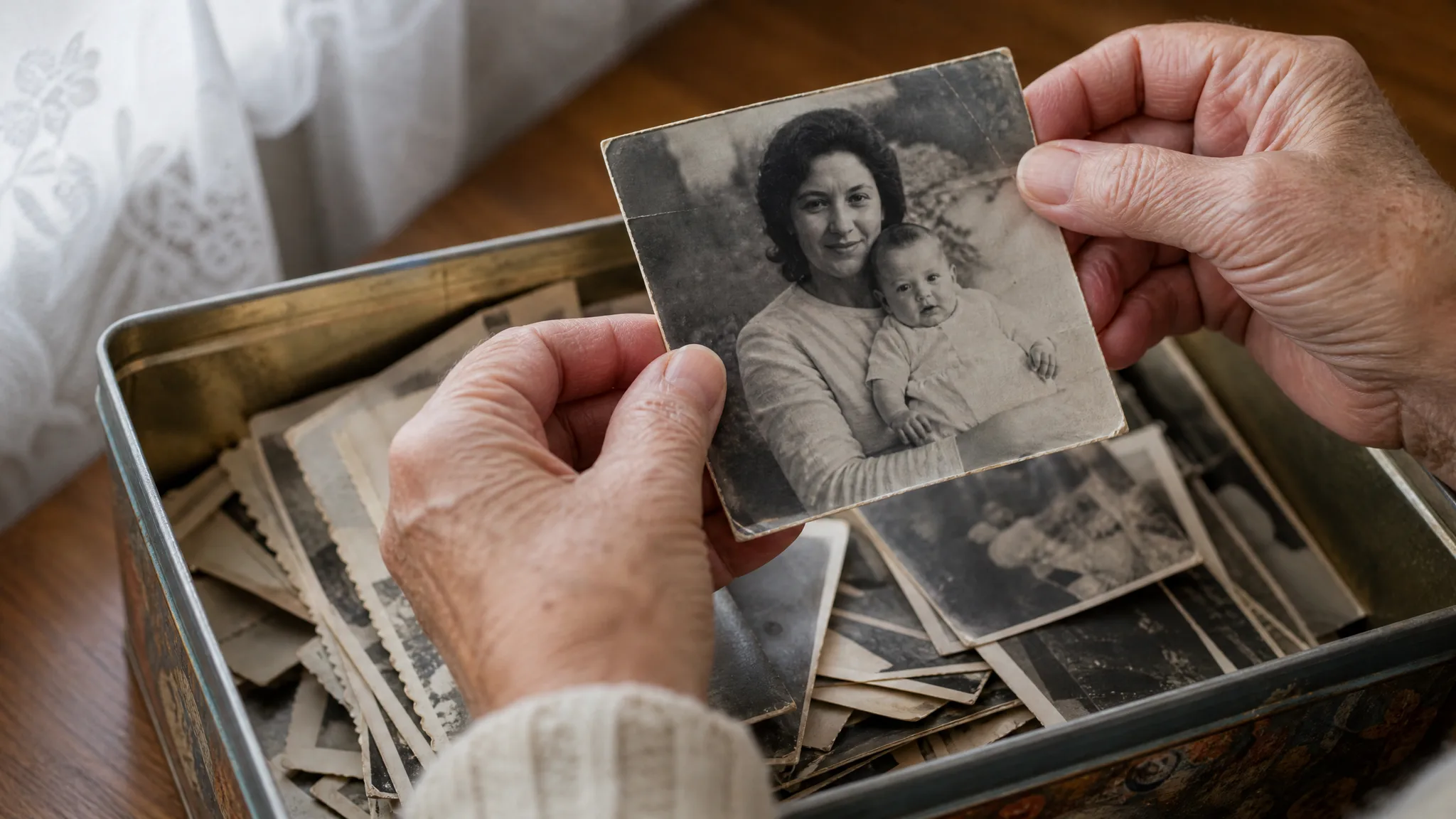
Pet owners can turn a photo of a cat mid-yawn or a dog in a party hat into a short clip with a playful melody, perfect for a birthday post or the family chat. Choose a picture where the pet’s face is clear so the movement stays charming.

Trip and party recaps

Hosts and travelers can choose the best snapshot from a holiday or a party and create a photo to music video for each highlight, then string several together in an editor with names, dates and captions for the people who came along.

Lyric and tribute backdrops

Lyric-video makers can generate a quiet moving backdrop from scenery or artwork, then place readable lyric text over it in an editor alongside a recording they are cleared to use. Keep the words away from the main subject so both stay legible.

Stories from People Who Tried It on Their Photos

The cover of my new single is a photo of me on a ferry deck at sunset. I turned it into a photo to music video with wind in my hair and a soft acoustic mood, then laid the actual single over it in my editor. That teaser ran across my socials for the whole release week.

Chloe Adams
Indie Folk Singer

Photo to Music Video FAQ

Clear answers on photo to music video: generated sound, using a specific song, beat timing, starting free, which photos work and who sees your clips.

A photo to music video is a short AI clip generated from one still image, a motion prompt and a musical mood. On audio-capable models such as Veo 3.1 Lite, picture and sound arrive together, giving you a single scene to build on rather than a full song-length edit.

Upload the photo, choose a model that generates sound and describe the movement and the musical mood. Generate the clip, watch and listen to the result, and download the take that fits; that is the whole AI music video from photos workflow.

A specific licensed recording belongs in your video editor, after you download the clip. Some models also offer a reference-audio input where the workspace shows it; that input guides the generated sound rather than reproducing a particular recording.

An audio-capable model can create AI video from image and audio direction in one pass, generating picture and sound from your photo and prompt. Some models also offer reference-audio inputs; the model picker shows what each one supports, so listen to the result before you choose a take.

Veo 3.1 Lite, the default here, adds generated sound to every photo to music video. Other models vary by variant and mode: some include sound automatically, others show an Audio switch and some are silent. Reference-audio support is a separate input listed in the model picker.

You can make a photo to music video for free with the credits that arrive when you create an account. The daily check-in adds more, building to 4x on day 7 of a streak. Veo 3.1 Lite generates sound and runs on those credits, so turning an image to video free with sound online starts with one favourite photo and your first take with music.

The generated movement follows the pace you describe, and beat-exact timing is set afterwards in an editor. Review the generated sound and movement together, then fine-tune cuts against a specific recording in your video editor.

Apps for making videos with pictures and music usually place existing photos on a timeline over a background track. A photo to music video generates new frames from one image, with generated sound on supported models, so you get a living scene rather than a slideshow.

The best photo to music video sources have a clear subject whose mood matches the music you imagine: an artist portrait, a pet close-up, cover art or a scenic travel shot. Leave some space around the subject for movement, and describe the visual action and the musical mood as separate phrases.

A photo to music video can promote a single or an album when you hold the rights to the photo and have consent from anyone in it. Generated sound is separate from the official release recording, so place that recording in your editor and clear it for each platform.

Uploaded photos are never published. Free accounts keep Public Visibility on, so a successful photo to music video may be shown publicly after review; subscriptions and one-time packs start with it off.

Turn Your Favorite Photo into a Music Video

Choose the photo that already sets a mood: a sunset portrait, a pet, a band shot. Describe how it moves and how it should sound, and photo to music video creates a short clip with generated sound on an audio-capable model. Download it and build your edit from there.

Create a Music Clip
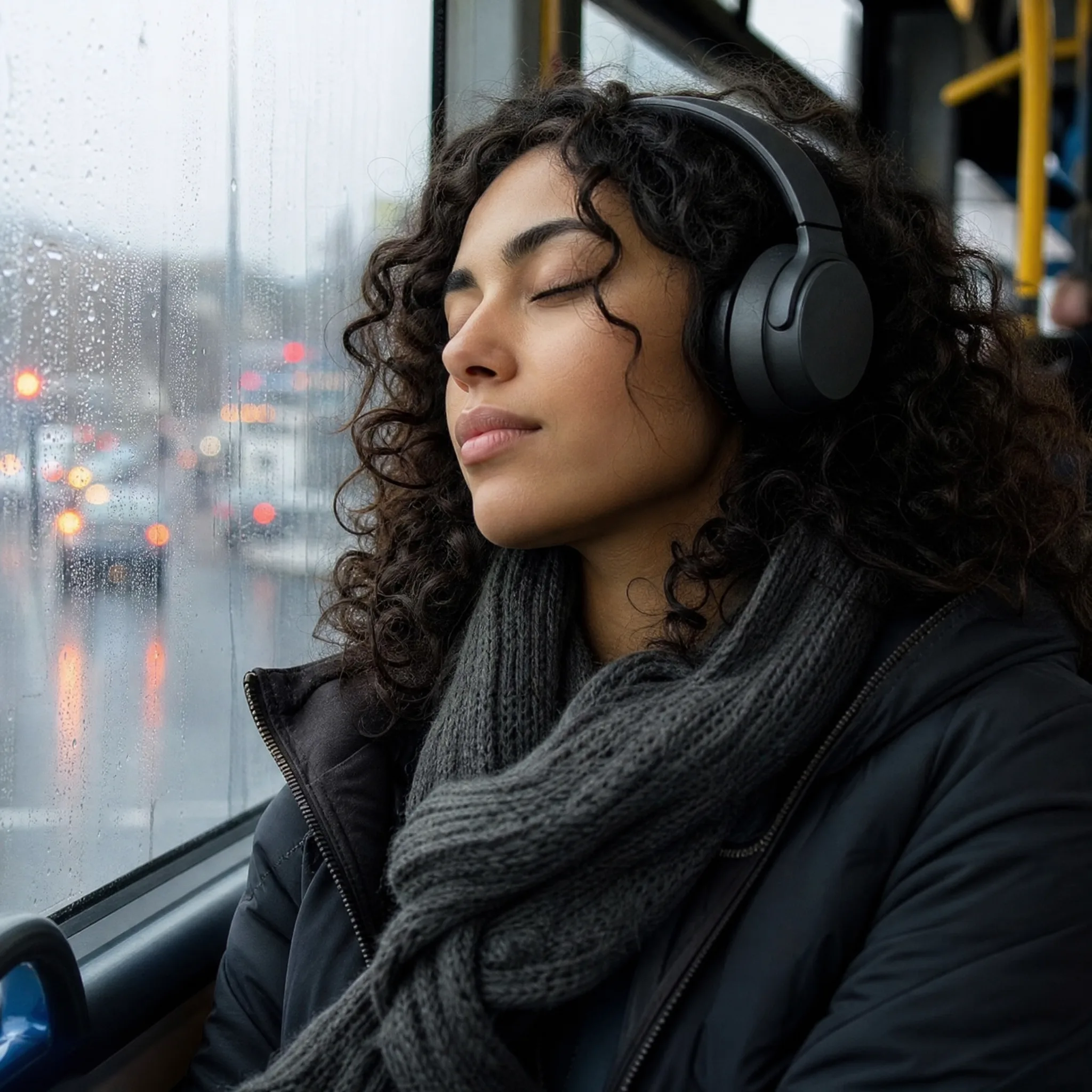
Curly-haired young woman wearing headphones listens with eyes closed beside a rain-streaked bus window