








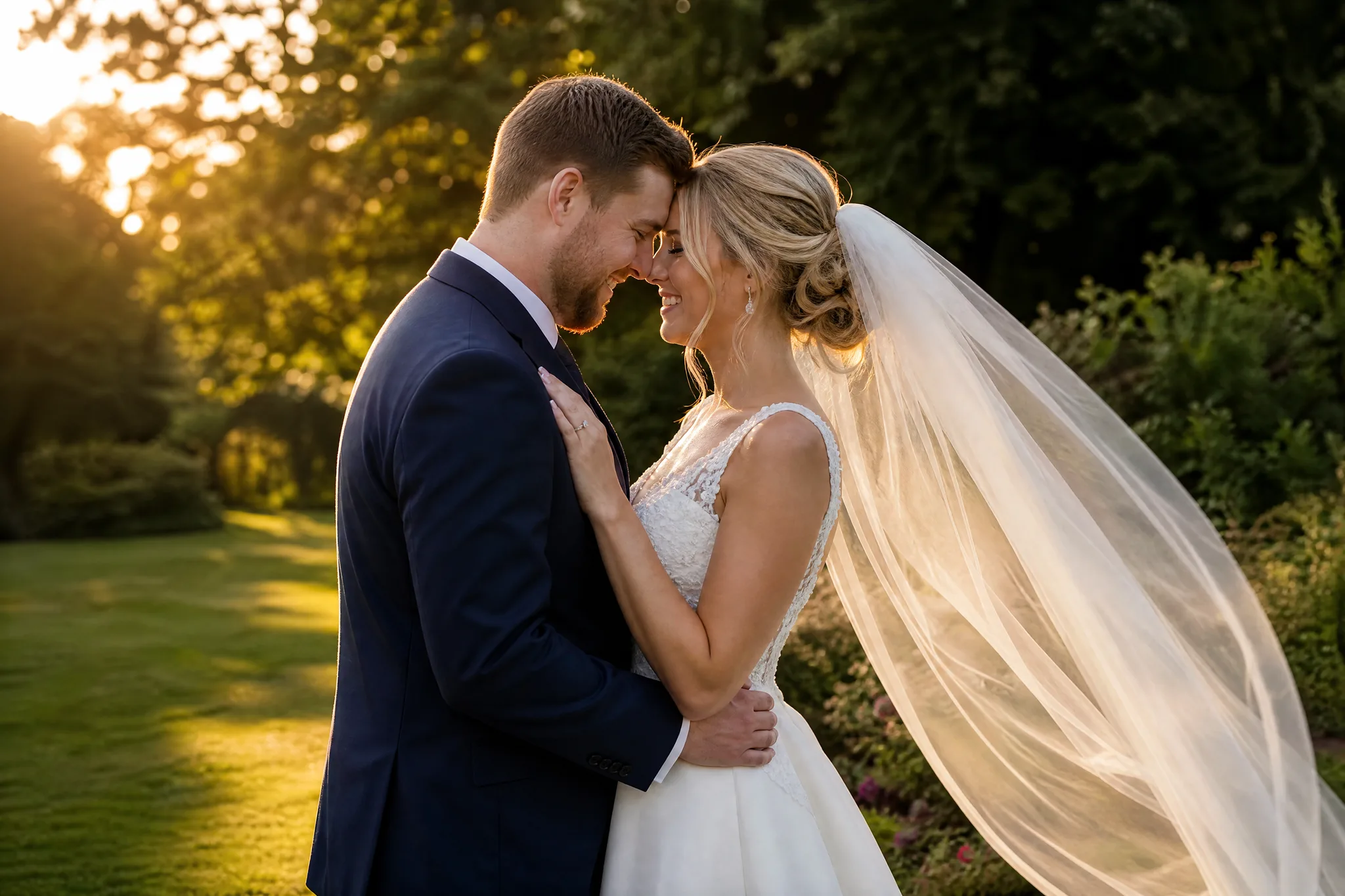
Veo Image to Video for Photos You Want to Hear

Watch your photo move and hear the scene around it

Google Veo 3.1 Lite animates a single photo for 4, 6 or 8 seconds and returns every clip with generated sound. Use Veo image to video for portraits, travel shots and product photos.

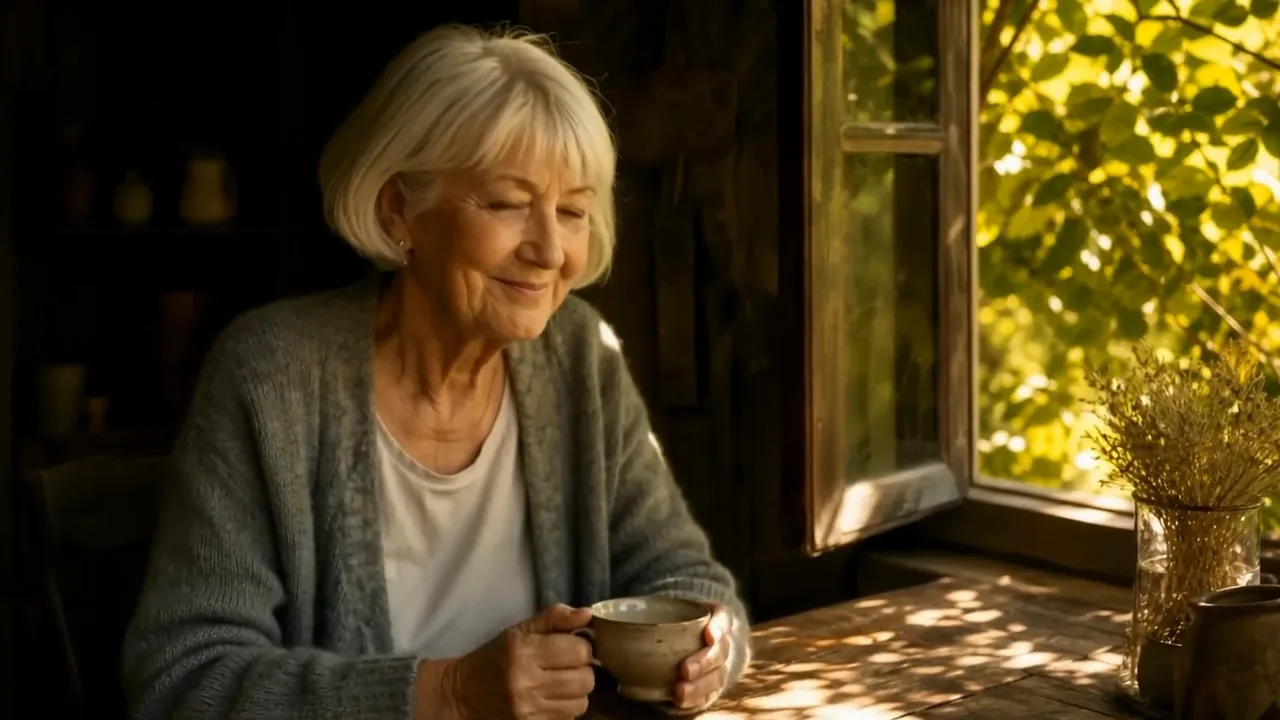
Older woman at a window table, leaves moving outside and sunlight crossing the table, who looks up and smiles
Sound on every clip
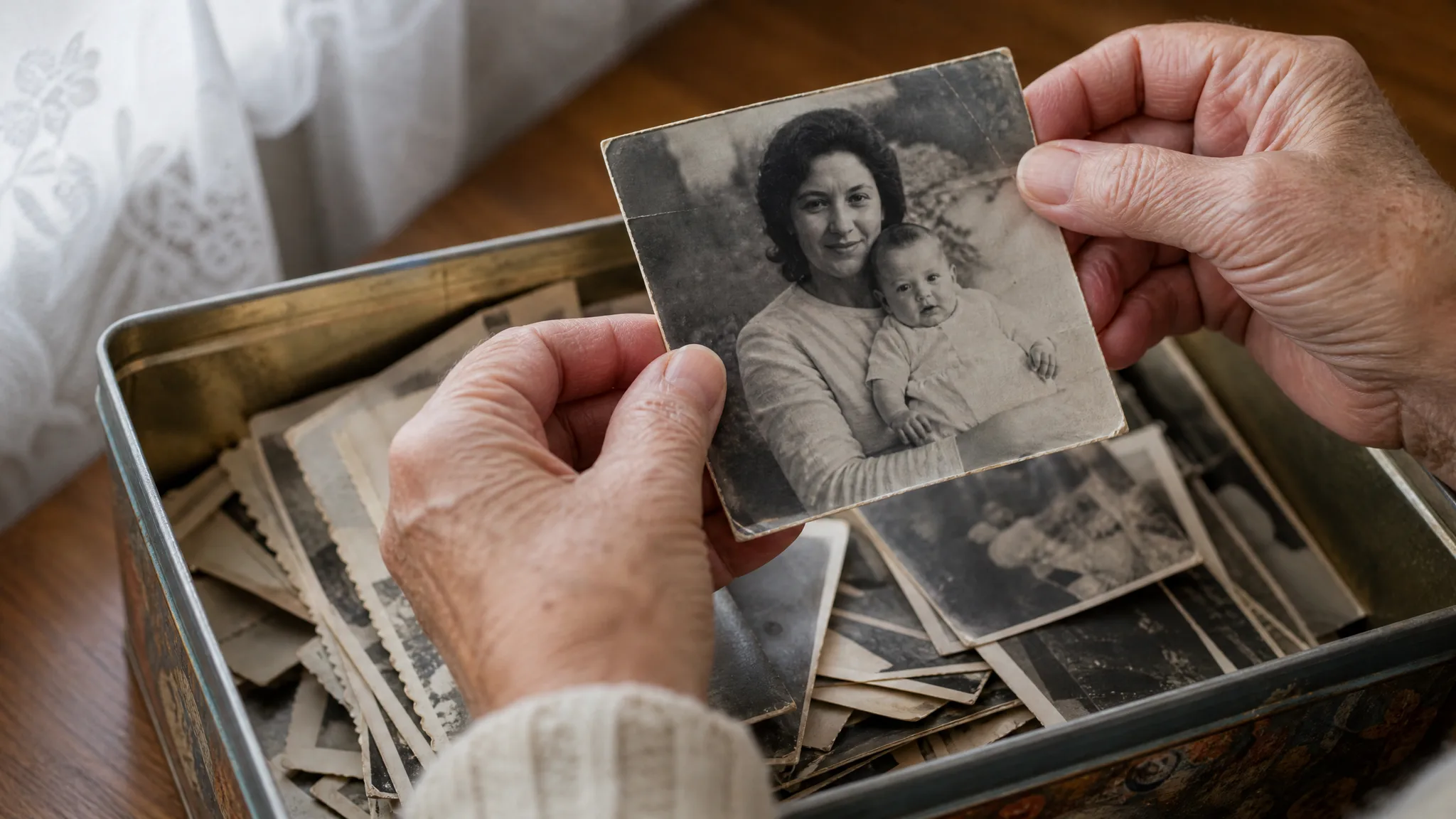
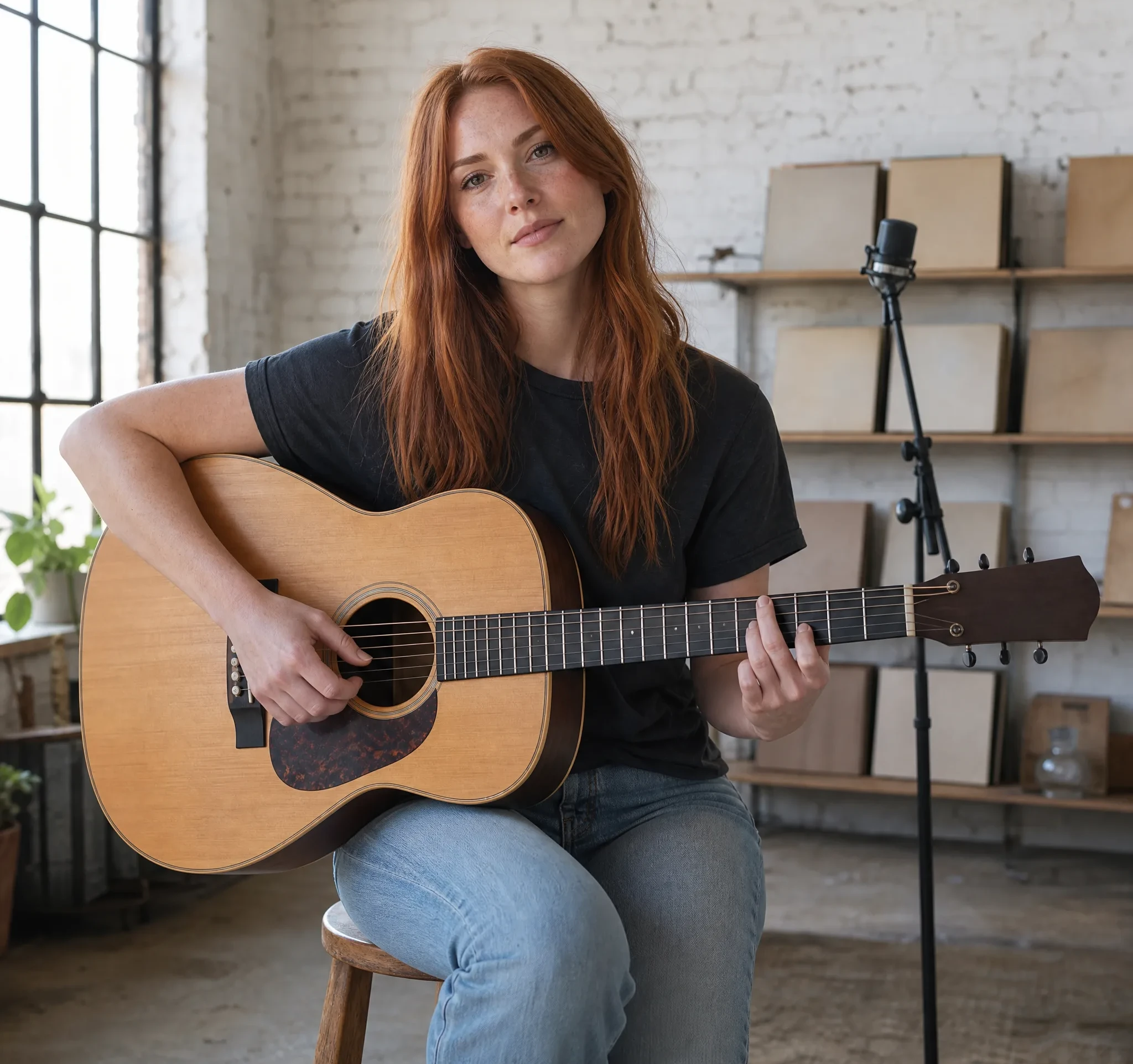
Portraits with a small gesture
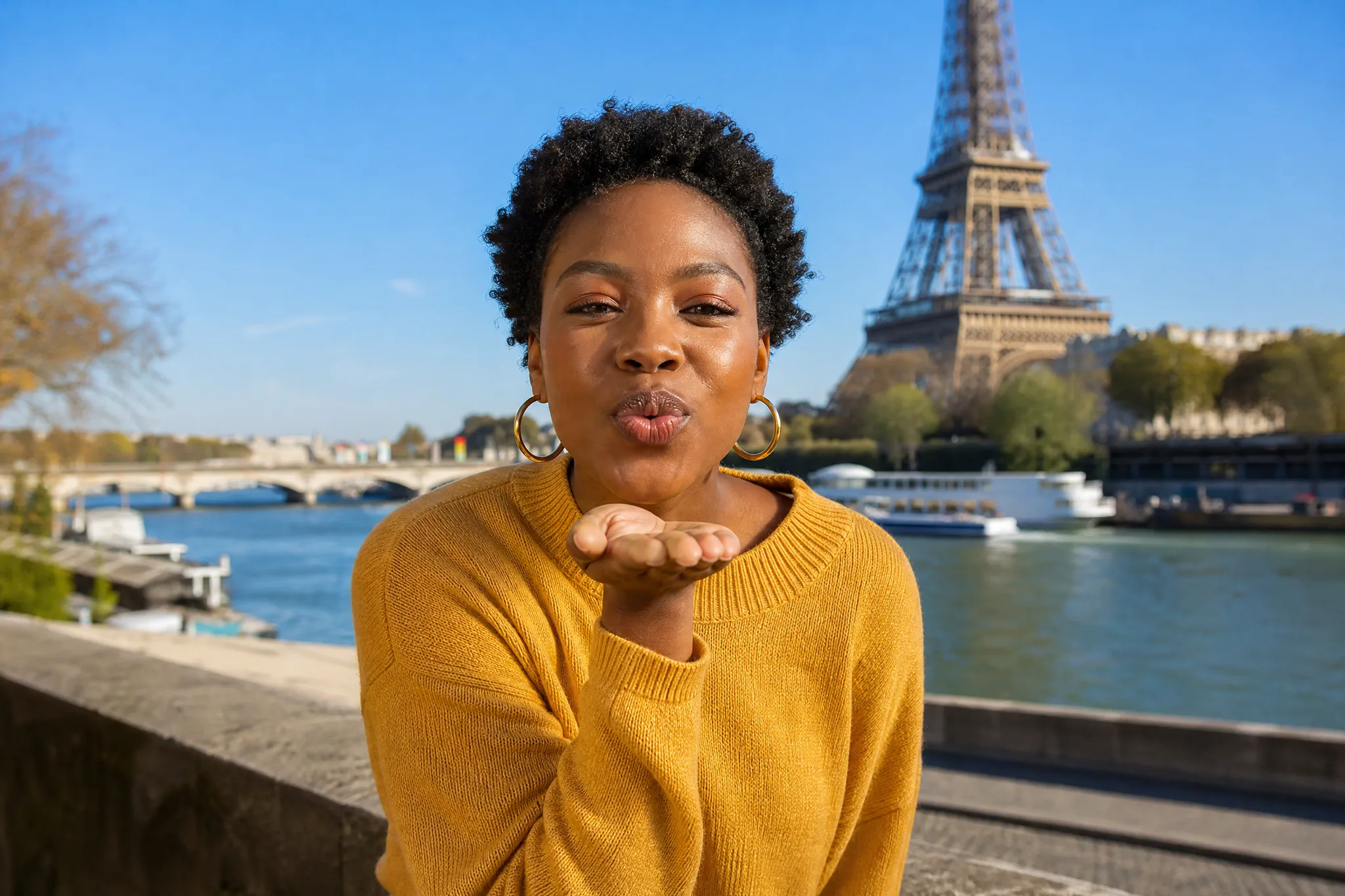
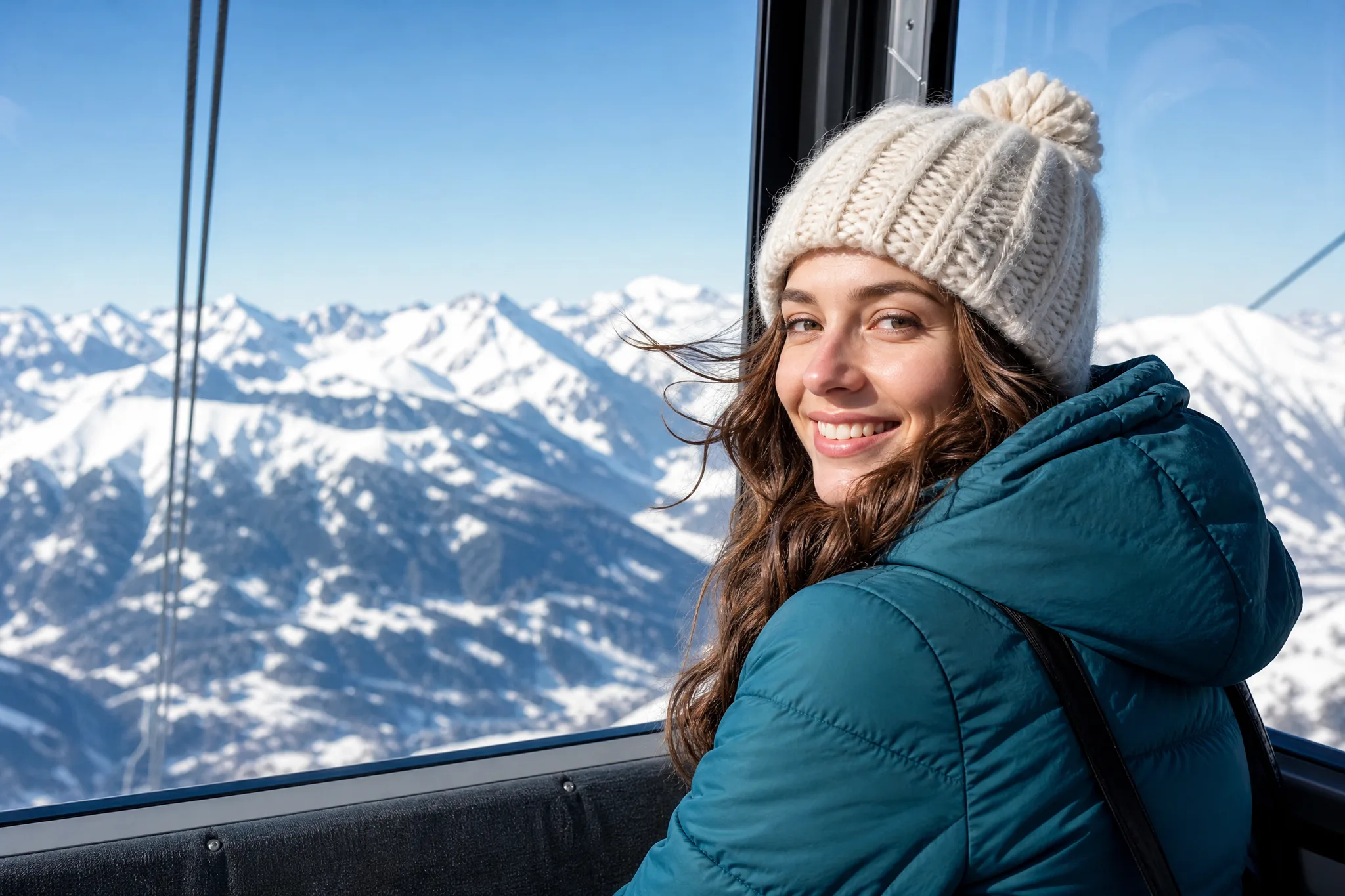
Travel photos with moving light
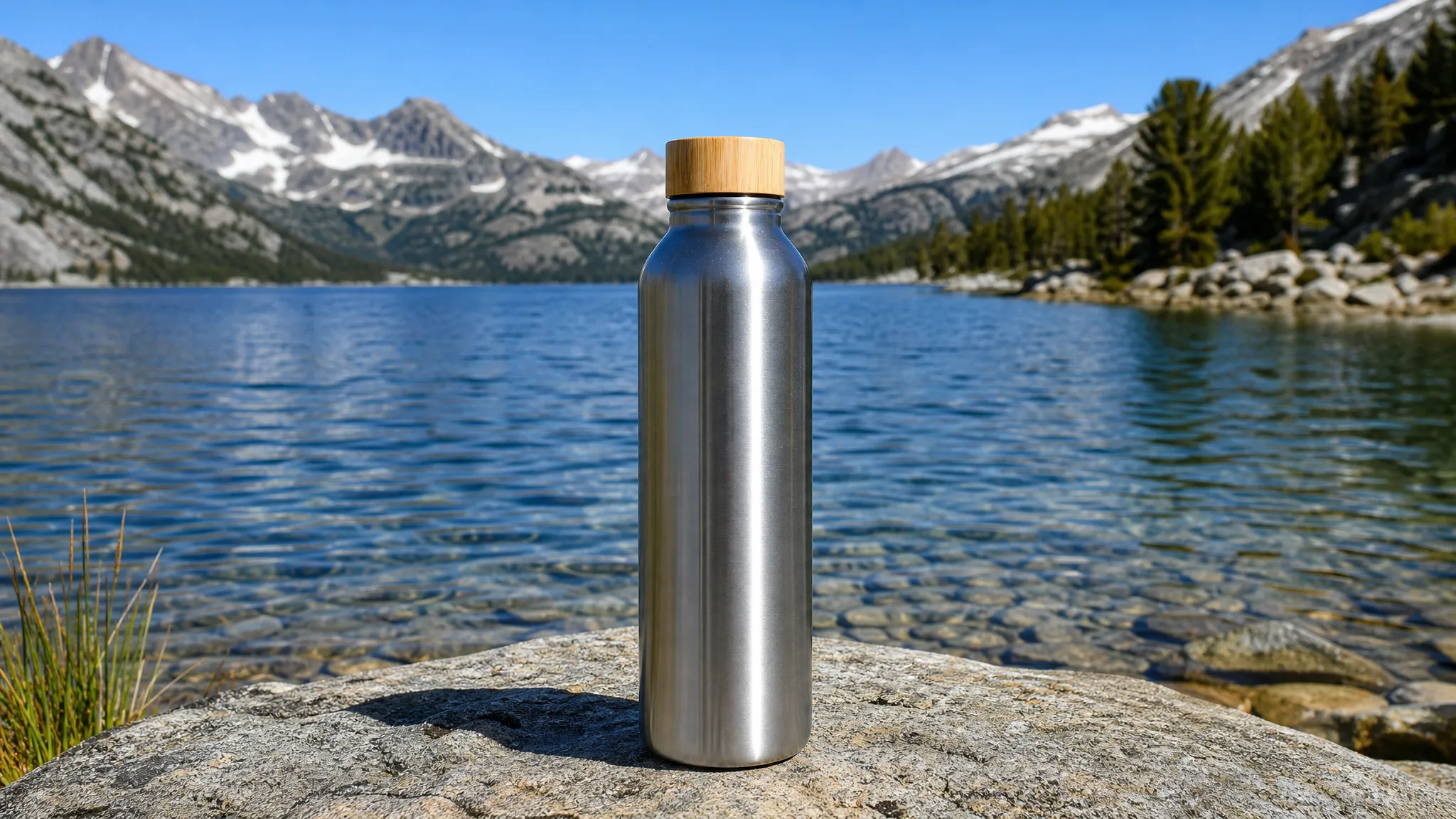
Product close-ups
720p to 4K output
Veo
Reference images
Prompt
0/4000
Duration
Resolution
Aspect ratio
Translate prompt
Number of outputs
Public Visibility
Required credits
30
Sample videos

Give Your Photo Motion and Sound with Veo

A lake at dawn, a grandmother at her kitchen table, a bottle on a shop shelf: each photo suggests a movement and a sound. Veo image to video, running Google Veo 3.1 Lite by default, animates the scene for up to eight seconds and returns it with generated sound, so the clip plays like a short recording of the moment.

Animate a Photo with Veo
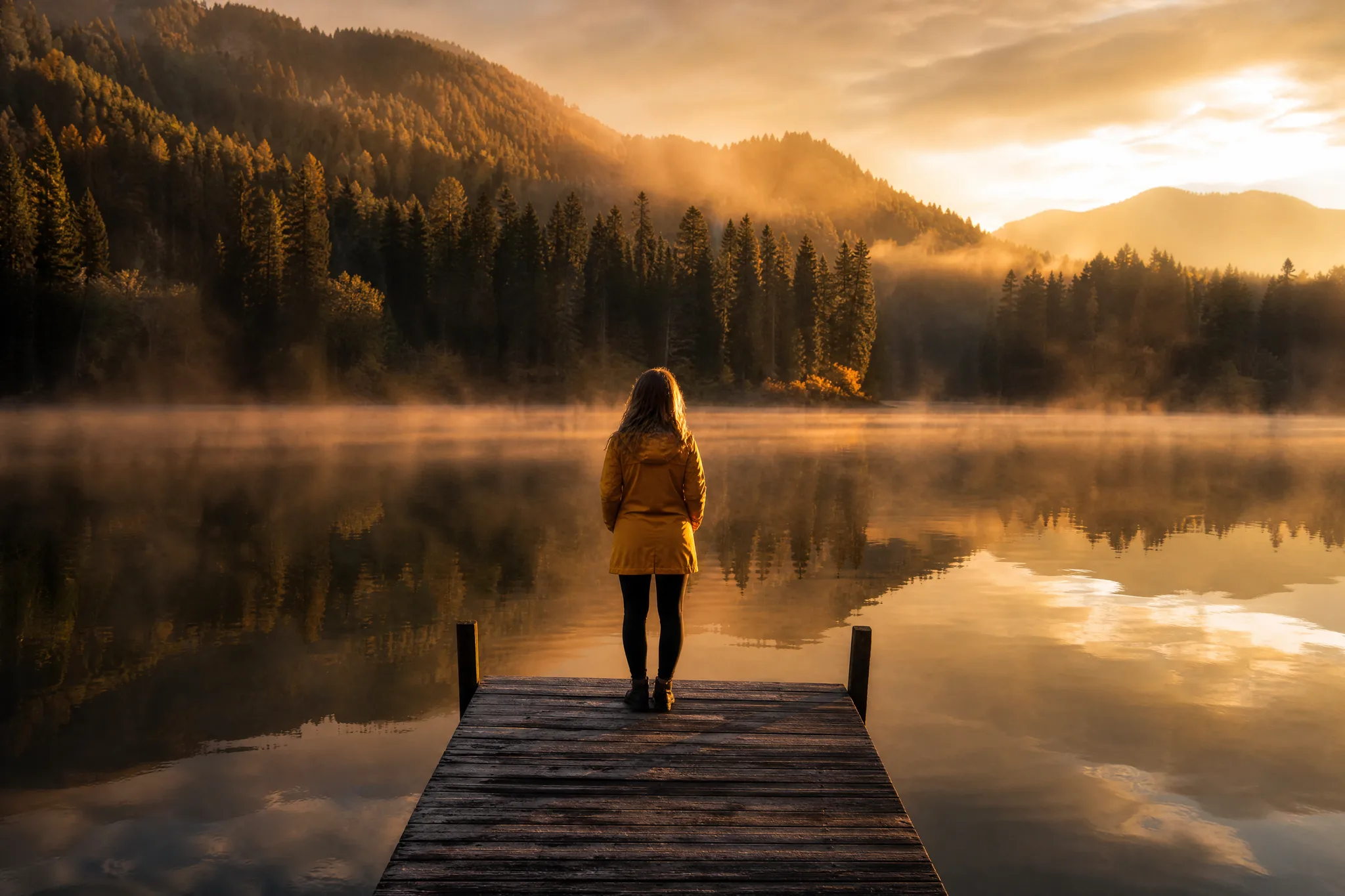
Woman in a yellow raincoat at the end of a wooden jetty on a misty lake as dawn breaks

How to Use Veo Image to Video

Veo image to video turns one photo into a short clip with sound in three steps: prepare the photo, describe the motion, then review what you see and hear.

1

Crop the photo to the shot you want

Upload a JPG, PNG or WebP portrait, travel photo or product shot with one clear subject. Veo image to video uses the picture as its opening frame and lighting reference, so crop to the final view now; the framing setting offers 16:9, 9:16 or Auto.

2

Describe the action, camera and length

Write one sentence for what moves and one for the camera, such as: steam rises from the cup while the camera drifts closer. Then pick 4, 6 or 8 seconds for the Veo image to video clip; four seconds suits a single gesture, eight a slow reveal.

3

Watch, listen and keep the best take

Generate the clip and follow its status in the workspace. Play the finished Veo image to video take with the volume up, since every clip includes generated sound, and check the face, the motion and the last frame. Download the version you like, or adjust one line of the prompt and try again.

What Veo 3.1 Lite Adds to a Still Photo

Veo image to video builds on what the photo already shows, adds camera movement where it helps and gives you clips sized for posts or longer edits.

Keep the moment the photo captured

A family photo of a grandmother at her window table already holds the light, the room and her expression. Ask Veo image to video for what would happen a second later, leaves stirring outside and her eyes lifting to the camera, and the clip continues the scene rather than replacing it. Small, believable motion keeps the person recognizable.
Reveal more than the frame showed

Start close on a detail and let the camera pull back: a glowing cabin window opens out to the forest and the valley at dusk. Veo image to video can widen a travel photo into a short establishing shot, and the generated evening sound completes it. If the move wanders, shorten the camera instruction instead of adding adjectives.

Make clips that slot into a longer edit

Short Veo image to video clips fit easily into a travel montage or a product story. Render a coastline at sunset at 720p for a quick share, or at 1080p or 4K when the clip will play on a bigger screen, depending on the Veo 3.1 tier you pick. Download the take and line it up with your other footage in your editor.

Shape a Veo Image to Video Scene

Veo image to video gives you four levers: what the subject does, where the camera goes, what the air and light feel like, and how many takes you compare.

Give the subject one thing to do

A gesture viewers read at a glance

Pick a single action the photo already hints at: a shopper lifting a peach, a child blowing out candles, a dog turning toward a call. Veo image to video starts from your frame and plays that action out over 4, 6 or 8 seconds, with generated sound that follows the scene. One action keeps a short clip easy to follow.

Veo Image to Video for Everyday Photos

Veo image to video suits photos that are better with a little motion and sound, from family albums to shop listings.

Families sharing a moving memory

A family can choose a photo from a grandparent’s birthday and ask Veo image to video for a candle flicker and a small laugh. The clip, with generated room sound, plays at the next gathering or goes to relatives who could not attend.

Portrait photographers adding a preview

A portrait photographer can animate one image from a session with a soft glance toward the lens and send it with the gallery. The few seconds of motion give clients something to share before the prints arrive.

Online sellers showing texture

A seller can turn a product photo into a close camera pass over fabric, leather or glass with Veo image to video, framed 9:16 for a story or 16:9 for a product page. Prices and offers are added afterward in the shop’s editor.

Travel creators setting the scene

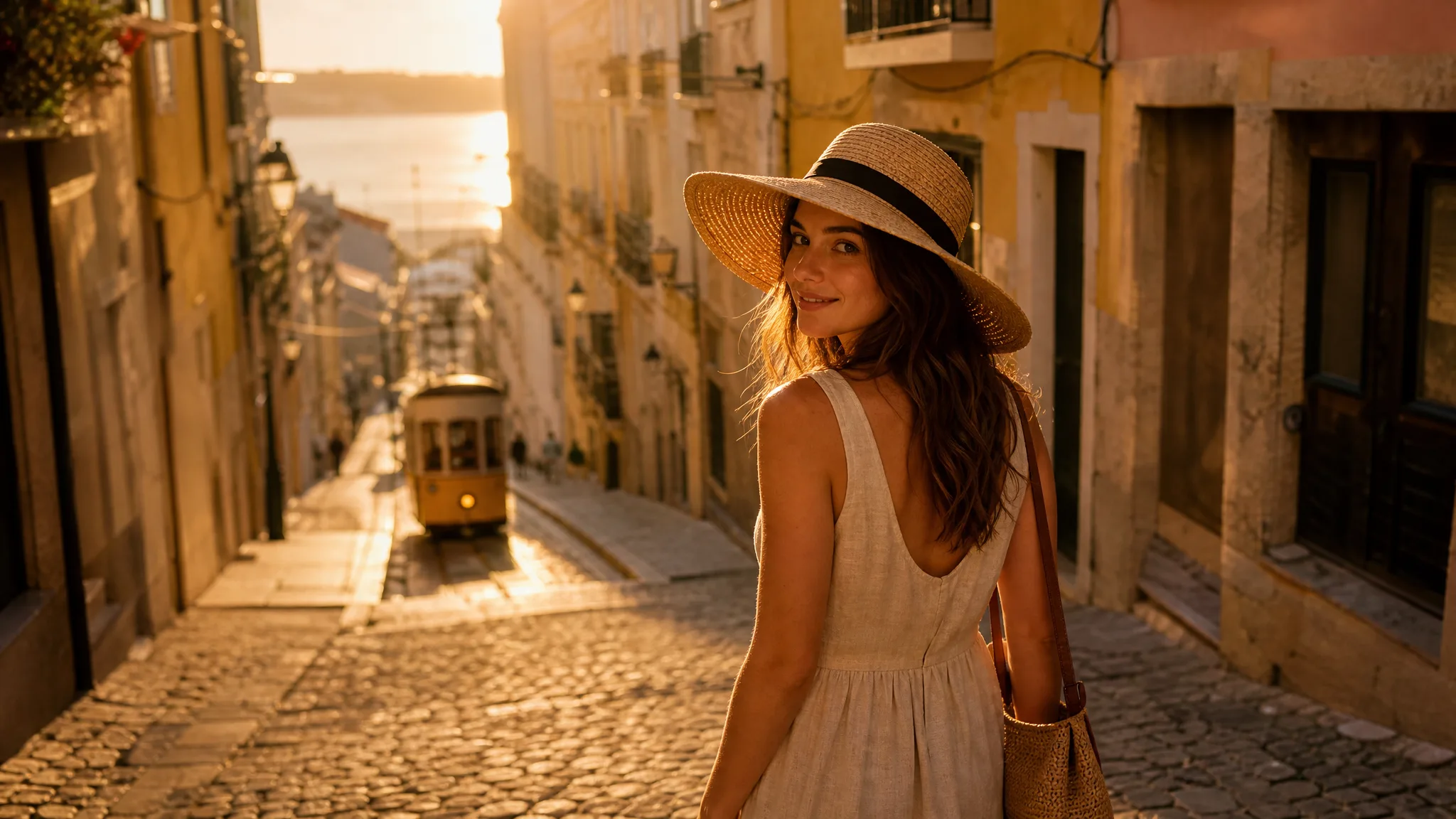
A travel creator can open a trip video with a harbor or mountain photo, letting Veo image to video add rolling water, drifting cloud and the ambient sound of the place. It works as a first shot before the handheld clips take over.

Pet owners capturing a personality

A pet owner can take a favorite photo of a cat on the windowsill and describe its tail flicking as it watches birds outside. Eight seconds is enough for a small story to post or to keep in the family album.

Teachers opening a history lesson

A history teacher can animate a public-domain street photo with Veo image to video, adding slow movement of people and carts to open a lesson. Students watch the scene move for a few seconds before discussing the original picture.

Stories from People Who Tried It on Their Photos

My sister and I found a photo of our mother at her kitchen window, tea in hand. Veo image to video let her look up and smile, and the clip came back with the faint clatter of a kitchen around her. Eight seconds, shared with nine cousins, and my aunt said it sounded like Sunday mornings.

Nora J.
Retired Nurse

Veo Image to Video FAQ

Answers about Veo image to video: starting free, clip length, sound, which photos work, phones, privacy and publishing.

Veo image to video animates one photo with Google Veo 3.1 and returns a short clip with generated sound. This page opens Veo 3.1 Lite by default, and Veo 3.1 Basic and Premium sit in the same workspace for the takes you want at higher resolution.

Veo image to video is free to start on Veo 3.1 Lite. Sign up to collect free credits, check in daily as a streak lifts the reward to 4x by day 7, and spend them on your first clips with sound. Veo 3.1 Basic, Premium and the sharper renders run on a plan or credit pack.

Veo image to video can bring a scanned family print to life, such as grandparents at a kitchen table or a child on a garden swing, when the faces are sharp enough to read. Describe one small movement, like a glance up or a cup lifted, and listen to the room sound Veo 3.1 adds before you share the clip.

Veo image to video on PicVideo makes 4-, 6- or 8-second clips at 720p, 1080p or 4K on Veo 3.1 Lite, Basic and Premium. Frame shapes are 16:9, 9:16 or Auto. A short clip suits a single gesture, while eight seconds gives a camera reveal room to finish.

Every Veo image to video clip includes generated sound, and this workspace has no switch to remove it. For a quiet version, mute the clip in your editor or lower its volume under narration.

Veo image to video works best with a sharp photo, one clear subject and some room around it for motion, such as a portrait by a window or a product on a plain table. JPG, PNG and WebP files are accepted within the size limits shown in the workspace.

Veo image to video runs in the mobile browser as well as on desktop, with no app to download. Pick a photo from your camera roll, write the motion and choose 9:16 if the clip is headed for stories or reels.

Generation time for Veo image to video depends on the tier, the resolution and the provider queue. The workspace shows the job status while the clip renders, and the finished take appears there for review and download.

Your photo goes to the model provider only to create the clip and is not published. Veo image to video clips finished on a free account keep Public Visibility on, so a family scene or a seaside view with its soundtrack may be featured in Explore after review.

You own the Veo image to video clips you generate, as the PicVideo Terms set out, to the extent the law allows. Because every Veo clip arrives with sound, listen for anything that resembles a real song or voice, and for a family photo, ask the relatives in it before the clip goes on a business page.

Create a Veo Image to Video Clip with Sound

Upload the photo you want to hear as well as see, describe one action and a camera move, and Veo image to video returns a 4- to 8-second clip with generated sound on Veo 3.1 Lite. Watch it with the volume up, then keep the take worth sharing.

Make a Veo Clip
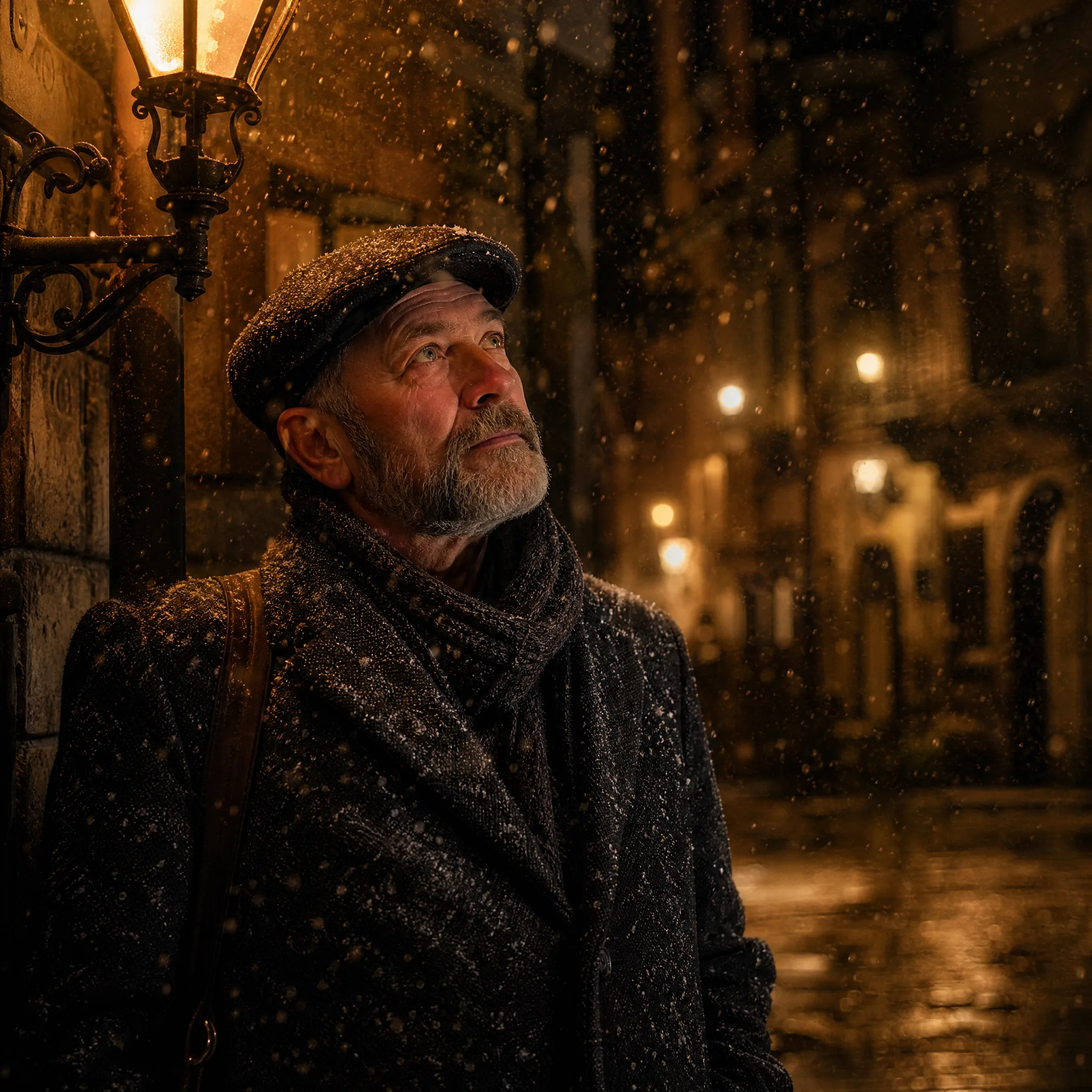
Bearded older man in a flat cap and wool coat gazing up at falling snow next to a glowing wall lamp at dusk