













Sketch to Video
Reference images
Prompt
0/4000
Duration
Resolution
Aspect ratio
Translate prompt
Number of outputs
Public Visibility
Required credits
30
Sample videos

Sketch to Video with AI for Doodles, Storyboards and Kids’ Art

Your lines stay put while the character finally gets to move

Photograph a sketchbook page, a classroom diagram or your child’s crayon drawing, then write what should happen next. Sketch to video with AI keeps the drawing as the opening frame and adds a wave, a breeze or a camera move.

Animate a Drawing
Doodles and line art|Kids’ drawings|Storyboard frames|Downloadable clips

How to Animate a Drawing with Sketch to Video AI

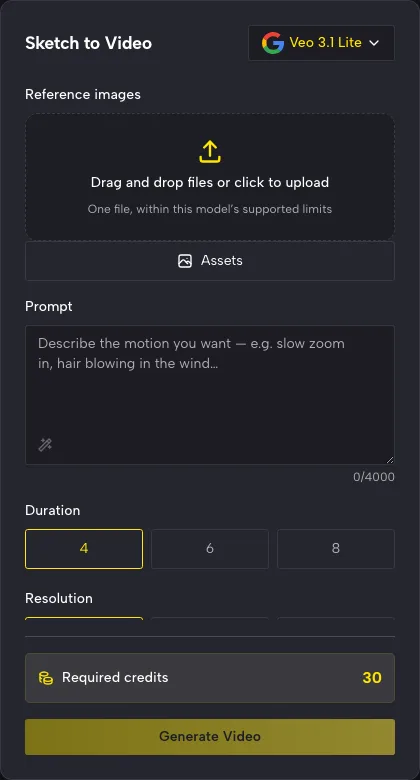
Sketch to video with AI takes three steps: upload the drawing, describe its next movement, then review and download the clip.

Sketch to Video panel showing Veo 3.1 Lite, an empty image upload area, a prompt field and 4, 6 or 8 second choices

Photograph or scan the drawing

Upload a JPG, PNG or WebP of the sketch, the comic panel or your child’s drawing. Shoot paper straight on in daylight and crop out the desk, tape and shadows; clean, readable lines give sketch to video with AI a clear frame to start from.

What a Drawing Can Do Once It Moves

Sketch to video with AI gives a character a gesture, a cartoon panel some life and a classroom diagram a moving explanation.

Test a character’s first gesture

Before you animate a character frame by frame, find out whether a wave, a glance or a first step reads at all. Upload the sketch, describe the gesture and the camera view, and sketch to video with AI carries the pose into motion. If the gesture works on screen, you know it is worth drawing properly.

Bring a cartoon panel to life

Sketch to video cartoons work best with flat colors and clean outlines, which give the motion obvious shapes to follow. Ask for leaves falling, a fox trotting off or a slow pan across the panel, then use the clip to feel out a comic’s pacing or to surprise a young artist with their drawing in motion.

Turn sketches into educational videos

One focused movement makes a diagram easier to follow: a seed splitting open, water flowing through a cycle, a lever lifting a weight. Use sketch to video with AI on a clear drawing for the lesson, then add accurate labels and narration as you build the slide deck or worksheet video.

Why Artists and Teachers Animate Their Sketches

Sketch to video with AI is a quick way to see a drawn idea move before anyone spends hours animating it by hand.

Preview motion before the hard work

Hand animation can take days, while a generated take needs one prompt. Sketch to video with AI shows how a pose could unfold on screen, so you can share the idea with a director, a client or a classmate before committing to frame-by-frame work.

Your style leads the clip

The lines, shapes and composition you drew become the first frame. Describe movement that suits the artwork, slow for watercolour and snappy for cartoons, and sketch to video with AI keeps your drawing at the center while you pick the take that fits.

Small moments with big personality

A blink, a breeze or a shrug is often enough to make a drawn character feel alive. Keep the clip short and use it as a reaction, an intro or a transition in a longer edit, so the drawing stays the star and the motion supports it.

Lessons students remember

A diagram that moves holds attention longer than a still one. Pick one concept, animate it with sketch to video with AI and play the clip before the explanation, so students watch the idea happen first and then learn why it works.

Stories from People Who Tried It on Their Photos

My editor could not picture how the hedgehog moved across my rough spreads. I photographed one pencil page, wrote that the hedgehog sniffs the air and waddles toward the pond, and used sketch to video with AI. That short clip settled a week of emails, and the motion notes went straight into the final art.

Ines G.
Picture Book Illustrator

Sketch to Video AI Questions

What to know about sketch to video with AI: what it makes, how to prepare a drawing, models, cartoons, starting free, rights and privacy.

Sketch to video with AI is a tool that turns a drawing and a short motion prompt into a new video clip. The drawing becomes the opening frame and the AI generates what happens next, so you get a moving take to review and download rather than a rigged animation file.

Photograph or scan the drawing, upload it, describe one action or camera move and press generate. Sketch to video then shows a preview in the workspace; watch it, try another prompt if needed and download the take you like best.

Veo 3.1 Lite is the default for sketch to video with AI on this page, and you can switch to other video models in the workspace. Each model sets its own length, resolution, sound and frame options, and auto-framing modes follow the shape of your drawing.

Sketch to video cartoons work well when the drawing has bold outlines and flat colors. Ask for one small action, a change of expression or a moving background, preview the take, and keep the version that suits the character and the scene.

You can try sketch to video with AI free: sign up for free credits, then collect more with the daily check-in, where a seven-day streak lifts the reward to 4x. Spend them on Veo 3.1 Lite, the default model here, and animate the first drawing from your sketchbook.

You own the sketch to video clips you generate, as set out in the Terms, and your rights in the drawing you upload stay with you. Drop the clip into a storyboard reel, a lesson deck or a portfolio page wherever your own artwork already goes.

Uploaded drawings are never published. Visibility for each finished sketch to video clip follows the Public Visibility setting shown in the workspace when you generate.

Upload a Drawing and Watch It Move

Bring a doodle, a storyboard frame or your child’s latest masterpiece. Describe one small action or camera move, and sketch to video with AI turns the drawing into a short clip you can download for a lesson, a pitch or the family group chat.

Animate My Drawing