







Reference to Video: Bring Your Person or Product into New Scenes

One reference photo, a new place and a fresh moment on camera

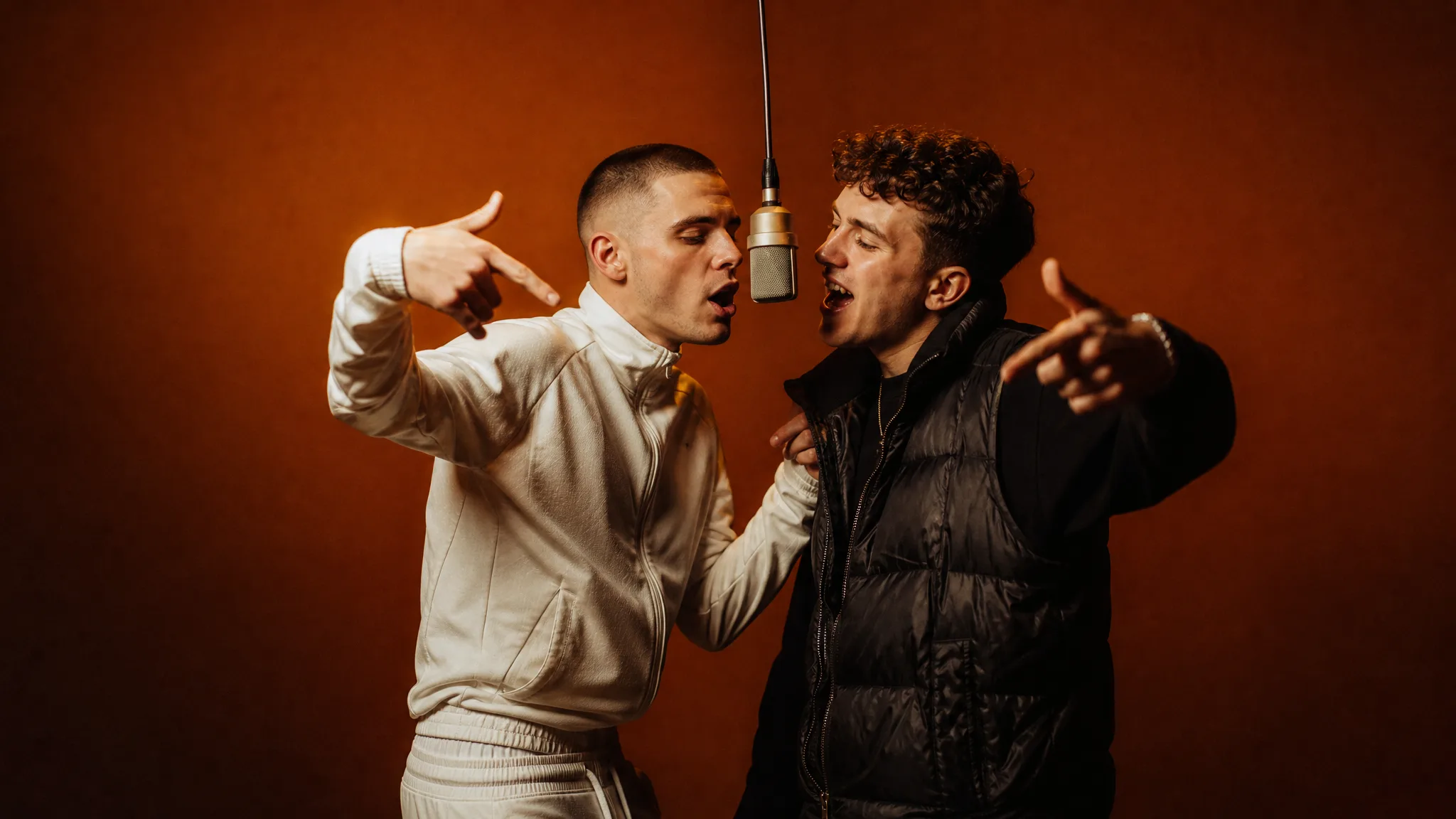
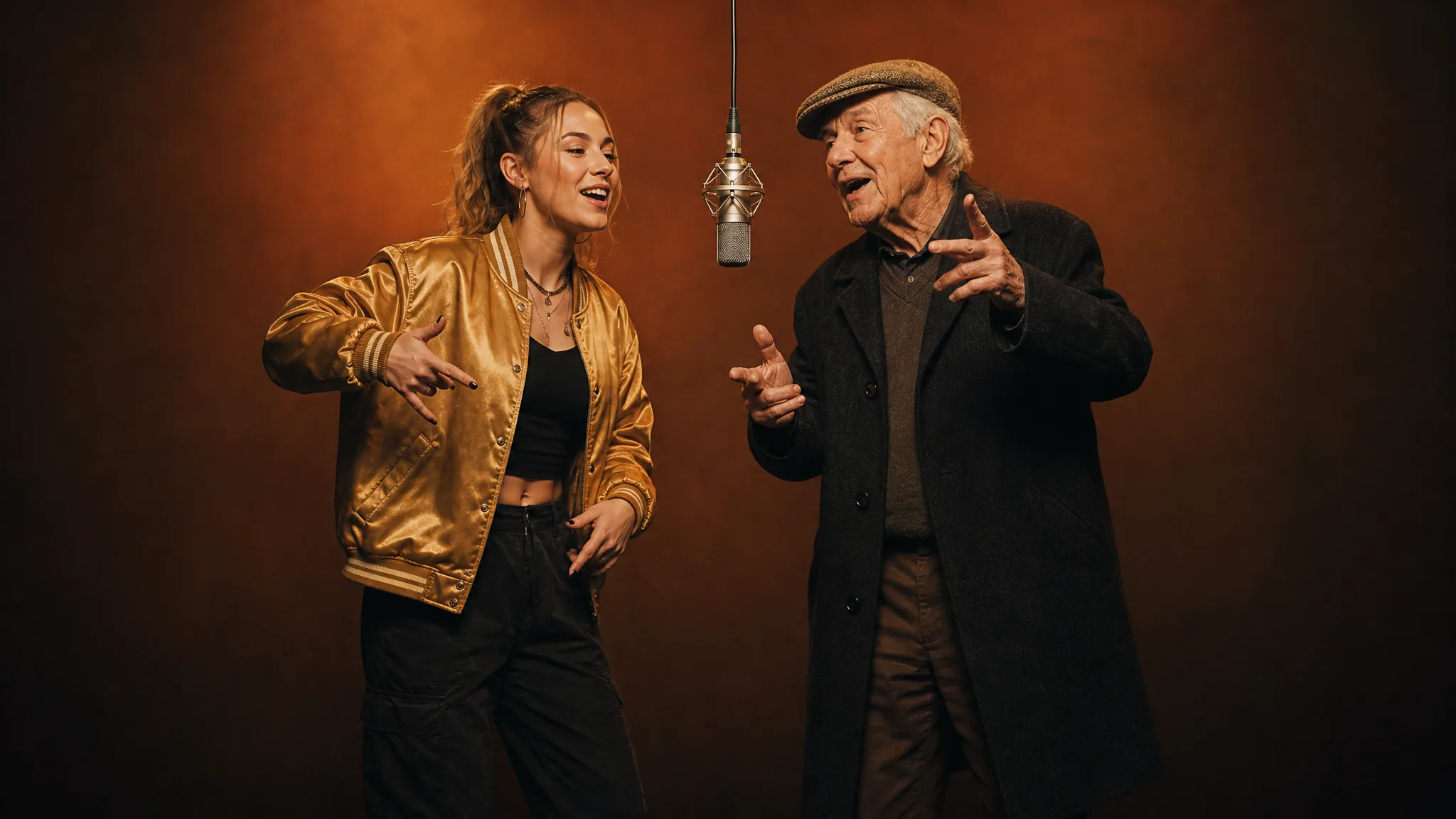
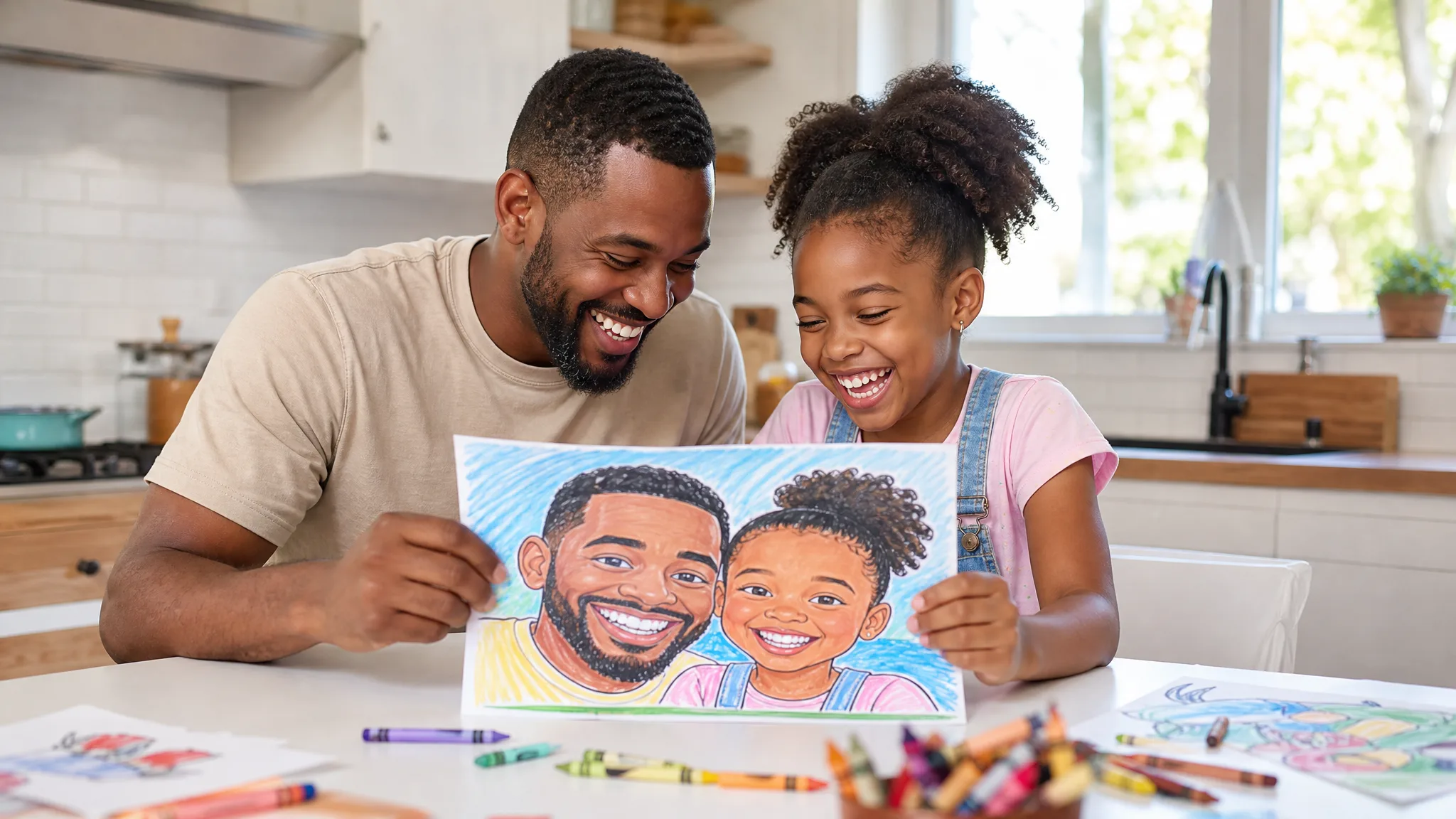
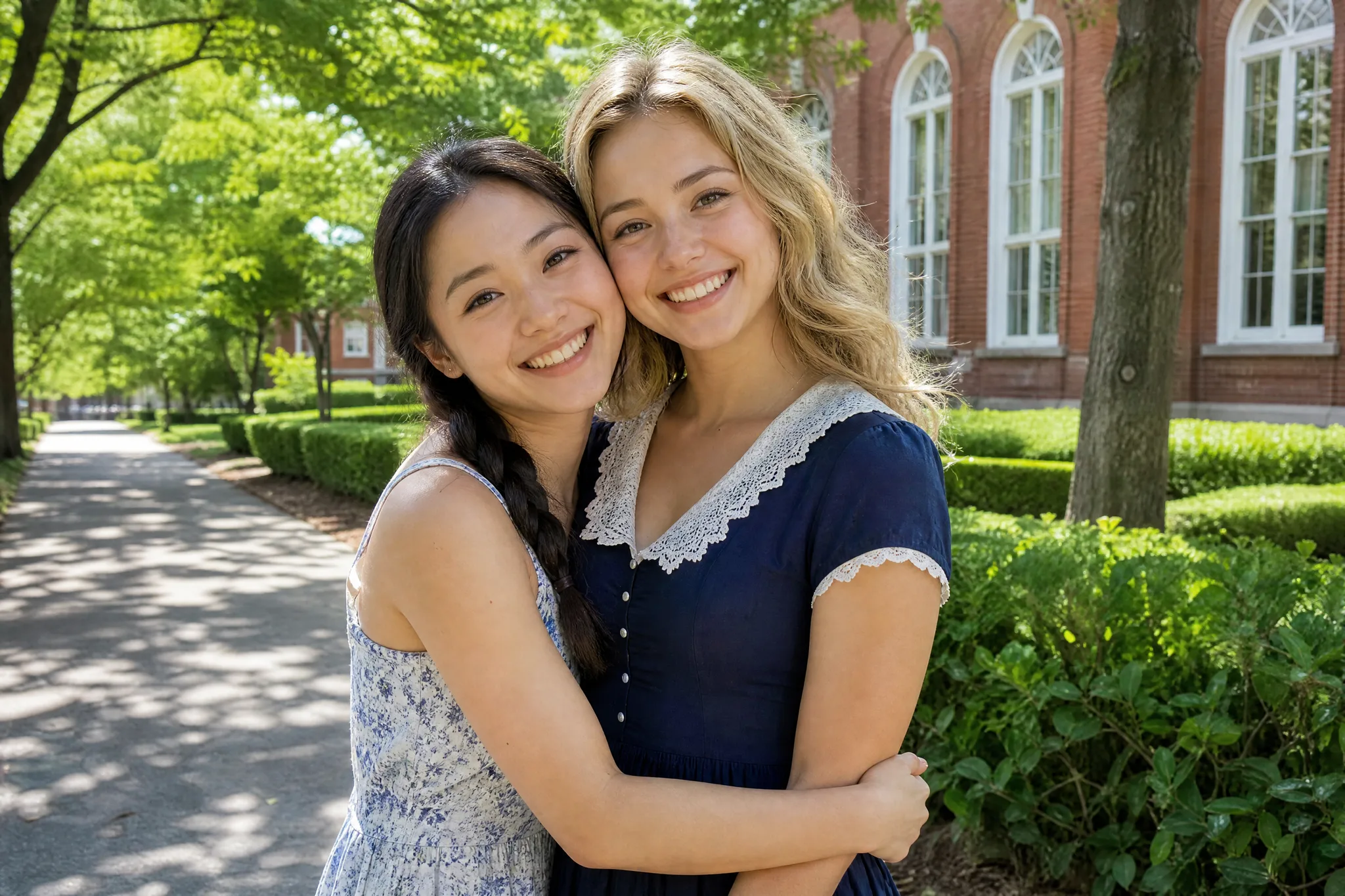
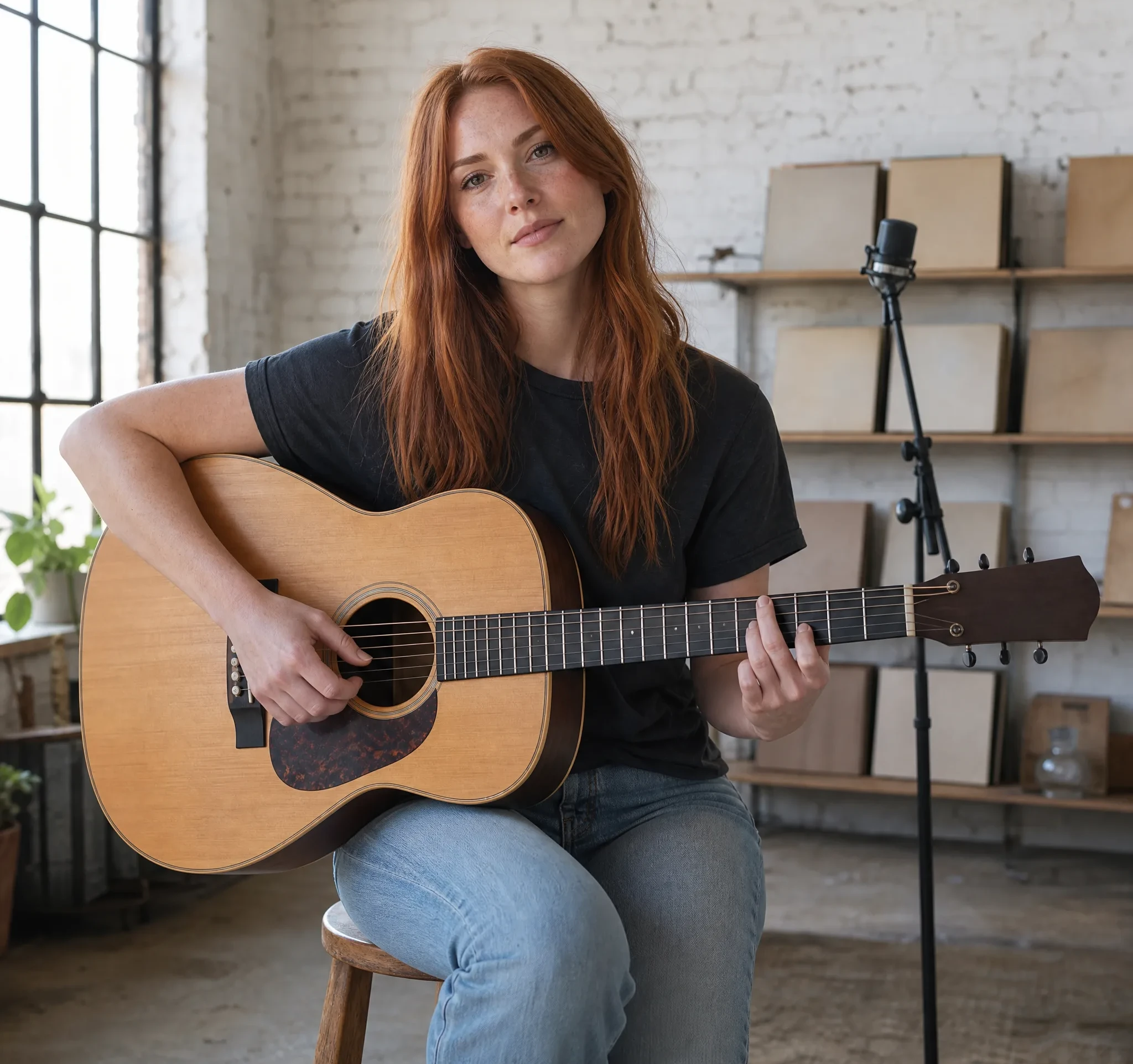
Upload a clear photo of a person, pet or product, write where they are and what happens, and reference to video creates a short clip that carries their look into a brand-new scene.

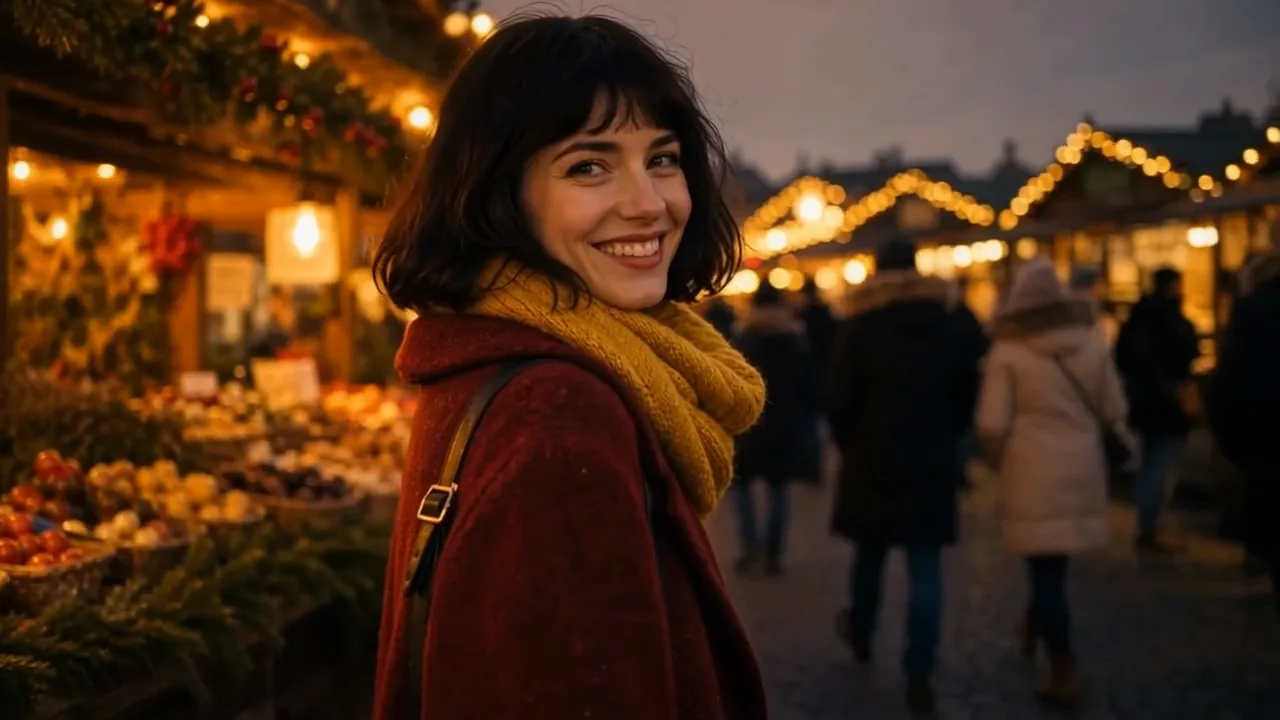
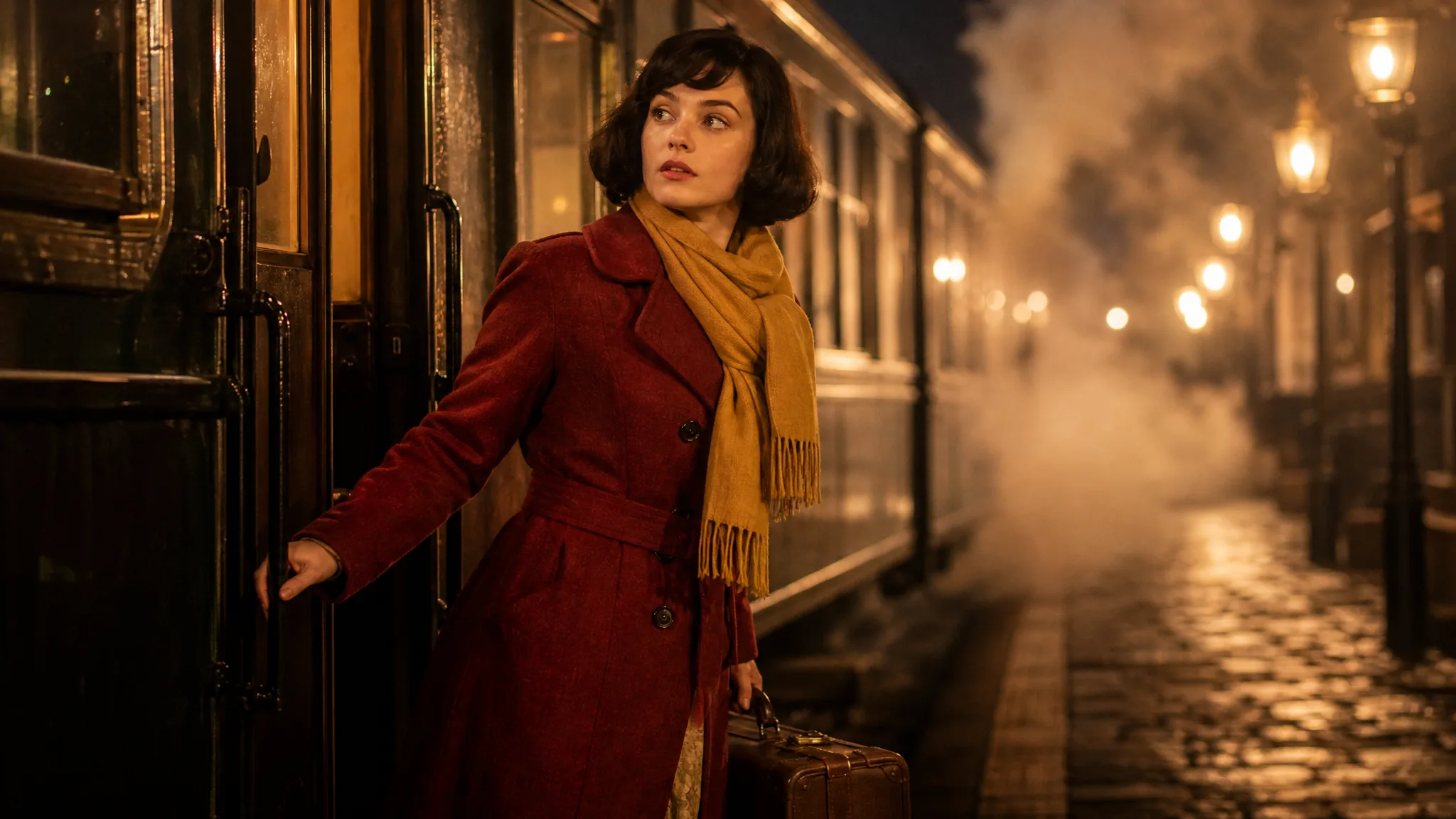
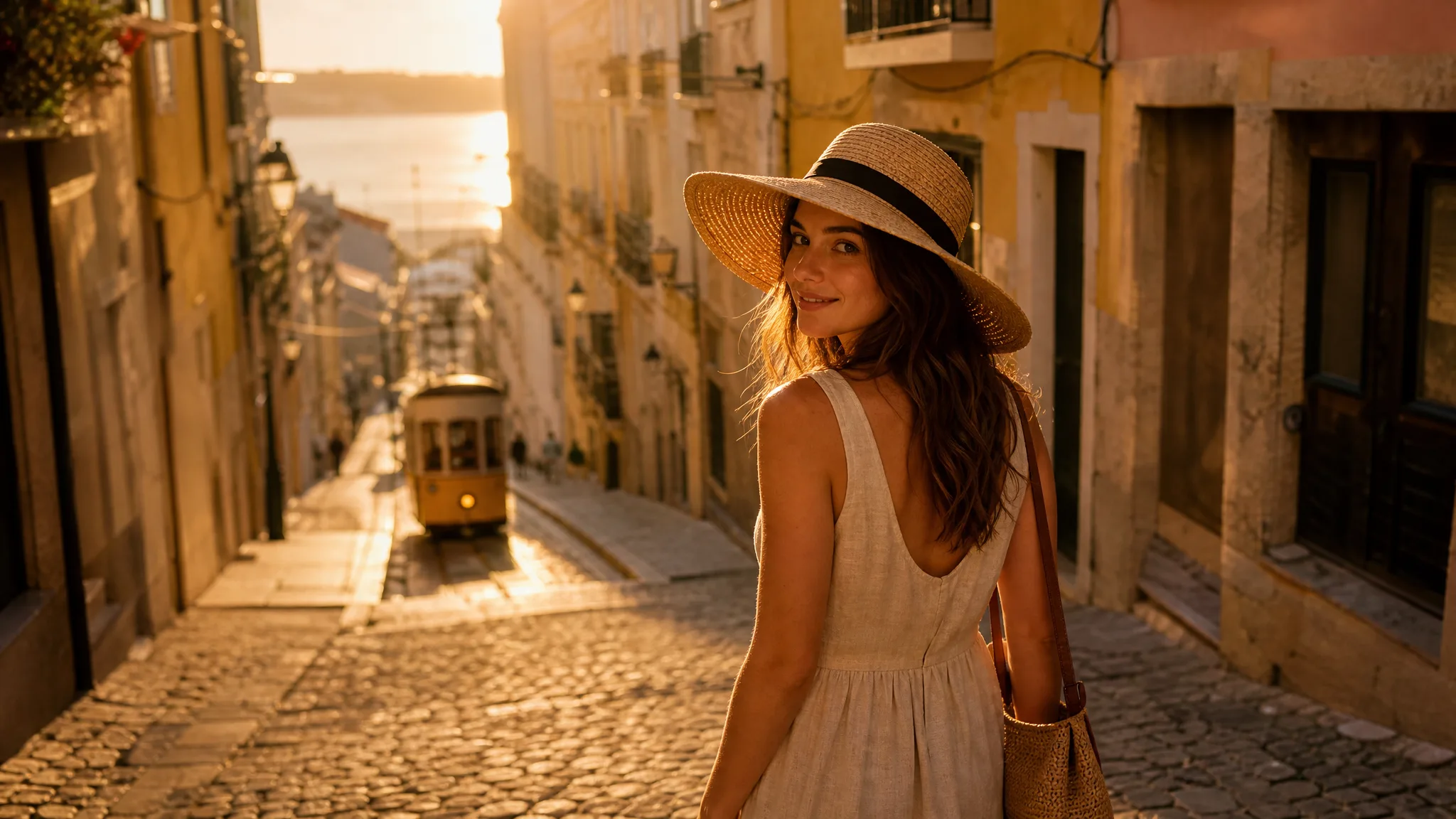
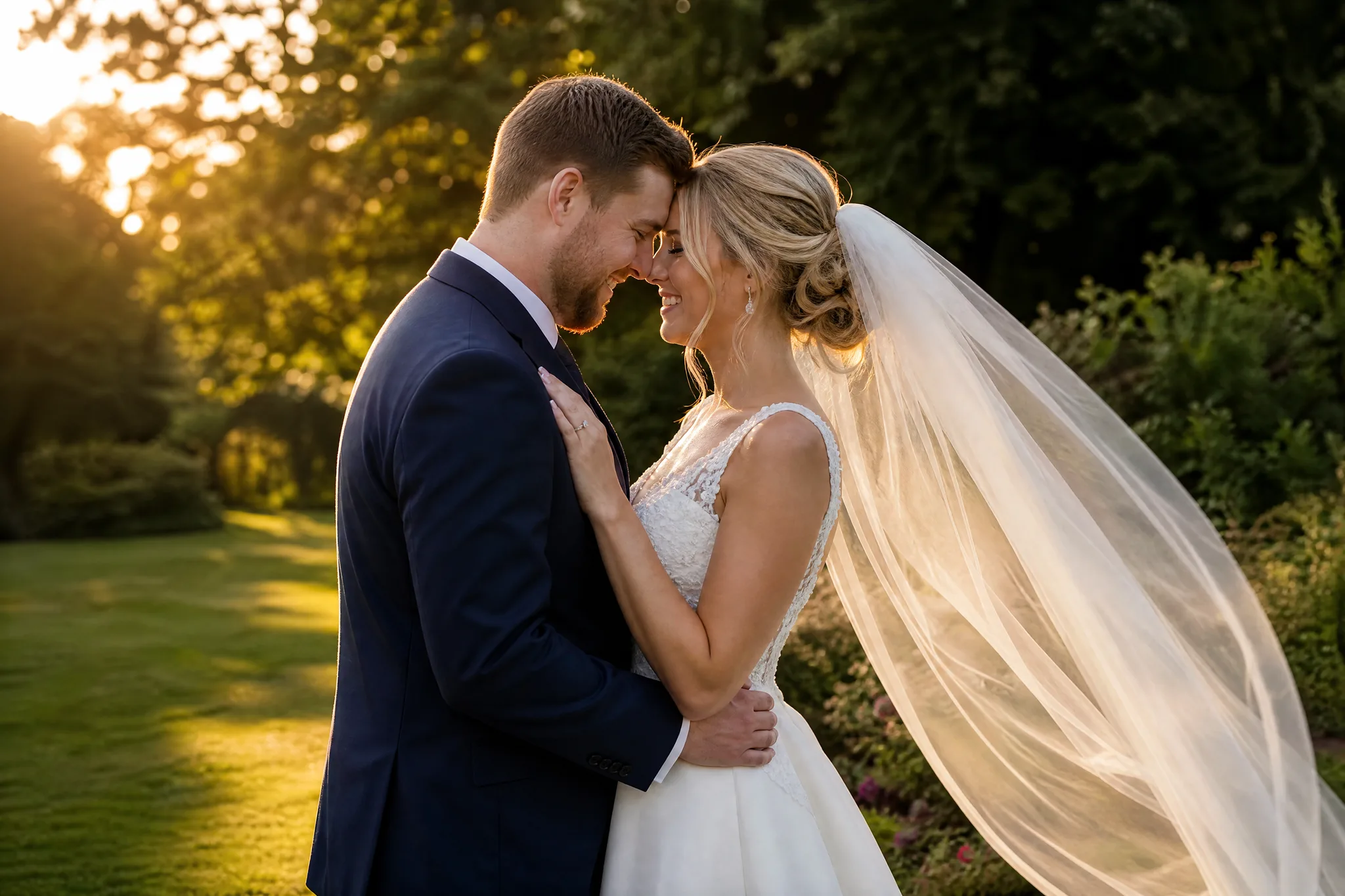
Woman in a red coat and mustard scarf walking through a lantern-lit winter market and turning to smile at the camera
Person, pet and product photos
Up to three reference images
New settings and actions
Style photo guidance
Downloadable clips
Reference to Video
Reference images
Prompt
0/4000
Duration
Resolution
Aspect ratio
Translate prompt
Number of outputs
Public Visibility
Required credits
30
Sample videos

Give Your Reference Photo a Story to Live In

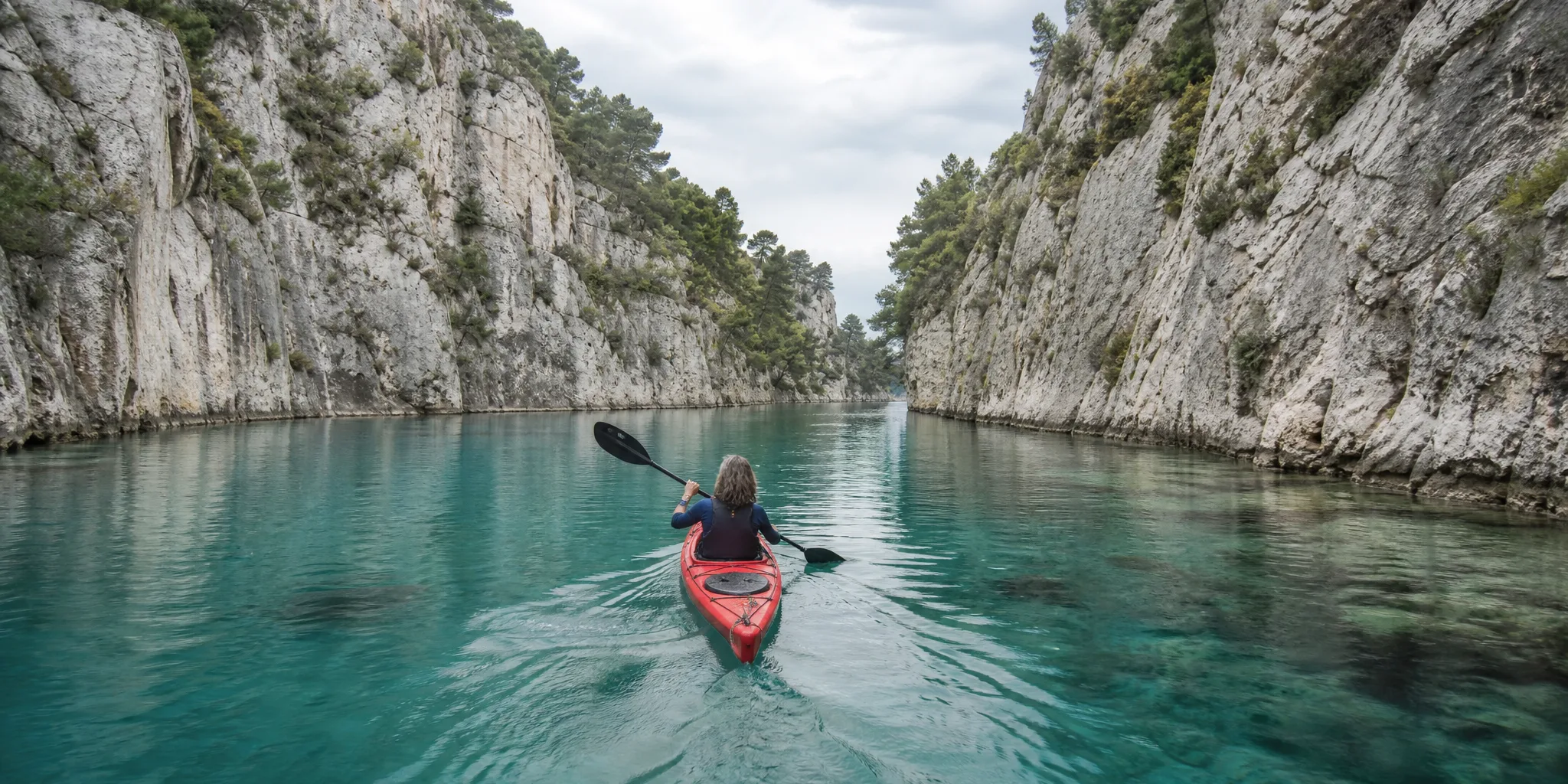
A single photo of your partner, your bulldog or your best-selling mug can anchor a whole scene. Reference to video reads the look from that image and lets you write somewhere new for it, a train platform, a market at dusk or a mountain creek, with an action to match.

Start Reference to Video
Traveller with a black bob in a red wool coat and mustard scarf stepping off a train onto a lantern-lit night platform

How to Make a Reference to Video Clip from Your Photos

Reference to video takes four steps: pick the photos that define the subject, write the new scene, generate, then compare the take with your references.

1

Choose photos that agree with each other

Upload a sharp, well-lit photo of the person, pet or product into the reference slots the selected model offers, since reference to video models differ in how many images they take. Pick shots that tell one consistent story about the look; a recent portrait and an old cartoon of the same friend will pull the clip in two directions.

2

Write the scene the photo never showed

Say where the subject is, one thing they do and how the camera sees it, for example your grandmother waving from a ferry deck in a slow push-in. Let the reference to video photo carry the appearance and spend your words on place, movement and light rather than describing her face again.

3

Generate and follow the job

Once the references and prompt are set, start the generation and watch the job status in the workspace. When the reference to video preview is ready, it can show your subject in a setting, gesture or camera move that none of your original photos contained.

4

Compare, keep or try again

Play the clip and check faces, fur markings, logos and colours against the photos you uploaded, as a reference steers the look rather than fixing every detail. Download the take that suits your story, or adjust the scene wording and run another attempt with the same references.

What Your Reference Photos Can Do in a Video

In reference to video each image has a job: one sets who appears, one sets the object and one sets the look.

Put a person from your photo into a new moment

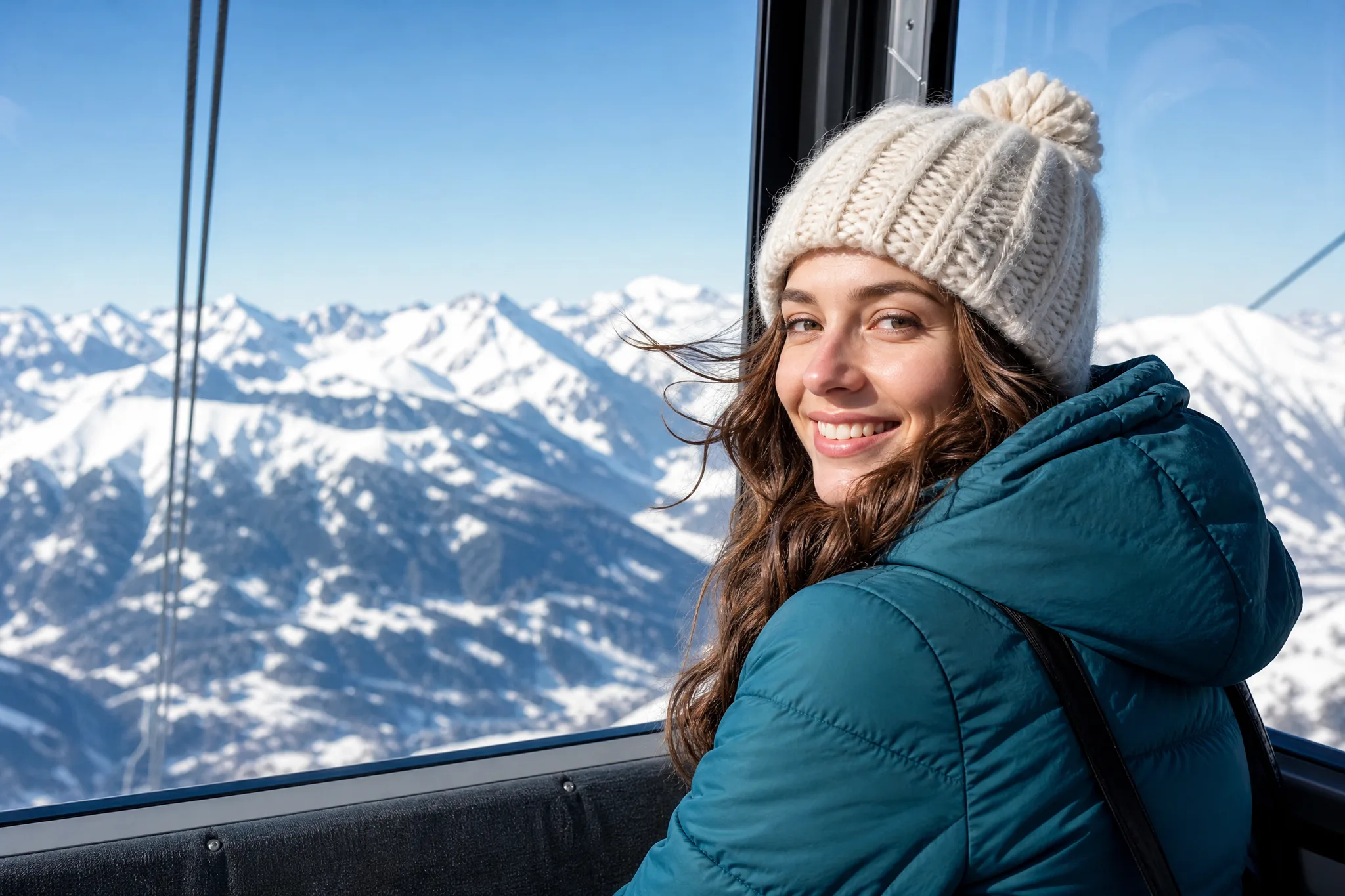
Start with a portrait that shows the face and clothes clearly, then write the moment you want: strolling through a winter market, turning to smile at the camera. Reference to video AI uses the photo for who appears, so your prompt can focus on lanterns, crowd and motion instead of listing hair colour and coat buttons. Travel and family photos work well here.
Borrow the look of a favourite photo

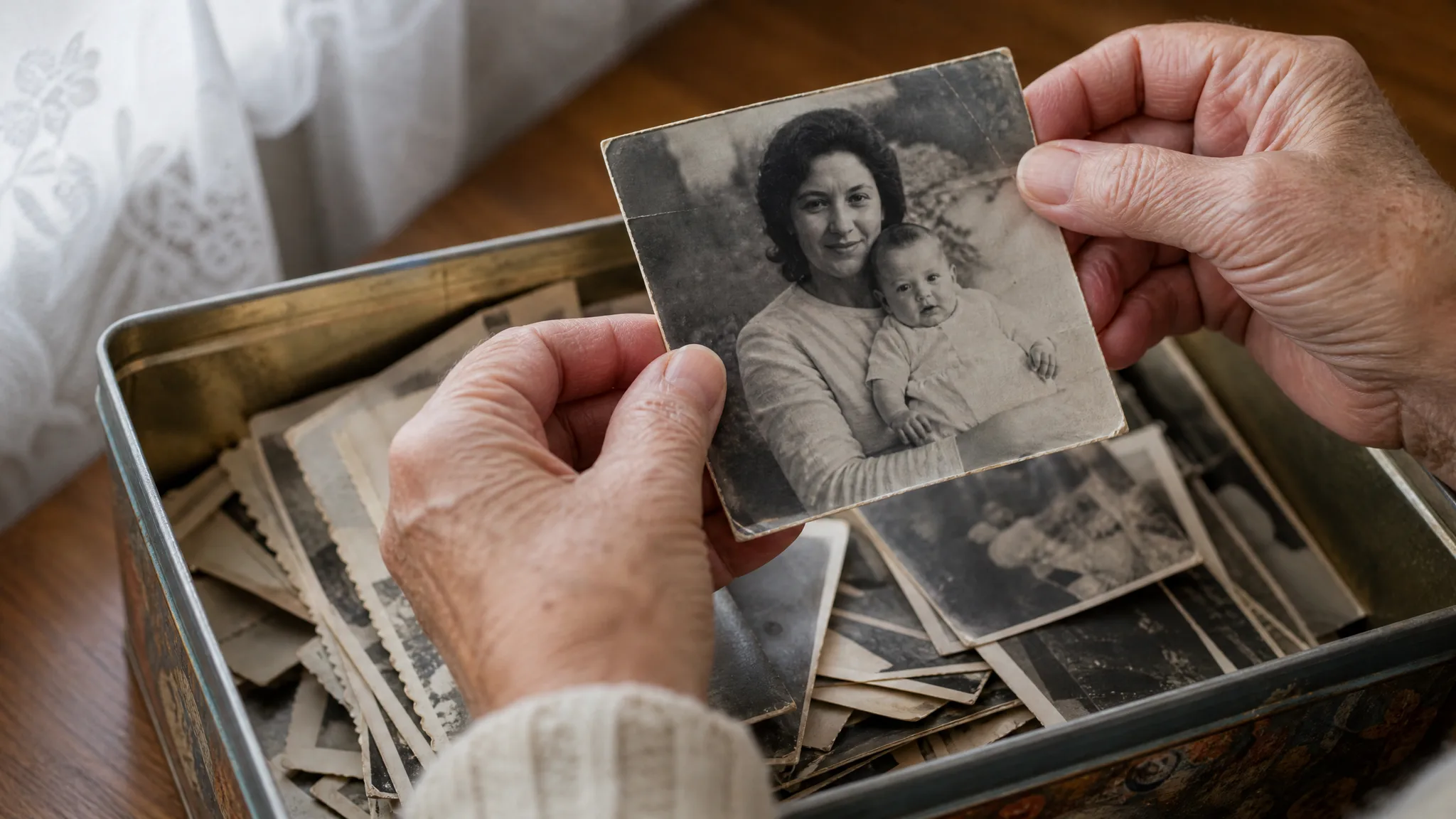
A faded holiday snapshot or a film still can set the palette and grain of a new shot. Add it as one of your references, say which image sets the look and what to borrow, such as warm fade or soft grain, and describe the subject in words so reference to video knows which photo sets the mood and which sets the content of the scene.

Give a product photo a camera move

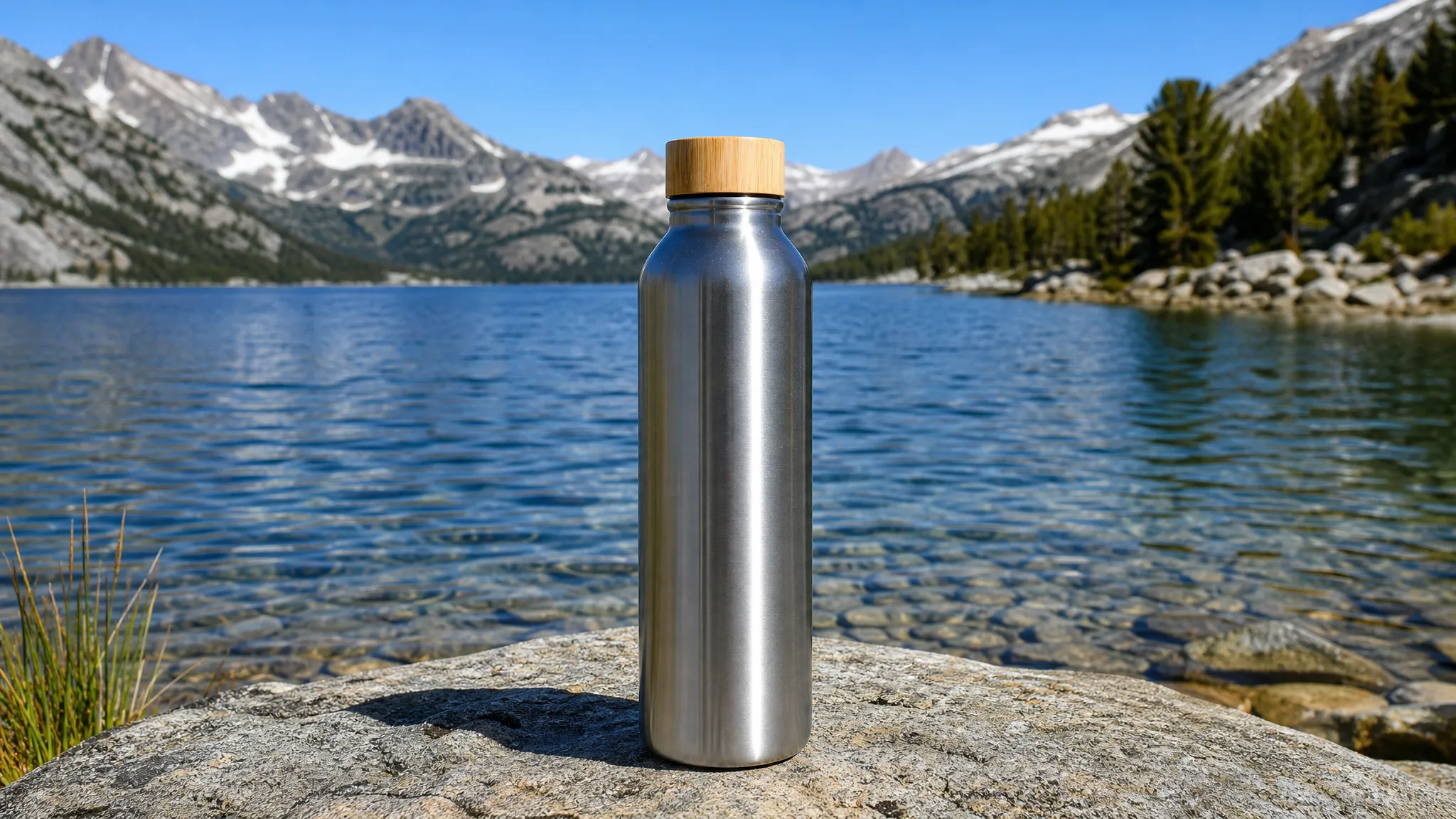
Use a clean product photo on a plain background, then describe how the camera meets it: a slow arc, a push toward the cap, light sliding across glass. Before the clip goes into a shop video or launch post, compare its shape, colour and any printed label with the photo you gave reference to video.

Reference to video chaining for a short series

Run the next shot with the same photos and the same key phrases about outfit and colour, and you are doing reference to video chaining by hand. PicVideo generates each clip separately, so check the face, coat and style across takes, then line them up in your own editor to tell a journey from platform to window seat.

Reference Image AI Video Ideas for Families, Shops and Stories

Reference to video suits anyone who already has the right photo and wants that subject moving somewhere new.

Family moments for anniversaries

Families can upload a recent photo of grandparents and write them dancing in the kitchen of the first house they shared. Reference to video carries their look into that imagined scene, giving an anniversary slideshow a moment nobody filmed. Check both faces before adding the clip to the slideshow.

Pet clips for social posts

Pet owners can use a clear photo of their dog or cat as the reference and write a playful scene, such as a corgi riding a small wave on a surfboard. Compare fur colour and markings with the photo, then share the reference to video clip as a short post or story.

Product shots for small shops

Shop owners can start reference to video from one tidy product photo and describe a camera move around it on a café table or a mountain rock. Check the label, shape and colour against the real item before using the clip on a product page or in a launch ad.

Character scenes for storyboards

Writers and indie filmmakers can upload a costume test or concept portrait and stage one story beat in a new location. Reviewing the face and outfit in each reference to video take makes it easier to plan the next frame of the board and brief the crew.

Mascot moments for brand channels

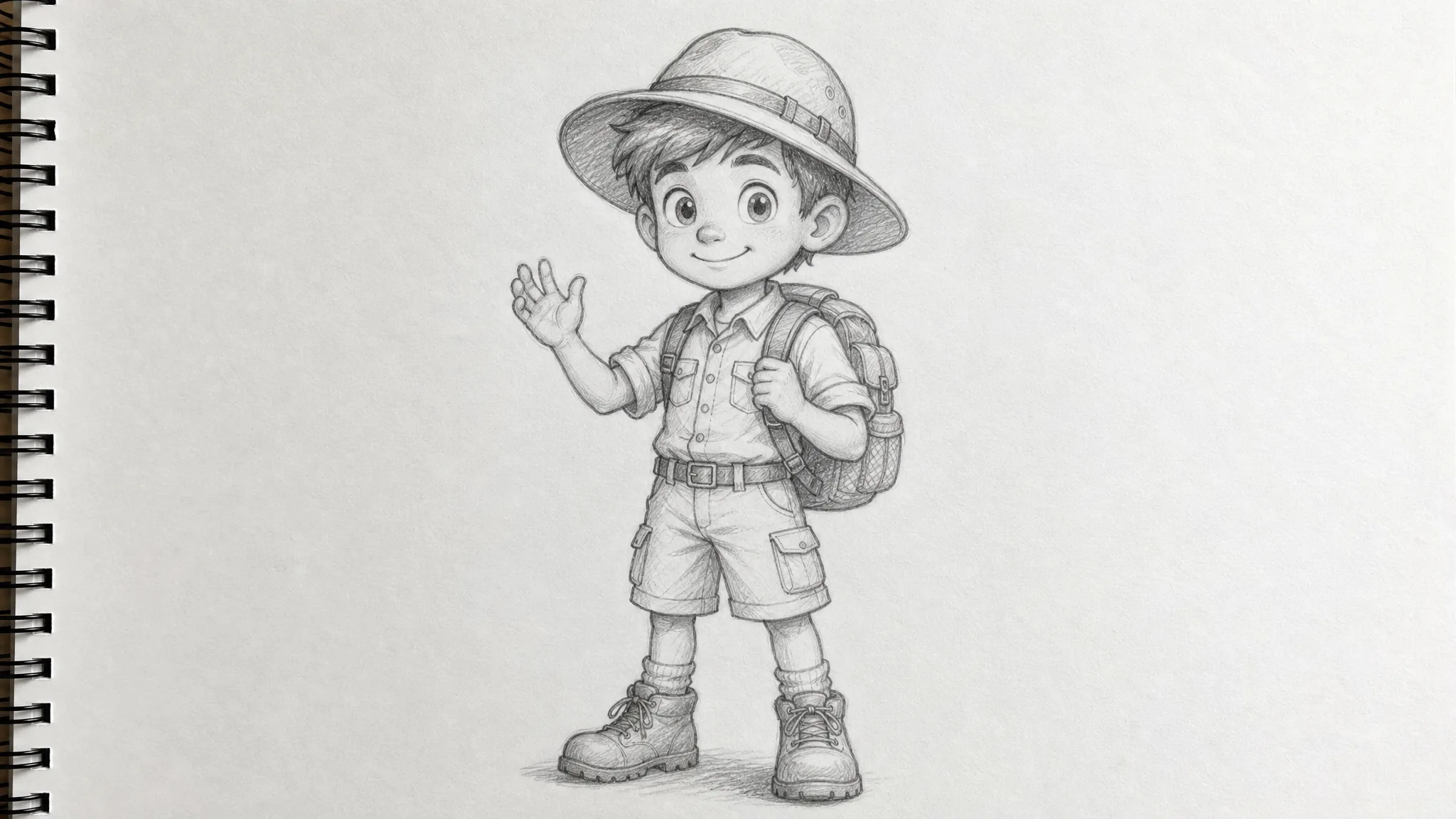
Community and brand teams can give a mascot drawing a place and a single gesture, like waving from a festival stage. Watch colours, proportions and signature marks through the whole motion, because fans notice quickly when a familiar character changes shape.

Visuals for a music release

Musicians can turn a cover photo or band portrait into atmosphere shots for a lyric video or teaser. Pair the reference to video clips with a recording you hold the rights to, and add lyrics and exact timing in your editor.

Stories from People Who Tried It on Their Photos

Our sourdough looks best straight from the oven, which is never when I have time to film. I uploaded one photo of a scored loaf and used reference to video to show it on a flour-dusted bench with steam rising as the camera eased in. That 6-second clip now opens our Friday stories and gets more replies than any still.

Maya Chen
Bakery Owner

Reference to Video FAQ

Answers about photos, consistency, chaining and cost for anyone planning a reference to video clip.

Reference to video is a mode that turns your photos and a prompt into a new clip of that subject or style. Veo 3.1 Lite is the default model on this page; in reference mode it takes one to three images and makes 8-second clips in a 16:9 or 9:16 aspect ratio, while other models set their own inputs and options.

Reference to video chaining means reusing the same photos and key prompt details across separate shots. PicVideo creates each clip on its own, so you compare identity and style between takes and join the chosen clips in your editor.

References describe how the subject looks, while start and end frames set the first and last picture of a clip. Use reference to video for a familiar person or product in a new scene, and start and end frames when a clip must open and close on two exact images.

Reference to video steers each clip toward the face and outfit in your photo. Sharp references, a consistent prompt and the same settings keep the look steady, and a quick review of every take shows which one matches best.

Sharp, well-lit photos that show the subject clearly make the best reference to video inputs: a front-facing portrait, a pet standing side-on or a product on a plain background. Avoid references that disagree, and check the model’s upload slots and formats; some modes take their framing from the uploaded image.

Reference to video clips can support ads, product pages and client work when you have permission for every person, product and artwork in your references. Review each take for likenesses, trademarks and label details before it goes live.

Reference photos you upload stay unpublished, and clips are not posted automatically. Subscriptions and one-time packs start with Public Visibility off, while free accounts keep it on, so a successful reference to video clip may appear publicly after review. The selected model provider processes your photos, so see the Privacy Policy before uploading sensitive images.

Reference to video is free to start: sign up for free credits, then check in each day for more, with the streak bonus reaching 4x on day 7. Use the credits on reference clips or on other AI videos and images.

Turn a Reference Photo into Your Next Video Scene

Upload the photo of the person, pet or product you want on screen, write where they go and what they do, and reference to video builds the shot around them. Compare the take with your photo, then download it for your story, shop or storyboard.

Make My Reference Clip
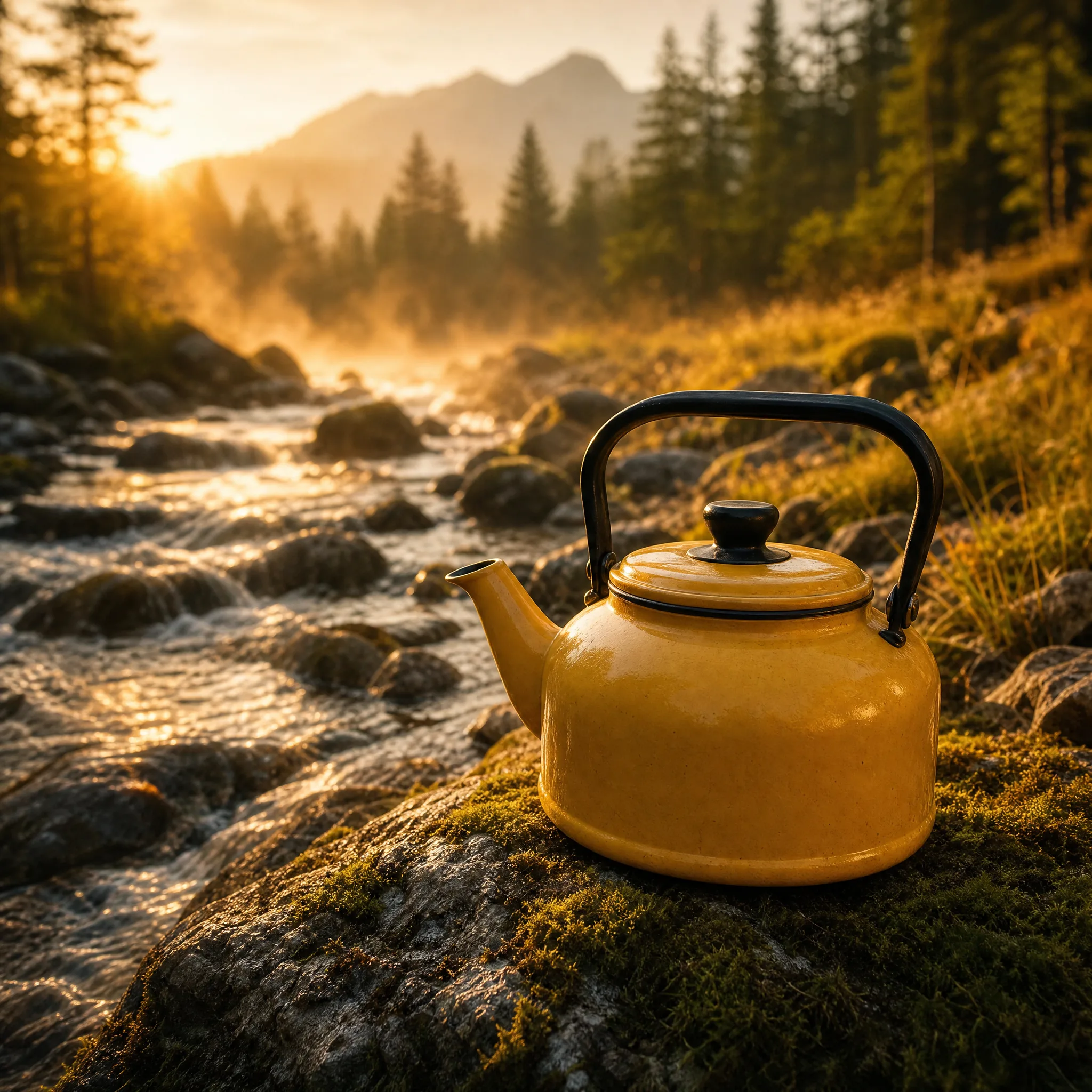
Mustard-yellow enamel camping kettle on a mossy rock beside a clear mountain stream at sunrise