







Video and image tools on one page
Video cards animate a photo or build a clip from a prompt; image cards create a new picture or restyle one you have. Every card on this page opens one of the PicVideo tools with its own examples and upload box.

Video Tools
Image Tools
Start from what you already have: a birthday snapshot, a product shot, a scanned wedding print or one line about a scene. Each of the PicVideo tools below is named after a job, so you open the one that fits, add your picture and keep the clip or image you like.
See All ToolsSort by the job, not the settings: in PicVideo tools a birthday snapshot, a product photo or an old family print each lead to a workflow built for it.
Video cards animate a photo or build a clip from a prompt; image cards create a new picture or restyle one you have. Every card on this page opens one of the PicVideo tools with its own examples and upload box.
Looking for a birthday clip, a wedding photo video or an animated old print? Those are the names on the cards, so you can start from the job instead of the settings, then reuse the result in your own edit.

Each card shows a sample of what the task makes. Open one of the PicVideo tools, look at the examples and the input guidance, then upload your own photo or write your idea.
Photos you uploaded before and every clip or image you generated stay in Assets. Choose one from there in any of the PicVideo tools instead of uploading it again.
Each tool page links to similar effects and other tools, so a portrait you just animated can move on to an anime style or to a model page with more settings.

Switch between PicVideo tools as the project grows: start with a video task, a picture, a model or something already in your library.
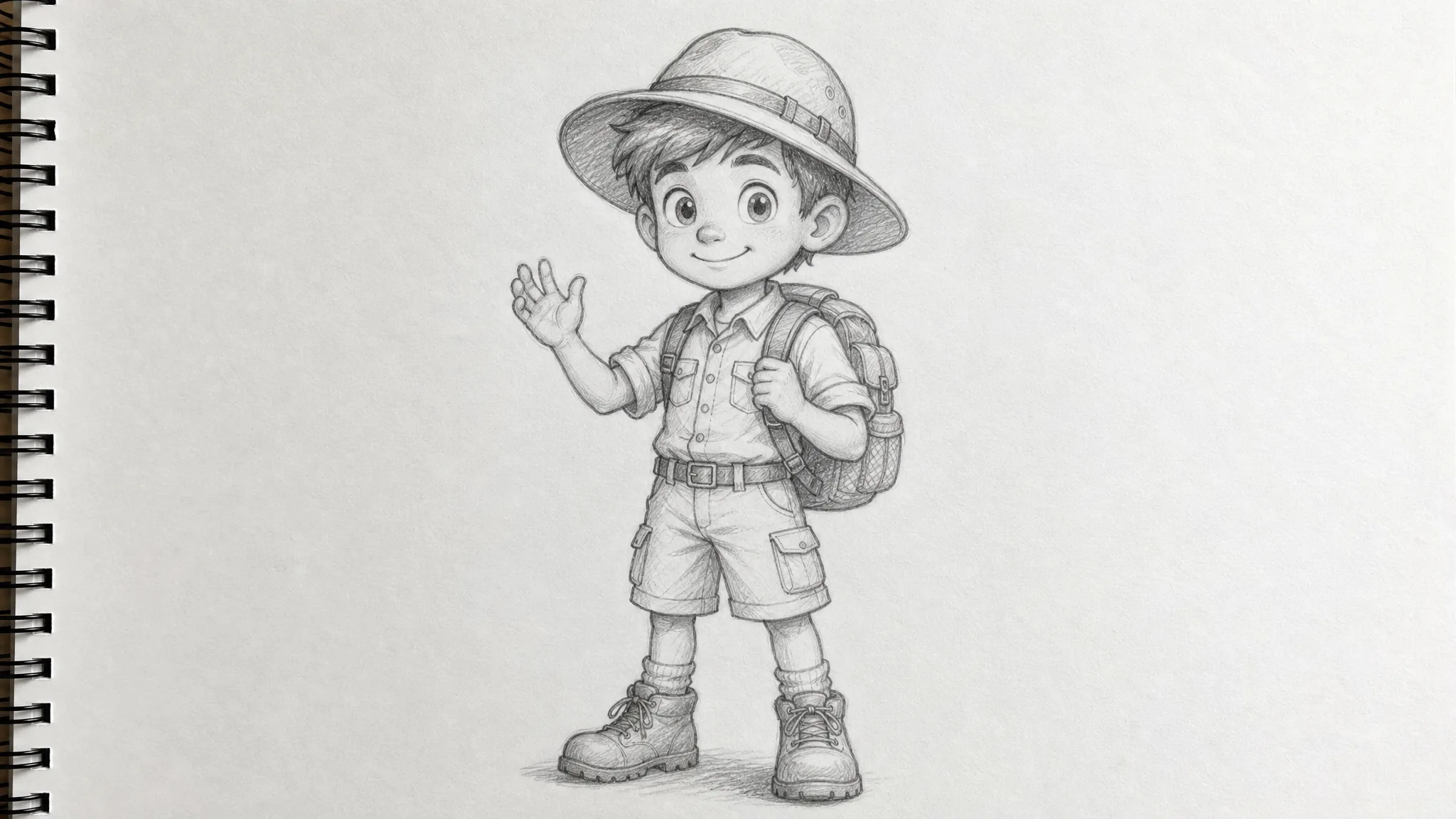
Animate a portrait, a product shot, a wedding print or a child’s drawing with the video side of PicVideo tools, where each task is set up for its own kind of photo.
Text to Image draws a new picture from your words, and Image to Image gives an existing photo a new style or setting. More image tasks join the PicVideo tools in this group as they open.
Model pages focus on one engine such as Kling, Veo or Seedance, with sample clips and its own settings. Open one when a portrait or product shot needs a particular look or length.
Assets holds your uploads and finished results. Pick a picture you made in one of the PicVideo tools and use it as the starting photo for a clip or another edit.
You take the same path in every one of the PicVideo tools: choose a task, add your photo or idea, set the options and save the result.
Scroll the Video Tools and Image Tools groups and pick the card that matches what you want to make, whether that is a reel, a greeting or a restyled portrait among the PicVideo tools.
Open the card to see sample results and the kind of photo that works best. In PicVideo tools every page explains its inputs and suggests a model or preset to start with.
Upload a photo or type a prompt, choose the options the page offers, then press Generate and follow the status until the clip or picture is ready.
Watch or view the result, download what you like and keep it in Assets, ready to reuse in any of the PicVideo tools later.
From a shop listing to a wedding thank-you, these are everyday projects where you turn a photo you already have into something new with PicVideo tools.
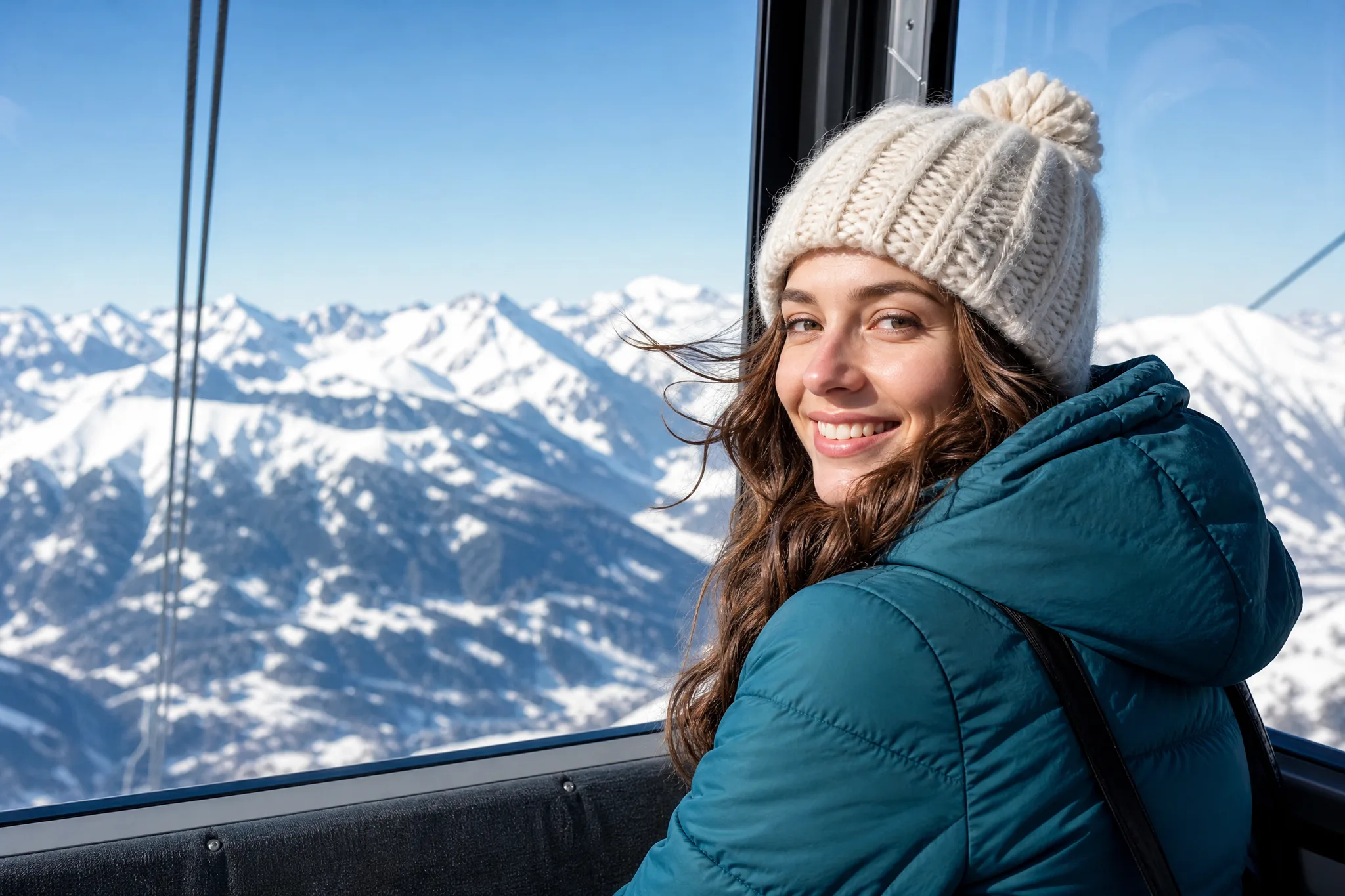
Turn a travel photo or a new-haircut selfie into a short vertical clip with PicVideo tools, then add music and a caption in the app you post from.
Give a product photo a slow turn or a fresh background for a listing, an ad or a newsletter. In PicVideo tools you can check the label, colour and shape in each result before you use it.
Teachers can create a picture for a story prompt or animate a photo of a science model to open a discussion, keeping the version that makes the idea clearest.
Chain two PicVideo tools: create a scene with Text to Image, then give that picture a small action with Image to Video to see whether an idea works before a shoot.
Show a renovation, a redesign or a product change with a before and an after frame, and drop the short transition into your slides.
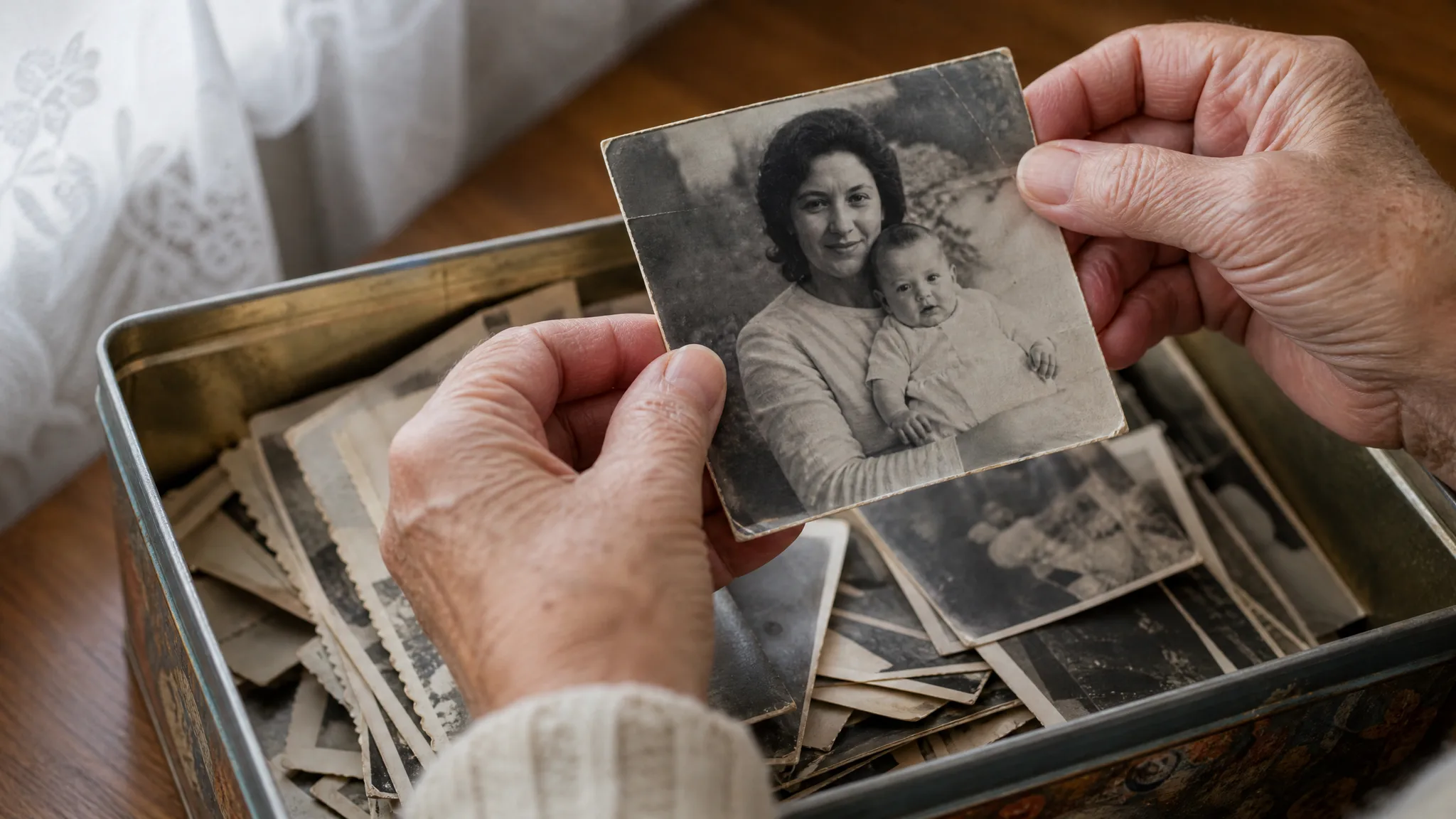
Animate an old wedding portrait, make a birthday greeting from a party photo or give a baby picture a gentle moment with PicVideo tools, then send it with a personal note.
Our candle launch had good product photos and a tiny budget for video. I used the PicVideo tools in two steps: a new autumn backdrop for each candle, then a slow flicker clip from the best picture. The still went on the product page and the clip opened our launch email.
Quick answers about what PicVideo tools cover, which photos you can upload, how to start free and where your results are saved.
PicVideo tools are task pages for photo and video jobs, from a birthday reel or an animated old photo to Text to Image and Image to Image. Each page has its own examples and workspace, while themed scenes such as hugs and duets live on the Effects page.
Free credits arrive when you create an account. Check in every day for more, and keeping your streak going makes each check-in worth more. Spend them in any of the PicVideo tools on your first clip or picture.
Timing in PicVideo tools depends on the model, the settings and the current queue. The workspace shows the job status while it runs, and finished results also land in Assets.
You can upload JPG, PNG or WebP photos to PicVideo tools. Each workspace lists the size limit and how many reference images its model or preset accepts.
A result from one tool can start the next, because every one of the PicVideo tools reads from the same Assets library. A picture made with Text to Image, for example, can become the first frame in Image to Video.
The cost comes from the model and the settings you pick, such as resolution and length, and the Generate button shows the total before you start.
Across PicVideo tools, each model has its own modes, reference limits, resolutions and durations. When you switch models, the workspace updates its controls so only valid options appear.
Open any of the PicVideo tools for examples, steps and answers on its own page, or read the blog for practical guides on turning photos into video.
Uploads and finished results are saved to Assets in your account, where you can view, download or reuse them.
Send your idea through the Contact page; requests for new photo tasks help decide what comes next.
Choose one of the PicVideo tools, add a portrait, pet, product or family photo, or a short idea, and make a clip or picture you can download today.