

Burning Bridges AI Video Generator

Add one clear portrait and become the lead performer in the prepared chandelier-lit party scene.

Upload Your Portrait0/1
Styling note (optional)
0/300
Aspect ratio
Resolution
Number of outputs
Public Visibility
Required credits
336
Sample videos

Burning Bridges AI Video Generator for a Party Entrance

Turn one portrait into a lively party performance, with expressive gestures, sparkling stagewear and a ready-made scene.

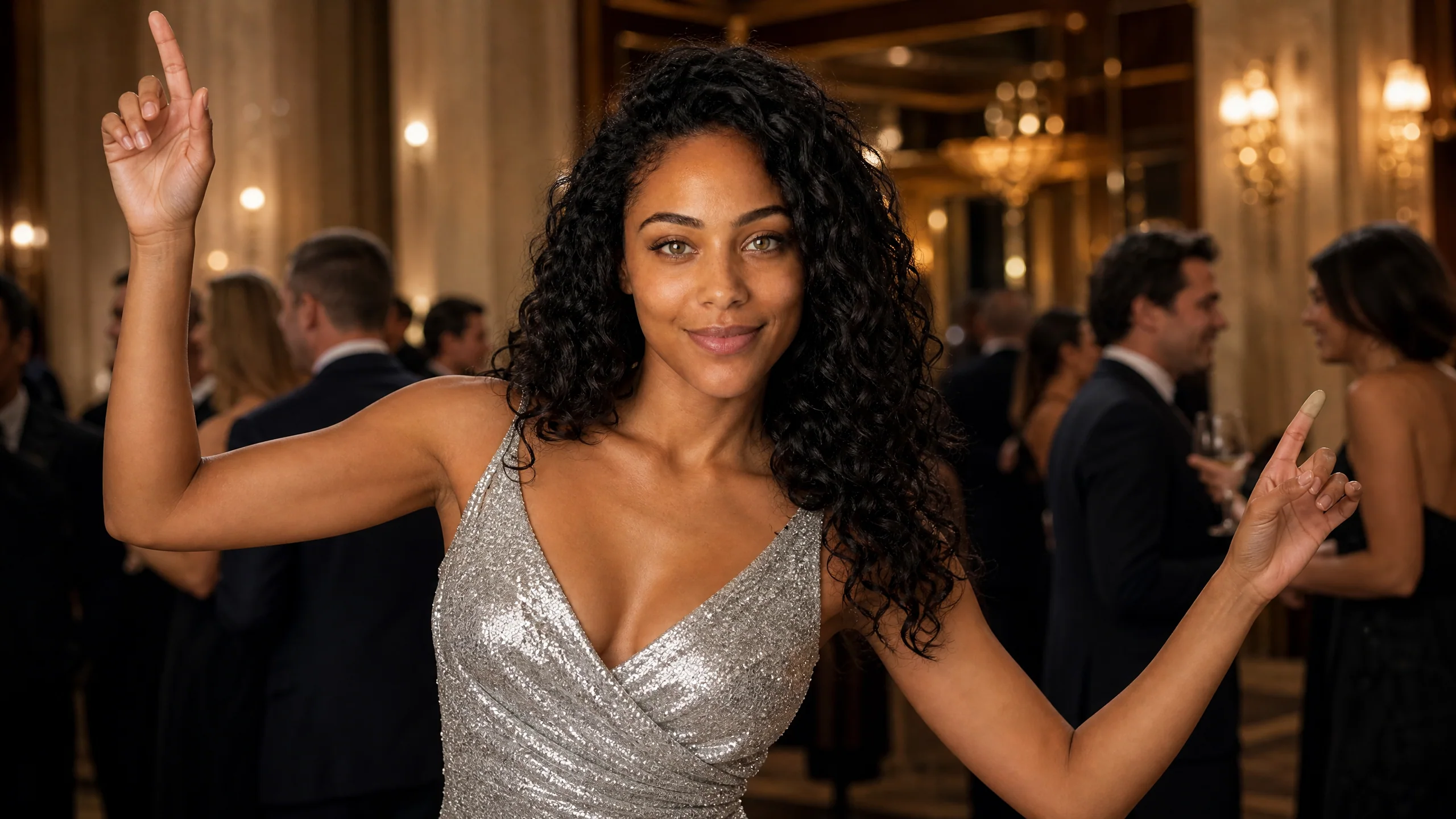
A still portrait can become the moment everyone notices at the party. Upload one clear photo and take the lead beneath chandeliers, with a lively crowd behind you and expressive gestures carrying the performance. The camera changes distance as the main person moves, poses and faces the lens. Your identity comes from the portrait; the setting, sequence and sound come from the prepared template. Download the 13-second result for a celebration post, a greeting or the opening of a social edit. Start your own party performance with the Burning Bridges AI video generator.

Create My Party Video
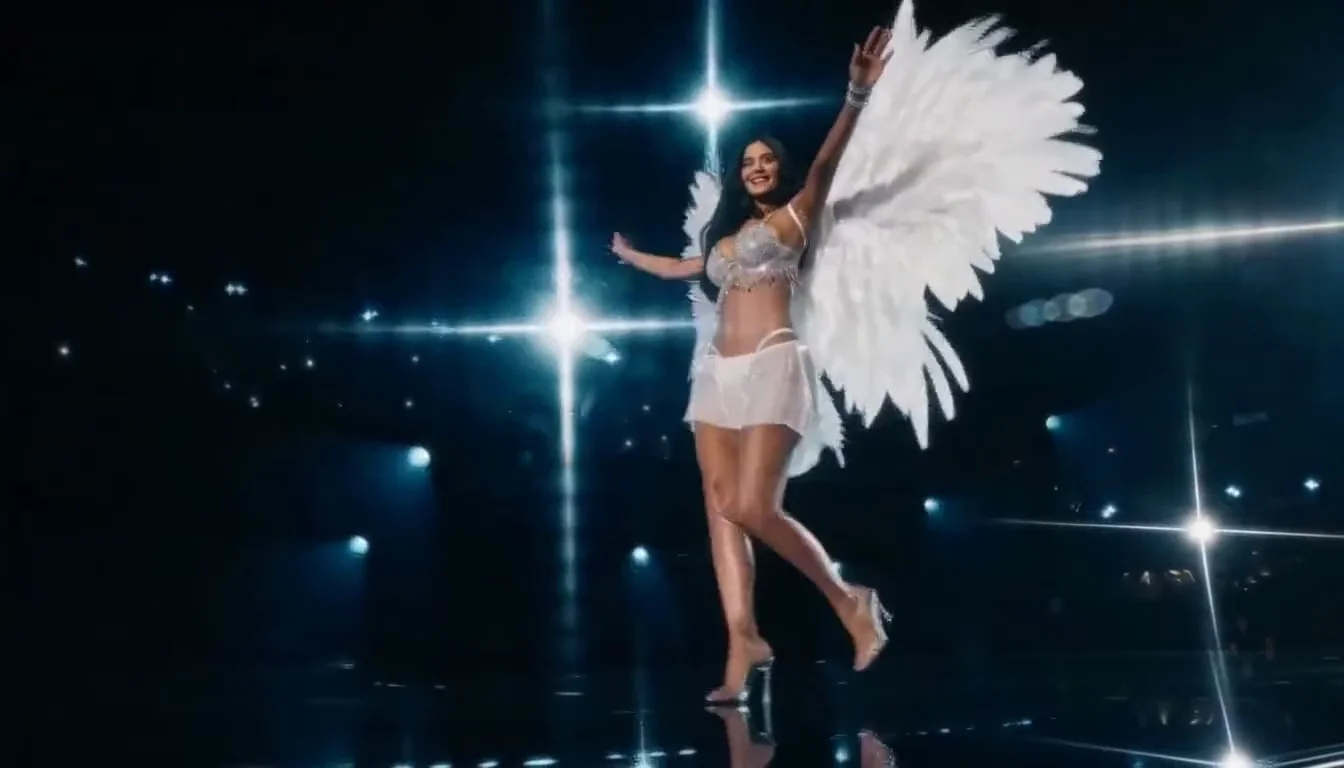
A woman in a silver party dress gesturing in a chandelier-lit reception hall, with guests and wood panels behind her
One Portrait|Ready-Made Scene|13 Seconds|Scene Sound

How to Make Your Burning Bridges AI Video

Follow three steps with burning bridges ai to choose your portrait, generate the prepared performance and download your clip.

1

Upload One Clear Portrait

Choose a sharp photo of a single person with visible eyes and natural facial detail, then upload it to the workspace. The Burning Bridges AI video generator uses this person as the lead performer, so a clean portrait gives the prepared party scene a clear identity reference.

2

Choose the Frame and Generate

Keep Auto to follow the example framing, select 768P or 2K and generate your party performance. The Burning Bridges AI video generator supplies the party setting, gestures and camera sequence. Follow the task status as your portrait becomes the main person in the performance.

3

Play the Party Moment and Download

Watch the full 13-second result with sound, checking the face and expressive gestures in both the close and wider shots. Download your favorite Burning Bridges AI video for a greeting or social post. Add captions and arrange any surrounding footage in your usual editor.

Make the Burning Bridges Performance Your Own

The burning bridges ai video generator brings your face into a prepared scene, with recognizable movement and sound completing the short performance.

Your Portrait Takes the Lead

A clear face gives the party performance its personal focus. The Burning Bridges AI video generator uses one portrait to choose the main performer while the crowd and reception setting come with the template. Watch the close views as well as the wider shots to see your person carry the scene.
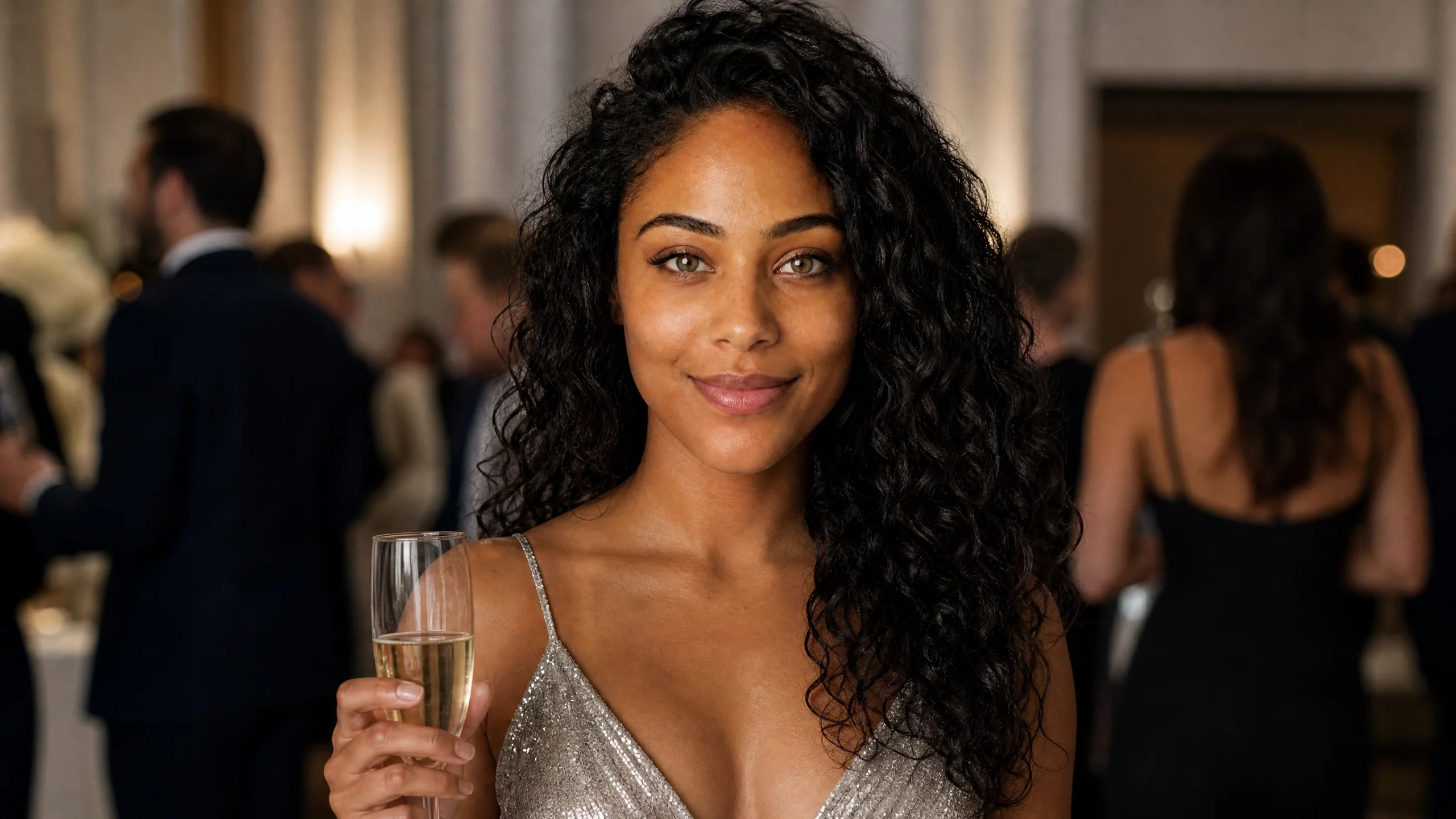
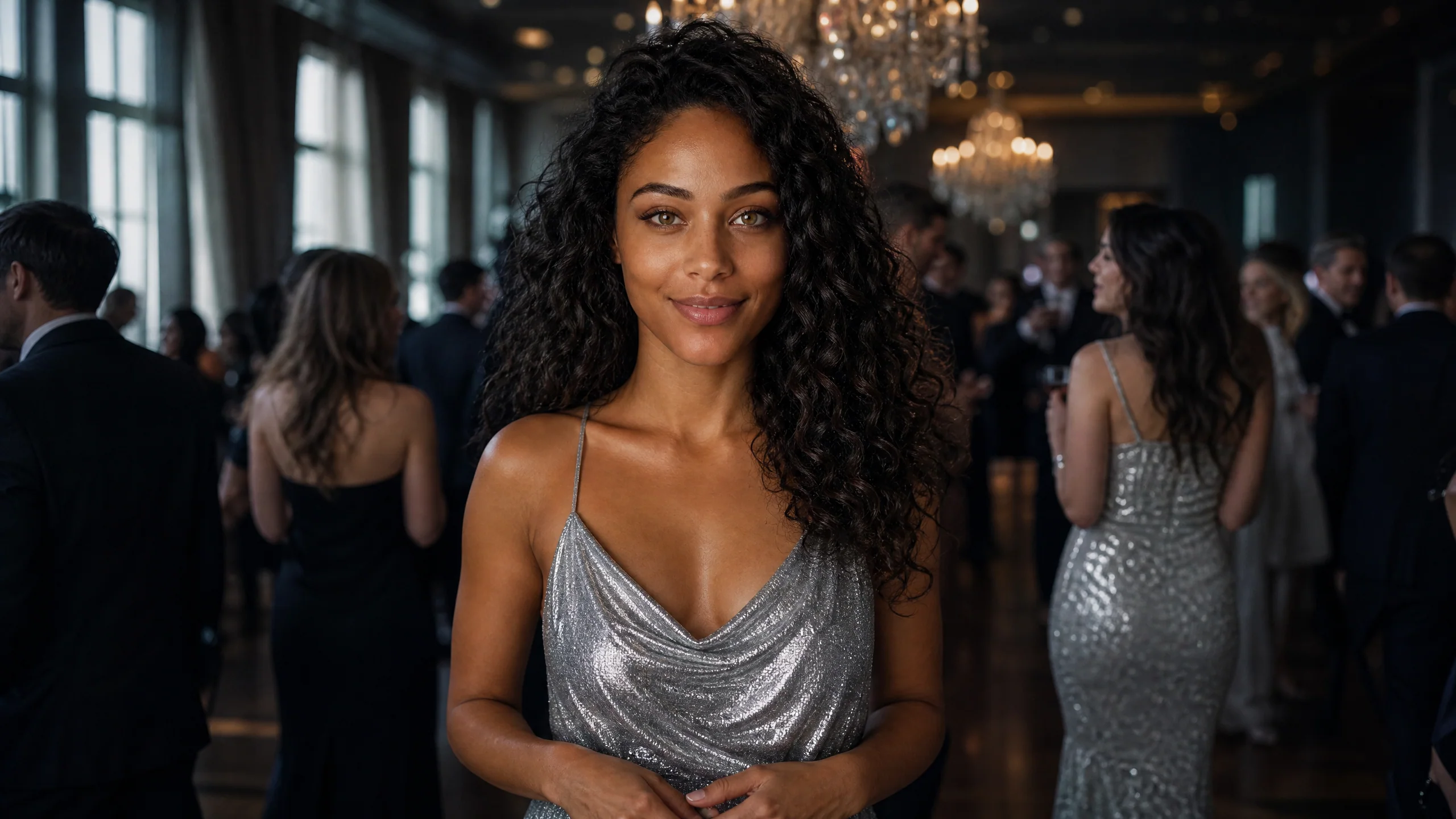
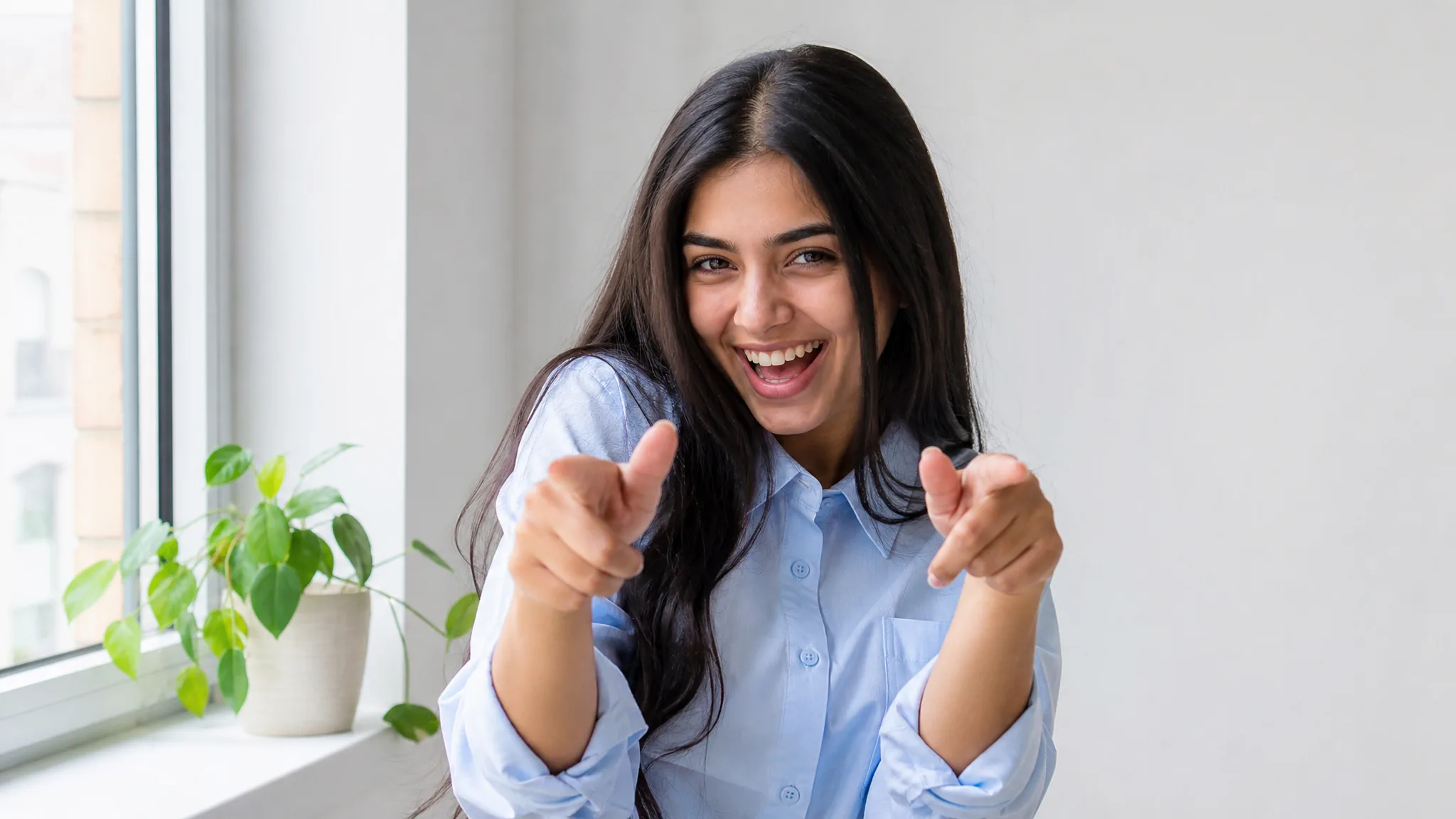
A young woman with long dark hair in a silver party dress, clear close portrait under soft neutral studio light

Expressive Gestures Carry the Clip

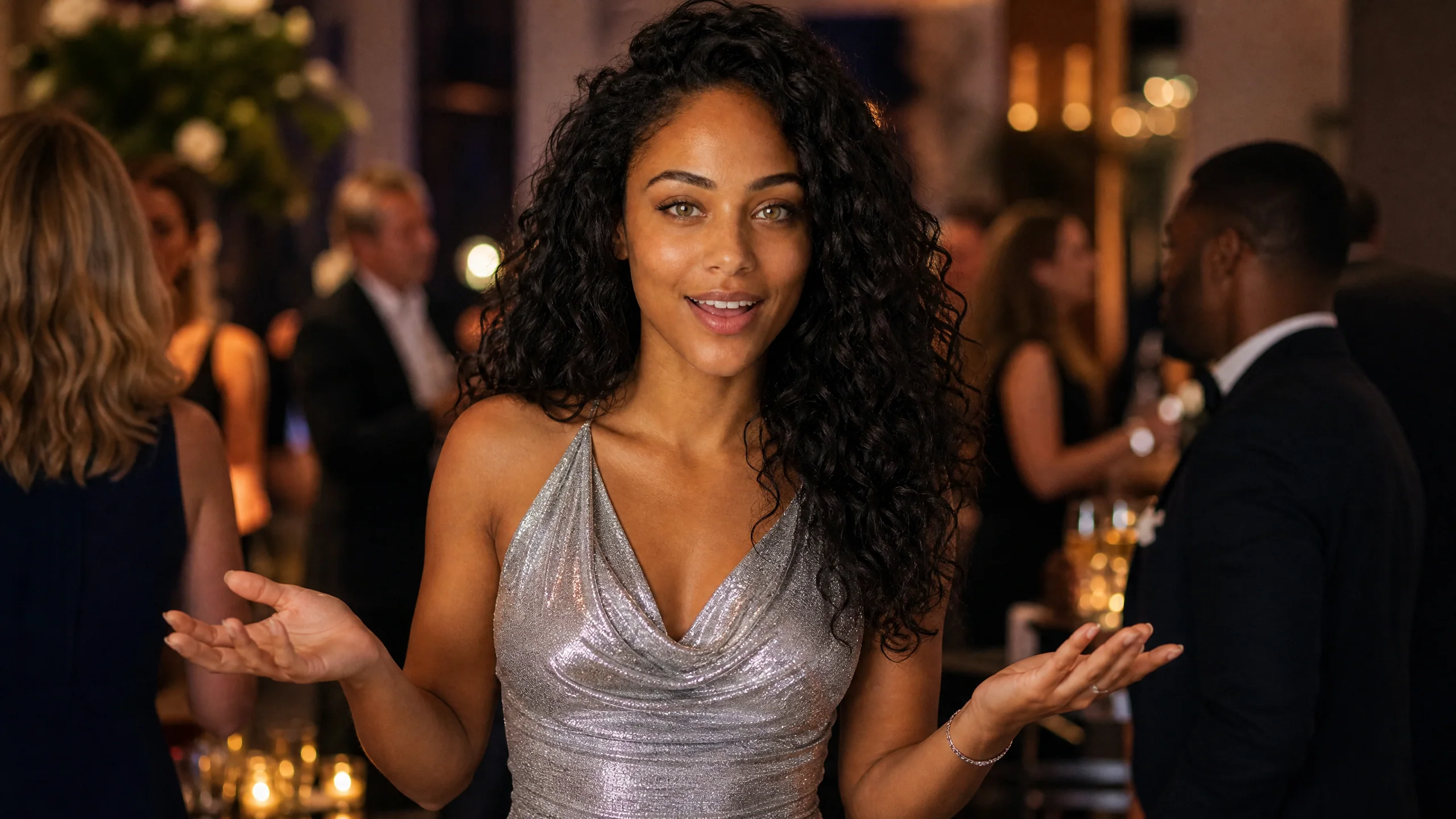
Hand movements, facial expression and changes of pose give the prepared sequence its energy. Burning Bridges AI follows the reference performance rather than asking you to invent the choreography. The result gives a plain portrait a moving part to play, with gestures that remain visible as the camera changes distance.

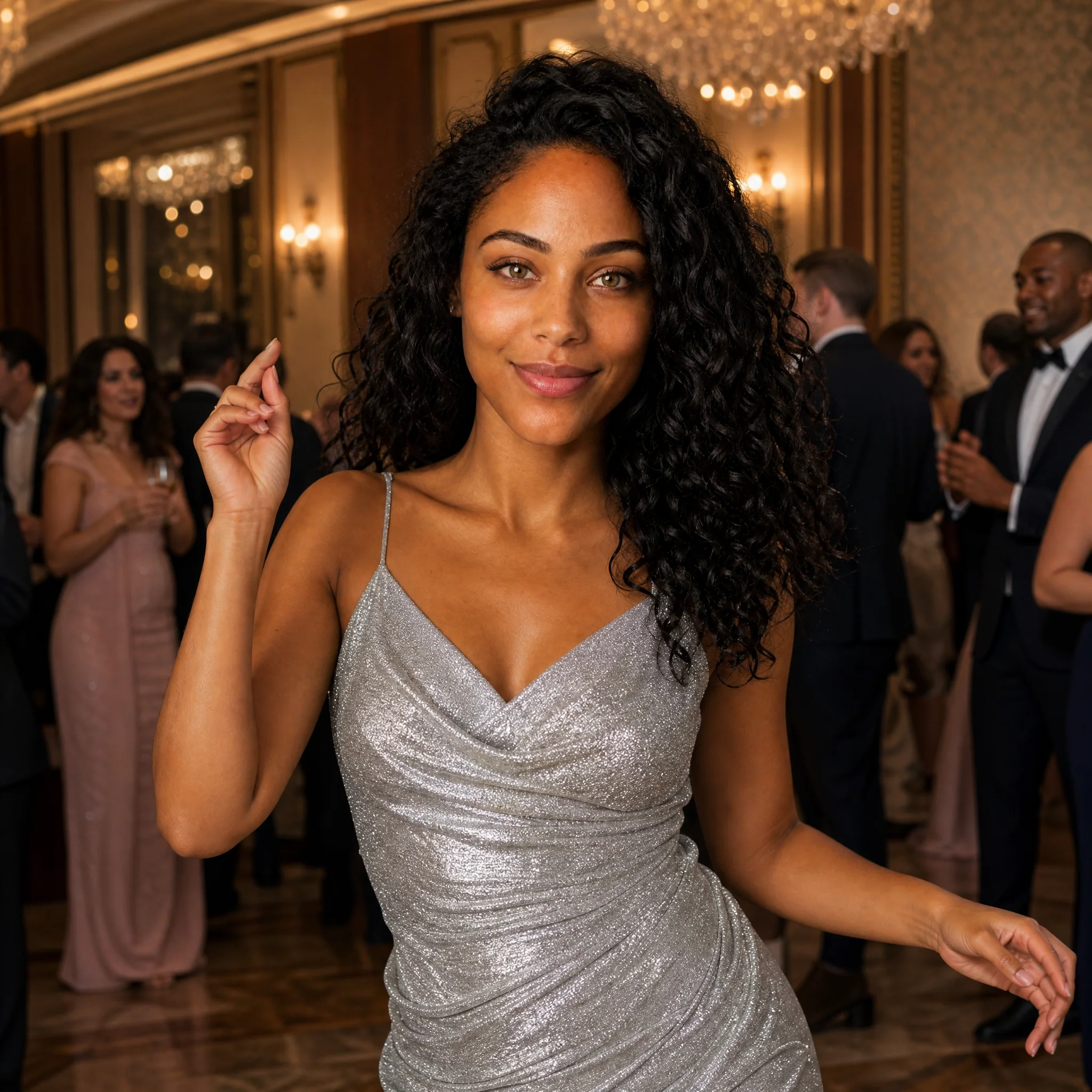
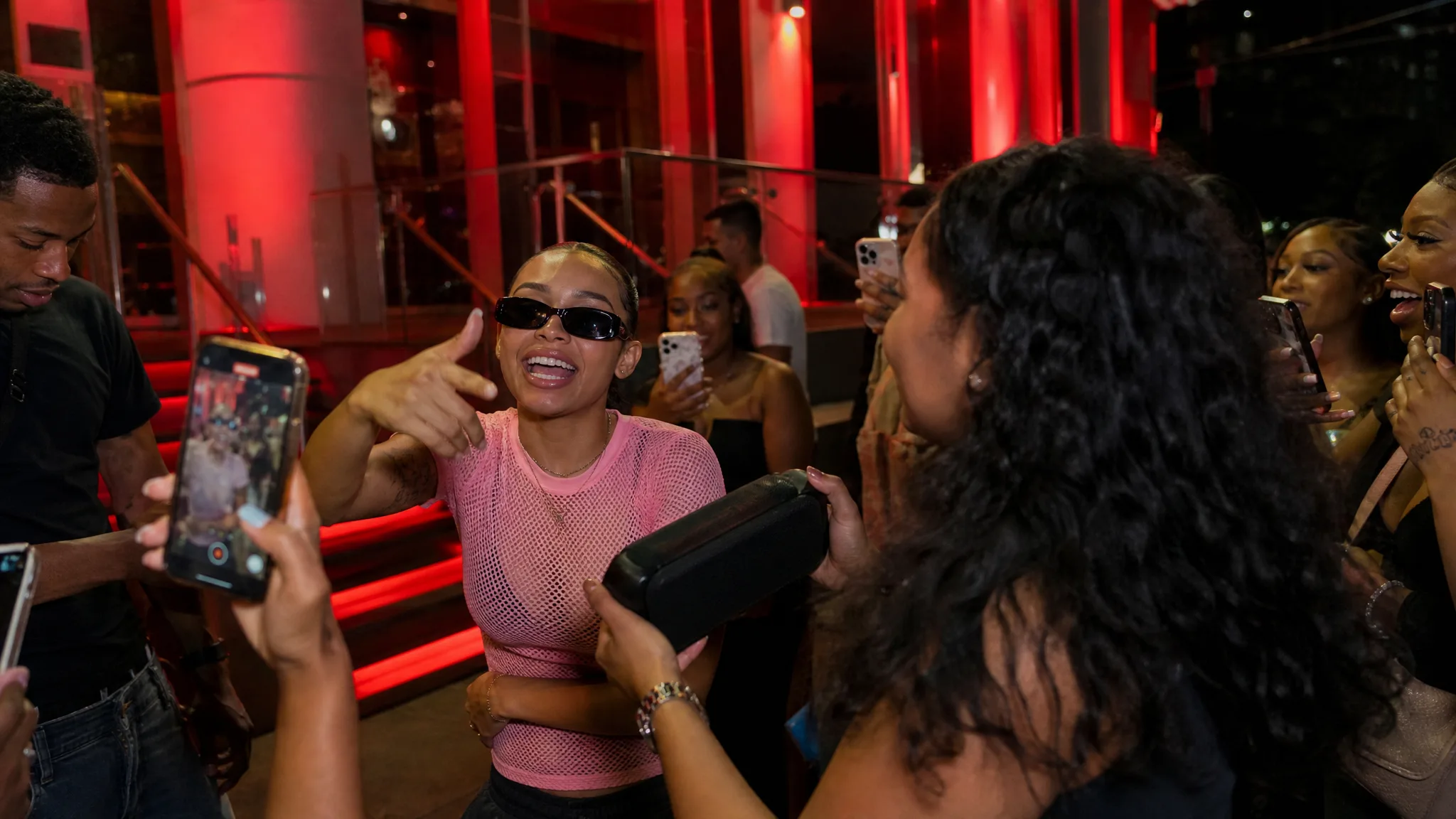
A young woman in a silver party dress making an expressive open-hand gesture at a reception with balanced white light

A Party Setting with Depth

Chandeliers, dressed-up guests and wood-paneled surroundings create a reception scene around the main person. The Burning Bridges AI video generator brings those elements together before you add a portrait. The background stays part of the party atmosphere while the lead performer gives the clip its visual focus.

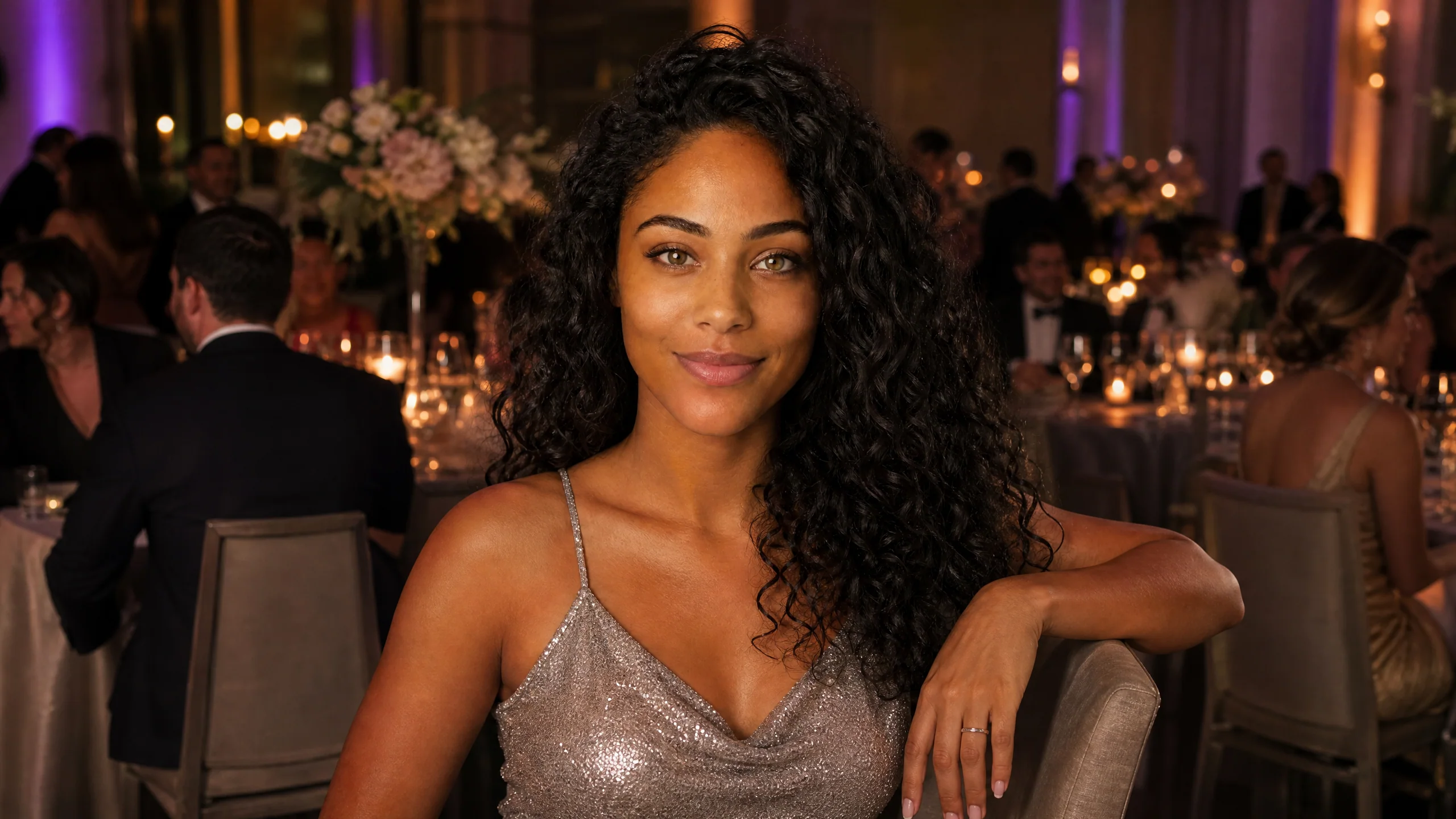
A silver-dressed young woman centered in a chandelier-lit reception hall with warm gold light and guests behind her

Scene Sound Completes the Moment

Play the result with sound to experience the whole performance. The Burning Bridges AI video generator creates a 13-second clip at 768P or 2K, ready to download from the workspace. Add your own message or opening title afterward when you place the party moment into a social edit.

A young woman finishing a pose at a reception with subtle violet accent lights and neutral face lighting

Ideas for Your Burning Bridges AI video

Use the burning bridges ai video generator to open a personal post, join a shared celebration or give a greeting a moving centerpiece.

A Personal Party Entrance

Start a celebration story with yourself in the middle of the party. The Burning Bridges AI video generator turns a clear portrait into the prepared performance, complete with the reception setting and gestures. Use the clip before the real photographs to give the post an opening with movement.

A Character-Led Social Post

Give a character portrait a short performance to lead a social edit. The Burning Bridges AI video generator supplies the scene and the movement, while your image supplies the face. Choose a clear single-person portrait and build the rest of the post around the performer’s expressive party moment.

A Friends Celebration Series

Make separate Burning Bridges AI video clips for the people in your group, one portrait per generation. Keep the frame shape consistent, then arrange the clips together in your editor. Each person gets a turn as the lead in the same party setting before the shared greeting appears.

A Greeting with a Moving Opening

Add a performance to a birthday, reunion or end-of-project greeting. Use the Burning Bridges AI video generator with the person’s portrait, then place their party clip before your message. The short sequence gives the greeting a distinct opening without building a new scene from scratch.

Stories from People Who Tried It on Their Photos

The reception recap had plenty of photographs but needed a moving opening. I used the Burning Bridges AI video generator with a clean portrait and placed the party performance before the arrivals. The chandelier setting and expressive gestures established the evening mood before the real event pictures took over.

Amelia Varga
Event Photographer

Burning Bridges AI Video Generator Questions

Get started with burning bridges ai: learn about the portrait, getting started, the prepared scene, clip length and sound.

The burning bridges ai video generator turns one portrait into a prepared 13-second performance. Your image supplies the main person’s identity, while the reference supplies the setting, gestures, camera sequence and scene sound. Generate the clip in the workspace and download it for your post.

The Burning Bridges AI trend turns a portrait into an expressive party performance. The prepared scene features a lead person, lively gestures, dressed-up guests and a chandelier-lit reception setting. Your uploaded face becomes the center of the short sequence.

You can start the burning bridges ai video generator with free PicVideo credits. Daily check-in adds credits, and consecutive check-ins raise the reward up to 4x by day seven. The workspace shows the quote for your selected resolution and number of videos before generation.

A clear portrait of one person works best for burning bridges ai video. Face the camera, use even lighting and keep the eyes, hairline and mouth visible. A sharp headshot or upper-body photo gives the prepared performance a clear identity reference.

The burning bridges ai prompt is already built into the template. Upload your portrait and choose your options; the reference supplies the setting, performance and camera sequence. An optional short styling note lets you add creative direction while keeping the prepared scene.

Create a separate Burning Bridges AI clip for each friend using one clear portrait per generation. A consistent frame shape makes the results easy to arrange as a party series. Add each person’s name or a shared greeting afterward in your video editor.

The burning bridges ai video lasts 13 seconds and includes scene sound. Choose 768P as the standard resolution or select 2K in the workspace. Auto follows the example framing, with supported fixed ratios available for stories, reels or wider posts.

Start burning bridges ai video with a sharp portrait in soft, even light. Keep the face clear and use a natural expression. Watch the finished clip through its close and wider shots, checking the face and hands before choosing the take you want to share.

Put Yourself at the Center of the Party

Choose your portrait and start a Burning Bridges AI video generator performance, with the party scene, expressive gestures and sound prepared for your next post.

Create My Party Video
A woman in a silver party dress gesturing in a chandelier-lit reception hall, with guests and wood panels behind her