Qwen Image 2.1
Reference images

Up to 10 images · JPG, PNG or WebP · up to 20 MB each · max 6000 px per side or choose from

Prompt
0/5000
Mask image
Aspect ratio
Resolution
Background
Enhance prompt
Seed
Number of generations
Public Visibility
Required credits
8
Examples
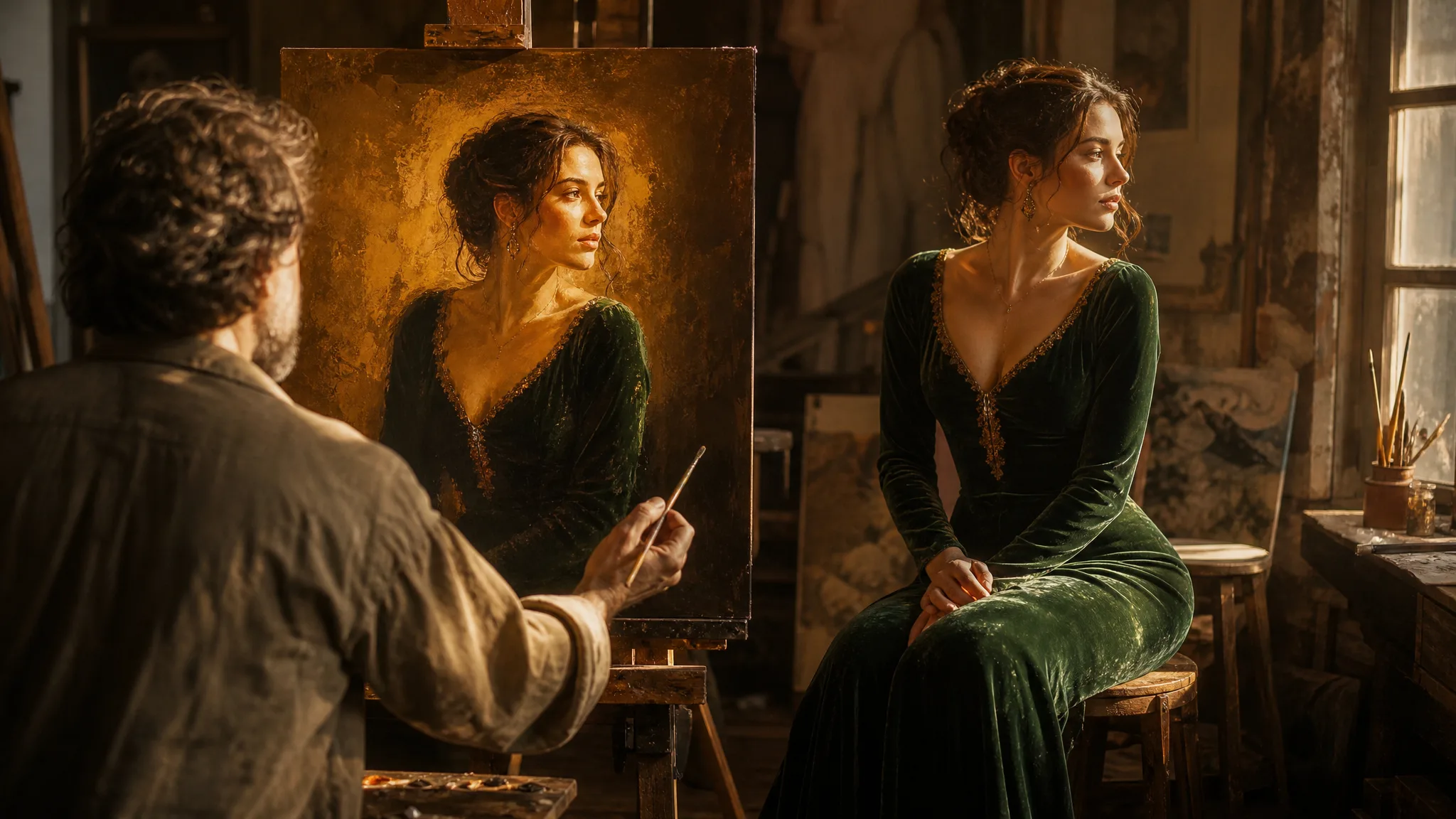
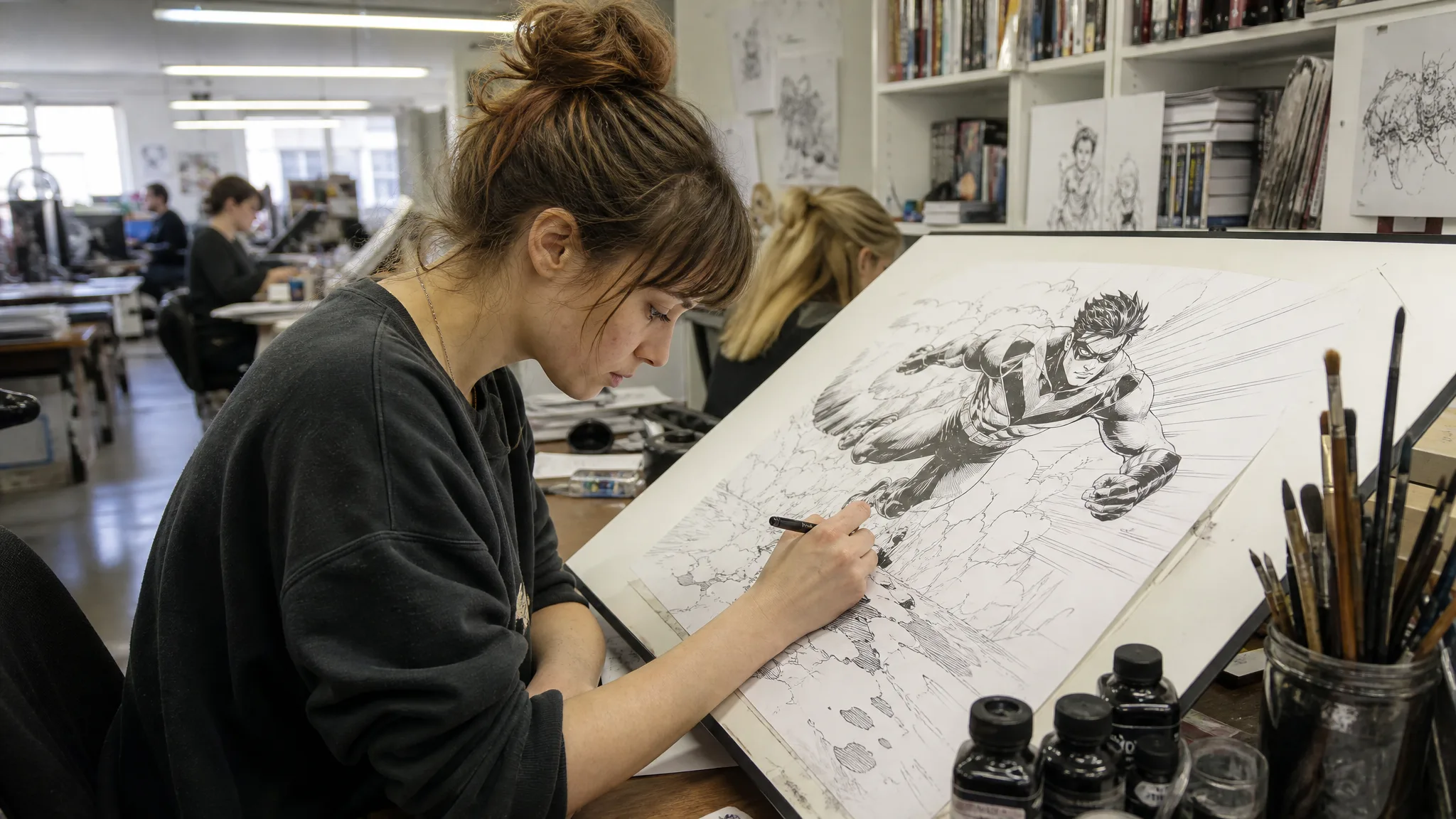
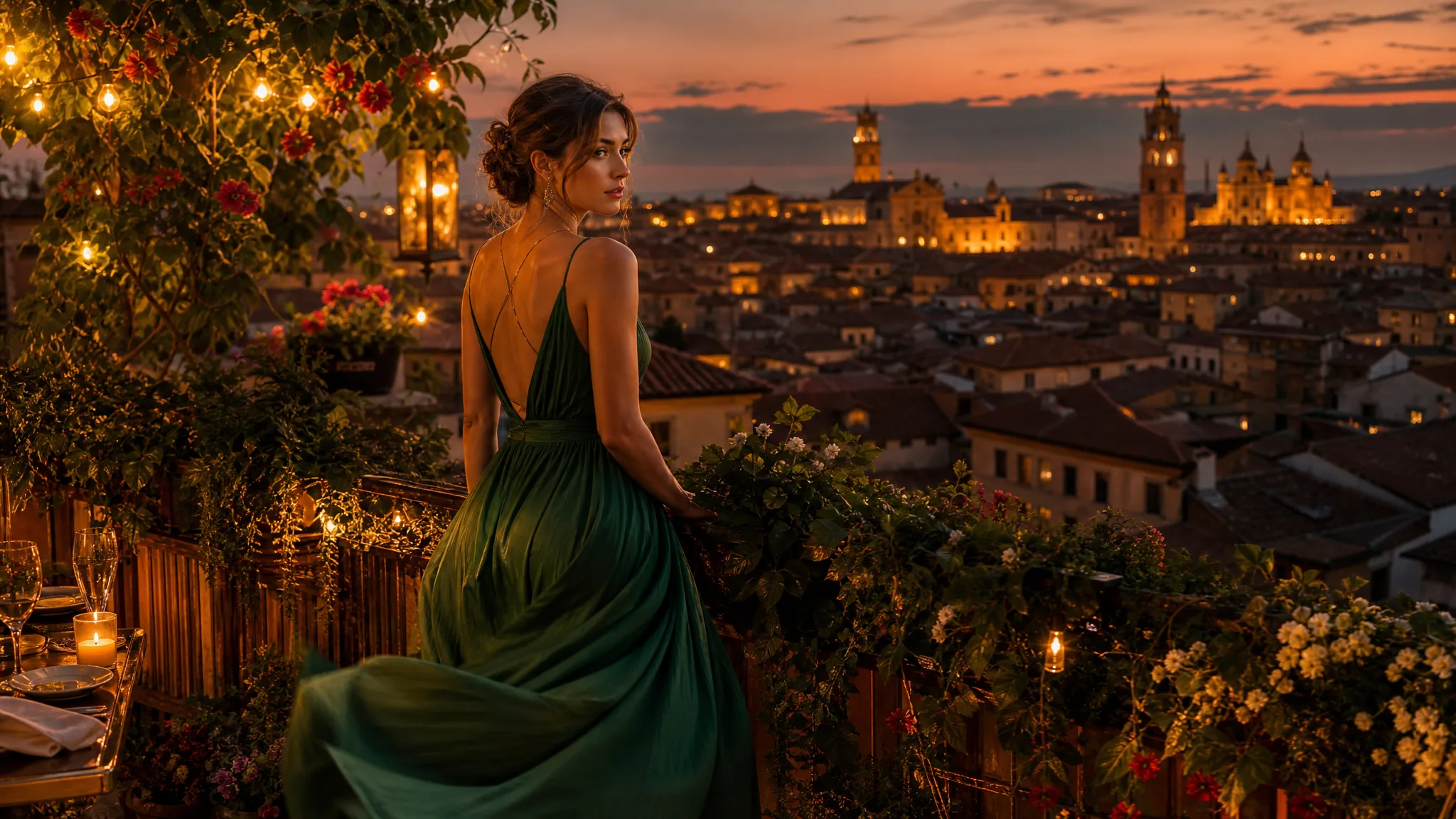
Painter at work on a golden-toned canvas of a seated woman wearing a green dress

Qwen Image 2.1 Image Editor

Edit the photo you have with one clear instruction

Qwen Image 2.1 is a photo editor that always starts from your picture: upload a product shot, a pet, a portrait or a sketch, describe the change in a sentence, and get an edited version back. Use the Qwen Image 2.1 image editor to swap a background, shift the light or turn a snapshot into a painting, then compare it with the original.

Generate with Qwen Image 2.1
Painter at work on a golden-toned canvas of a seated woman wearing a green dress
Moods changed, subject kept|New backgrounds around a subject|Colour and painting styles|Before-and-after detail checks

How to Edit a Photo with Qwen Image 2.1

Qwen Image 2.1 works only from images you upload. Three steps cover choosing the photo, writing the change and checking the edit against the original.

1

Upload the Photo to Change

Pick a sharp, well-lit picture where the subject is easy to see, such as a product on a table, a dog on the sofa or a family portrait. Qwen Image 2.1 requires a reference image and accepts up to 10 of them, so add a second photo when it should supply a background or a style.

2

Describe One Edit at a Time

Write the change as an instruction: put the mug on a beach at sunset, make the sky stormy and amber, paint this portrait in oils. Say what must stay as it is, like the face or the label. Pick the aspect ratio and 1K or 2K, then run Qwen Image 2.1.

3

Compare Before and After

Place the Qwen Image 2.1 edit next to your original and check the parts that should be unchanged: eyes, fur, text on the packaging, hands. If something shifted, restate it in the instruction and run again. Download the version that keeps the subject true and changes only what you asked for.

Image Tools for Prompts and Photo Edits

Start a picture from words, or change the style or setting of one you already have.

Four Kinds of Edits in Qwen Image 2.1

Qwen Image 2.1 image to image edits fall into four families: mood, setting, style and fine detail. Each row shows a sample and how to word the request.

Change the Weather and Mood

A stone cottage in a calm meadow can become the same cottage under a stormy amber sky with glowing windows. Upload the photo, tell Qwen Image 2.1 the weather, time of day and feeling you want, and keep the building named in the instruction. Holiday-rental hosts and painters use this to test a moodier look.
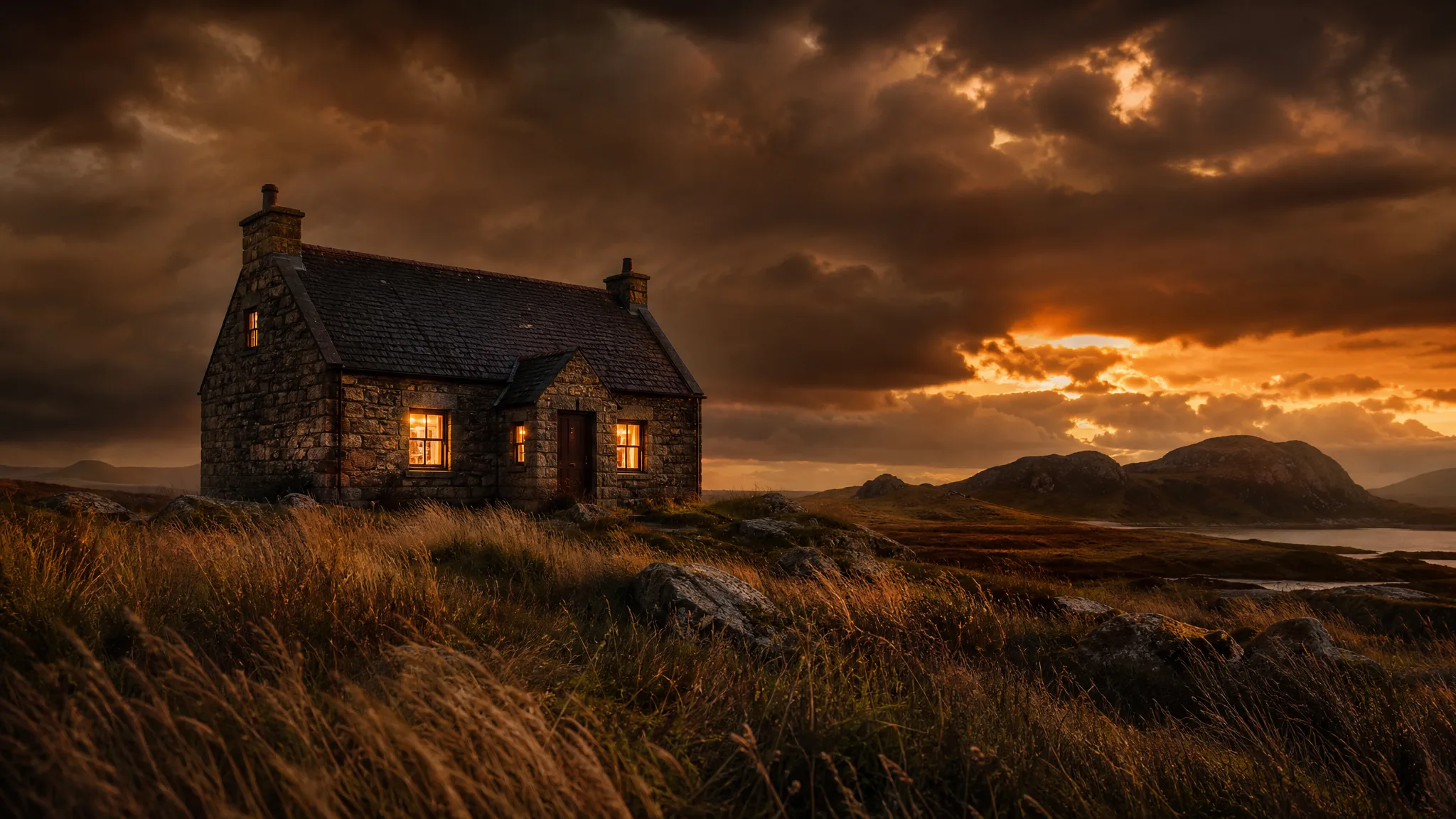
Stone cottage with lit windows in a wind-blown meadow beneath a stormy amber sky

Move the Subject to a New Place

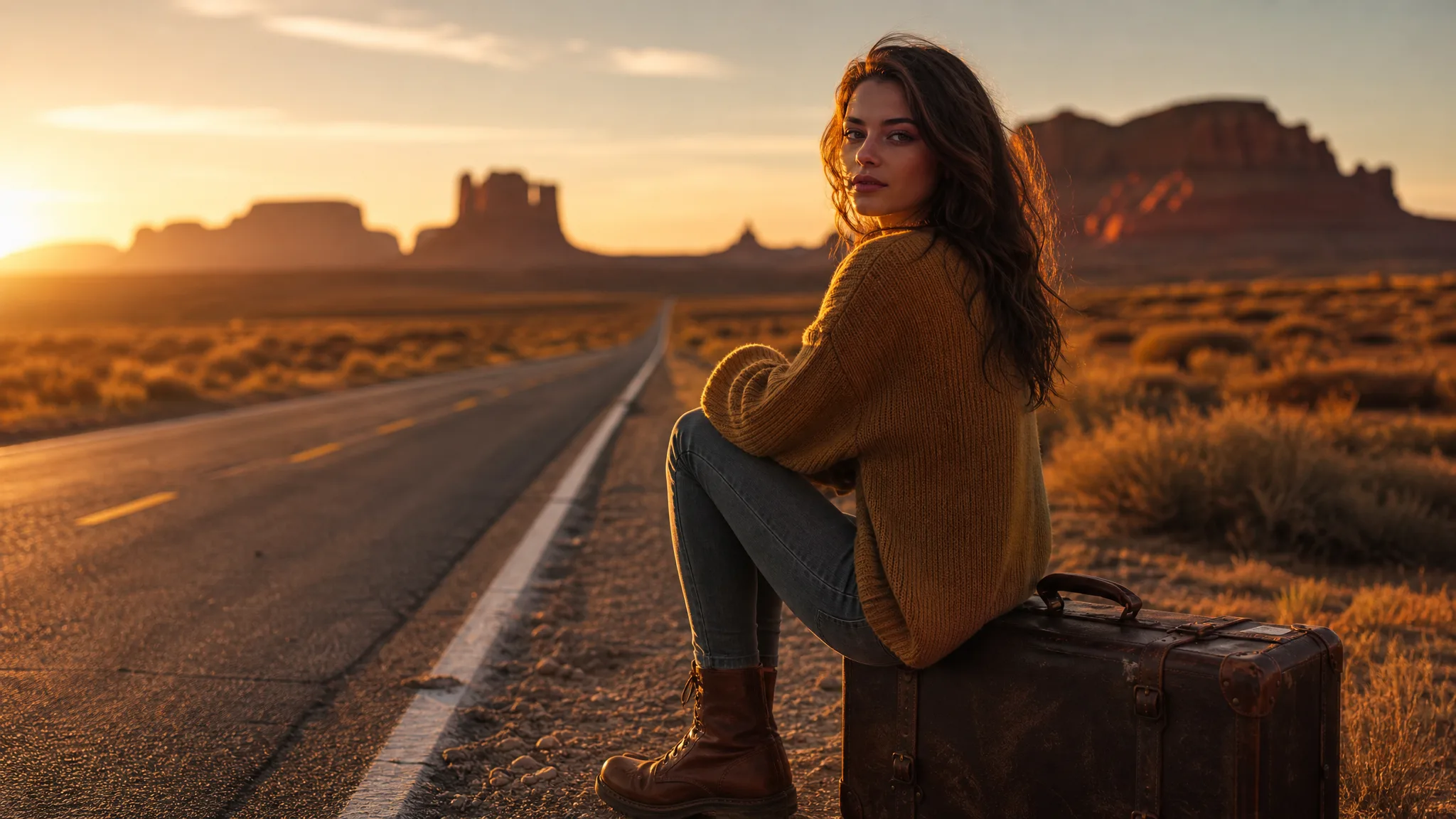
Keep the person and their clothes and change everything around them: a woman in a mustard sweater sitting on a vintage suitcase can move to an empty desert road. Qwen Image 2.1 responds to a short instruction such as put her beside a desert highway at golden hour, which suits travel posts and fashion lookbooks.

Young woman in a mustard sweater perched on an old suitcase next to an empty desert road

Recolour or Repaint the Scene

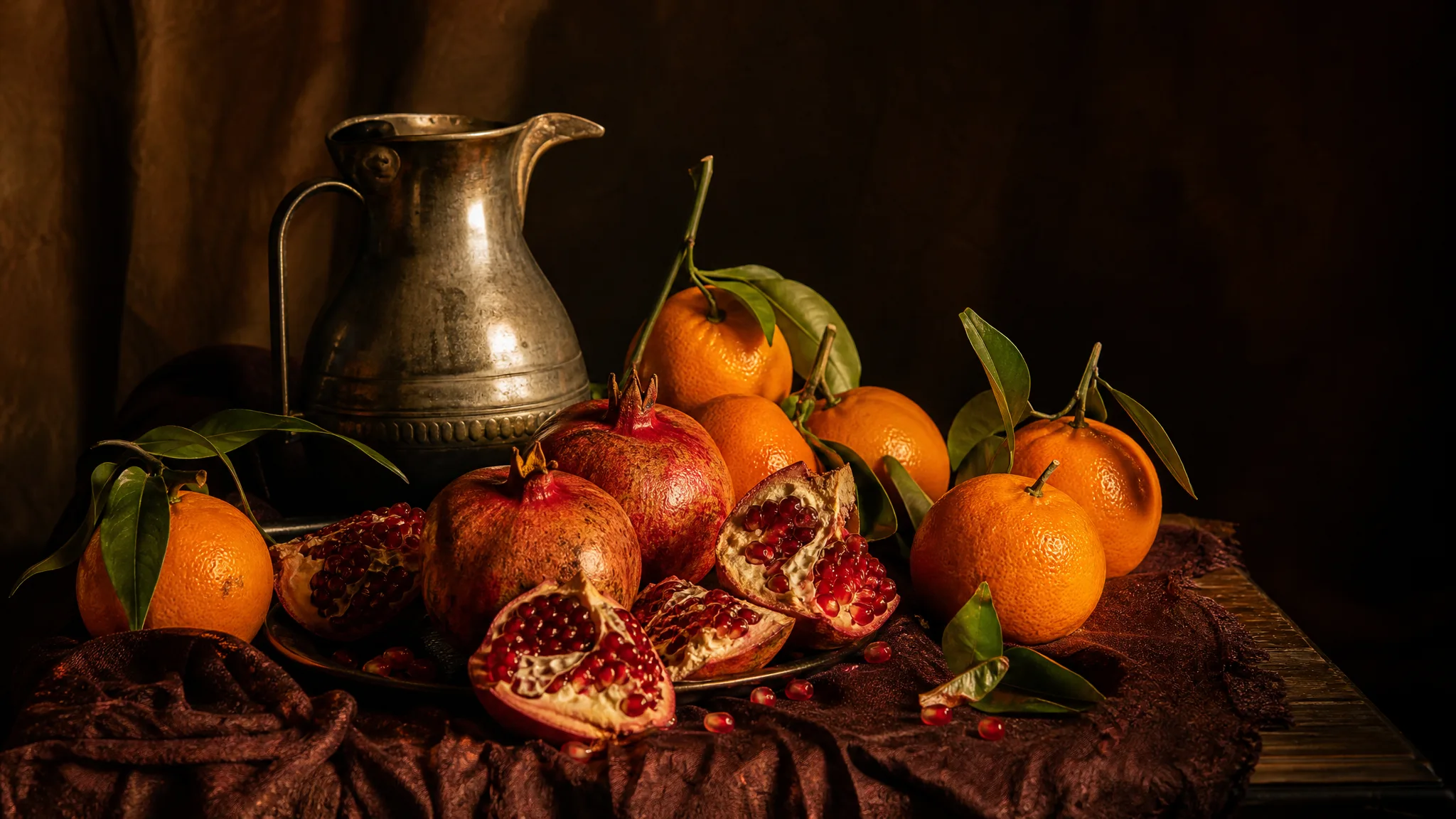
Turn a kitchen-table snapshot of oranges and pomegranates into an old-master still life by naming the style, the palette and the light. Qwen Image 2.1 aims to keep the arrangement while the treatment changes, so a food blogger or a restaurant can try a painterly version of a real dish photo.

Oranges, halved pomegranates and a pewter jug in the dramatic light of an old master still life

Check the Fine Detail

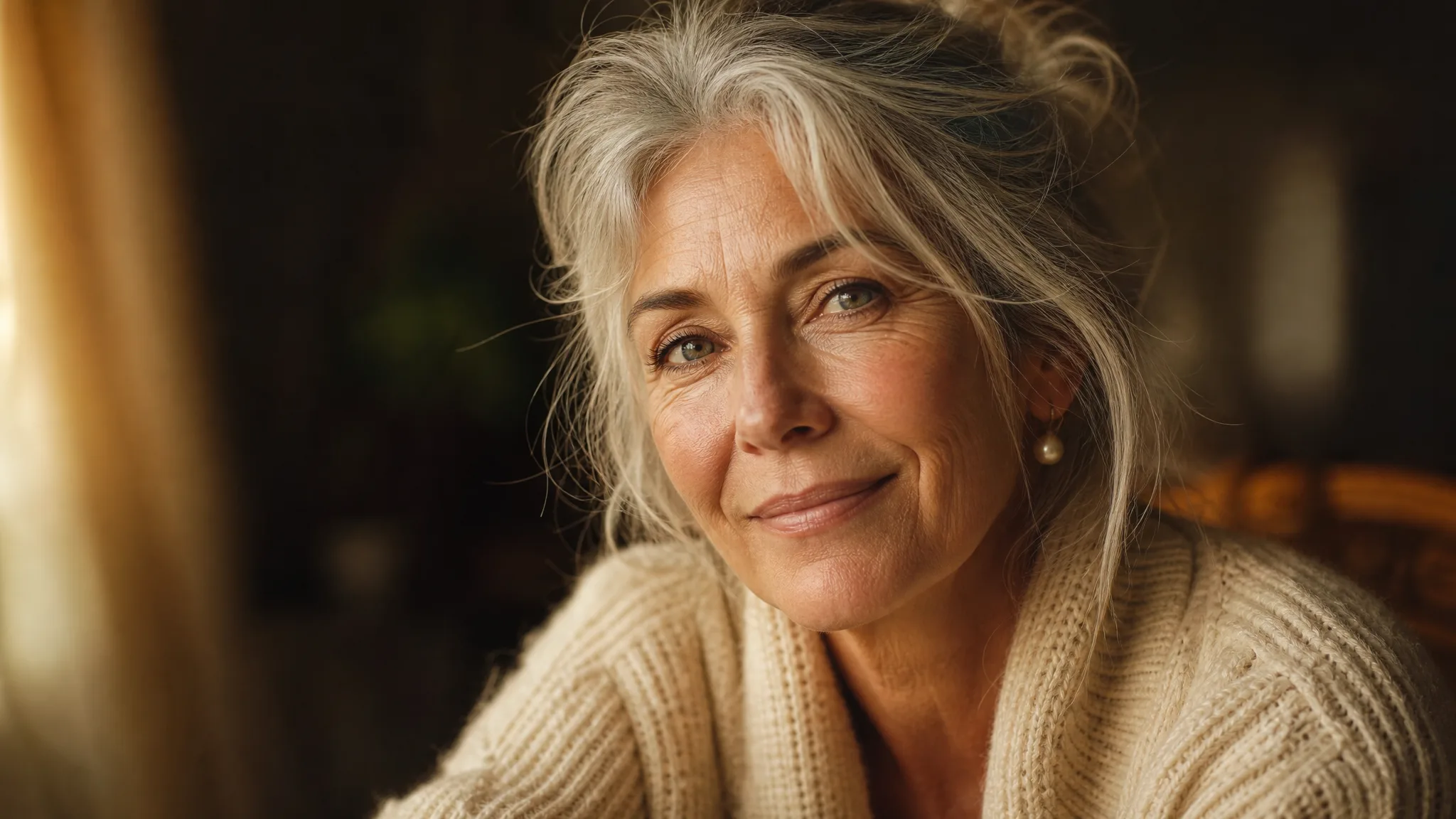
Portraits need extra care: a silver-haired woman's pearl earring and knit cardigan should survive any edit. After Qwen Image 2.1 returns a version, zoom in on jewellery, skin texture and fabric and compare them with the source. If the knit pattern blurred, ask for it to stay sharp and run the edit again.

Close portrait of a woman with silver hair, a pearl earring and a finely knitted cardigan

Qwen Image 2.1 Use Cases for Real Photos

Qwen Image 2.1 is for people who already have the photo and want a different version of it. Four common jobs follow.

Product Photos on New Backgrounds

Small sellers can upload a product shot taken on the kitchen table and ask Qwen Image 2.1 to place it on marble, sand or a café counter. One afternoon of edits gives a listing several lifestyle images without booking a studio.

Family Portraits in a New Setting

A parent can upload a living-room photo of the kids and ask Qwen Image 2.1 to move them into an autumn park with soft light while keeping their faces and clothes. The edit then becomes the family's holiday card.

Pet Photos with a Story

Pet owners can turn a sofa snapshot into the same dog on a mountain trail or a beach at sunset. Because Qwen Image 2.1 edits the real photo, the markings and expression start from your own pet, and the result is ready for a birthday post.

Sketches Turned into Paintings

Illustrators and art students can upload a pencil sketch and ask the Qwen Image 2.1 image editor for a golden-toned oil painting of the same composition. Comparing the two helps settle colours before the final piece is painted by hand.

Stories from People Who Tried It on Their Photos

All my product photos are taken on the same kitchen counter. I uploaded the cedar candle shot to Qwen Image 2.1 and asked it to place the jar on a marble bathroom shelf, then on a café table. By lunchtime the listing had three lifestyle images instead of one, with no studio booking.

Lucy T.
Candle Shop Owner

Qwen Image 2.1 Photo Editing Questions

Answers about the Qwen Image 2.1 image editor: what it does, what you upload, how to word edits, access, sizes and commercial use.

Qwen Image 2.1 is an image editing model that changes a photo you upload according to a written instruction. On PicVideo it runs in image-to-image mode only, so every Qwen Image 2.1 result begins from your own picture rather than a blank canvas.

Qwen Image 2.1 requires a reference image for every edit and accepts up to 10 references. Use one photo for a simple change, or add a second picture to supply a background, a texture or a painting style you want applied.

Word a Qwen Image 2.1 edit as a clear instruction with a verb: replace the background with a snowy street, warm up the light, paint this in watercolour. Add what must stay unchanged. One edit per run is easier to check than three at once.

A Qwen Image 2.1 edit can come back as 1:1, 4:3, 3:4, 3:2, 2:3, 16:9, 9:16, 21:9 or 9:21 at 1K or 2K. A frame close to your original photo keeps the subject where you placed it, while a much wider or taller shape asks Qwen Image 2.1 to paint the extra space, which suits a new background better than a tight portrait.

Qwen Image 2.1 edits stay in your own library from the first one, which suits family photos and before-and-after work, and the photo you upload for editing is not displayed. If a finished edit is worth showing, switch it to public and it can be featured in Explore.

Edits made with Qwen Image 2.1 are yours, within what the law allows, under the PicVideo Terms, and the original photo keeps whatever rights it already had. For a product listing, make sure the edited picture still shows the item a buyer will receive, without added logos or features.

You get free credits at sign-up and with each daily check-in, building to 4x on day 7, and free models such as Z-Image Turbo take them while you choose which photo to edit. Qwen Image 2.1 edits run on a PicVideo plan or credit pack, and a 2K edit costs more than 1K.

Edit Your Photo with Qwen Image 2.1

Upload the product, pet or family photo you want to change, write one clear instruction and let Qwen Image 2.1 return the edited version. Compare it with the original, run a second edit if needed and download the one that looks right.

Edit a photo with Qwen Image 2.1
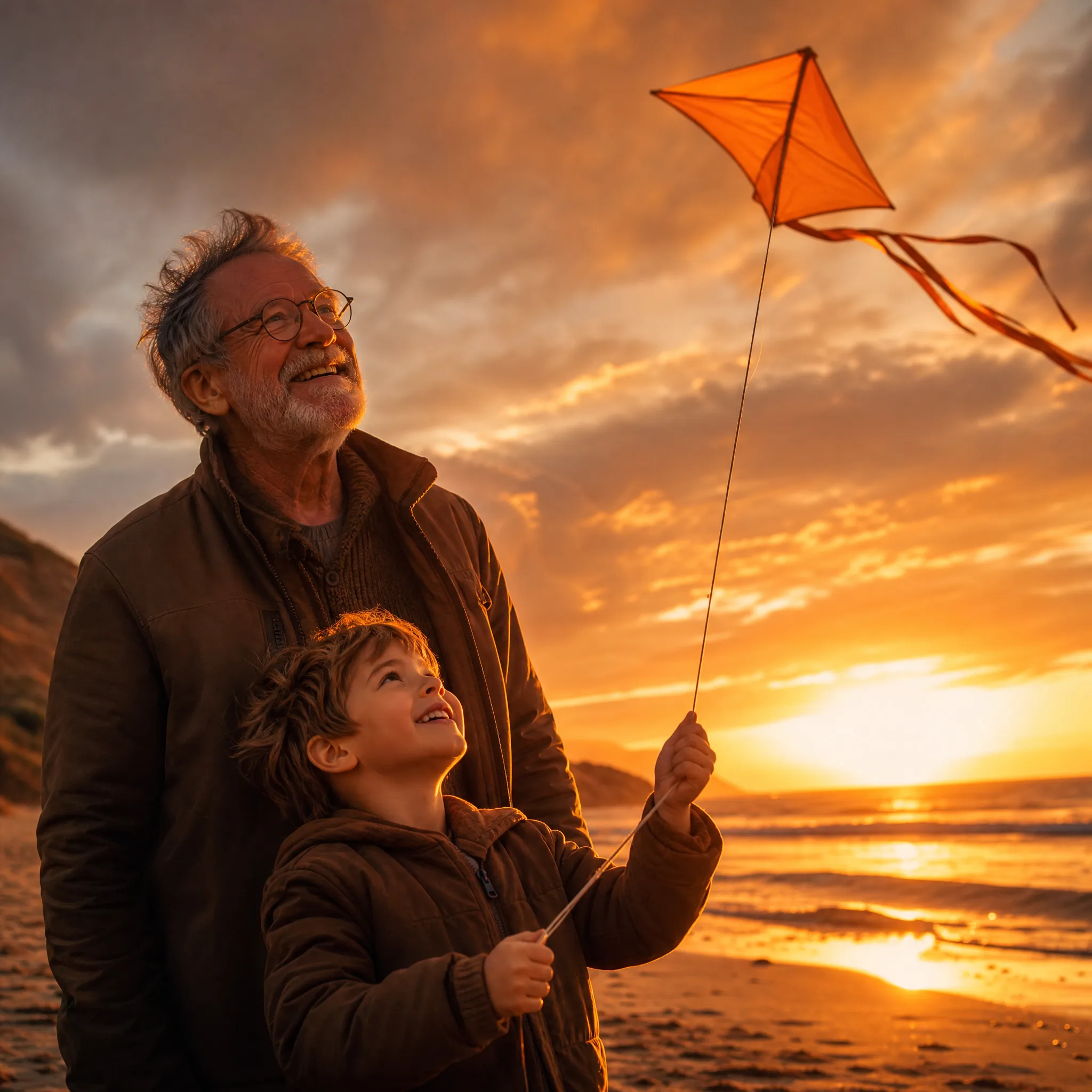
Grandfather and grandson flying an orange kite together on a breezy beach at sunset