Grok Imagine Image 2
Prompt
0/4000
Aspect ratio
Number of generations
Public Visibility
Required credits
8
Examples
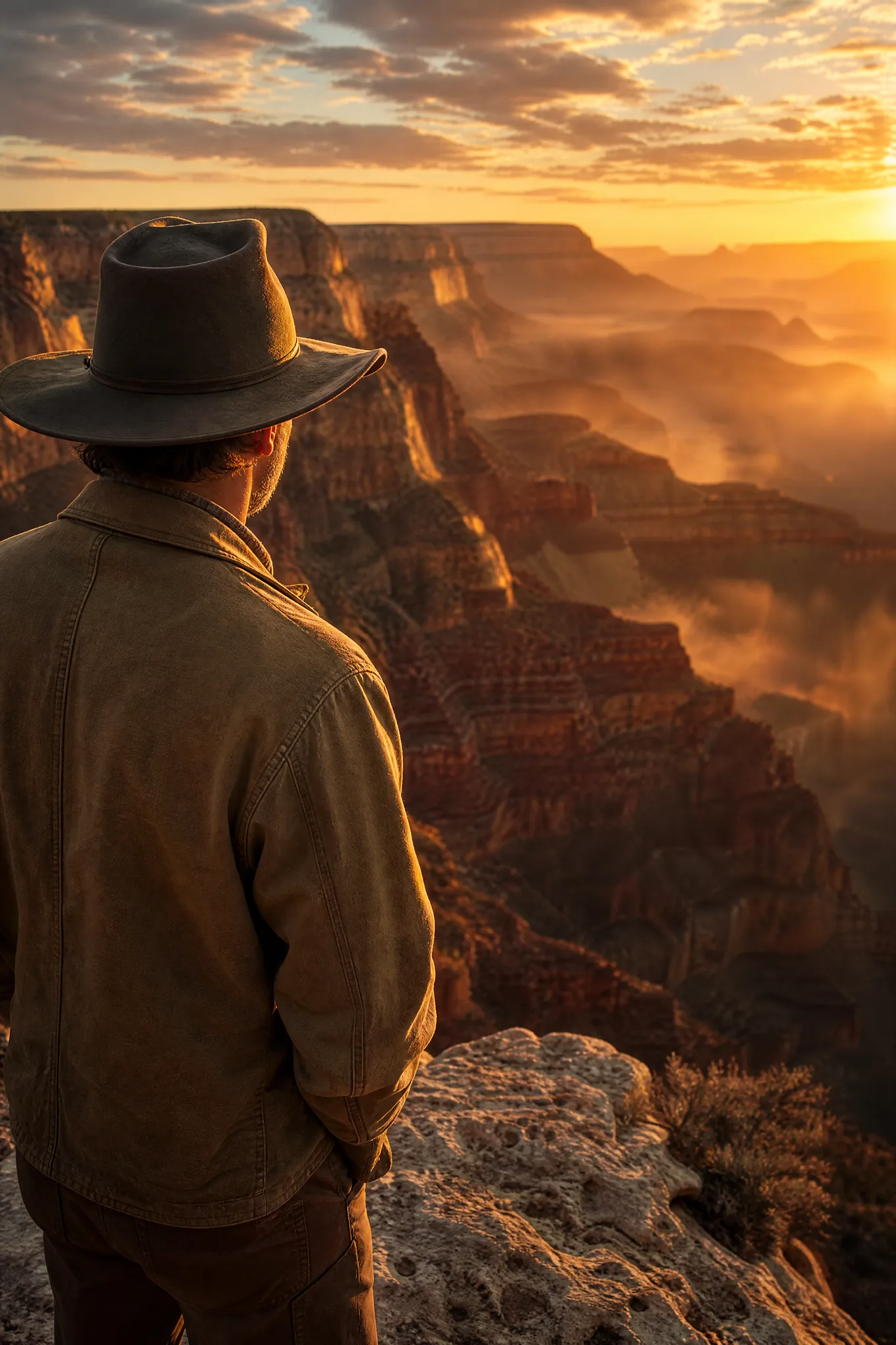
Man wearing a wide-brimmed hat standing on the edge of a glowing canyon at sunrise

Grok Imagine Image 2 Generator

One focused still per run for covers, flyers and posts

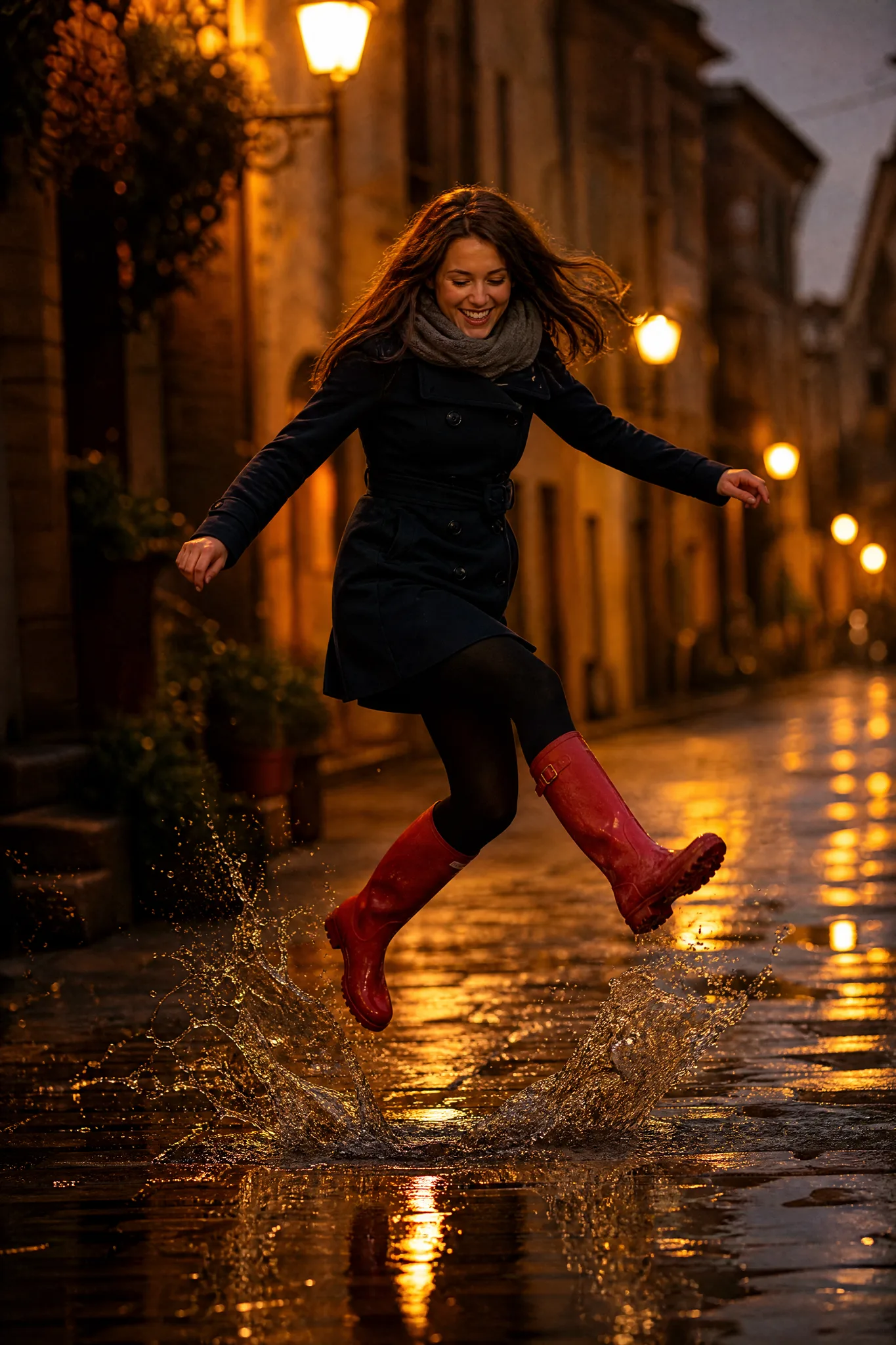
xAI's Grok Imagine Image 2 turns a short brief or a reference photo into one focused still per generation. Describe a moment, like a leap over a puddle or a dive into a golden lake, choose a square, portrait or wide frame, and use the Grok Imagine Image 2 result as a cover, a flyer or the next post in a series.

Generate with Grok Imagine Image 2
Man wearing a wide-brimmed hat standing on the edge of a glowing canyon at sunrise
Frozen action moments|One still per generation|Up to 5 photo references|Product, portrait and toy-craft looks

How to Use Grok Imagine Image 2 for a Cover or Post

Grok Imagine Image 2 returns one still per generation, so each run is a deliberate draft. Four steps take you from the brief to a still you can publish.

1

Write a Short, Specific Brief

Name the moment in one or two sentences: who, doing what, where and in what light. Grok Imagine Image 2 accepts prompts up to 4,000 characters, but a tight brief is easier to adjust. To start from a real face, pet or product, attach up to 5 photos in image-to-image mode.

2

Frame It for the Placement

Pick 1:1 for a feed tile, 2:3 for a poster or book cover, 9:16 for a story and 16:9 for a banner or video thumbnail. Grok Imagine Image 2 composes the scene for that shape, so decide where the title or caption will sit before you run it.

3

Run and Read the Still

Generate once and read the Grok Imagine Image 2 still against your brief. Is the action caught at the right instant, is the subject sharp, does the colour match the mood? Change one phrase, run again and keep a few versions together so you can choose.

4

Check the Details and Download

Inspect faces, hands, splashes and any lettering at the size you will publish. Download the Grok Imagine Image 2 still that passes, then add titles, dates or captions in your editor and save the brief for the next image in the series.

Image Tools for Prompts and Photo Edits

Start a picture from words, or change the style or setting of one you already have.

Moments to Brief in Grok Imagine Image 2

Grok Imagine Image 2 text to image prompts suit four kinds of pictures: craft in action, a moment caught mid-air, a choice between versions and a composition with room for text.

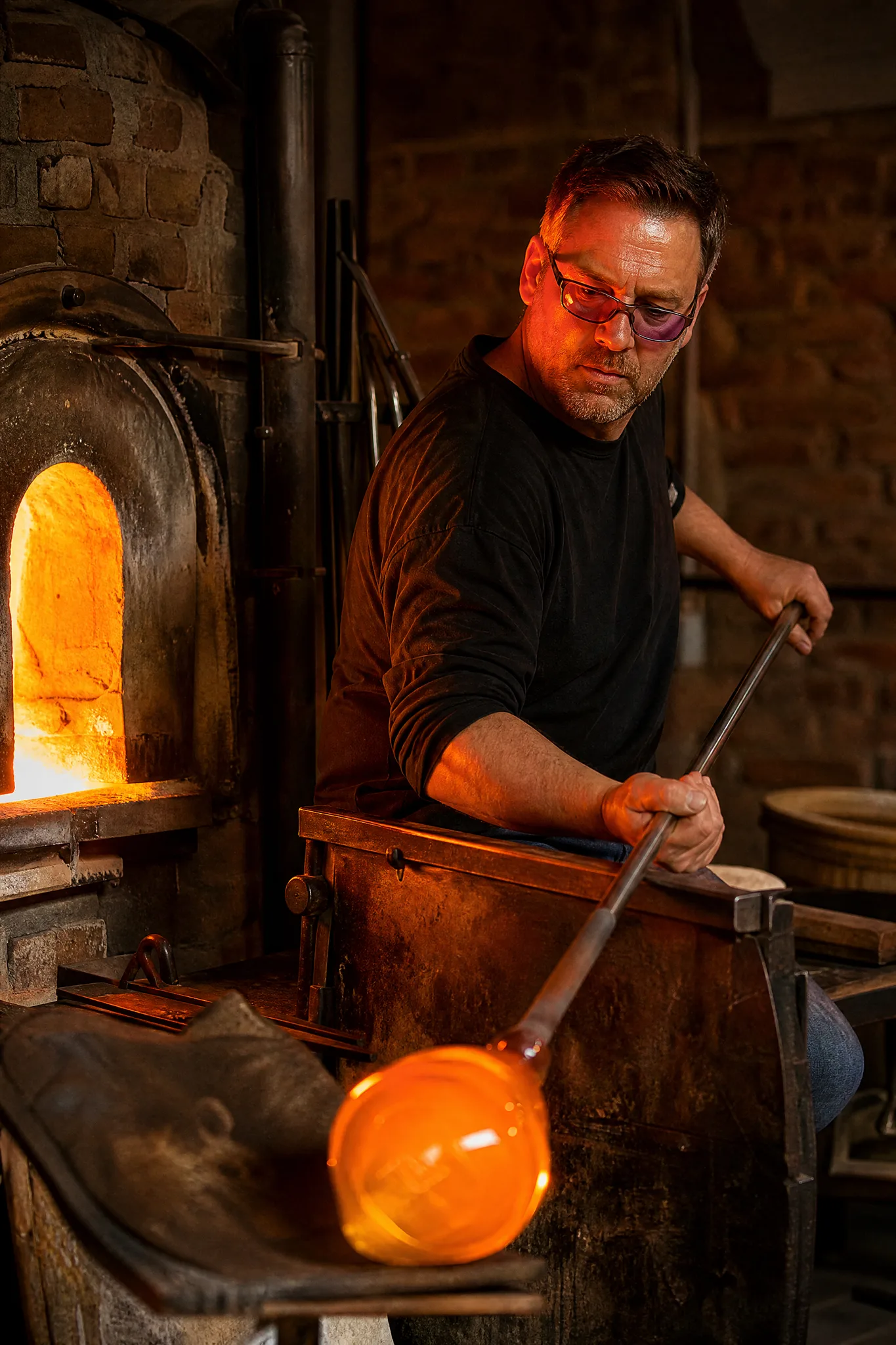
Glassblower rotating a glowing gather of molten glass on a steel pipe next to the furnace

Craft in Action

A glassblower turning molten glass on a steel pipe beside the glow of the furnace is a moment of heat and focus. Tell Grok Imagine Image 2 the craft, the light source and how close the camera stands, and you get a still for a studio website, a market-stall banner or a maker's profile picture.

Three Grok Imagine Image 2 Looks for Shops and Gifts

Grok Imagine Image 2 image to image edits and text prompts also cover product tables, warm portraits and hand-painted toy scenes.

Food and Product Tables

An unlabelled bottle of golden olive oil beside crusty bread and an olive sprig is a ready-made shop photo. Upload your own bottle, jar or packet, describe the table and the light, and Grok Imagine Image 2 builds the rustic scene for a product page or a farmers' market sign.
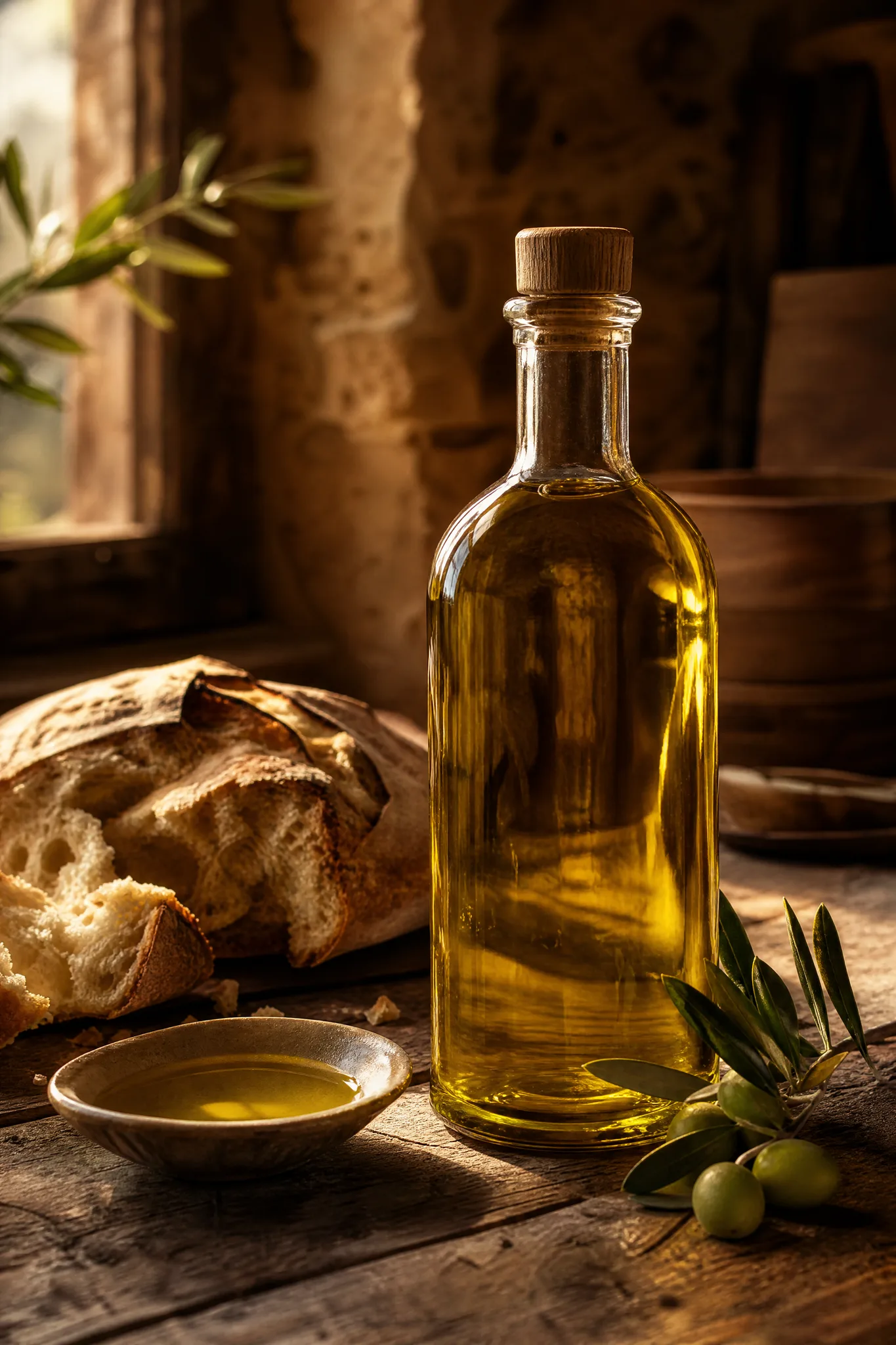
Golden olive oil in an unlabelled bottle, with crusty bread and an olive sprig on a rustic table

Warm Family Portraits

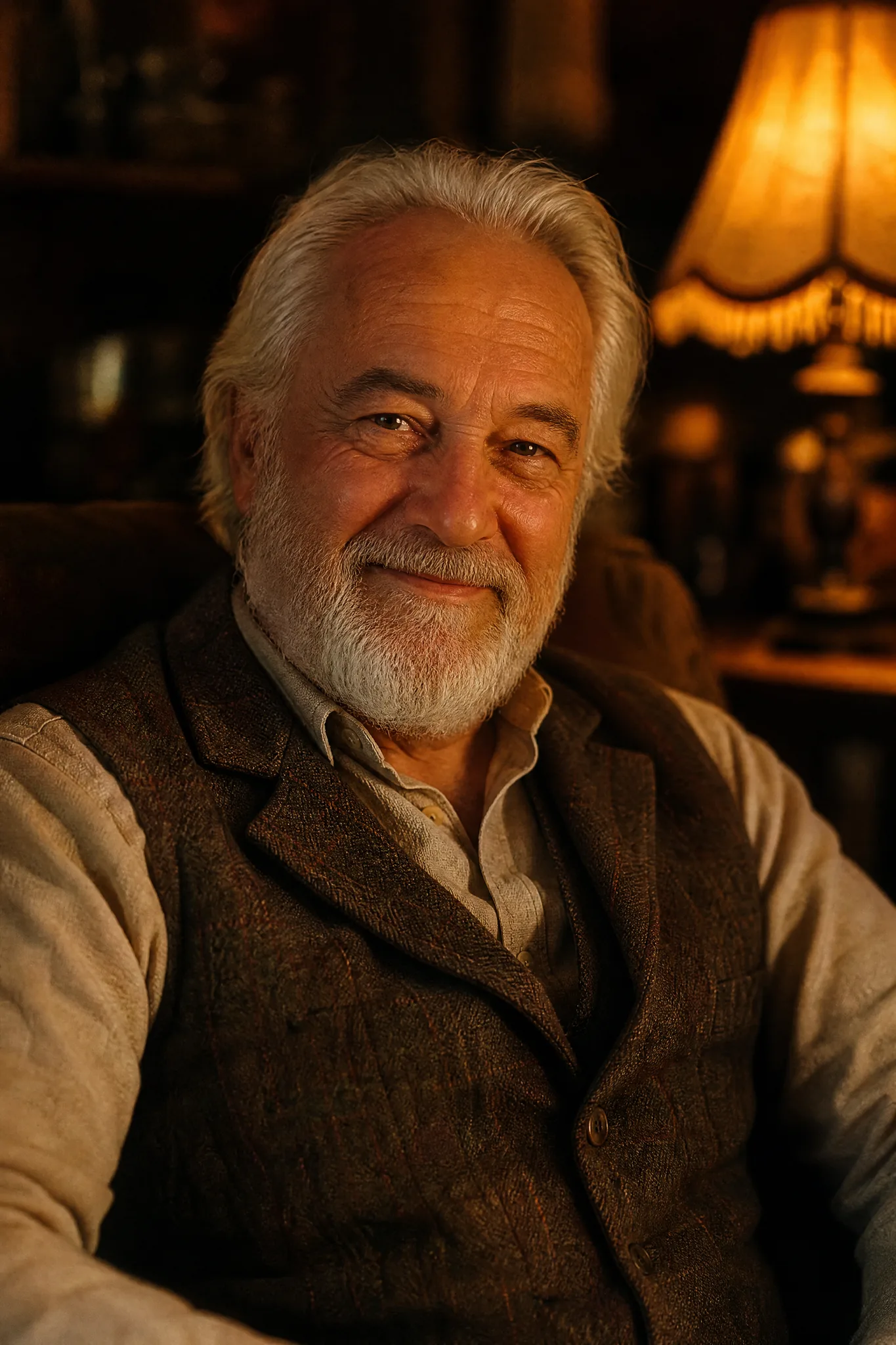
An older man with a white beard smiling in lamp light shows how much warmth a single light source adds. Attach a photo of a grandparent and ask Grok Imagine Image 2 for the same soft lamplit look, then print the still for a birthday card or a page in the family album.

Smiling older man with a white beard in the soft glow of a lamp

Painted Toy Theatre

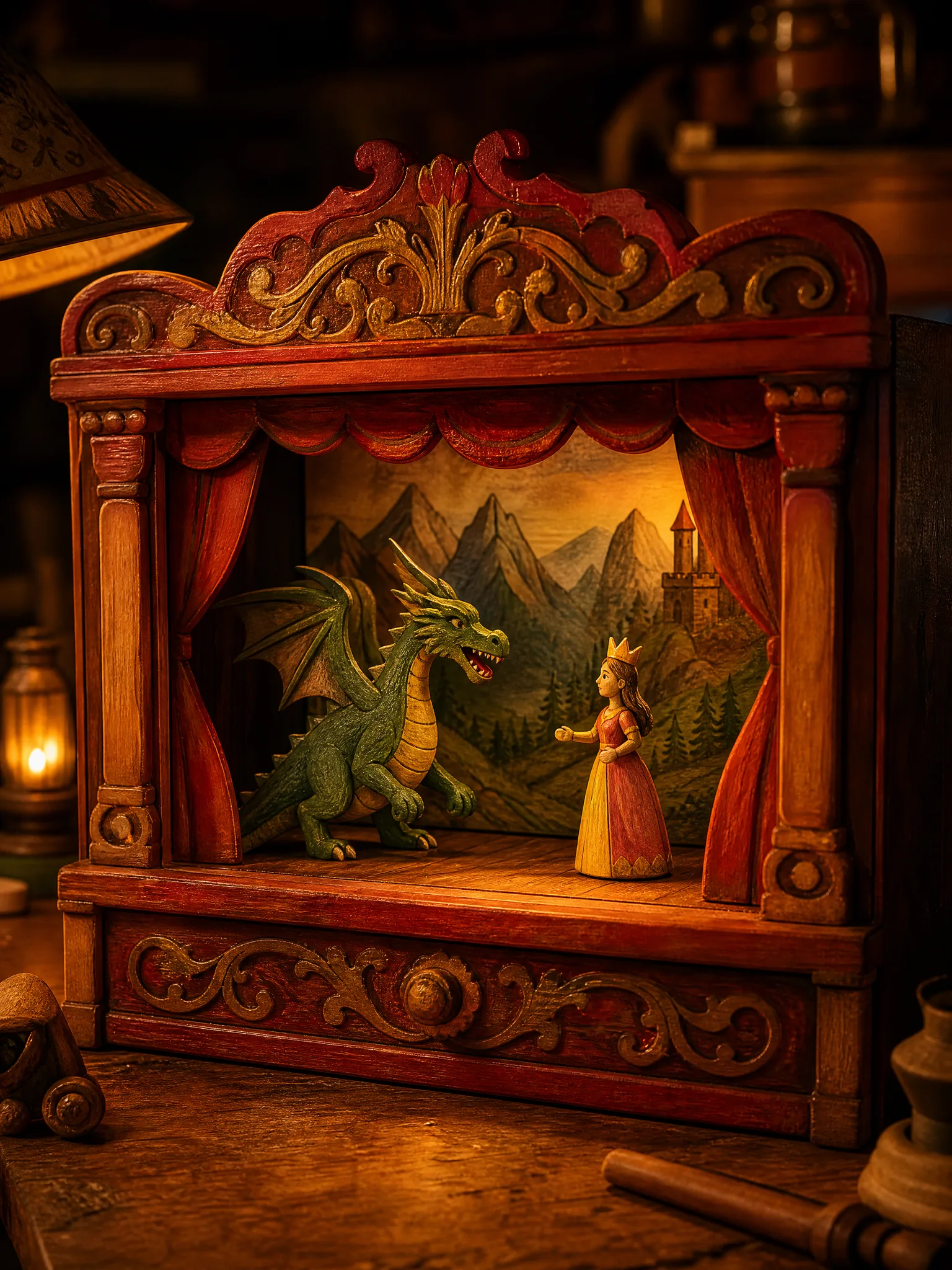
A hand-painted wooden toy theatre with a dragon and a princess on its little stage suits invitations, nursery prints and storybook covers. Name the material, the characters and the stage lighting, and Grok Imagine Image 2 renders the scene as if it had been carved and painted by hand.

Hand-painted wooden toy theatre with a little dragon and a princess on its stage

Grok Imagine Image 2 Use Cases for Makers and Families

Grok Imagine Image 2 suits people who make one picture at a time and want each one to count. Six examples follow.

Makers and Craft Studios

A glass or ceramics studio can describe its own workshop and ask Grok Imagine Image 2 for an action still at the furnace or the wheel. The picture heads the class sign-up page and the studio's next newsletter.

Podcasters and Musicians

A podcaster can brief Grok Imagine Image 2 for a 1:1 cover with a bold figure and empty space for the show name. One focused still per run makes it simple to compare a handful of cover ideas over an afternoon.

Farmers' Market Sellers

A stallholder can photograph an olive oil bottle or a jar of honey and ask Grok Imagine Image 2 for it on a rustic table with bread and herbs. The still goes on the stall's chalkboard poster and in the online shop.

Grandchildren Making Gifts

Grandchildren can upload a favourite photo of their grandfather and ask Grok Imagine Image 2 for a warm lamplit portrait in the same pose. Printed and framed, it becomes a birthday gift that still looks like him.

Festival and Event Organisers

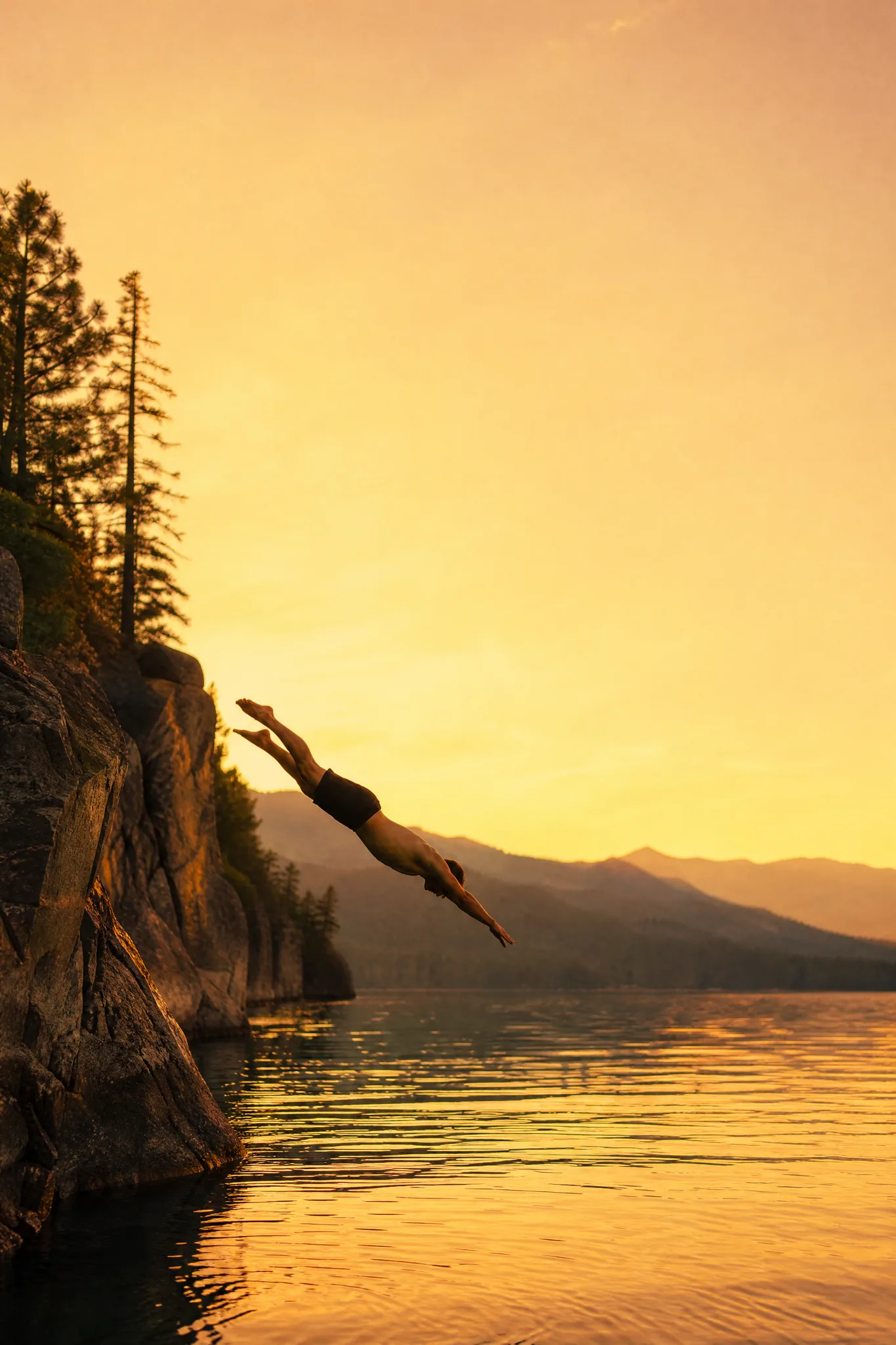
An organiser can ask Grok Imagine Image 2 for a cliff diver over a golden lake in a 2:3 frame and set the festival name in the sky above. Running the same brief again at 9:16 gives a matching version for stories.

Parents Decorating a Nursery

Parents can describe a wooden toy theatre with a friendly dragon and a princess and get a Grok Imagine Image 2 still for a nursery print or a birthday invitation. The child's name is added in a card template afterwards.

Stories from People Who Tried It on Their Photos

Our class sign-up page showed an empty studio. I described the furnace glow and a gather of molten glass on the pipe to Grok Imagine Image 2 and kept the second run, where the heat looked right. It now heads the page and the newsletter, and students say it shows what the first lesson feels like.

Pablo G.
Glassblowing Teacher

Grok Imagine Image 2 Questions

Grok Imagine Image 2 answers on the model, photos, prompts, access, frames, rights, series, motion, edits and final checks.

Grok Imagine Image 2 is an xAI image model that creates one still per generation from a text prompt or from reference photos. On PicVideo it runs in the image workspace with five frames: a square, two portrait shapes and two wide shapes.

Grok Imagine Image 2 image to image builds on up to 5 photos you attach, such as the person, pet or product you want to keep. Describe the new scene or style, and the edit returns one still. A text prompt alone works as well.

A strong Grok Imagine Image 2 prompt describes one instant: the subject, the action at its peak, the place and the light. Phrases like "both feet off the ground" or "lit by the furnace" do more than style words. Keep it short enough to change one phrase at a time.

Write one paragraph describing the palette, lighting and style, reuse it in every Grok Imagine Image 2 prompt, and change only the subject or action. Attach your favourite earlier still as a reference when the next one should follow it, then review the set together.

Upload the still back into Grok Imagine Image 2 in image-to-image mode and ask for a single change, like a warmer sky or a tighter crop. For text prompts, keep everything that worked and swap one phrase per run so you know what moved the result.

A Grok Imagine Image 2 still can be 1:1, 2:3, 3:2, 16:9 or 9:16, and output size is set for you. Frozen action reads best with space around it: 2:3 for a poster of a skateboarder mid-jump, 9:16 for a story and 16:9 for a banner with the motion running across it.

Look at faces, hands, water splashes and any lettering at the size the Grok Imagine Image 2 still will be printed or posted. Check that nothing important sits where you plan to crop or place text, then download it.

Grok Imagine Image 2 stills are owned by you insofar as the law allows, under PicVideo's Terms. A flyer or a printed mug still depends on its source material, so use reference photos you have permission for and check the still for real logos before it goes to print.

Grok Imagine Image 2 keeps each still in your library from the first run, and reference photos stay out of public view. When a cover or flyer is ready to share, switch it to public so the Explore gallery can feature it.

Start by signing up for free credits and checking in daily, a streak worth up to 4x on day 7, and spend them on free models such as Z-Image Turbo straight away. Grok Imagine Image 2 runs on a PicVideo plan or credit pack, at one flat credit cost per still because output size is fixed.

Grok Imagine Image 2 creates stills only. Take the downloaded image to PicVideo's image to video tool, pick a video model and describe the motion, such as the splash landing, the diver entering the water or a slow push toward the stage.

Make a Cover or Flyer with Grok Imagine Image 2

Write the moment in a sentence or attach a photo, choose a square, portrait or wide frame and let Grok Imagine Image 2 render one focused still. Run a variation or two, keep the best and finish the cover, flyer or post in your editor.

Make an image with Grok Imagine Image 2
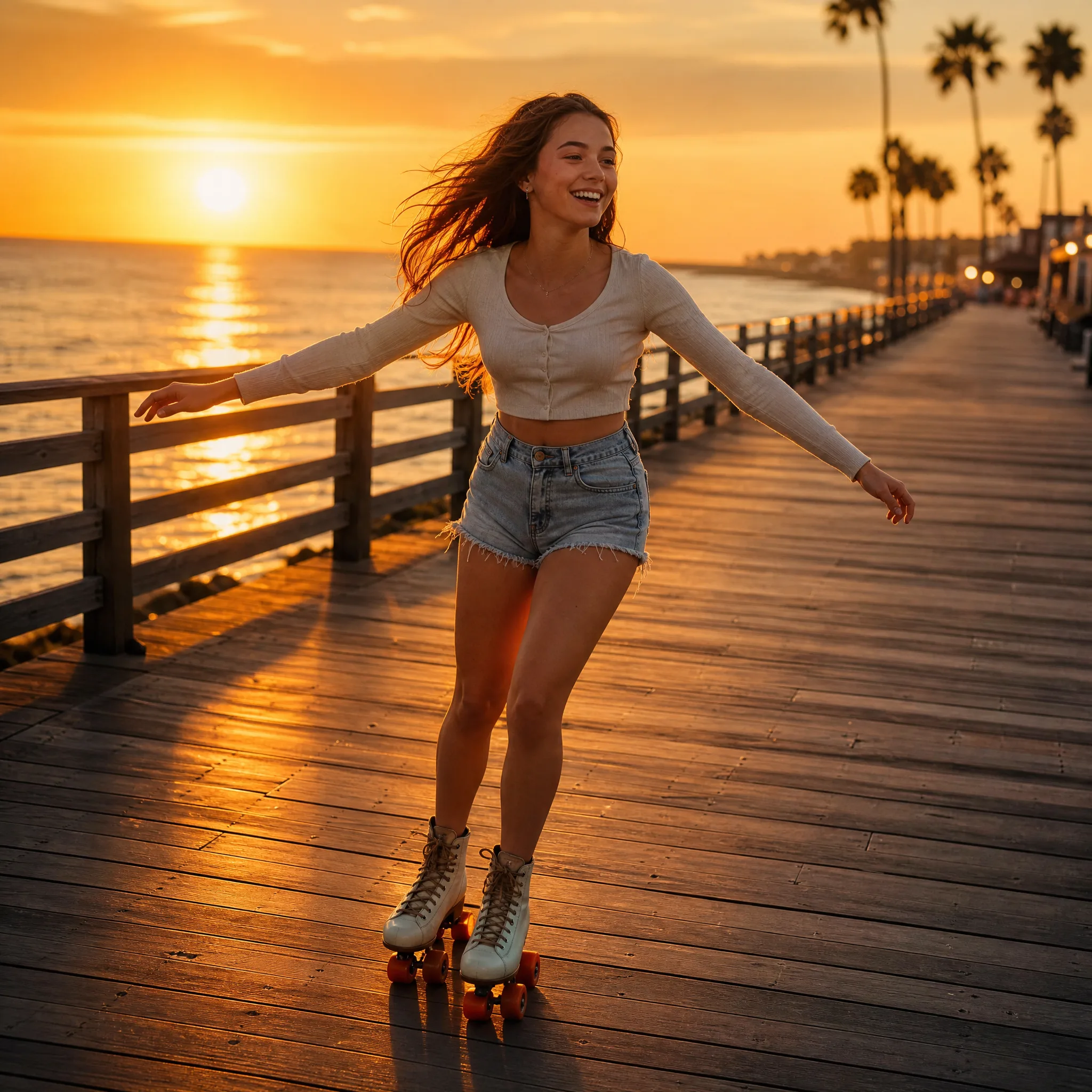
Young woman on roller skates gliding down an empty seaside boardwalk at sunset