Grok Imagine Image
Prompt
0/5000
Aspect ratio
Pro quality
Number of generations
Public Visibility
Required credits
8
Examples
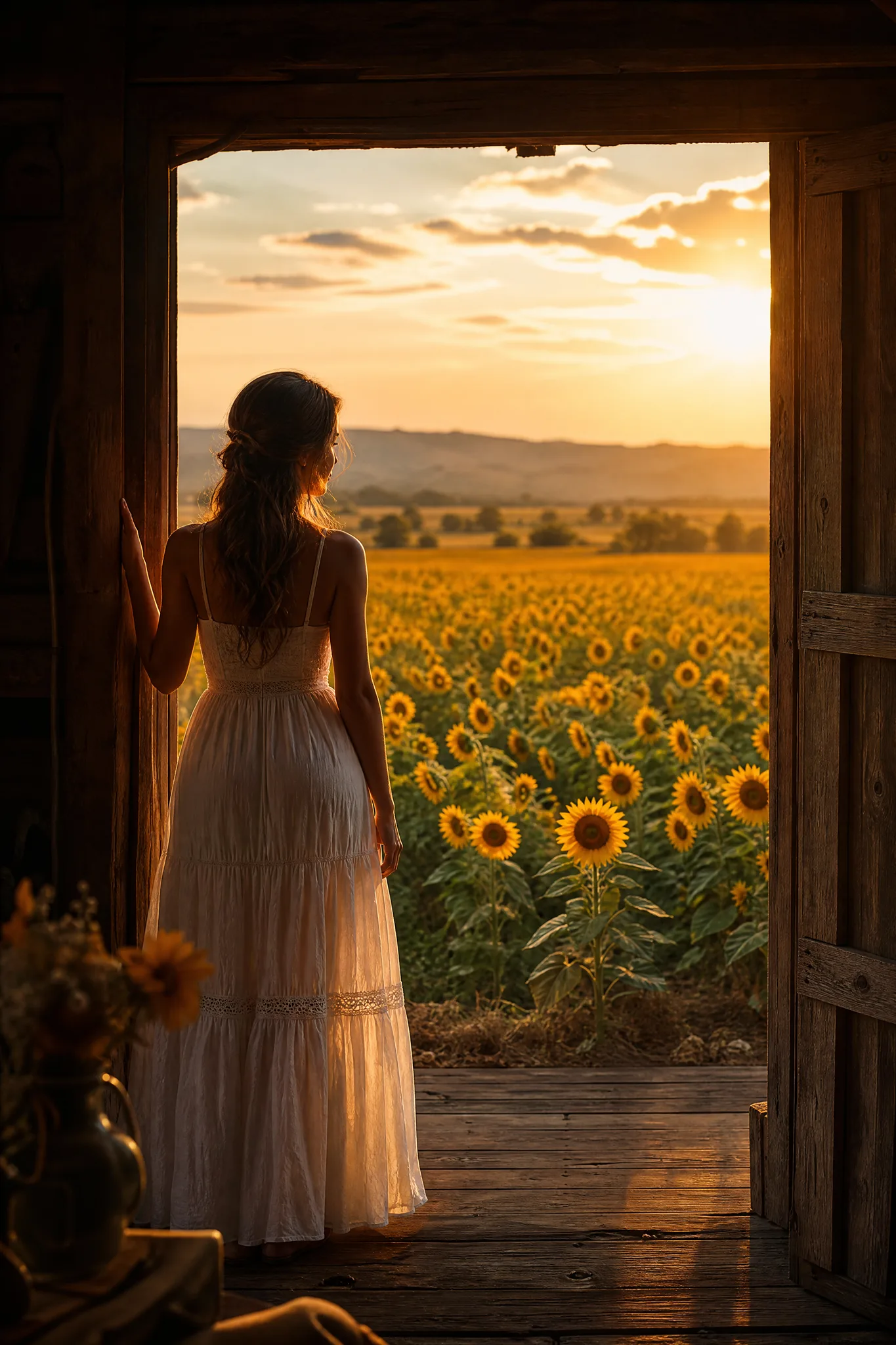
Woman in a white dress standing in a barn doorway, looking over a glowing field of sunflowers

Grok Imagine Image Generator

Two takes on every typed idea, side by side

xAI's Grok Imagine Image returns two stills for every text prompt, so you can compare two readings of the same idea before choosing. Type a scene or attach a photo of a person, pet or product, pick a square, portrait or wide frame, and keep the Grok Imagine Image take that suits your post, card or storyboard.

Generate with Grok Imagine Image
Woman in a white dress standing in a barn doorway, looking over a glowing field of sunflowers
Two stills per text prompt|Up to 5 reference photos|Square, portrait and wide frames|Photo, portrait and paper-craft looks

How to Use Grok Imagine Image with Two Takes

Grok Imagine Image gives you two stills for a text prompt and one for an image-to-image edit. These four steps make that comparison useful.

1

Type the Idea or Attach a Photo

For a new picture, describe the subject, the setting and the light in one or two sentences. To start from a real person, pet or product, switch Grok Imagine Image to image-to-image and attach up to 5 reference photos, then say what should stay and what should change.

2

Choose Square, Portrait or Wide

Grok Imagine Image offers 1:1, 2:3, 3:2, 16:9 and 9:16. Pick 9:16 for a story or a phone wallpaper, 2:3 for a printed portrait and 16:9 for a banner or a video cover. The scene is composed for the frame, so choose it before generating.

3

Compare the Two Takes

A text-to-image run returns two stills. Put them side by side and note what differs: camera angle, expression, how much background shows. Keep the Grok Imagine Image take closer to your idea, then fold what you liked about the other one into the next prompt.

4

Check and Download

Zoom into faces, hands, paws and any lettering before you keep a Grok Imagine Image result. Download the still that passes, then crop it, caption it or place it in a layout. If neither take is right, change one phrase and run the prompt again.

Image Tools for Prompts and Photo Edits

Start a picture from words, or change the style or setting of one you already have.

Four Grok Imagine Image Briefs Worth Trying

Grok Imagine Image text to image prompts work best with a clear subject, a single mood, a reason to compare and a deliberate composition. Each tab shows one of these.

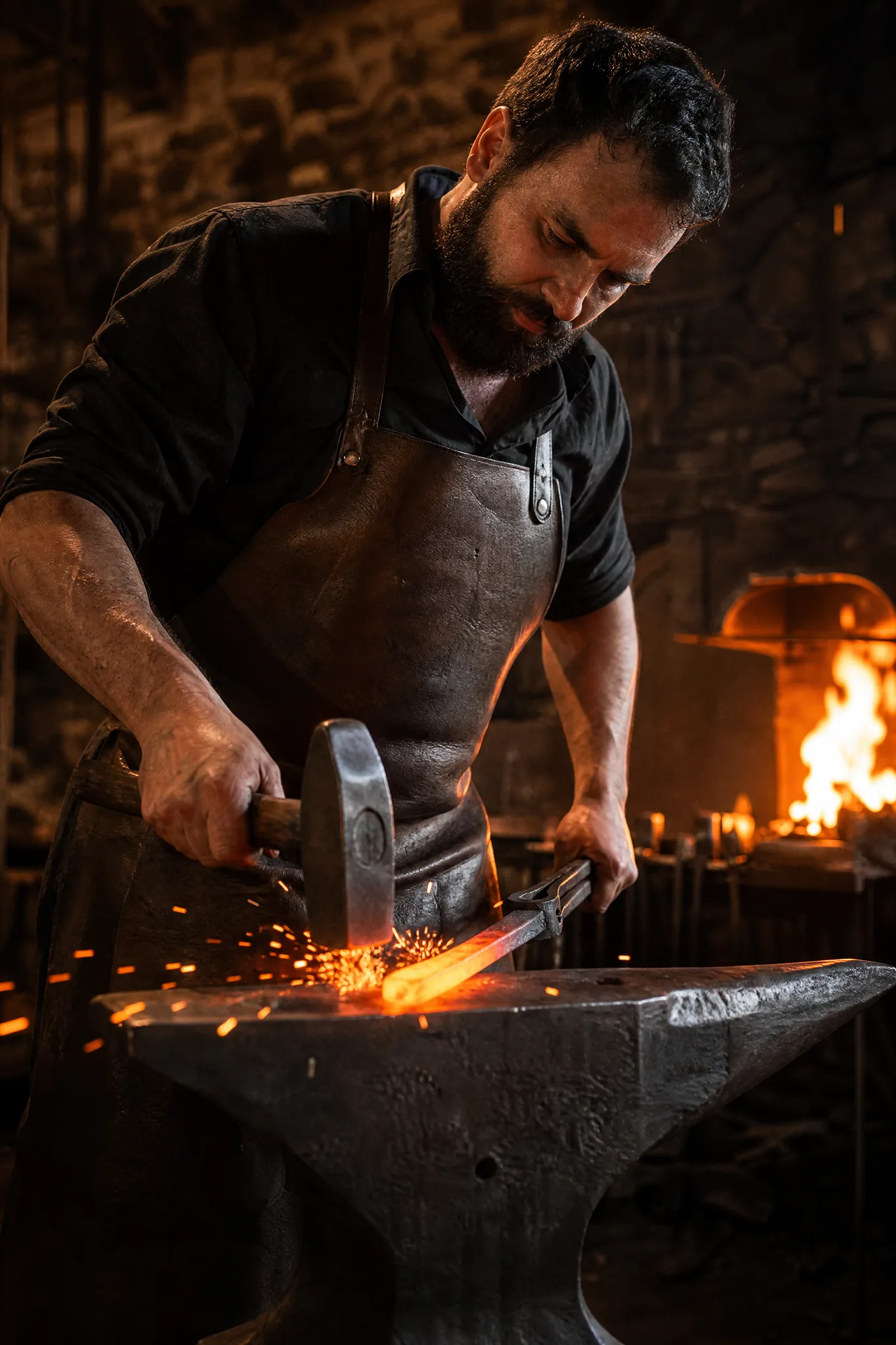
Blacksmith seen from below hammering red-hot steel on an anvil as sparks fly

Dramatic Photo Moments

A blacksmith hammering glowing steel in a shower of sparks, seen from a low angle, is the kind of action photo that is hard to stage for real. Describe the action, the light source and the camera height, and Grok Imagine Image returns two versions to compare for a workshop poster, a cover or a feature image.

Three More Grok Imagine Image Looks

Grok Imagine Image image to image runs and text prompts also handle three looks that come up often: product close-ups, rim-lit portraits and handmade paper scenes.

Café and Product Close-Ups

A handmade ceramic pour-over dripper with steam rising above a wooden café bar shows how a product can sit in its natural setting. Attach a photo of your own item, describe the counter, the light and the steam, and Grok Imagine Image builds the scene for a shop page or a menu board.
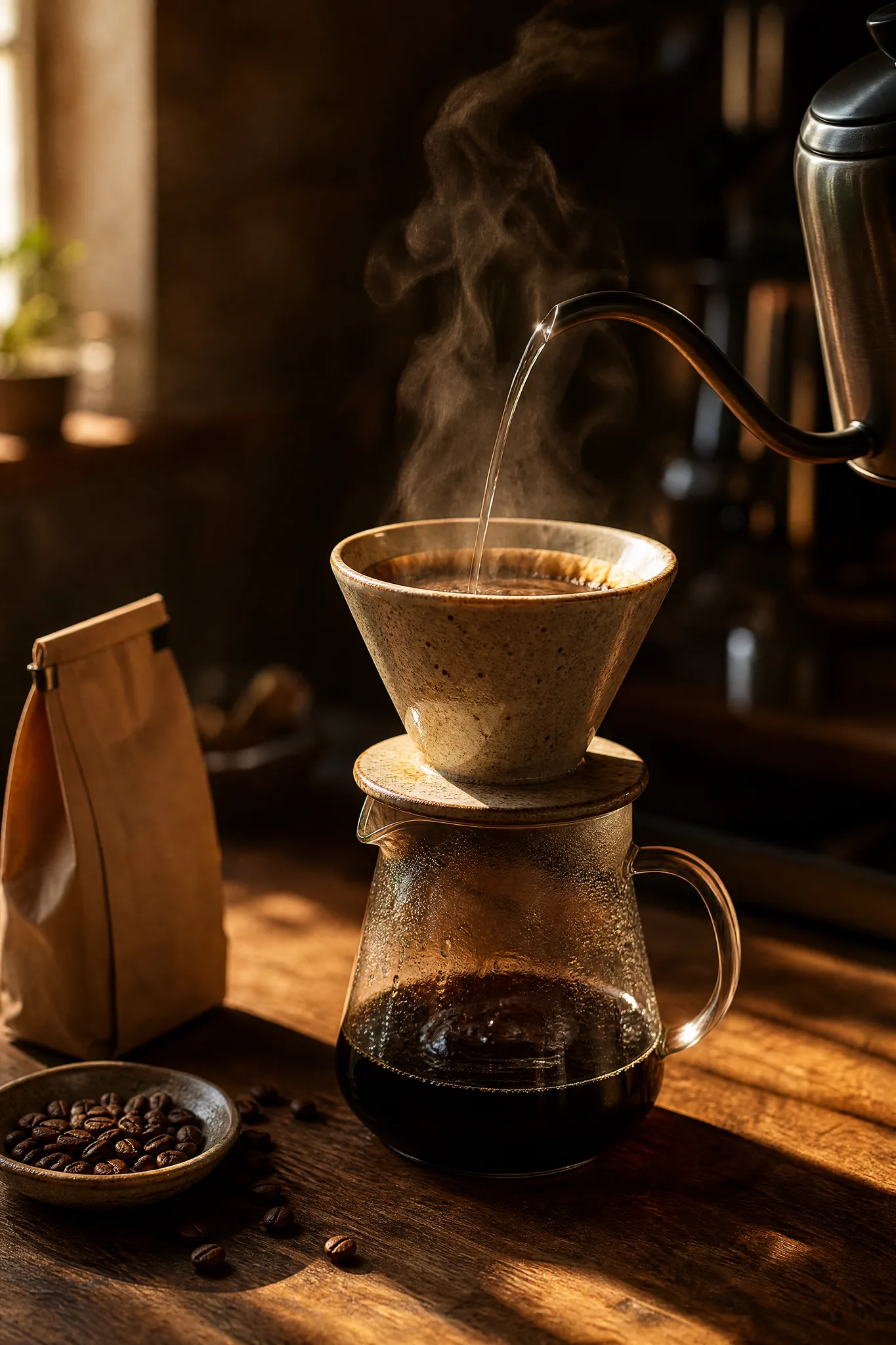
Handmade ceramic pour-over coffee dripper on a carafe, steam rising, on a wooden café counter

Rim-Lit Portraits

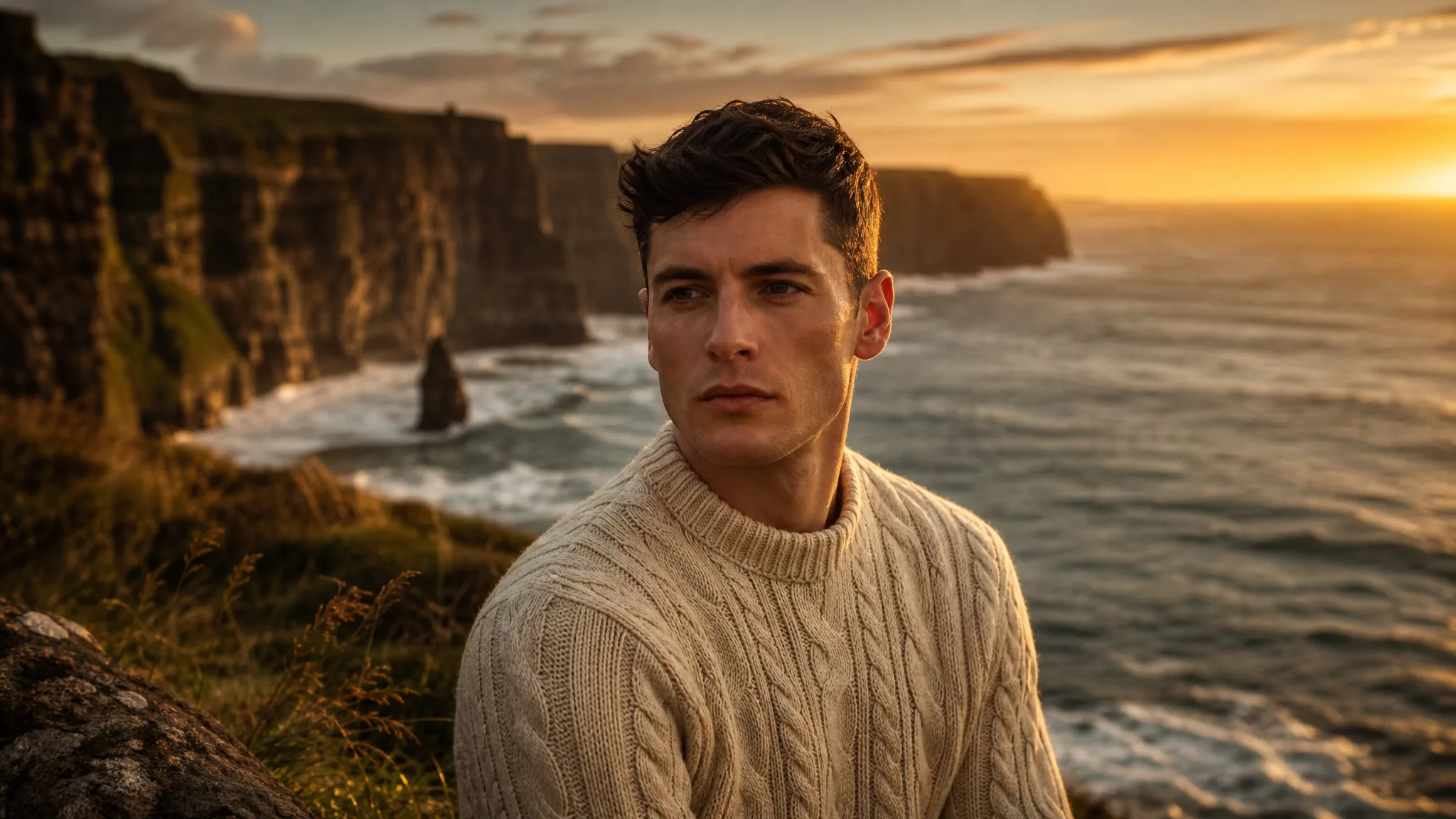
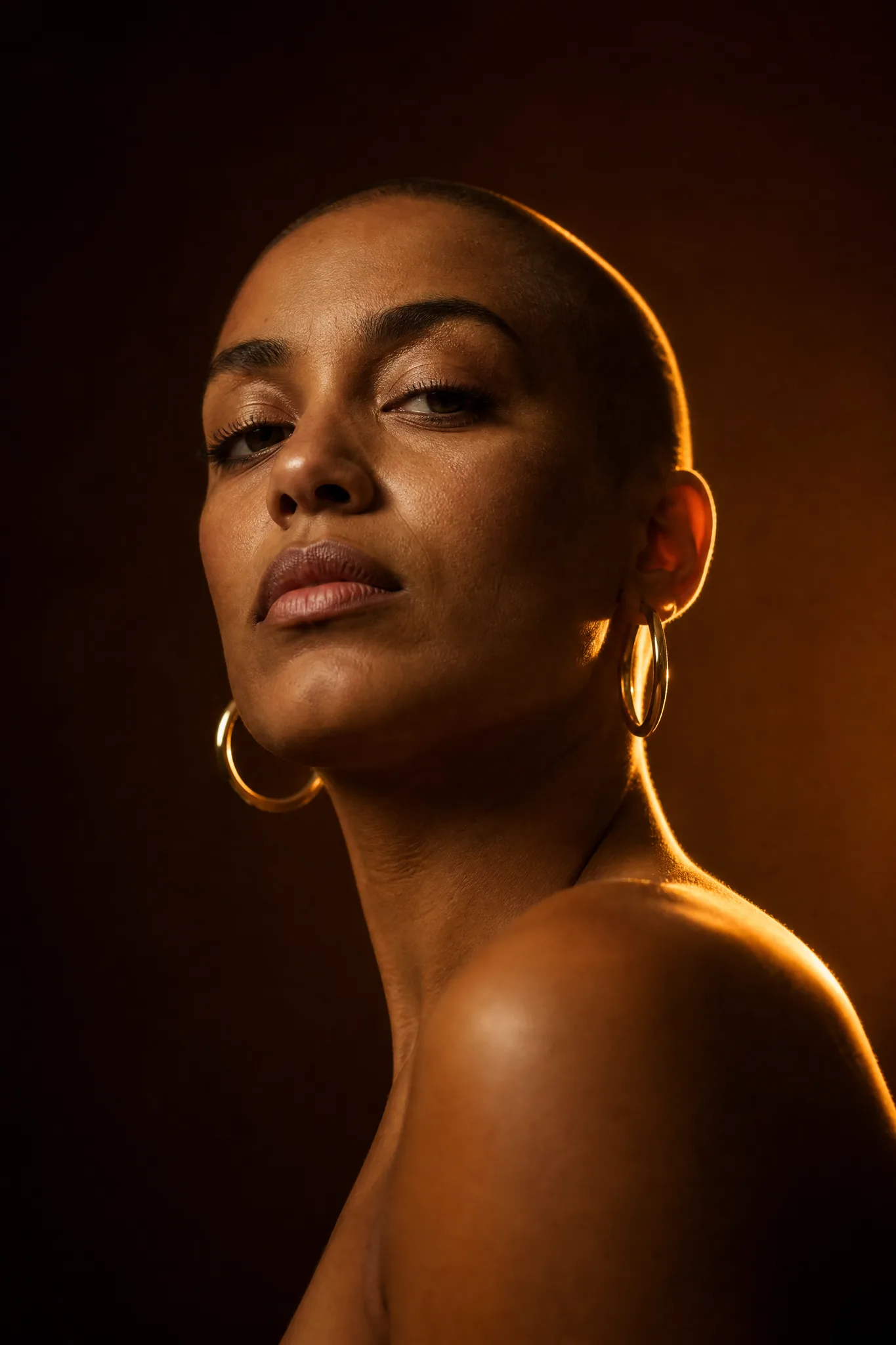
Warm light from behind, a low viewpoint and gold hoops catching the glow give a portrait real presence. Describe the light direction and the camera height, or upload a selfie as the reference, and compare how each Grok Imagine Image take handles the edge light on hair and skin.

Low-angle portrait of a woman with a shaved head and gold hoop earrings in warm backlight

Folded-Paper Worlds

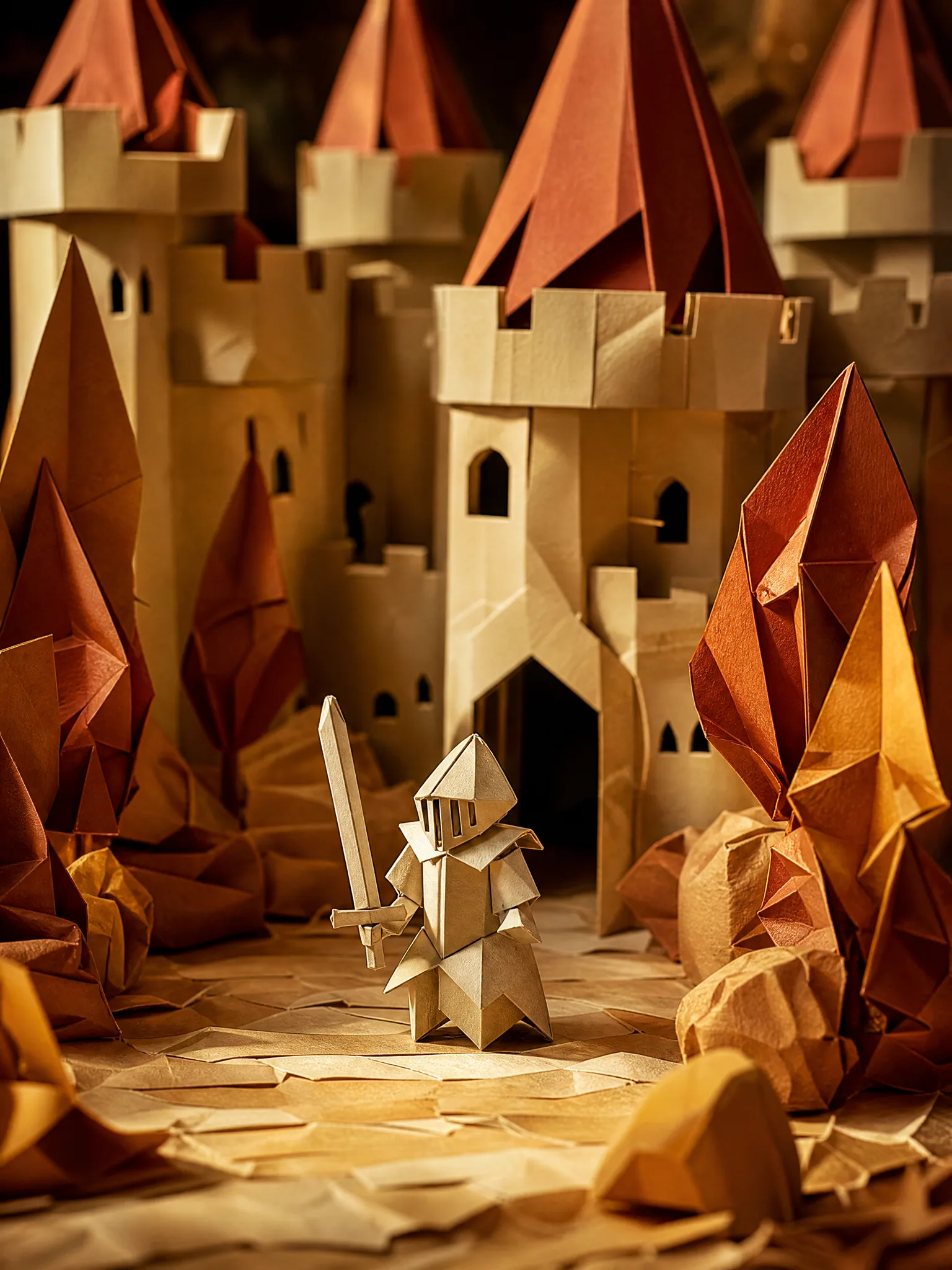
Ask for folded paper instead of a photograph and Grok Imagine Image builds the knight, the castle walls and the courtyard from creased card. The look suits birthday invitations, school projects and children's story covers that should feel made by hand at the kitchen table.

Paper knight folded from card, standing in the courtyard of a handmade paper castle

Grok Imagine Image Use Cases for Posts, Cards and Stories

Grok Imagine Image helps anyone who likes to choose between options. Here are six people who use its two takes, the input they bring and where the still ends up.

Social Media Creators

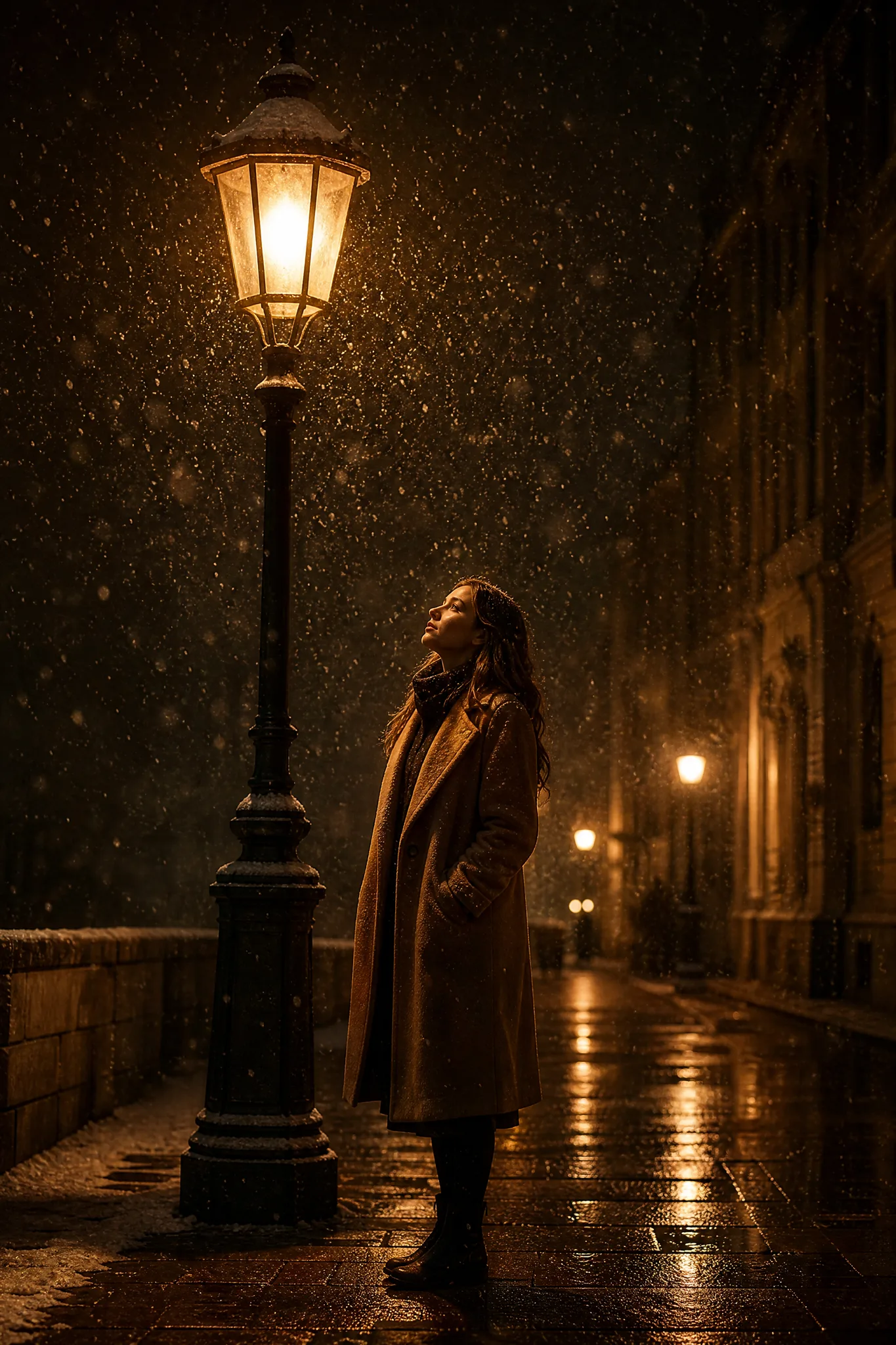
A creator can type a moody winter street scene and get two Grok Imagine Image stills to test as the next post. Publishing one and saving the other for a later week fills two slots in the content calendar from a single idea.

Pet Owners

A pet owner can attach a photo of their cat and ask Grok Imagine Image to restyle it as a paper-craft knight in a cardboard castle. The playful still becomes a birthday card, and a square crop goes on the pet's own account.

Coffee Shops and Potters

A café or a potter can photograph a pour-over set on the counter and ask Grok Imagine Image for the same piece with rising steam and warm morning light. The still runs as the menu-board picture and the product page header.

Portrait Photographers

Before a session, a photographer can describe the rim light and pose for a client and show two Grok Imagine Image takes as a quick mood board. The client picks a direction, and the shoot starts from a shared reference.

Climbing and Outdoor Clubs

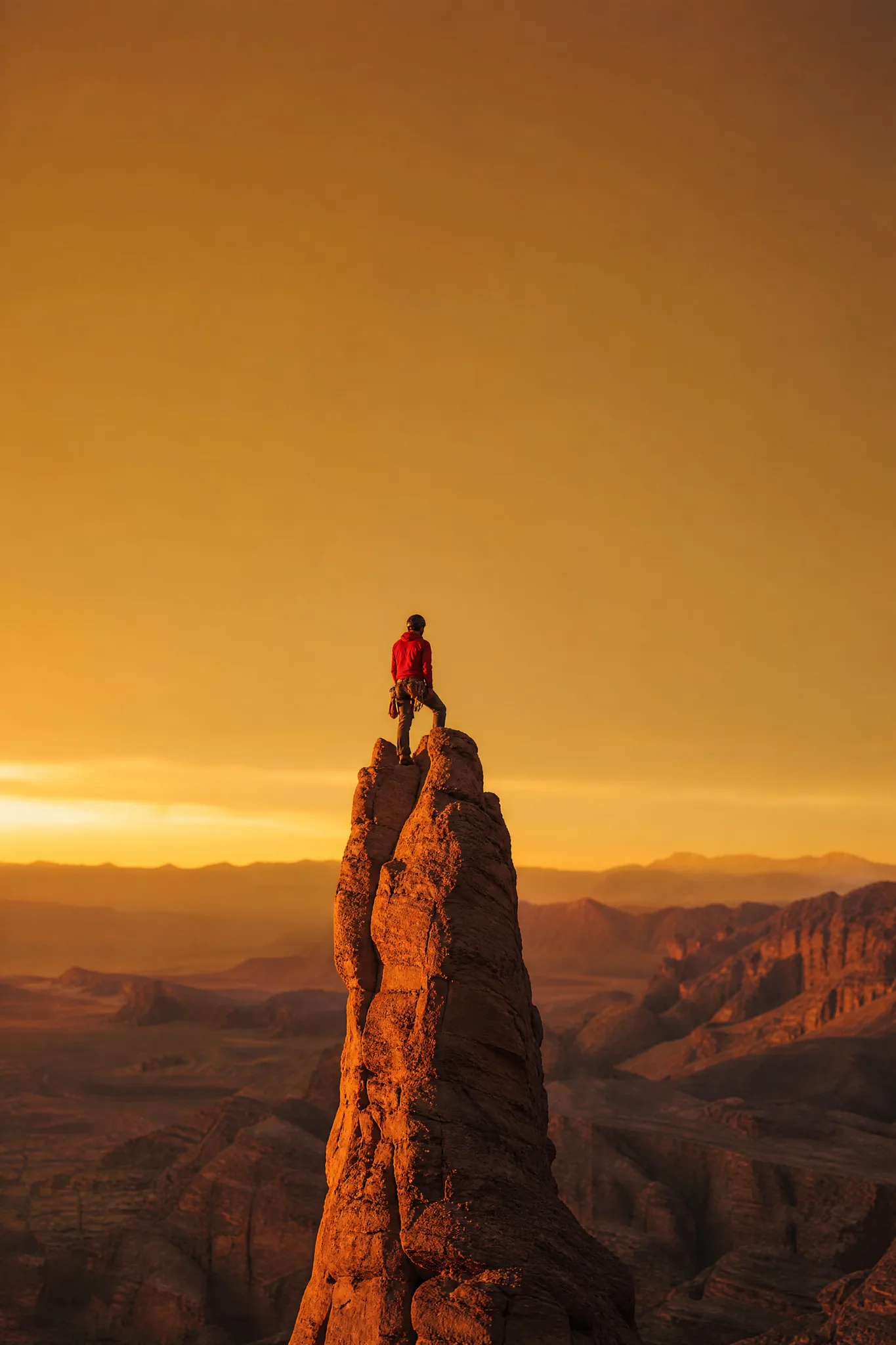
A club can type a climber on a sandstone tower under open sky and pick the better of two Grok Imagine Image takes for an event poster. The empty sky then carries the date, the meeting point and the sign-up link.

Storyboard Artists

Storyboard artists can write each shot once and get two Grok Imagine Image framings per prompt, which doubles the options without doubling the writing. The chosen frames go onto the board for the director's review.

Stories from People Who Tried It on Their Photos

Winter content always stalls for me in December. I typed a woman in a camel coat under a streetlamp in falling snow, and Grok Imagine Image gave me two takes, one close and one wide. I posted the close one that week and saved the wide one for January, so one idea covered two posts.

Zoe A.
Lifestyle Creator

Grok Imagine Image FAQ

Grok Imagine Image questions on the two-take output, photos, prompts, access, frames, rights, series, motion, refinements and checks.

Grok Imagine Image is an xAI image model that creates stills from a text prompt or from reference photos. On PicVideo each text-to-image generation returns two stills and each image-to-image edit returns one, so you can compare directions before choosing.

Lead the Grok Imagine Image prompt with the subject and the action, then add place, light and camera angle. One mood per prompt keeps both takes on track. If the two results differ in a way you like, name that detail in your next prompt.

Grok Imagine Image image to image starts from a portrait, a pet or a product photo, with room for up to 5 references in one edit. Describe the new setting or style and say which details to keep. An edit returns one still, while a text prompt alone returns two.

Grok Imagine Image frames its stills as 2:3, 3:2, 1:1, 16:9 or 9:16, and because each text prompt returns two stills, both takes arrive in the shape you chose, ready to compare. Output size is set for you, so the frame is the one choice to make: 2:3 suits a portrait, 9:16 a phone story and 16:9 a blog header.

Take the still you prefer into Grok Imagine Image image-to-image mode and describe one change, such as warmer light or a closer crop. For text prompts, keep the wording that worked and swap a single phrase, then compare the two new takes.

Free credits from sign-up, plus daily check-ins that grow to 4x on day 7, let you start creating on free models such as Z-Image Turbo today. Grok Imagine Image runs on a PicVideo plan or credit pack, and one charge covers a text-to-image run along with both of its stills.

Keep one fixed paragraph describing the character, palette and style, paste it into every Grok Imagine Image prompt and change only the action. Attach your best earlier still as a reference for image-to-image runs, and compare the set before posting.

Check faces, hands, paws and any text at the size you will use the Grok Imagine Image still, and compare both takes for small errors before choosing. Look at the edges if you plan to crop, then download the one that passes.

Both Grok Imagine Image takes arrive side by side in your library, visible only to you, and the photos you attach stay hidden too. If one of the pair turns out well, switch that still to public and the Explore gallery may pick it up.

You own the Grok Imagine Image stills you generate, as far as the law allows, per the PicVideo Terms. With two takes per prompt, pick the one free of stray brand marks or lookalike faces, and attach only photos you have permission to use.

Grok Imagine Image produces still images. To add motion, download your still and open PicVideo's image to video tool, choose a video model and describe the movement, like falling snow, a turning head or a slow pan up the tower.

Get Two Grok Imagine Image Takes on Your Idea

Type your scene or attach a photo of the person, pet or product, choose a square, portrait or wide frame and let Grok Imagine Image return its stills. Compare the takes, keep the stronger one and use it in your post, card or storyboard.

Make an image with Grok Imagine Image
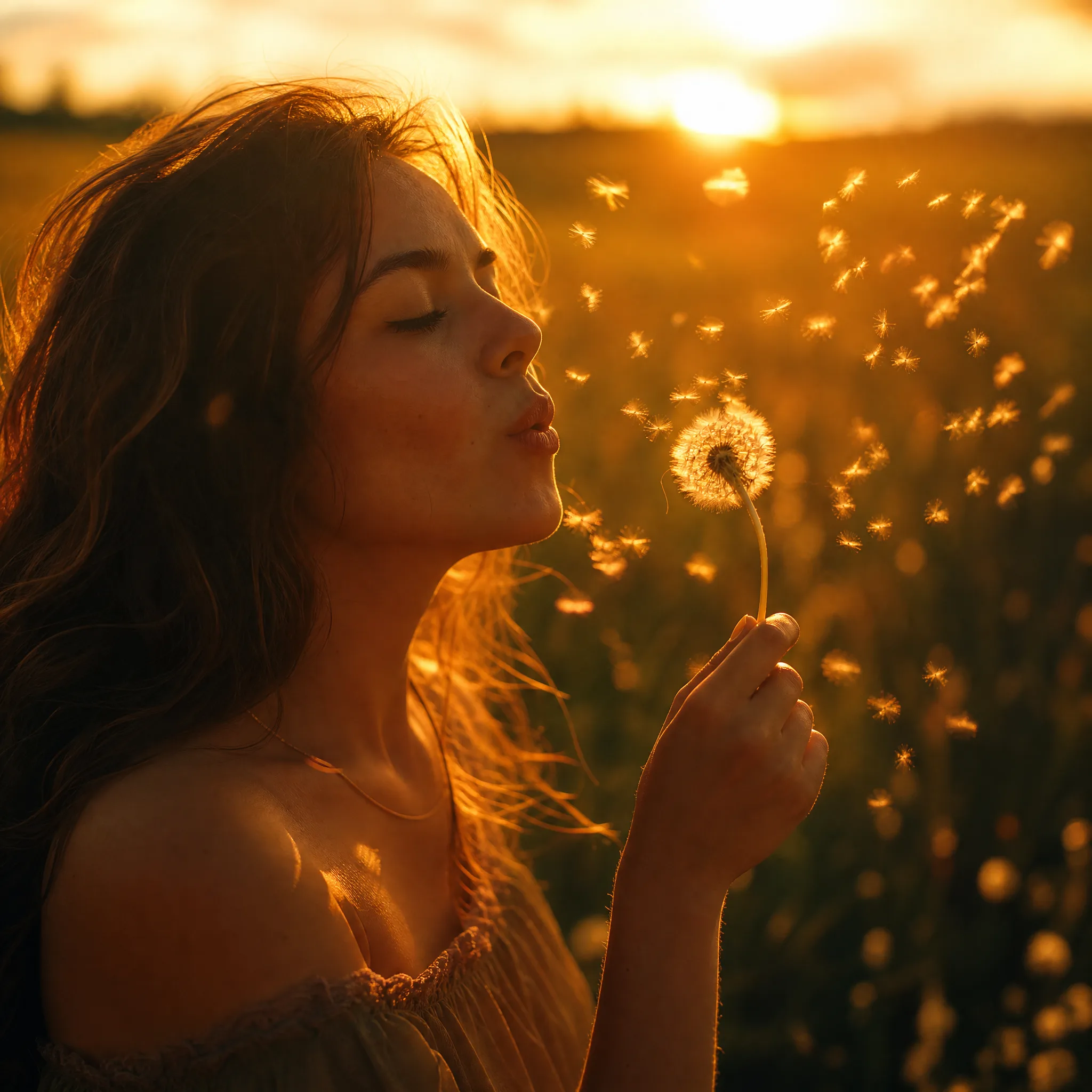
Young woman blowing dandelion seeds into golden backlight at sunset