GPT Image 2 Image Generator

Scenes with wording, family moments and recurring characters

OpenAI's GPT Image 2 builds a still from a detailed brief or from reference photos you upload. Name the objects, the light and any words that should appear, and GPT Image 2 composes them into one picture you can use for a family poster, a café menu or a short series with the same character.

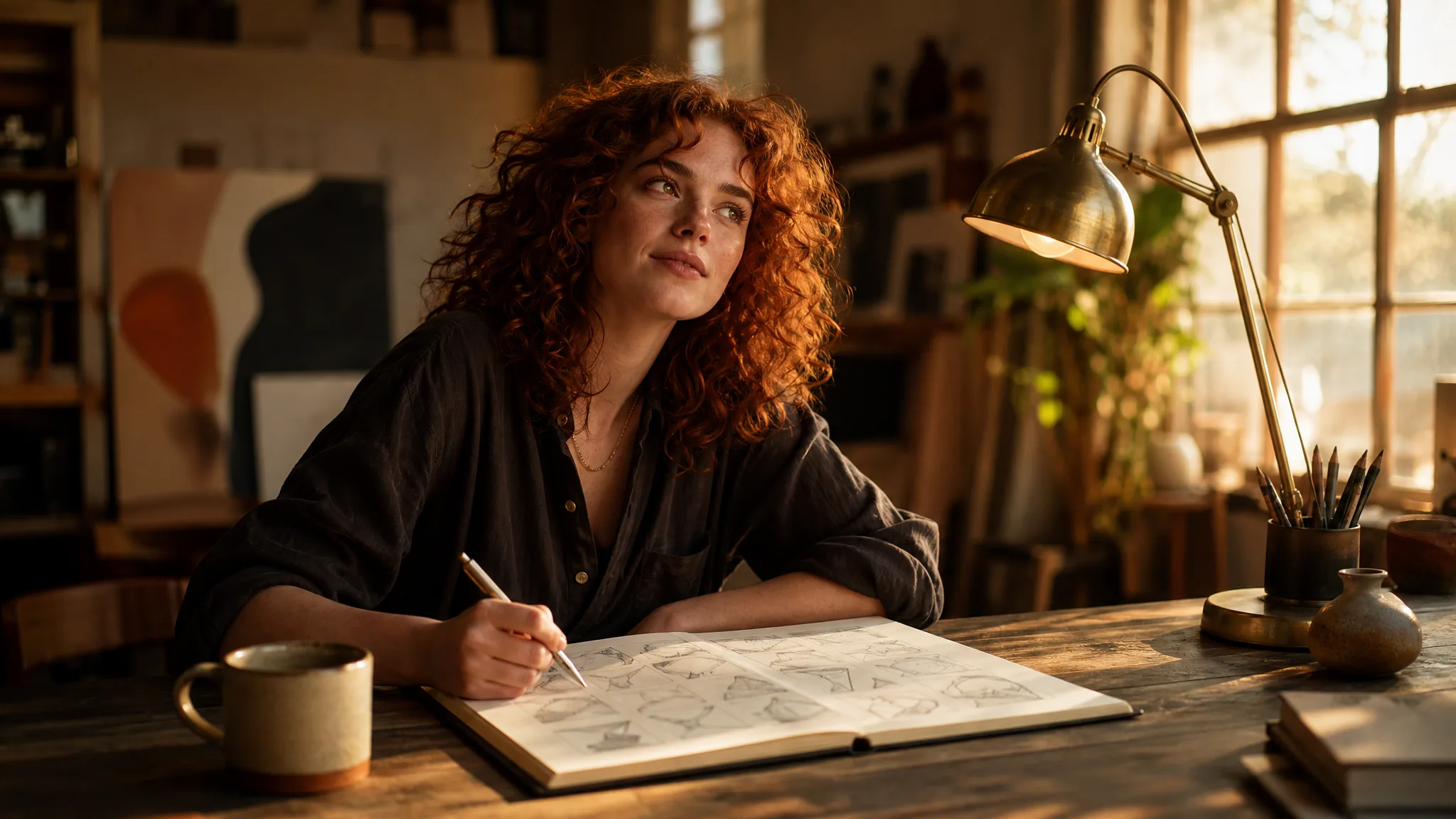
Designer pausing over a notebook of tiny pencil thumbnail sketches on a sunlit studio desk
Wording planned into the picture
Everyday scenes in specific detail
Glass, metal and fabric in real light
One character across several images
GPT Image 2
Prompt
0/20000
Aspect ratio
Resolution
Background
Number of generations
Public Visibility
Required credits
6
Examples
Designer pausing over a notebook of tiny pencil thumbnail sketches on a sunlit studio desk

From Pencil Sketch to Finished GPT Image 2 Scene

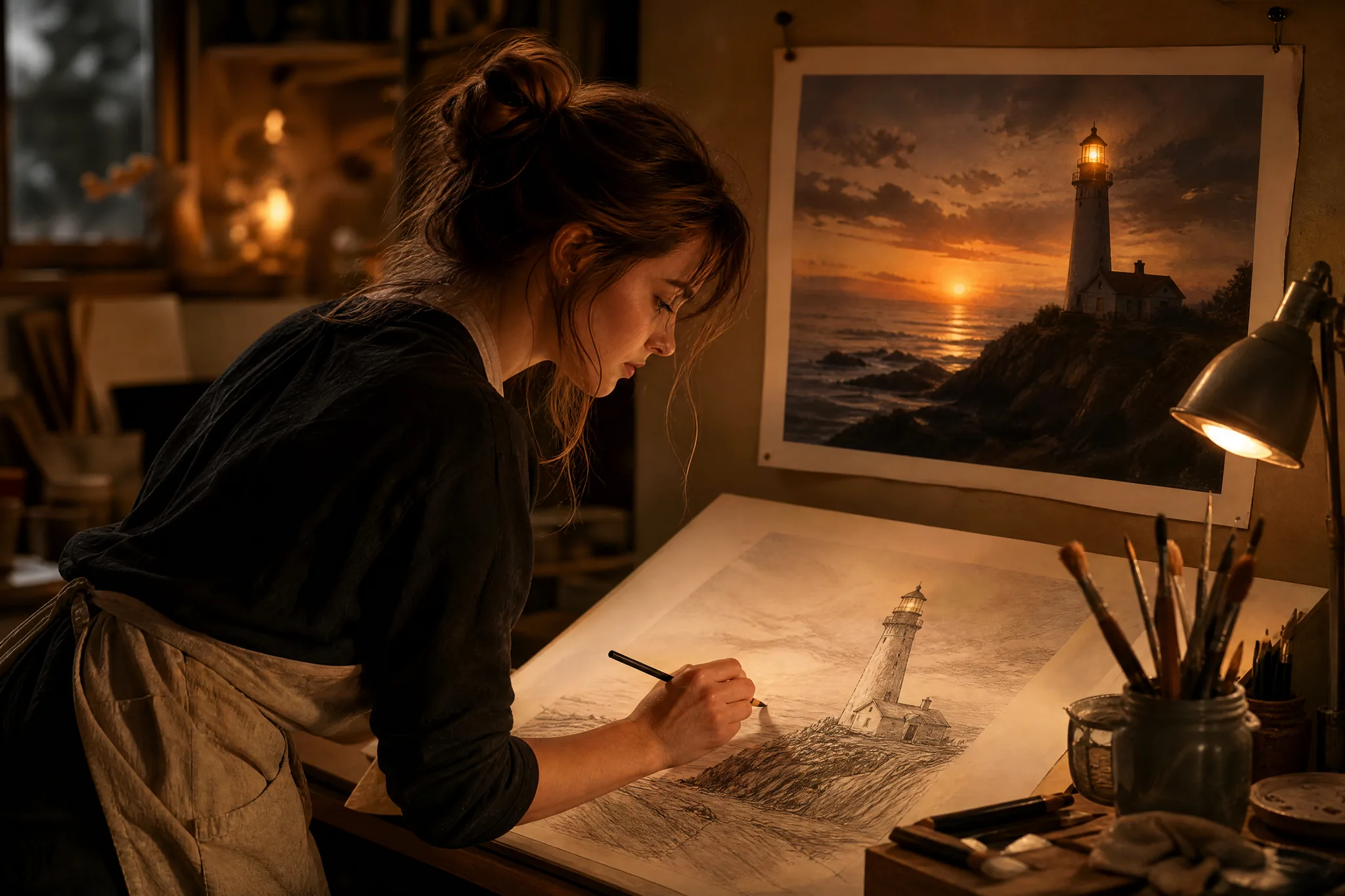
An illustrator pins a quick lighthouse sketch under the finished dusk painting to see how far the idea travelled. GPT Image 2 can play the middle step: upload your rough drawing or a phone photo, describe the finished mood, and use the result as a guide for the final piece.

Generate with GPT Image 2
Lighthouse pencil sketch on a drawing table beneath a finished painting of the same lighthouse at dusk

How to Use GPT Image 2 from Brief to Download

GPT Image 2 works from a written brief, with or without reference photos. Here are the four steps from the first sentence to a still you have proofread and checked.

1

Write the Brief with Exact Words

Describe the GPT Image 2 scene in plain sentences: who is there, what they are doing and where the light comes from. If words should appear, such as a menu heading or a birthday banner, put them in quotes. To build on a photo or a sketch, add up to 16 references in image-to-image mode.

2

Pick a Frame and Resolution

GPT Image 2 offers 15 aspect ratios, from square and 4:5 to 3:1 banners and tall 9:21 posters. Choose the one that matches where the image will be printed or posted, then pick 1K for drafts, or 2K and 4K when you need room to crop.

3

Generate and Proofread

Run the first GPT Image 2 take and read every word in it letter by letter, then check hands, faces and object counts against the brief. If one element is wrong, rewrite only that sentence and generate again, so you can see which instruction changed the result.

4

Download and Place the Final Text

Keep the take that passes the proofread and download it. For anything that must be exactly right, such as prices, dates or legal lines, set the type in your design tool on top of the GPT Image 2 image and keep the generated lettering for short headings.

Image Tools for Prompts and Photo Edits

Start a picture from words, or change the style or setting of one you already have.

What GPT Image 2 Can Put in One Picture

GPT Image 2 handles four things a photo-based brief often needs: space for text, familiar scenes, real materials and a character you can repeat. Each row shows a sample and the wording behind it.

Posters with Space for Lettering

A jazz trumpeter in a warm spotlight on the right, open dark space on the left: that is a gig poster before any type is set. Ask GPT Image 2 for the subject placement and the empty area together, add a short title in quotes if you want it rendered, and keep longer copy for your layout tool.
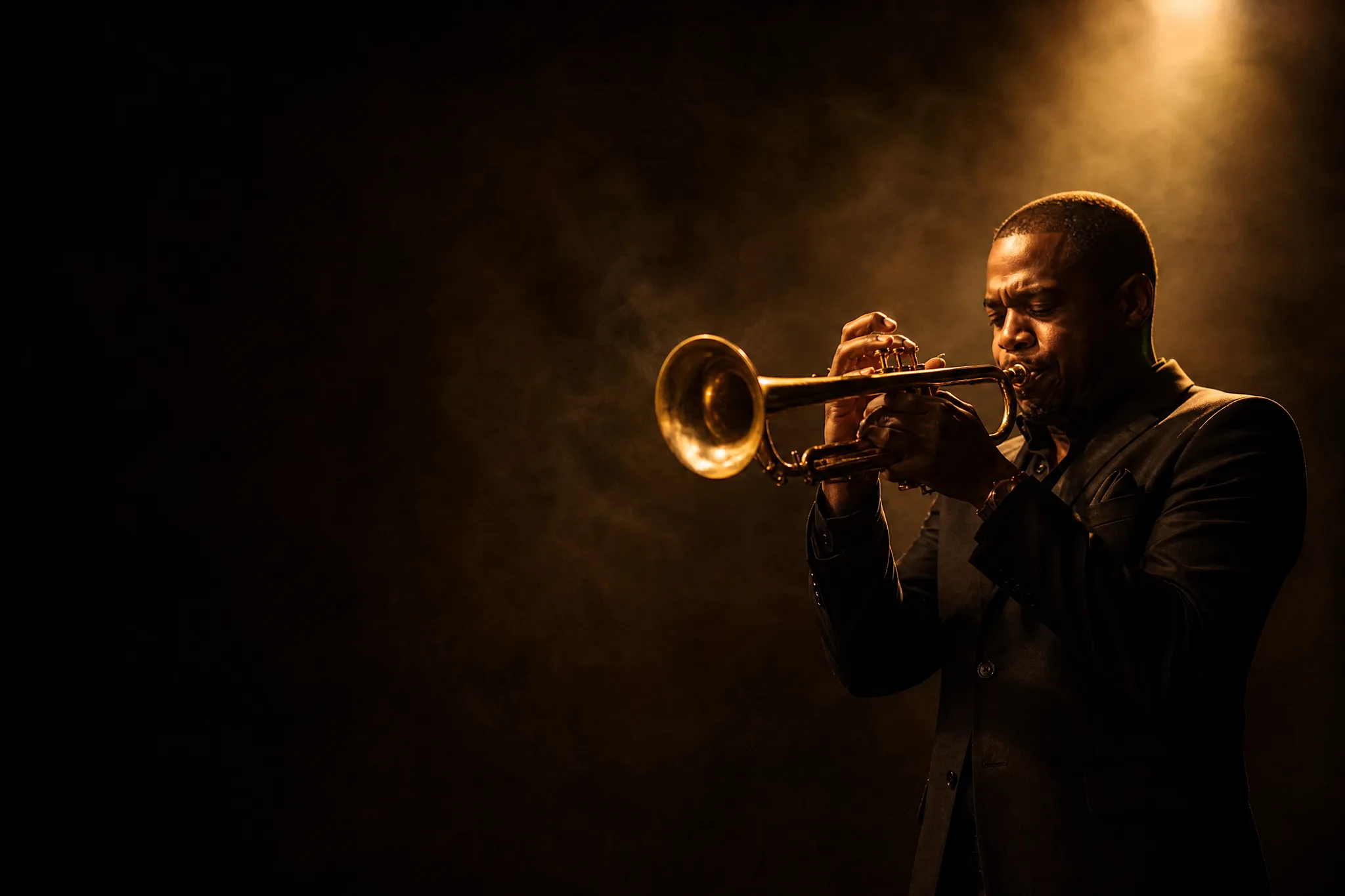
Spotlit jazz trumpeter on the right side of the frame, dark empty space on the left for poster text

Family Moments in Specific Detail

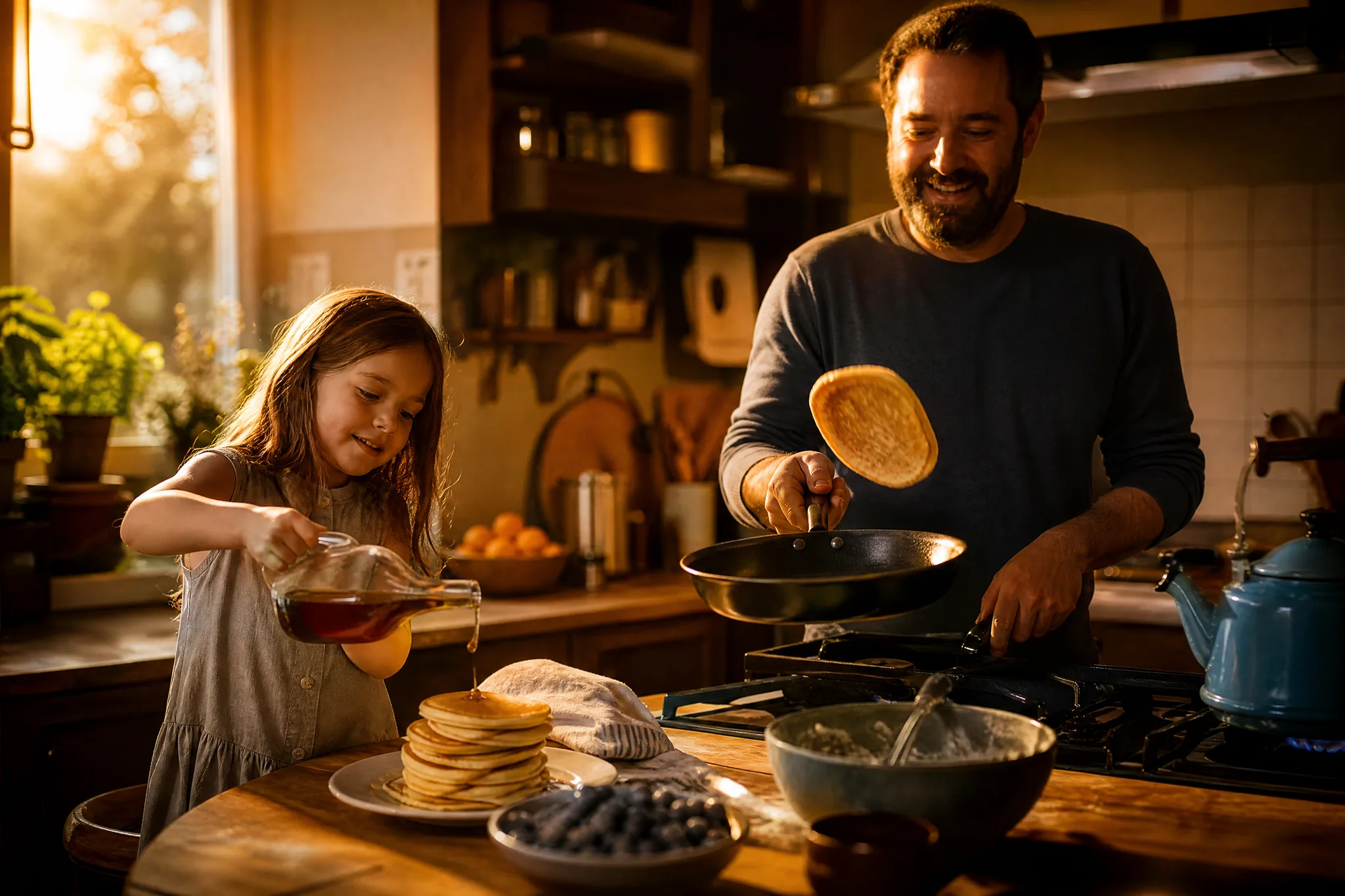
A father flipping a pancake in a cast-iron pan while his daughter pours syrup feels real because of the objects in it. Give GPT Image 2 the same kind of specifics from your own memories: the pan, the sunny kitchen, who does what. Upload a family photo as a reference and the scene can echo the people you know.

Sunny family kitchen where a dad flips a pancake in cast iron as his daughter pours syrup

Glass, Copper and Linen in Raking Light

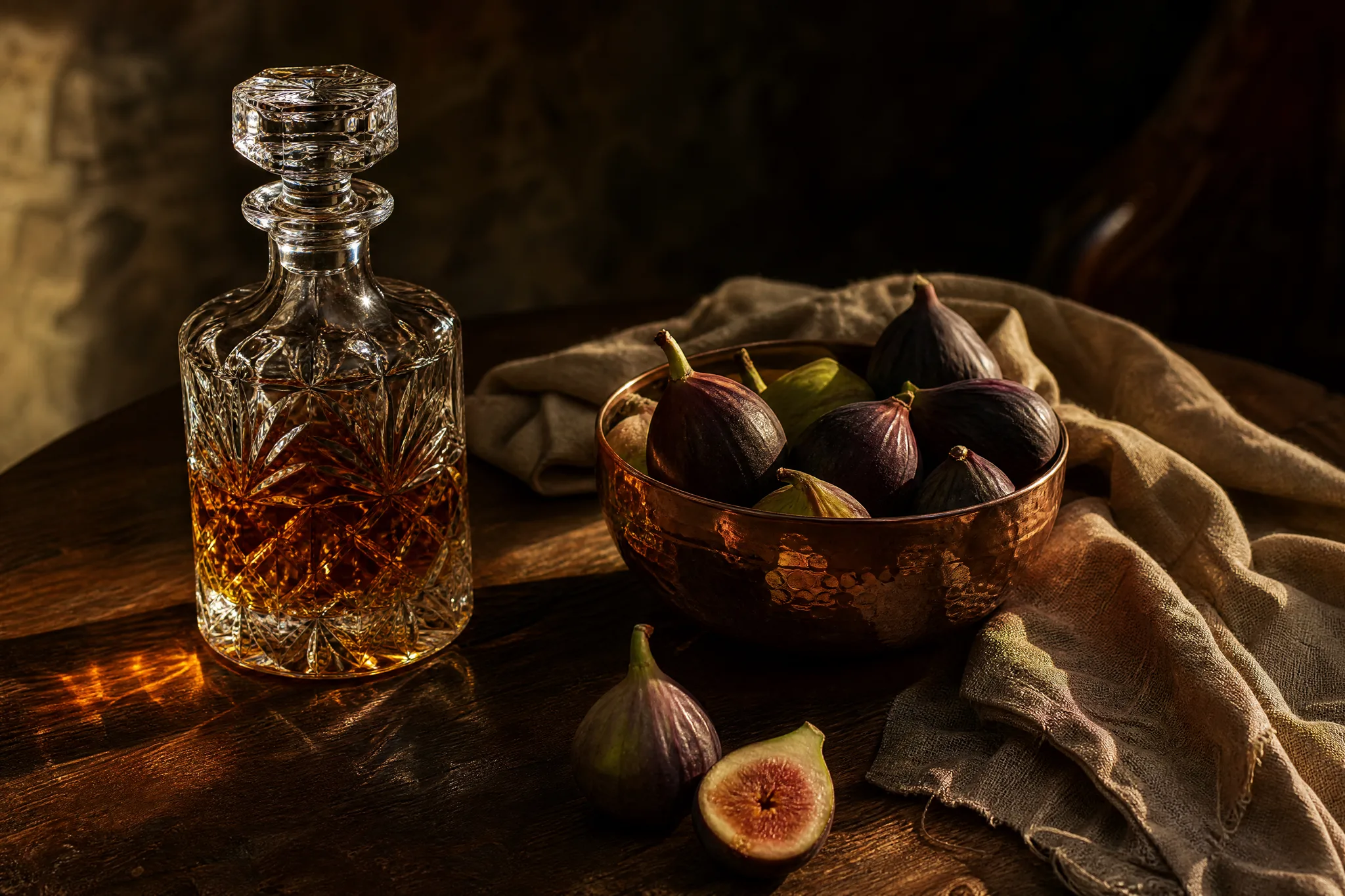
Product sellers and food stylists can describe how light meets each surface: sparkle through cut crystal, soft glints on hammered copper, a creased linen napkin. GPT Image 2 text to image prompts that name the material and the angle of the light produce a still that reads like a styled tabletop photograph.

Golden side light across a cut-glass decanter, a hammered copper bowl of figs and a linen napkin on walnut

A Character You Can Bring Back

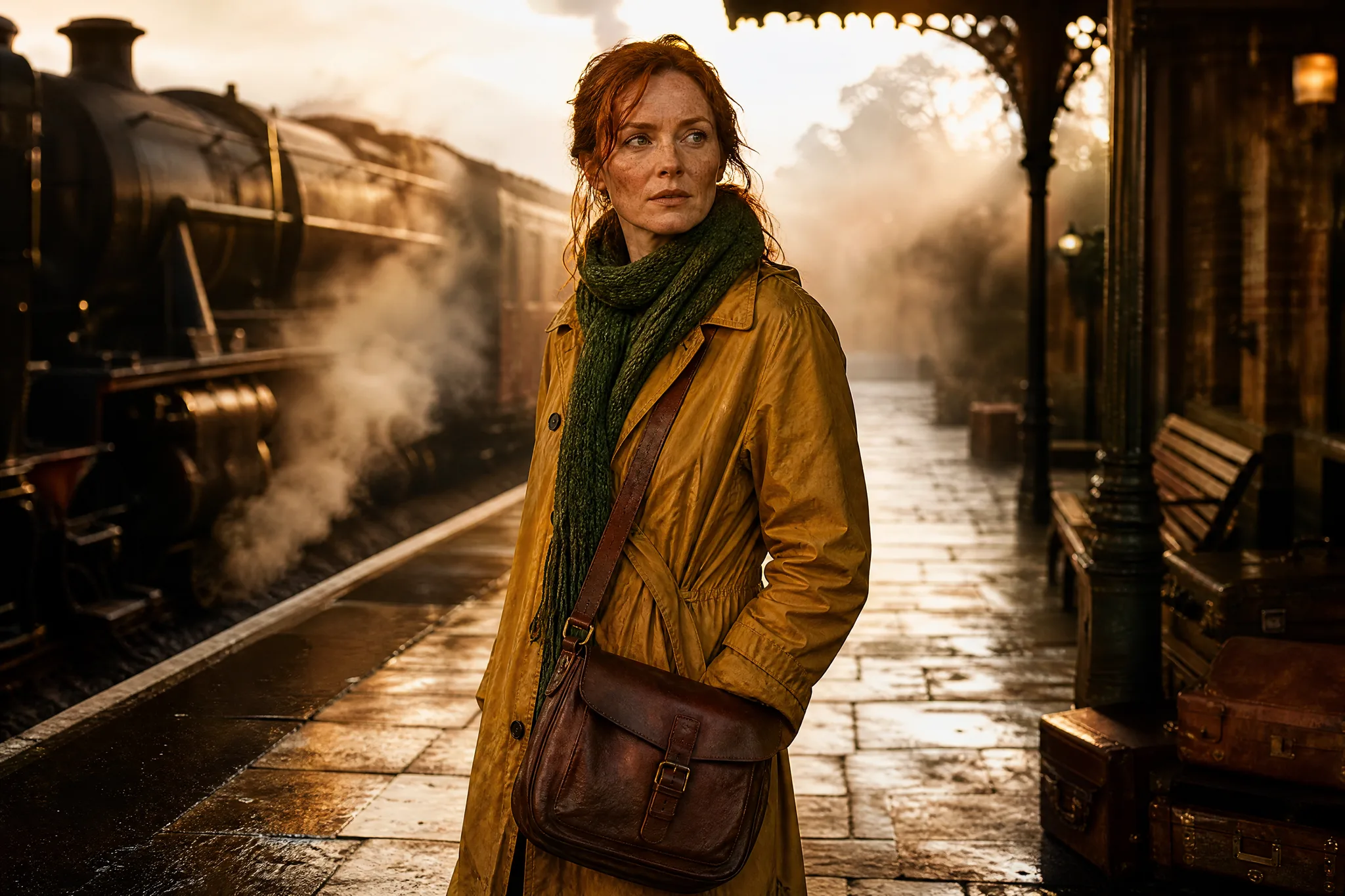
Define a character once, a red-haired explorer in a mustard raincoat with a leather satchel, and reuse that description in every GPT Image 2 prompt. Add the first good image as a reference for the next scene, then compare face, costume and colours across the set before you publish the series.

Explorer with red hair, a mustard raincoat, green scarf and leather satchel on a foggy railway platform

GPT Image 2 Use Cases with Text, Family and Product Photos

GPT Image 2 is useful when a picture has to carry words, real objects or a familiar face. These six cases show who uses it and where the still goes.

Café and Restaurant Menus

A café owner can photograph the counter, upload it to GPT Image 2 and ask for a chalkboard-style menu scene with the heading "Weekend Brunch" in quotes. The still runs on the window screen, and the exact prices are added in an editor afterwards.

Birthday and Party Invitations

Parents can describe the party theme, add a photo of the birthday child and ask GPT Image 2 for a picture-book scene with space for the invitation text. The names, date and address are then typed into a card template before printing.

Anniversary Gift Posters

Siblings planning their parents' anniversary can upload a 1980s wedding photo and ask GPT Image 2 for an illustrated poster of the couple in their first kitchen. Framed at 3:4, it becomes the centrepiece of the party table.

Product Photos for Listings

Online sellers can upload a plain photo of a decanter or a copper bowl and ask GPT Image 2 for the piece on a walnut table in golden window light. The styled still leads the listing, and the original photo stays in the gallery for accurate detail.

Recurring Characters for Kids' Stories

A parent writing bedtime stories can define one character in GPT Image 2 and place her somewhere new each week: a train platform, a forest, the seaside. Printed together, the pictures turn the stories into a small homemade book.

Gig and Community Event Posters

Bands and community groups can brief GPT Image 2 with a performer photo and ask for a spotlit stage with dark space on one side. The poster title is set in a design tool, and the same image is cropped for flyers and social posts.

Stories from People Who Tried It on Their Photos

Our chalkboard menu photo looked tired. I uploaded it to GPT Image 2 and asked for a fresh chalk-style scene with the heading Weekend Brunch across the top. The lettering read cleanly on the second take, I added prices in my design app, and the image has run on our window screen every Saturday since.

Sofia G.
Café Owner

GPT Image 2 FAQ

Quick GPT Image 2 answers on the model, using photos, getting lettering right, access, frames and commercial use, plus where your images are visible.

GPT Image 2 is an OpenAI image model that produces stills from a written brief or from reference photos. On PicVideo it sits in the image workspace with 15 aspect ratios and 1K, 2K and 4K output, suited to posters, menus, family gifts and product images.

Put the exact words in quotes, keep them short and say where they go, for example a sign above the door that reads "Open Late". Short lettering is easiest to check in GPT Image 2 when the rest of the brief is simple; proofread every take and set long or critical text in your editor.

GPT Image 2 image to image builds a new picture around as many as 16 reference images. Upload a family snapshot, a product shot or a sketch, describe the scene you want around it, and say which details must stay, like a face, a logo position or a colour.

You own the GPT Image 2 pictures you make, to whatever extent the law allows, as PicVideo's Terms explain. Before a poster or ad goes live, proofread every word the model set into the picture, and confirm that the logos, products and people in your reference photos are ones you have the right to show.

GPT Image 2 can shape a picture as 1:1, 3:2, 2:3, 4:3, 3:4, 5:4, 4:5, 16:9, 9:16, 2:1, 1:2, 3:1, 1:3, 21:9 or 9:21, at 1K, 2K or 4K, though a few ratio and size pairs are not offered together. Wording needs room, so a birthday card with a greeting reads well in 4:5 or 3:4, while a 3:1 or 21:9 frame carries a shop sign or a website banner.

A GPT Image 2 result appears only in your library at first, so a family scene or a draft poster with unreleased wording stays with you, and the photos you upload are not displayed. Once an image is ready to share, you can make it public, which also lets Explore feature it.

Signing up gives you free credits, and checking in each day adds more, up to 4x on day 7, which you can spend right away on free models such as Z-Image Turbo. GPT Image 2, the model for pictures with readable wording and recurring characters, runs on a PicVideo plan or credit pack.

Frame Your Next GPT Image 2 Scene

Write the scene, the words that belong in it and the light, or upload the photo you want to build on, and GPT Image 2 will compose the still. Proofread the lettering, download the best take and finish the layout for your menu, poster or gift.

Make an image with GPT Image 2
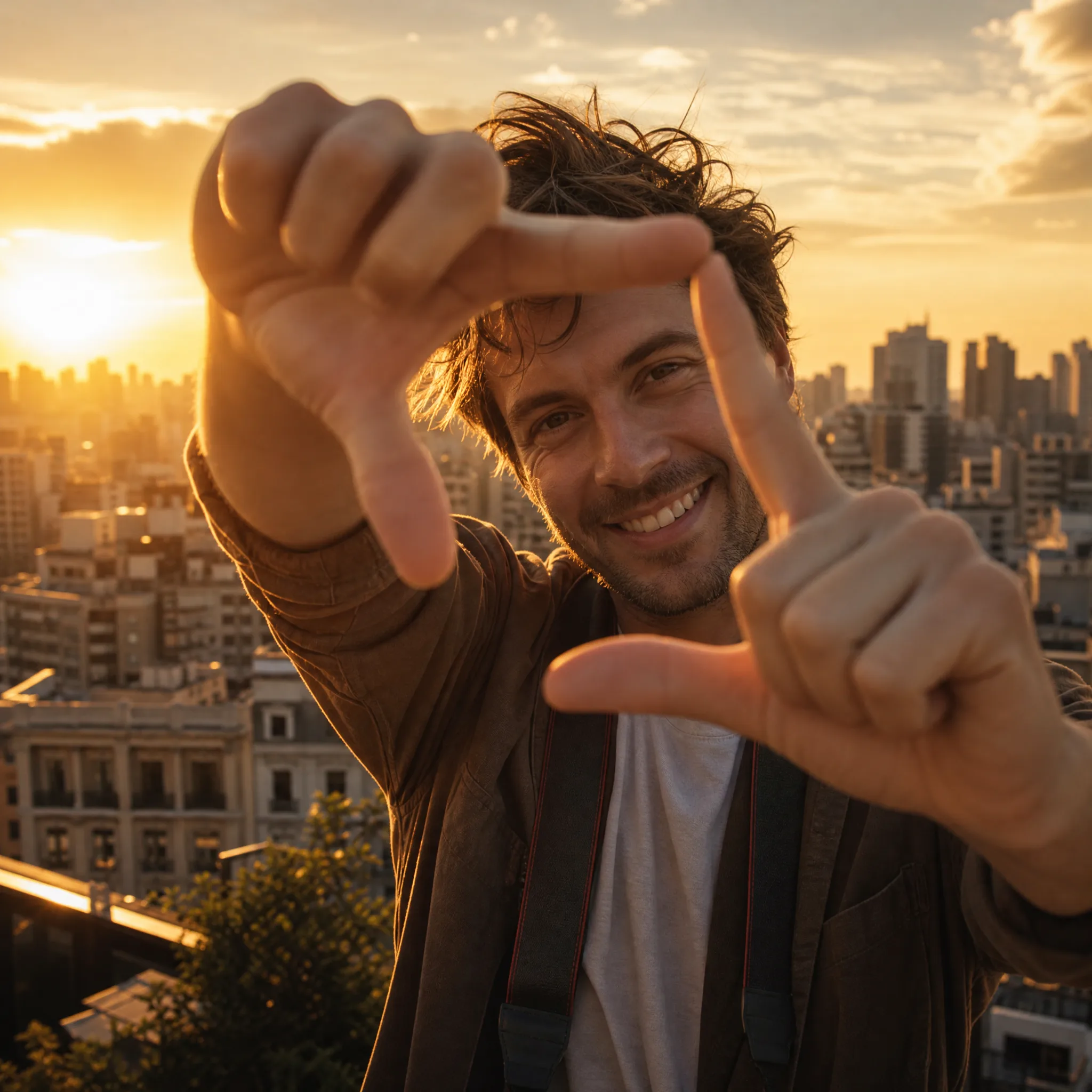
Man on a rooftop making a frame with his fingers around a golden-hour city skyline