
FLUX Kontext Image Generator

Change one detail in a photo and keep everything else

FLUX Kontext from Black Forest Labs edits a photo you upload according to a short instruction: repaint the front door, swap summer for autumn, warm up the light. Name the detail to change and what must stay, run FLUX Kontext Pro or Max, and compare the edit with your original side by side.

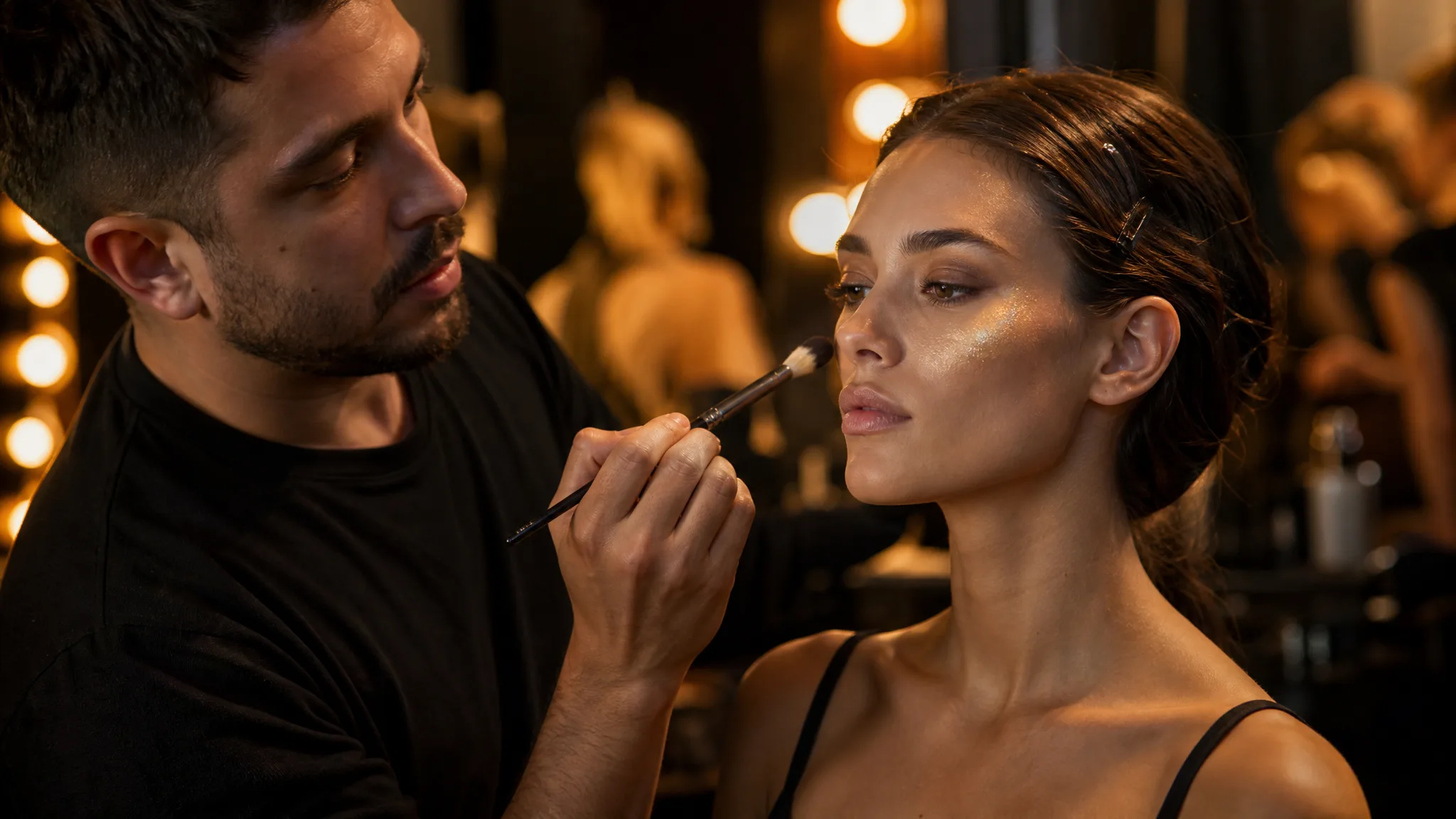
Backstage makeup artist sweeping gold highlighter across a model's cheekbone
Whole-photo restyles
One named detail changed
Subject held in its place
Light and colour shifts
One edit per pass
FLUX Kontext
Prompt
0/4000
Translate prompt
Input image

This media input is not available yet.

Aspect ratio
Enhance prompt
Safety tolerance
Number of generations
Public Visibility
Required credits
10
Examples
Backstage makeup artist sweeping gold highlighter across a model's cheekbone

Drape a New Detail over Your Photo with FLUX Kontext

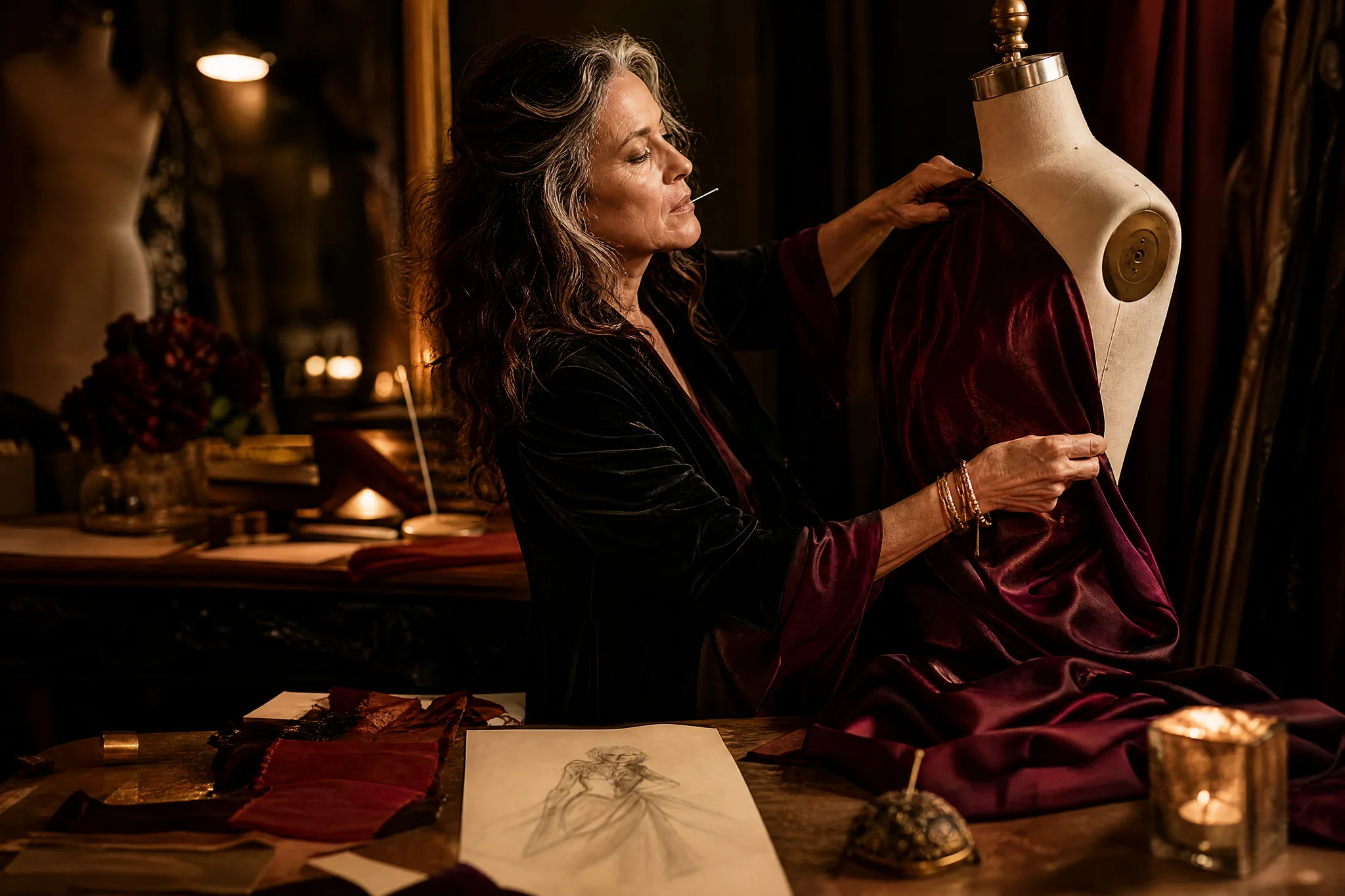
A costume designer pins burgundy silk to a dress form while the pencil sketch stays on the table as the reference. FLUX Kontext edits photos in the same spirit: the uploaded image is the sketch, your sentence is the new fabric, and everything you leave unmentioned is meant to stay where it was.

Generate with FLUX Kontext
Costume designer pinning burgundy silk onto a dress form next to a pencil sketch

How to Edit a Photo with FLUX Kontext

FLUX Kontext works from one reference photo or from a text prompt. These four steps cover the photo, the instruction, the comparison and building up several changes.

1

Upload One Clear Photo

FLUX Kontext takes one reference image in image-to-image mode, so choose the photo that matters most: the house front, the product or the portrait. A sharp, evenly lit picture gives the edit more to hold on to. You can also skip the photo and write a text prompt instead.

2

Name the Change and What Stays

Write the edit as one sentence with a verb: paint the front door deep red, turn the lake scene to autumn, replace the tablecloth with linen. Add what FLUX Kontext should leave alone, such as the face, the window frames or the plate, and pick the ratio that matches your photo.

3

Run Pro or Max and Compare

Choose FLUX Kontext Pro or FLUX Kontext Max, generate, then set the edit beside the original. Check that the named detail changed and that the rest held: edges, faces, text and reflections. If something else moved, restate it as a keep instruction and run again.

4

Stack Edits One Pass at a Time

For several changes, edit in passes: the door colour first, then the season, then the light. Feed each approved FLUX Kontext result back in as the new reference, so every step is easy to check and easy to undo by returning to the previous version.

Image Tools for Prompts and Photo Edits

Start a picture from words, or change the style or setting of one you already have.

Five FLUX Kontext Edits to Try on Your Photos

FLUX Kontext image to image edits range from a full restyle to one tiny detail. These five rows show each kind with a sample and the wording to use.

Restyle the Whole Scene

Upload a summer photo of a rowboat at a jetty and ask FLUX Kontext for the same lake in misty autumn, ringed by orange trees. Naming the boat, the jetty and the layout in the instruction lets the season change around them, which suits holiday-rental listings, calendar pages and before-and-after posts.

Varnished rowboat tied to a jetty on a misty lake surrounded by autumn trees

Change One Named Detail

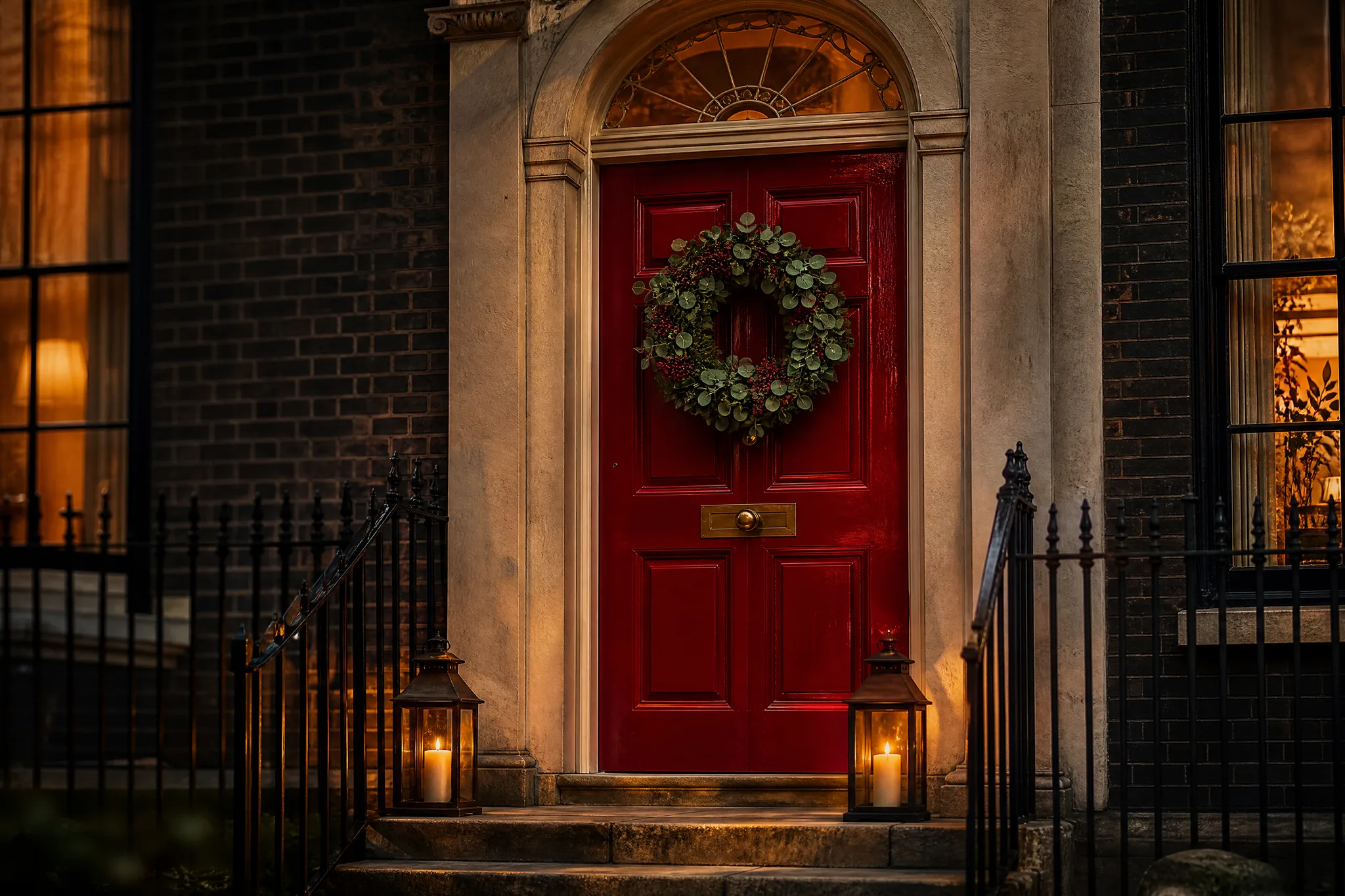
Point FLUX Kontext at a single element: the townhouse door from black to glossy deep red, with one wreath added. Naming the object, the new colour and its finish keeps the edit focused, so the brickwork and windows can stay as they were. Homeowners use this to preview a paint colour before buying it.

Glossy deep-red front door with a single wreath on a townhouse entrance

Keep the Subject in Place

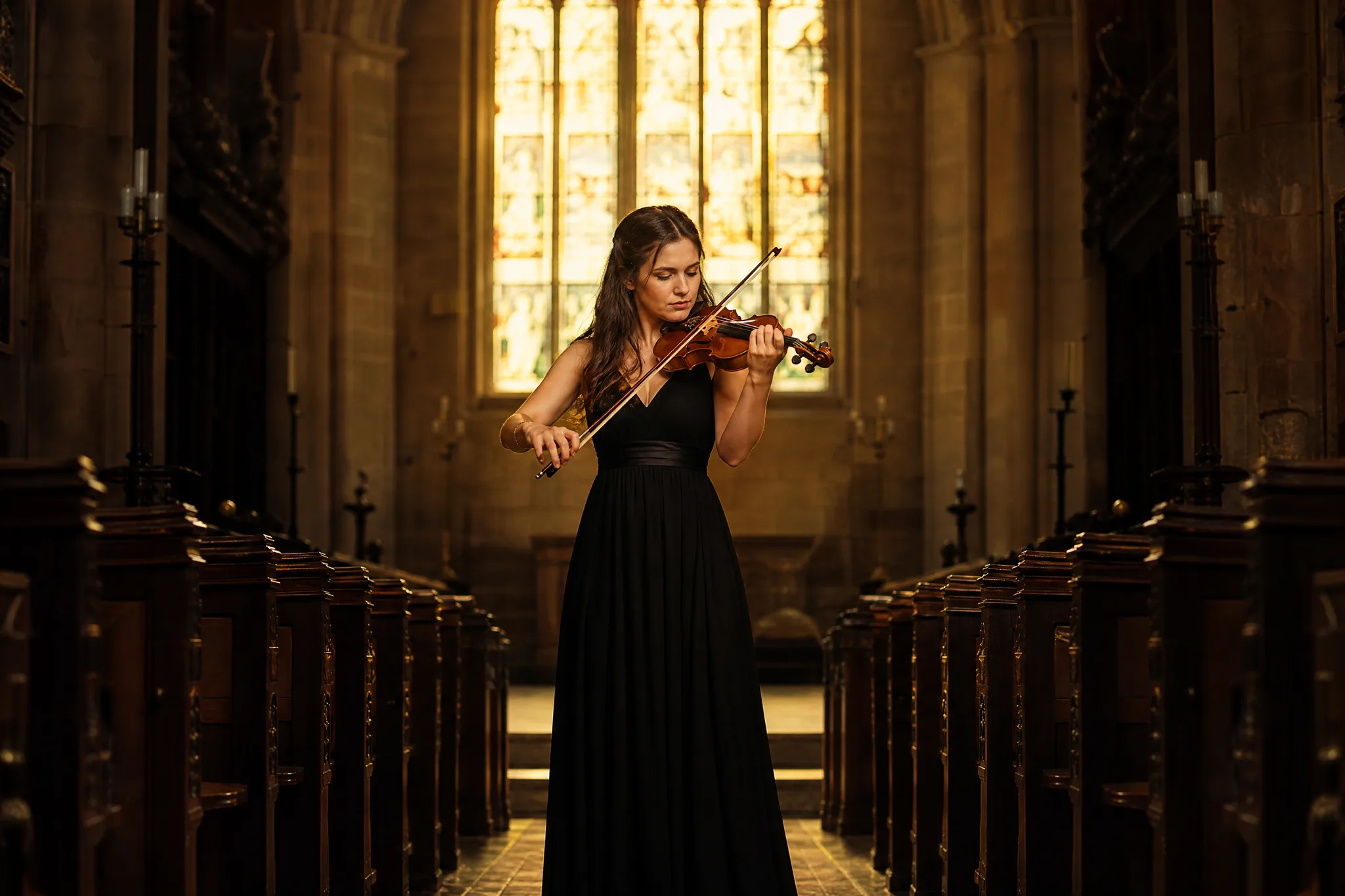
A violinist playing alone in the centre of an empty stone chapel aisle shows why position matters. When you edit, tell FLUX Kontext to keep the person centred and the same size, then change only the surroundings, the lighting or the season. Musicians and wedding photographers use this for posters and album covers.

Violinist playing alone in the middle of an empty stone chapel aisle

Shift Light and Colour

Turn an everyday dinner table into a candlelit setting in ruby and amber tones by describing the light source, the palette and the time of evening. FLUX Kontext text to image prompts can also build the scene from scratch, which helps restaurants and event planners show a mood before the night itself.

Dinner table for two lit by candles in brass holders, glowing in ruby and amber

One Decision per Pass

A chef placing a single herb garnish with tweezers has the right attitude for editing: one deliberate move at a time. Ask FLUX Kontext for one change per run, review it, and only then add the next. The result is a clean history of edits you can step back through whenever a change goes too far.

Chef using tweezers to set one herb garnish on a plated scallop dish

FLUX Kontext Use Cases for Homes, Portraits and Shops

FLUX Kontext suits people with one photo and one change in mind. Here are six examples of who edits what and where the result is used.

Homeowners Planning a Makeover

A homeowner can photograph the front of the house and ask FLUX Kontext for the door in sage green, then again in navy. Comparing the edits on a phone settles the paint decision before a single tin is opened.

Makeup Artists and Salons

A makeup artist can upload a client's portrait and ask FLUX Kontext to add a gold highlight on the cheekbones or switch to a berry lip. Showing the edit before the appointment helps the client choose the look they want.

Holiday-Rental Hosts

A host can turn a summer photo of the lakeside cabin into the same view in autumn or snow with FLUX Kontext. Clearly labelled as seasonal previews, the versions help guests picture a visit at a different time of year.

Restaurants and Caterers

A restaurant can photograph a plated dish and ask FLUX Kontext to swap the garnish or warm the background lighting for an evening menu. The edited photo goes on the seasonal menu card while the recipe itself stays the same.

Fashion and Costume Designers

A designer can upload a dress-form photo and ask FLUX Kontext to change the fabric from cream cotton to burgundy silk. Comparing the two helps decide on the material before ordering, and the edit doubles as a mood-board image.

Wedding and Event Photographers

Photographers can take a ceremony shot and ask FLUX Kontext to remove a stray sign from the background or warm the late-afternoon light. Each edit is checked against the original before it goes into the client gallery.

Stories from People Who Tried It on Their Photos

We argued about the front door colour for a month. I photographed the house, uploaded it to FLUX Kontext and asked for the door in sage green, then navy, then deep red. Seeing all three on the actual house ended the debate in one evening, and we bought a tin of the red the next day.

Olivia Q.
Accountant

FLUX Kontext FAQ

FLUX Kontext questions on what the model edits, how many photos it takes, writing instructions, access, frames and commercial use.

FLUX Kontext is a Black Forest Labs image model that edits a photo according to a written instruction or creates a new image from text. On PicVideo it runs in two variants, Pro and Max, in the image workspace and suits targeted changes to one picture.

Write a FLUX Kontext instruction with a verb, the object and its new state: change the door to glossy red, make it autumn, add soft evening light. Then say what to keep. Short, specific instructions are easier to check than long descriptions of the whole scene.

FLUX Kontext image to image works from one reference image per edit. Upload the single photo you want to change; to combine several photos into one scene, a multi-reference model such as FLUX.2 is the better fit. A text prompt with no photo works too.

FLUX Kontext supports 21:9, 16:9, 4:3, 1:1, 3:4 or 9:16, and output size is set for you. For a one-detail edit, such as changing a jacket colour or clearing a sign from a wall, choose the ratio nearest your original photo so the subject stays where you framed it.

PicVideo starts you off with free credits at sign-up and adds more at each daily check-in, up to 4x on day 7, for free models such as Z-Image Turbo. FLUX Kontext edits run on a PicVideo plan or credit pack, with Max priced above Pro.

FLUX Kontext edits are kept in your library on Pro and Max alike, and the photo you upload is not displayed. If an edit is worth showing, switch it to public yourself, and Explore may feature it.

A FLUX Kontext edit you generate is yours as far as the law allows, which the PicVideo Terms confirm, and the source photo keeps its own rights. Because FLUX Kontext changes only the detail you name, check that the product, place or person still looks the way customers will see it in real life.

Change One Detail with FLUX Kontext

Upload the photo, name the one thing to change and what to keep, and let FLUX Kontext produce the edit with Pro or Max. Compare it with the original, run the next change as a new pass and download the version you are happy with.

Make an image with FLUX Kontext
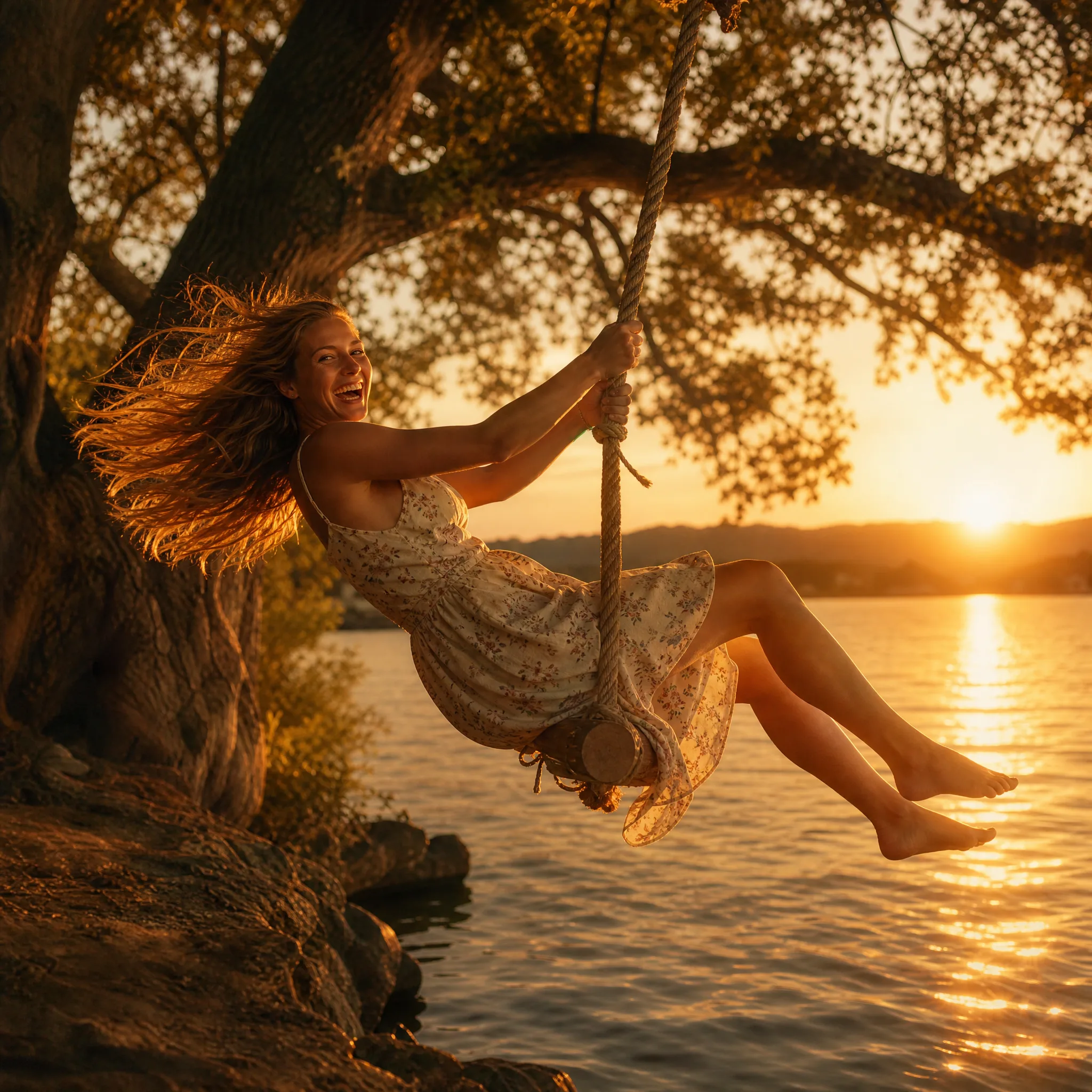
Woman laughing as she swings on a rope out over a lake at sunset